
-
Contents
-
Table of Contents
-
Bookmarks
Quick Links
Grandstream Networks, Inc.
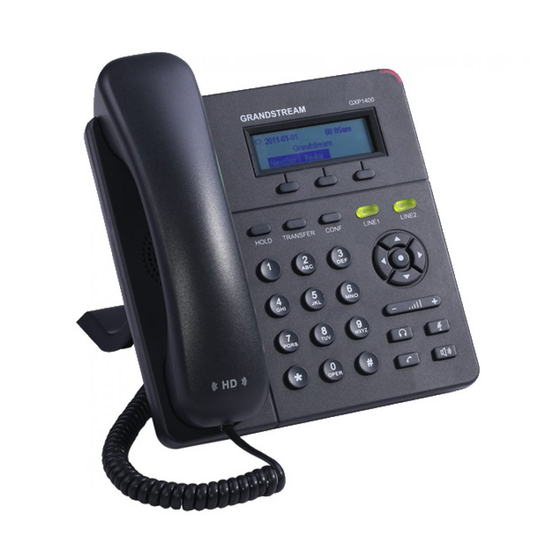
GXP1400/GXP1405
Small-Medium Business IP Phone
GXP1400/GXP1405 USER MANUAL
Related Manuals for Grandstream Networks GXP1400
Summary of Contents for Grandstream Networks GXP1400
-
Page 1
Grandstream Networks, Inc. GXP1400/GXP1405 Small-Medium Business IP Phone GXP1400/GXP1405 USER MANUAL… -
Page 2: Table Of Contents
GXP1400/GXP1405 User Manual Index GNU GPL INFORMATION …………….5 CHANGE LOG ………………..6 FIRMWARE VERSION 1.0.4.23 ………………….6 FIRMWARE VERSION 1.0.4.13 ………………….6 WELCOME ………………..7 PRODUCT OVERVIEW…………….. 8 FEATURE HIGHTLIGHTS ……………………8 GXP1400/GXP1405 TECHNICAL SPECIFICATIONS …………….. 8 INSTALLATION ………………. 10 EQUIPMENT PACKAGING……………………
-
Page 3
SHARED CALL APPEARANCE (SCA) ………………22 CALL FEATURES ……………………..23 CUSTOMIZED LCD SCREEN & XML ………………..24 CONFIGURATION GUIDE …………….26 CONFIGURATION VIA KEYPAD ………………….. 26 CONFIGURATION VIA WEB BROWSER ………………30 DEFINITIONS ………………………. 30 STATUS PAGE DEFINITIONS ………………..31 ACCOUNT PAGE DEFINITIONS ……………….. -
Page 4
Figure 3: GXP1400/GXP1405 Web GUI — Contacts ……………… 53 Figure 4: GXP1400/GXP1405 Click-to-Dial………………..54 GUI Interface Examples GXP1400/GXP1405 User Manual http://www.grandstream.com/products/gxp_series/general/documents/gxp21xx_gui.zip 1. Screenshot of Configuration Login Page 2. Screenshot of Status Page 3. Screenshot of Basic Setting Configuration Page 4. Screenshot of Advanced User Configuration Page 5. -
Page 5: Gnu Gpl Information
GXP1400/GXP1405 firmware contains third-party software licensed under the GNU General Public License (GPL). Grandstream uses software under the specific terms of the GPL. Please see the GNU General Public License (GPL) for the exact terms and conditions of the license.
-
Page 6: Change Log
CHANGE LOG This section documents significant changes from previous versions of GXP1400/GXP1405 user manuals. Only major new features or major document updates are listed here. Minor updates for corrections or editing are not documented here. FIRMWARE VERSION 1.0.4.23 • Added «Use Privacy Header» and «Use P-Preferred-Identity Header» options in web GUI. [ACCOUNT PAGE DEFINITIONS] •…
-
Page 7: Welcome
IP phone with affordable cost. Caution: Changes or modifications to this product not expressly approved by Grandstream, or operation of this product in any way other than as detailed by this User Manual, could void your manufacturer warranty. Warning: Please do not use a different power adaptor with the GXP1400 as it may cause damage to the products and void the manufacturer warranty.
-
Page 8: Product Overview
PRODUCT OVERVIEW FEATURE HIGHTLIGHTS • 128×40 pixel graphical LCD display • 2 line keys with dual-color LED (2 SIP accounts and up to 2 call appearances), 3 XML programmable context-sensitive soft keys, 3-way conference • HD wideband handset, hands-free speakerphone with advanced acoustic echo cancellation •…
-
Page 9
Base Stand Yes, 2-angle positions available Wall Mountable Layer 2 (802.1Q, 802.1p) and Layer 3 (ToS, DiffServ, MPLS) QoS User administrator level passwords, MD5-sess based Security authentication, 256-bit AES encrypted configuration file, TLS, SRTP, 802.1x media access control English, German, Italian, French, Spanish, Portuguese, Russian, Croatian, Multi-language Simplified Chinese, traditional Chinese, Korean, Japanese, and etc Upgrade… -
Page 10: Installation
INSTALLATION EQUIPMENT PACKAGING Table 2: GXP1400/GXP1405 EQUIPMENT PACKAGING Main Case Yes (1) Handset Yes (1) Phone Cord Yes (1) Power Adaptor Yes (1) Ethernet Cable Yes (1) Phone Stand Yes (1) Quick Start Guide Yes (1) Wall Mount Spacers Yes (2) CONNECTING YOUR PHONE Figure 1: GXP1400/GXP1405 Ports FIRMWARE VERSION 1.0.4.23…
-
Page 11: Safety Compliances
If the phone was purchased directly from Grandstream, contact the Grandstream Sales and Service Representative for a RMA (Return Materials Authorization) number before the product is returned. Grandstream reserves the right to remedy warranty policy without prior notification.
-
Page 12: Using The Gxp1400/Gxp1405
USING THE GXP1400/GXP1405 GETTING FAMILAR WITH THE LCD GXP1400/GXP1405 has a dynamic and customizable screen. The screen displays differently depending on whether the phone is idle or in use (active). The following table describes the items displayed on the GXP1400/GXP1405 idle screen. Table 4: GXP1400/GXP1405 DISPLAY DEFINITIONS Displays the current date and time.
-
Page 13: Getting Familar With The Keypad
Speaker Status. OFF — speaker off ON — speaker on Headset Status. OFF — headset off ON — headset on DND Status. OFF — Do Not Disturb disabled ON — Do Not Disturb enabled Call Forward Status. OFF — Call Forward feature disabled ON — Call Forward feature enabled MUTE Status.
-
Page 14: Making Phone Calls
Headset. Speaker. Send/Redial. • Send. Enter the digits and then press Send to dial out the number; • Redial. Redial when there is a previously dialed call. Navigation Keys/Menu. • Press the 4 navigation keys to move up/down/left/right; • Press the round button in the center to enter Keypad Configuration MENU when phone is in idle;…
-
Page 15: Completing Calls
For example: If 2 independent accounts are registered on GXP1400/GXP1405, when LINE 1 is pressed, the LINE 1 LED will light up in green. If LINE 2 is pressed, the LINE 2 LED will light up in green and the subsequent call will be made through SIP account 2.
-
Page 16
Press MENU button to bring up the main menu; Enter Call History and select «Answered Calls», «Missed Calls», «Transferred Calls» or «Forwarded Calls»; Select the entry you would like to call using the navigation arrow keys; Press SEND button to dial out. •… -
Page 17: Making Calls Using Ip Addresses
• If digits have been entered after handset is off hook, the SEND key will works as SEND instead of REDIAL; • By default, # can be used as SEND to dial the number out. Users could disable it by setting «User # as Dial Key»…
-
Page 18: Answering Phone Calls
phones are under the same LAN/VPN. This simulates a PBX function using the CMSA/CD without a SIP server. Controlled static IP usage is recommended. To enable Quick IP Call Mode, go to GXP1400/GXP1405 Web GUI->Advanced Setting page, set «Use Quick IP Call Mode» to «Yes». Click on «Update» on the bottom of the Web GUI page to take the change. To make Quick IP Call, take the phone off hook first.
-
Page 19: During A Phone Call
• Press the Menu button and select «Preference» using navigation keys; • Press Menu button again to get into Preference options; • Select «Do Not Disturb» and press Menu button; • Use arrow keys to select and press Menu button to enable or disable «Do Not Disturb» feature. When Do Not Disturb feature is turned on, the DND icon will appear on the right side of the LCD.
-
Page 20: 3-Way Conferencing
Press TRAN key; Press the other LINE key which is on hold to transfer the call. • Auto-Attended Transfer. Set «Auto-Attended Transfer» to «Yes» under Web GUI->Advanced Settings page. And then click «Update» on the bottom of the page; …
-
Page 21
This will resume the 2-way conversation with the current line. • Split and Re-conference. During the 3-way conference, press HOLD key. The conference call will be split and both calls will be put on hold separately with 2 LINE keys blinking in green; … -
Page 22: Voice Messages (Message Waiting Indicator)
• End Conference. Press HOLD key to split the conference call. The conference call will be ended with both calls on hold; Or Users could press the EndCall softkey or simply hang up the call to terminate the conference call. Note: •…
-
Page 23: Call Features
button. However, if this call is placed on private-hold, no other member of the SCA group will be able to resume that call. To enable shared call appearance, the user would need to register the shared line account on the phone. In addition, they would need to navigate to “Settings”->”Basic Settings”…
-
Page 24: Customized Lcd Screen & Xml
Unconditional Call Forward. To set up unconditional call forward: • Off hook the phone; • Dial *72 and then enter the number to forward the call; • Press OK softkey or SEND key. Cancel Unconditional Call Forward. To cancel the unconditional call forward: •…
-
Page 25
• XML custom idle screen (customize idle screen logo, softkey layout, and etc.) http://www.grandstream.com/products/gxp_series/general/documents/GXP140x_XML_Screen_Custo mization.zip • XML downloadable phonebook http://www.grandstream.com/products/gxp_series/general/documents/gxp_wp_xml_phonebook.pdf FIRMWARE VERSION 1.0.4.23 GXP1400/GXP1405 USER MANUAL Page 25 of 60… -
Page 26: Configuration Guide
CONFIGURATION GUIDE The GXP1400/GXP1405 can be configured via two ways: • LCD Configuration Menu using the phone’s keypad; • Web GUI embedded on the phone using PC’s web browser. CONFIGURATION VIA KEYPAD To configure via the LCD configuration menu using phone’s keypad, follow the instructions below: •…
-
Page 27
searching. Instant Messages Displays received instant messages. Direct IP Call Makes direct IP call. Preference sub menu includes the following options: • Do Not Disturb Enables/disables Do Not Disturb on the phone. • Forward Call Configures call forward feature on selected account, forward type and number. -
Page 28
• Upgrade Configures firmware server and config server for upgrading and provisioning the phone. • Factory Reset Resets the phone to factory default settings. • Layer 2 QoS Configures 802.1Q/VLAN Tag and priority value. Factory Functions sub menu includes the following options: •… -
Page 29: Figure 2: Gxp1400/Gxp1405 Keypad Menu Flow
Answered Calls First Name Dialed Calls Last Name Missed Calls Number Transferred Calls Acct Forwarded Calls Groups MENU Clear All Confirm Add Back Cancel & Return Server Address Groups Call History Port New Entry Base Search User Name Download Phonebook XML Status Password Delete All Entries…
-
Page 30: Configuration Via Web Browser
CONFIGURATION VIA WEB BROWSER The GXP1400/GXP1405 embedded Web server responds to HTTP/HTTPS GET/POST requests. Embedded HTML pages allow a user to configure the IP phone through a Web browser such as Microsoft’s IE, Mozilla Firefox and Google Chrome. To access the GXP1400/GXP1405 Web GUI: 1.
-
Page 31: Status Page Definitions
• Status: Displays the Account status, Network status, and System Info of the phone; • Account: To configure the SIP account; • Basic Settings: To configure basic network settings, time settings, Line keys, and etc; • Advanced Settings: To configure advanced network settings, upgrading and provisioning, language settings, call features, and etc.
-
Page 32
your VoIP service provider (ITSP). The URL or IP address, and port of the SIP server. This will be used Secondary SIP Server when the primary SIP server fails. IP address or Domain name of the Primary Outbound Proxy, Media Gateway, or Session Border Controller. -
Page 33
Specifies the frequency (in minutes) in which the phone refreshes its Register Expiration registration with the specified registrar. The default value is 60 minutes. The maximum value is 64800 minutes (about 45 days). Specifies the time frequency (in seconds) that the phone sends Reregister Before Expiration re-registration request before the Register Expiration. -
Page 34
«STUN» cannot be used if the detected NAT is symmetric NAT. When set to «Yes», a SUBSCRIBE for Message Waiting Indication will SUBSCRIBE for MWI sent periodically. phone supports synchronized non-synchronized MWI. The default setting is «No». When set to «Yes», a SUBSCRIBE for Registration will be sent out SUBSCRIBE for Registration periodically. -
Page 35
<2=011> — replace digit 2 with 011 when dialing g) | — the OR operand • Example 1: {[369]11 | 1617xxxxxxx} Allow 311, 611, and 911 or any 10 digit numbers with leading digits 1617; • Example 2: {^1900x+ | <=1617>xxxxxxx} Block any number of leading digits 1900 or add prefix 1617 for any dialed 7 digit numbers;… -
Page 36
When enabled, Do No Disturb, Call Forward and other call features will be supported locally provided ITSP support those features. The default Enable Call Features setting is «Yes». If set to «No», ForwardAll softkey will be hidden for Account 1. Configures Call Log setting on the phone. -
Page 37
from different ringtones from the dropdown menu. Specifies matching rules with number, pattern or Alert Info text. When the incoming caller ID or Alert Info matches the rule, the phone will ring with selected distinctive ringtone. Matching rules: • Specific caller ID number. For example, 8321123; •… -
Page 38
If set to «Yes», SIP User ID will be checked in the Request URI of the Check SIP User ID for incoming INVITE. If it doesn’t match the phone’s SIP User ID, the call will incoming INVITE be rejected. The default setting is «No». 7 different vocoder types are supported on the phone, including G.711 U-law (PCMU), G.711 A-law (PCMA), G.723.1, G.729A/B, G.722 (wide Preferred Vocoder… -
Page 39: Settings/Basic Settings Page
setting is «Medium». Configures the conference URI when using Broadsoft N-way calling Conference URI feature. Controls whether the Privacy Header will present in the SIP INVITE message or not. The default setting is «default», which is when «Huawei Use Privacy Header IMS»…
-
Page 40
PPPoE Account ID Enter the PPPoE account ID. PPPoE Password Enter the PPPoE Password. PPPoE Service Name Enter the PPPoE Service Name. IPv4 Address Enter the IP address when static IP is used. Subnet Mask Enter the Subnet Mask when static IP is used for IPv4. Gateway Enter the Default Gateway when static IP is used for IPv4. -
Page 41
UserID can be left blank. • Share Line Share line for Shared Line Appearance feature. Select the Account registered as Shared line for the line key. The Name and UserID can be left blank. • Speed Dial Select the Account to dial from. And enter the Speed Dial number in UserID field to be dialed. -
Page 42
Configures the date/time used on the phone according to the specified Time Zone time zone. This parameter allows the users to define their own time zone. The syntax is: std offset dst [offset], start [/time], end [/time] Default is set to: MTZ+6MDT+5,M4.1.0,M11.1.0 MTZ+6MDT+5 This indicates a time zone with 6 hours offset with 1 hour ahead which is U.S central time. -
Page 43
The default setting is in 12-hour format. When it’s set to «Yes», the DTMF digits entered during the call will not Disable in-call DTMF Display display. The default setting is «No». Configures to enable or disable the speaker to ring when headset is used on «Toggle Headset/Speaker»… -
Page 44: Settings/Advanced Settings Page
SETTINGS/ADVANCED SETTINGS PAGE Allows users to change the admin password. The password field is Admin Password purposely hidden after clicking the Update button for security purpose. This field is case sensitive with a maximum length of 30 characters. Confirm Password Confirms the admin password field to be the same as above.
-
Page 45
HTTP/HTTPS User Name The user name for the HTTP/HTTPS server. HTTP/HTTPS Password The password for the HTTP/HTTPS server. Allows users to choose the firmware upgrade method: TFTP, HTTP or Upgrade Via HTTPS. Defines the server path for the firmware server. It could be different from Firmware Server Path the configuration server for provisioning. -
Page 46
LDAP Directory: Base Example: dc=grandstream, dc=com ou=Boston, dc=grandstream, dc=com Configures the bind «Username» for querying LDAP servers. Some LDAP Directory: User Name LDAP servers allow anonymous binds in which case the setting can be left blank. -
Page 47
starting with the entered prefix; (!(sn=%)) returns all the records which do not have the «sn» field starting with the entered prefix; (&(cn=%) (telephoneNumber=*)) returns all the records with the «cn» field starting with the entered prefix and «telephoneNumber» field set. Selects the protocol version for the phone to send the bind requests. -
Page 48
cn sn description Configures to enable idle screen XML download. Users could select Idle Screen XML Download HTTP/HTTPS/TFTP to download the XML idle screen file. The default setting is «No». Download Screen XML At If set to «Yes», the idle screen XML file will be downloaded when the Bootup phone boots up. -
Page 49
Configures to turn on/off public mode for hot desking feature on the phone. If set to «Yes», users would need fill in the SIP Server address for account 1 as well. Then reboot the phone. When the phone boots up, users will need enter SIP User ID and Password on the LCD to login and Public Mode use the phone. -
Page 50
SIP server is required to make quick IP call. The default setting is «No». Disable Conference Disables the Conference function. The default setting is «No». Enables Multi Purpose Key to send DTMF during the call. The default Enable MPK sending DTMF setting is «No». -
Page 51: Nat Settings
Download Device Click to download the device configuration file in .txt format. Configuration NAT SETTINGS If the devices are kept within a private network behind a firewall, we recommend using STUN Server. The following settings are useful in the STUN Server scenario: •…
-
Page 52: Public Mode
By default the City Code is set to «Automatic», which allows the phone to obtain weather information based on the IP location detected. To use «Self-Defined City Code» option, please follow the steps below to obtain the correct city code: •…
-
Page 53: Figure 3: Gxp1400/Gxp1405 Web Gui — Contacts
Click select Click Click to input number group search and dial from available dropdown menu. phonebook. lines. Click to edit this contact. Click Click to export Click to import Click to call Click to download add new phonebook in phonebook this contact contact XML format.
-
Page 54: Figure 4: Gxp1400/Gxp1405 Click-To-Dial
Figure 4: GXP1400/GXP1405 Click-to-Dial Additionally, users could directly send the command for the phone to dial out by specifying the following URL in PC’s web browser, or in the field as required in other call modules. http://ip_address/cgi-bin/api-make_call?phonenumber=1234&account=0&password=admin In the above link, replace the fields with •…
-
Page 55
• password=admin: The admin login password of phone’s Web GUI. SAVING THE CONFIGURATION CHANGES After users makes changes to the configuration, press the Update button on the bottom of the Web GUI page. We recommend rebooting or powering cycle the IP phone after saving changes. REBOOTING FROM REMOTE LOCATIONS Press the Reboot button on the bottom of the web GUI page to reboot the phone remotely. -
Page 56: Upgrading And Provisioning
TFTP/HTTP/HTTPS server and selecting a download method. Configure a valid URL for TFTP or HTTP; the server name can be FQDN or IP address. Examples of valid URLs: firmware.grandstream.com fw.ipvideotalk.com/gs There are two ways to setup a software upgrade server: The IVR Menu or the Web Configuration Interface.
-
Page 57: No Local Tftp/Http Servers
LAN environment whenever possible. NO LOCAL TFTP/HTTP SERVERS For users that would like to use remote upgrading without a local TFTP/HTTP server, Grandstream offers a NAT-friendly HTTP server. This enables users to download the latest software upgrades for their phone via this server.
-
Page 58
«cfgxxxxxxxxxxxx.xml» file is not successful, the provision program will download a generic cfg.xml file. The configuration file name should be in lower case letters. For more details on XML provisioning, please refer to: http://www.grandstream.com/general/gs_provisioning_guide_public.pdf FIRMWARE VERSION 1.0.4.23 GXP1400/GXP1405 USER MANUAL… -
Page 59: Restore Factory Default Settings
Restoring the Factory Default Settings will delete all configuration information on the phone. Please backup or print all the settings before you restore to the factory default settings. Grandstream is not responsible for restoring lost parameters and cannot connect your device to your VoIP service provider.
-
Page 60: Experiencing The Gxp1400/Gxp1405
Thank you again for purchasing Grandstream IP phone, it will be sure to bring convenience and color to both your business and personal life. FIRMWARE VERSION 1.0.4.23 GXP1400/GXP1405 USER MANUAL…
This manual is also suitable for:
Gxp1405
Для настройки телефона в первую очередь вам необходимо подсоединить кабель LAN к аппарату, и узнать его IP адрес.
Для этого нажимаете Меню, Статус, Статус сети.
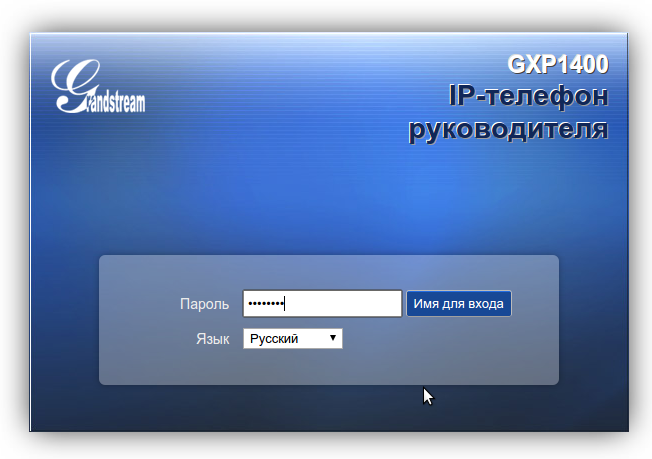
Вбиваем этот адрес в браузер компьютера, чтобы открыть панель управления.
Пароль для входа обычно указан в инструкции к аппарату, по умолчанию – admin.
После аутентификации вы попадаете в панель управления.
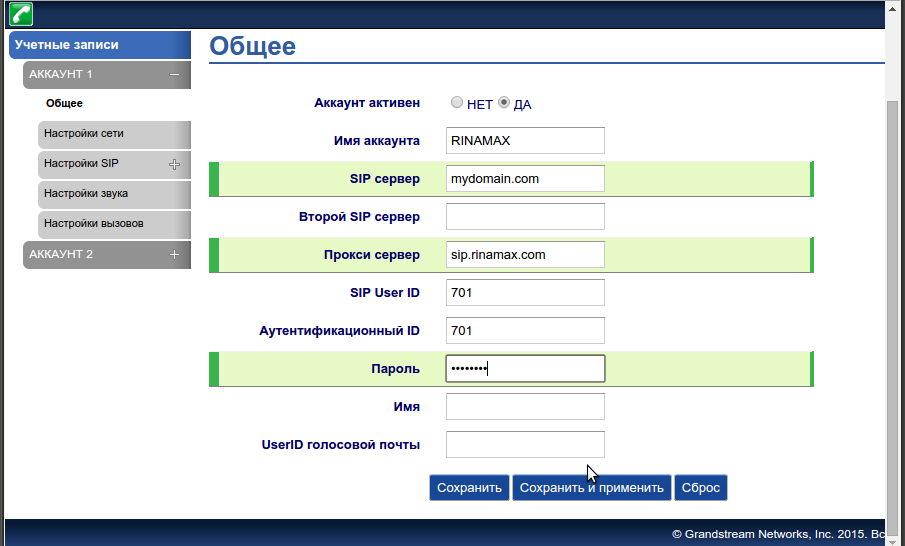
Теперь нам необходимо зарегистрировать телефон в системе. Для этого переходим во вкладку Учетные записи.
Заполните поля по примеру как на изображении. Для примера будем настраивать внутреннего пользователя 701.
- Имя аккаунта: 701
- SIP сервер: mydomain.com
- SIP User ID: 701
- Идентификационный ID: 701
- Прокси сервер: sip.digitoffice.ru
- Идентификационный ID: 701
- Режим DNS: Запись
- Транспорт SIP: UDP
- Проброс NAT: Нет
- Outbound Proxy Mode: not in route
- Удалять OBP из маршрута: Да
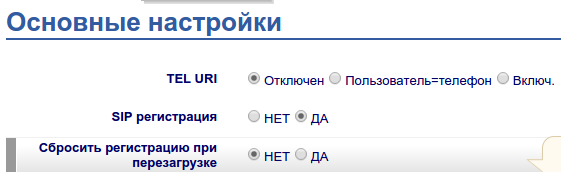
Перейдите в меню Настройки SIP > Основные настройки и включите SIP регистрацию
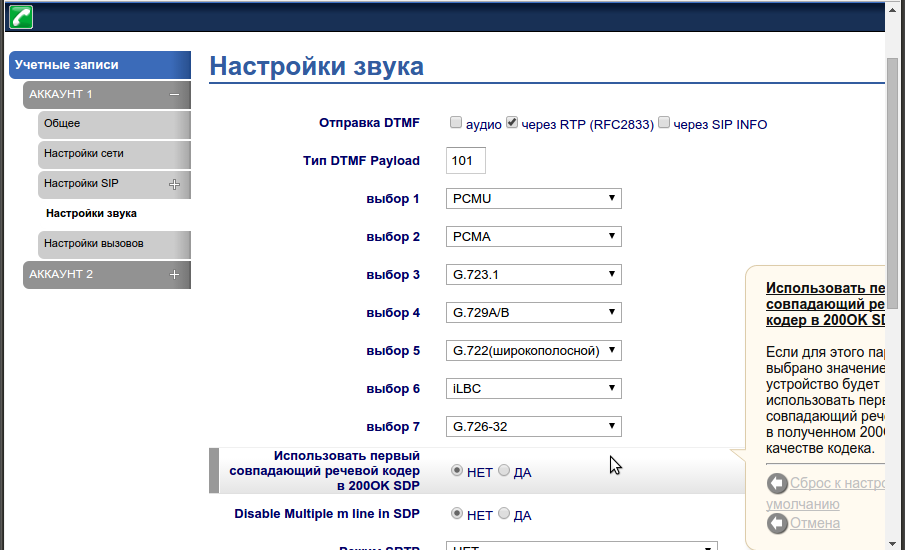
Так же необходимо убедиться, что аудиокодеки выставлены в правильной последовательности.
Для этого переходим во вкладку Настройка звука, и выставляем приоритеты —
- Выбор 1: PCMU
- Выбор 2: PCMA
Так же рекомендуется установить использование произвольного порта для входящих звонков, вместо 5060 (Use Random Port) и
разрешить принимать входящие звонки только с сервера регистрации (Allow Incoming SIP Messages from SIP Proxy Only).
После этих настроек необходимо сделать тестовые звонки. Если у вас не удается сделать тестовый звонок, еще раз
пересмотрите настройки. Если и после этого не удается позвонить, сделайте скриншоты ваших настроек, и пришлите
их нам в службу поддержки.
(скачивание инструкции бесплатно)
Формат файла: PDF
Доступность: Бесплатно как и все руководства на сайте. Без регистрации и SMS.
Дополнительно: Чтение инструкции онлайн

Grandstream Networks, Inc.
1297 Beacon Street, 2nd Floor
Brookline, MA 02446. USA
Tel : +1 (617) 566 – 9300
Fax: +1 (617) 249 – 1987
www.grandstream.com
For Warranty and RMA information, please visit www.grandstream.com
GXP1400/1405
Small-Medium Business IP Phone
Quick Start Guide
Страница:
(1 из 23)
навигация

1

2

3

4

5

6

7

8

9

10

11

12

13

14

15

16

17

18

19

20

21

22

23
Оглавление инструкции
- Страница 1 из 24
Grandstream Networks, Inc. 1297 Beacon Street, 2nd Floor Brookline, MA 02446. USA Tel : +1 (617) 566 – 9300 Fax: +1 (617) 249 – 1987 www.grandstream.com For Warranty and RMA information, please visit www.grandstream.com GXP1400/1405 Small-Medium Business IP Phone Quick Start Guide - Страница 2 из 24
Content English…………………………………………………………………….1 简体中文………………………………………………………………..7 Español………………………………………………………………….13 - Страница 3 из 24
EN The GXP1400/1405 is not pre-configured to support or carry emergency calls to any type of hospital, law enforcement agency, medical care unit (“Emergency Service(s)”) or any other kind of Emergency Service. You must make additional arrangements to access Emergency Services. It is Your - Страница 4 из 24
PHONE SETUP: Installing the Phone (Phone Stand): Wall mount holes are available For installing the phone on the table with the phone stand, attach the phone stand to the bottom of the phone where there is a slot for the phone stand (upper part, bottom part). CONNECTING THE PHONE: Slot for the phone - Страница 5 из 24
Tips For Using the Keypad: Message Waiting Indicator Transfer Hold Soft Keys Conference Line Keys Navigation Keys Menu/OK Key Standard Keypad Volume Mute Headset Speaker Send 1. To access the MENU, press the round MENU button. 2. Navigate the menu by using the UP/DOWN and LEFT/RIGHT buttons. 3. - Страница 6 из 24
ZH GXP1400/1405不预设对医院,执法机构,医 疗中心(急救服务)以及各种紧急服务的紧急通 话服务。用户必须自行设定紧急通话功能。用 户必须自行购买SIP兼容的网络电话服务,正 确的设定GXP1400/1405使用该服务,并定期 测试您的配置以确保GXP1400/1405如预期工 作,否则请购买传统无线或有线电话服务来拨 打紧急通话。 Grandstream Networks 公司的GXP1400/ 1405不支持紧急通话服务。Grandstream Networks 公司、其管理者和员工以及其相关机构 对此所造成的任何索赔、损失或者损害都不负 - Страница 7 из 24
安装电话: 安装电话 (桌面支架): 墙体支架插槽 将桌面支架插入电话背面的支架插槽中。用户可以使用两排插槽中的一排,不用 的插槽用于不同的倾斜角度。 电话的连接: 桌面支架插槽 墙体支架配件插槽 安装电话 (墙体支架): 1. 将墙体支架插入电话背面的支架插槽中; 2. 通过墙孔将电话固定在墙上; 3. 如下图所示,将话机手柄槽下方的扣机零件取出; PC端口 网络连接端口 5V电源 4. 将该零件倒转,然后重新插入原处。此时零件凸出处在外,当电话使用墙体支 架固定在墙上时,手柄可以垂直地稳定扣入手柄槽中,不会滑落。 话机手柄插槽 凸出处向上 耳机 手柄 连线步骤: 1. - Страница 8 из 24
使用GXP1400/1405键盘: 信息指示灯 转接 保持 软按键 会议 线路键 导航键 菜单/确定按键 标准键盘 音量 静音 耳机 免提 发送 1. 当电话处于空闲状态,按下菜单/确定按键进入菜单选项; 通过键盘配置GXP1400/1405 : 2. 使用方向选择按键 “上”“下”“左”“右”选择菜单选项; 1. 确保电话处于空闲状态; 3. 按下菜单/确定按键确定选项; 2. 按下菜单/确定按键进入菜单选项;. 4. 当有来电进入,提起电话手柄、使用免提键或者电话处于菜单状态中60秒之 后,电话将自动退出菜单选项。 3. - Страница 9 из 24
ES El GXP1400/1405 no esta pre-configurado para soportar o realizar llamadas de emergencia a ningún tipo de hospital, agencia policial, unidad de cuidado medico o cualquier otro servicio de emergencia. Es su responsabilidad contratar un servicio de telefonía de Internet compatible con el protocolo - Страница 10 из 24
Instalando El Teléfono (Soporte de Teléfono) : Adaptando el Teléfono: Los Orificios de Montaje en Pared están disponibles Para instalar el teléfono sobre el escritorio con el soporte de teléfono, fijar el teléfono con la parte inferior, donde hay una ranura para el soporte del teléfono (Parte - Страница 11 из 24
Consejos para usar el Teclado: Indicador de Mensaje en Espera Transferencia Retener Teclas Suaves Programables Conferencia Teclas de Líneas Teclas de Navegación Tecla de Menú/OK Teclado Estándar Volumen Silencio Headset Altavoz Enviar 1. Para acceder al menú, pulse el botón MENU de forma - Страница 12 из 24
FR Précautions: Le GXP1400/1405 n’est pas préconfiguré pour pren-dre en charge ou acheminer les appels d’urgence adressés aux hôpitaux, organismes chargés de l’app-lication de la loi, centres de soins médicaux (« serv-ice(s) d’urgence ») ou tout autre type de service d’urgence. Vous devez prendre - Страница 13 из 24
Installation du téléphone (Support du téléphone) : INSTALLATION DU téléphone: Les orifices du socle de montage murale sont disponible Pour installer le téléphone sur la table avec le support du téléphone, attachez ce dernier à la fente placée à la base du téléphone (Partie Supérieure, - Страница 14 из 24
Astuces pour utiliser le clavier du téléphone: Indicateur du message en attente Transfert Mise en attente Touchede fonction Conférence Touches de ligne Boutonsde navigation BoutonMenu/OK Clavier standard Volume Muet Casque Haut parleur Envoyer 1. Pour accéder au menu, appuyez sur la touche ronde - Страница 15 из 24
DE Das GXP1400/1405 ist nicht für die Durchführung von Notrufen an Krankhäuser, Strafverfolgungsbehörden, medizinische Pflegeeinrichtungen („Notdienste“) oder jegliche andere Form von Notdiensten ausgerichtet. Sie müssen zusätzliche Einstellungen vornehmen, um Zugang zu Notdiensten zu erhalten. Es - Страница 16 из 24
Telefoninstallation: Telefoninstallation (Telefonstandplatz): Wa n d b e f e s t i g u n g slöcher sind lieferbar Für die Installation des Telefons auf den Tisch mit dem Telefonstandplatz, bringen Sie den Telefonstandplatz an der Unterseite des Telefons an, in dem es einen Steckplatz für den - Страница 17 из 24
Tipps zum Gebrauch des Tastenfeldes: Mitteilungwarteanzeige Transfer Halten Softkeys Konferenz Haupttasten Navigationstasten Menü/OK Taste Standardtastatur Volume Stumm Hörer Sprecher Senden 1. Um auf das Menü zuzugreifen, betätigen Sie die runde MENÜ-Taste. 2. Navigieren Sie mit den Tasten NACH - Страница 18 из 24
IT PRECAUZIONI: GXP1400/1405 non è preconfigurato per supportare o effettuare chiamate di emergenza a qualsiasi tipo di ospedale, struttura giudiziaria, unità di assistenza medica (“Servizi di emergenza”) o a qualsiasi altro tipo di servizio di emergenza. È necessario effettuare accordi - Страница 19 из 24
Installazione del telefono (supporto telefono): MONTAGGIO TELEFONO: Sono disponibili fori per il fissaggio a muro Per installare il telefono sul tavolo con il supporto telefono, fissare il supporto alla base del telefono dove si trova un alloggiamento per tale supporto. (Parte superiore, parte - Страница 20 из 24
Consigli per l’uso della tastiera: Messaggio Indicatore in attesa Trasferimento Agganciare Tasti funzione Conferenza Tasti linea Tasti di navigazione TastoMenu/OK Tastierino standard Volume Mute Cuffia auricolare Altoparlante Invia 1. Per accedere al MENU, premere il pulsante tondo MENU. 2. - Страница 21 из 24
RU GXP1400/1405 не настроен заранее для поддержки и осуществления экстренных вызовов в больницу, правоохранительные органы, учреждения медицинской помощи (“Экстренная служба(-ы)” или другие Экстренные Службы. Чтобы получить доступ к Экстренным Службам необходимо заключить дополнительные соглашения. - Страница 22 из 24
Телефонная компоновка: Установка телефона на горизонтальную поверхность: Отверстие для крепления на стене Для расположения телефона на столе используйте подставку. Установите подставку на тыльной стороне телефона в специальные отверстия, а затем вдвиньте подставку по направляющим. Телефонные - Страница 23 из 24
Обозначение клавиш: Индикатор пропущенных вызовов Переадресация Удержание линии Стандартная цифровая клавиатура Экранная клавиатура Конференция Кнопки линии Кнопки навигации Меню/Кнопка подтверждения ввода данных Громкость Отключении микрофона Головные телефоны, наушники Громкоговоритель Передавать - Страница 24 из 24
Инструкции и руководства похожие на GRANDSTREAM NETWORKS GXP1400
Другие инструкции и руководства из категории Телефон
-
Страница 1
GXP2120/GXP21 10/GXP2100/GXP14xx USER MANUAL Grandstream Networks, Inc. GX P2120/GXP21 10/GXP2100/GXP14xx SIP Enterprise Phones[…]
-
Страница 2
FIRM WARE VERSION 1.0.5. 26 GXP2120/GXP21 10/GXP2100/GXP14xx USER MANUAL Page 2 of 77 GXP2120/GXP21 10/GXP2100/GXP14xx User Manual Index GUI INTERF A CE EXA MPLES ………………………………………………………….. 5 GNU GPL INFOR MA TION ……………………………………………………………….. 6 CHANGE L OG …..[…]
-
Страница 3
FIRM WARE VERSION 1.0.5. 26 GXP2120/GX P21 10/GXP21 00/GXP14xx USER MANUAL Page 3 of 77 DURING A PHON E CALL …………………………………………………………………………………………………….. 31 CALL WA ITING/CAL L HOLD ……………………………………………………………………………………[…]
-
Страница 4
FIRM WARE VERSION 1.0.5. 26 GXP2120/GX P21 10/GXP21 00/GXP14xx USER MANUAL Page 4 of 77 T able of T ables GXP2120/GXP21 10/GXP2100 /GXP14x x User M anual T able 1 : GXP2120 /GXP21 10/GX P2100/GXP14xx FEA TURES IN A GLANCE …………………………………… 10 T able 2 : GXP2120 /GXP21 10/GX P2100/GXP14xx CO MP ARISON G UIDE …………….[…]
-
Страница 5
FIRM WARE VERSION 1.0.5. 26 GXP2120/GX P21 10/GXP21 00/GXP14xx USER MANUAL Page 5 of 77 GUI INTERF ACE EXAMPLES http://www . grandstream .com /products/gxp_se ries/general/docum ents/gxp21xx_g ui.zip 1. Screenshot of Login Page 2. Screenshots of S tatus Pages 3. Screenshots of Accounts Pages 4. Screenshots of Settings Pages 5. Screenshots of Networ[…]
-
Страница 6
FIRM WARE VERSION 1.0.5. 26 GXP2120/GX P21 10/GXP21 00/GXP14xx USER MANUAL Page 6 of 77 GNU GPL INFORMA TION GXP2120/GXP21 1 0/GXP2100/G XP14xx firm ware contain s third-part y software licensed under t he GNU Ge neral Public License (G PL). Gr andstream uses software under the specific terms of the GPL. Please see the GNU General Public License (G[…]
-
Страница 7
FIRM WARE VERSION 1.0.5. 26 GXP2120/GX P21 10/GXP21 00/GXP14xx USER MANUAL Page 7 of 77 CHANGE LO G This section documents significant changes f rom previous versions of user m anuals for GXP2120/GXP21 1 0/GXP2100/G XP14xx . Only m ajor ne w features or major do cum ent updates are listed here. Minor updat es for corr ections or editing are not doc[…]
-
Страница 8
FIRM WARE VERSION 1.0.5. 26 GXP2120/GX P21 10/GXP21 00/GXP14xx USER MANUAL Page 8 of 77 FIRMW ARE VERSION 1.0.4.23 Updated XML Application d ocumentation link. [CUSTOMIZED LCD SCR EEN & XML ] Added «Use Privacy Heade r» and «Use P-Preferred- Identit y Header» options in web GUI. [ACCOUNTS P AGE DEFINIT IONS] Adde[…]
-
Страница 9
FIRM WARE VERSION 1.0.5. 26 GXP2120/GX P21 10/GXP21 00/GXP14xx USER MANUAL Page 9 of 77 WELC OME Thank y ou for purchasing Grandstream GXP2120/GXP2110/GXP210 0 /GXP14xx SIP Enterpr ise Phones . Your Grandstream GX P2120/GXP211 0/GXP2100/G XP 14x x Enterprise IP p hone is feature- enriched, sophisticated, yet sim ple to use. It delivers superior HD […]
-
Страница 10
FIRM WARE VERSION 1.0.5. 26 GXP2120/GX P21 10/GXP21 00/GXP14xx USER MANUAL Page 10 of 77 PR ODU CT O VER VIEW FEA TURE HIGHTLIGHTS T able 1 : GXP2120/G XP21 10/G XP2100/GXP 14xx FEA TURES IN A GL ANC E GXP21 20 6 lines 7 programm able Multi Purpos e Keys 4 XML programm able soft keys XML A pplication XML Idle Screen Cus tomizati[…]
-
Страница 11
FIRM WARE VERSION 1.0.5. 26 GXP2120/GX P21 10/GXP21 00/GXP14xx USER MANUAL Page 11 of 77 T able 2 : GXP2120/G XP21 10/G XP2100/GXP 14xx COMP A RISON GUIDE Features GXP21 20 GXP21 1 0 GXP2100 GXP1450 GXP140x LCD Display 320×160 pixel 240×120 pixel 180×90 pixel 180×60 pixel 128×40 pixel LCD Backli ght Y es Y es Y es Y es No Number of Lines 6 4 4 2 2 […]
-
Страница 12
FIRM WARE VERSION 1.0.5. 26 GXP2120/GX P21 10/GXP21 00/GXP14xx USER MANUAL Page 12 of 77 Graphic Display LCD size and back light: GXP21 20 GXP2 11 0 GXP2 10 0 GXP1450 GXP140x 320×160 pixel 240×120 pixel 180×90 pixel 180 x60 pixel 128×40 pixel Backlight Backlight Backlight Backlight No Backlight Feature Keys Feature key com parison: GXP21 20 GXP2 11[…]
-
Страница 13
FIRM WARE VERSION 1.0.5. 26 GXP2120/GX P21 10/GXP21 00/GXP14xx USER MANUAL Page 13 of 77 call log (up to 2000 recor ds f or GXP2120/GX P21 10/G XP2100, up to 50 0 rec ords for GXP 14 xx ), XML customization of idle screen, off-hook auto dial, auto answer , click- to — dial, f lexible dial plan, hot desking, pers onalized music rington es, server re[…]
-
Страница 14
FIRM WARE VERSION 1.0.5. 26 GXP2120/GX P21 10/GXP21 00/GXP14xx USER MANUAL Page 14 of 77 Package Content GXP2120/GXP21 1 0/GXP2100/G XP14xx phone, handset with c ord, base stand, wall mount spacers, univers al power suppl y , network cable, quick start guide Compliance FCC Part 15 (CFR 47) Class B; EN55022 Class B, EN55024, EN61000 -3- 2, EN61000-3[…]
-
Страница 15
FIRM WARE VERSION 1.0.5. 26 GXP2120/GX P21 10/GXP21 00/GXP14xx USER MANUAL Page 15 of 77 INS T A LLA TION EQUIPMENT P ACKA GING T able 4: GXP2120/GXP21 10/GXP2100/GXP 14xx EQUIP MENT P A CKA GING Main Case Y es 1 Handset Y es 1 Phone Cord Y es 1 Power A daptor Y es 1 Ethernet Cable Y es 1 Phone St and Y es 2 for GXP2120/GXP 21 10/G XP2100/14 50 ; 1[…]
-
Страница 16
FIRM WARE VERSION 1.0.5. 26 GXP2120/GX P21 10/GXP21 00/GXP14xx USER MANUAL Page 16 of 77 5. The LC D w ill d isplay pro visioning or firm ware upgrade inf ormation. B efore c ontinuing, please wait f or the date/time displa y to show up; 6. Using th e k eypad configura tion m enu or phone’s e m bedded web s erver (Web GUI) by ent ering the IP […]
-
Страница 17
FIRM WARE VERSION 1.0.5. 26 GXP2120/GX P21 10/GXP21 00/GXP14xx USER MANUAL Page 17 of 77 GXP2120 w ith 2 GXP EXT Boards GXP EXT Board Reverse side of connection w ith connection plate GXP2120/21 10 has a special port on the back Figure 2: GXP2120 /GXP21 10 EXT Board Connection Connect the firs t GXP EXT board to the GX P2 12 0/21 10 us ing the c on[…]
-
Страница 18
FIRM WARE VERSION 1.0.5. 26 GXP2120/GX P21 10/GXP21 00/GXP14xx USER MANUAL Page 18 of 77 S AFETY COMPLIANCES The G XP 2120 /GXP2110/G XP2100/GX P14xx ph one com plies with F CC/CE and v arious saf ety standards. The GXP2120/GXP2110/G XP2100 /GXP14xx power adapt er is com pliant w ith the UL standard. Use the universal pow er ad apter provided wit h[…]
-
Страница 19
FIRM WARE VERSION 1.0.5. 26 GXP2120/GX P21 10/GXP21 00/GXP14xx USER MANUAL Page 19 of 77 USING THE GXP 2120 /GXP2110/GXP2100/GXP14xx GETTING F AMILAR WITH THE L CD GXP2120/GXP21 1 0/GXP2100/G XP14xx has a dynamic and custom izable screen. The screen displa ys differently dependin g on whether th e pho ne is idle or in use (active). T he f ollowing […]
-
Страница 20
FIRM WARE VERSION 1.0.5. 26 GXP2120/GX P21 10/GXP21 00/GXP14xx USER MANUAL Page 20 of 77 toggle among default idle scr een, w eather inform ation, IP Address and the SIP extension number . Forward All Unconditionall y for wards the phone line (account 1) to another phone. MissedCalls Shows up unanswer ed calls to this phone. Redial Redi[…]
-
Страница 21
FIRM WARE VERSION 1.0.5. 26 GXP2120/GX P21 10/GXP21 00/GXP14xx USER MANUAL Page 21 of 77 entering transfer target num ber . Pres s T ransfer softkey to do blind transfer . Sp lit In auto-att ended tra nsfer mode, after establi shing the second call, press S plit to quit transfer and go back to norm al talking status. ConfCall Conferences th[…]
-
Страница 22
FIRM WARE VERSION 1.0.5. 26 GXP2120/GX P21 10/GXP21 00/GXP14xx USER MANUAL Page 22 of 77 T able 7 : GXP2120 /GXP21 10/G XP2100/1450 LCD ICON S DND St atus. OFF — Do Not Disturb disabled ON — Do Not Distur b enabl ed Call Forward A ll Status. OFF — Call For ward All feature disabled ON — Call Forward All feature enabled Call Forward Busy Status. OFF[…]
-
Страница 23
FIRM WARE VERSION 1.0.5. 26 GXP2120/GX P21 10/GXP21 00/GXP14xx USER MANUAL Page 23 of 77 ON — Network connection is down Missed Call Status. OFF — No m issed call ON — New m issed call Save Call Record Status. OFF — No saving call record activit y ON — The phone i s writing the call records into the flash at the mom ent W aiting For Response. Pleas[…]
-
Страница 24
FIRM WARE VERSION 1.0.5. 26 GXP2120/GX P21 10/GXP21 00/GXP14xx USER MANUAL Page 24 of 77 MUTE Status. OFF — No m uted ON — Mute d Call On Hold. Call A ctive. Conference Call. Core Dump. Core dum p file c an be downloaded fr om phone’s Web GUI- >S tatus page. T able 8 : GXP140x LCD ICONS Registration Status: Registered. Registration Status: […]
-
Страница 25
FIRM WARE VERSION 1.0.5. 26 GXP2120/GX P21 10/GXP21 00/GXP14xx USER MANUAL Page 25 of 77 ON — The active call is m uted SRTP S tatus. OFF — SRTP is not us ed ON — SRTP is used GETTING F AMILAR WITH THE KEYP AD T he following table desc ribes the buttons used on the GXP2120/GX P21 10/GXP2 100/GXP 14xx k eypad. T able 9 : KEYP AD DEFINITIONS GXP2120/[…]
-
Страница 26
FIRM WARE VERSION 1.0.5. 26 GXP2120/GX P21 10/GXP21 00/GXP14xx USER MANUAL Page 26 of 77 NA VIG A T ION K EYS/M ENU Press the 4 nav igation ke y s to m ove up/down/left/right; Press the round button in the center f or MENU/ENTER/O K PHONEBOOK N/A Phonebook/Contacts. V olum e (For GXP2100/GXP14xx on ly). For GXP2120/GXP21 10, press UP or DO […]
-
Страница 27
FIRM WARE VERSION 1.0.5. 26 GXP2120/GX P21 10/GXP21 00/GXP14xx USER MANUAL Page 27 of 77 of independent SI P server , user and NA T settings. Each of the line b uttons is «virtually» m apped to an individual SIP accoun t. In off hook state, select an idle line and the dia l tone will be he ard. T o make a call, select the line you wish to[…]
-
Страница 28
FIRM WARE VERSION 1.0.5. 26 GXP2120/GX P21 10/GXP21 00/GXP14xx USER MANUAL Page 28 of 77 Press an available LINE key to acti vate speak er; or W hen the phone is in idle; Press SEND k ey , or the RE DIAL softkey . V ia Call Histo ry . D ial the num ber logged in phone’s call history . Press MENU button to bring up the m ain menu; ?[…]
-
Страница 29
FIRM WARE VERSION 1.0.5. 26 GXP2120/GX P21 10/GXP21 00/GXP14xx USER MANUAL Page 29 of 77 Note: After entering the num ber , the phone w aits for the No Key E ntr y T imeout (Default tim eout is 4 seconds, configurable via Web G UI) before dialing out. Press SEND or # key to overrid e the No Ke y Entry Ti meout; If digits ha ve been entere d[…]
-
Страница 30
FIRM WARE VERSION 1.0.5. 26 GXP2120/GX P21 10/GXP21 00/GXP14xx USER MANUAL Page 30 of 77 Quick IP Call Mode: The GXP2120/GXP21 10/G XP2100/GX P14xx also supports Quick IP Call mode. This enables the phone to make direct IP calls using onl y the last f ew digits (la st octet) of the target phone’s IP address. This is possible only if both phone[…]
-
Страница 31
FIRM WARE VERSION 1.0.5. 26 GXP2120/GX P21 10/GXP21 00/GXP14xx USER MANUAL Page 31 of 77 DO NOT DIS TURB Do Not Disturb can be enable d/disabled f rom phone’s LCD. For GXP2120/G XP21 10, press the DND button on the phone when the phone is in id le. For GXP14xx, press th e MUTE butto n for DND func tion while the phone is in idle. Or users coul[…]
-
Страница 32
FIRM WARE VERSION 1.0.5. 26 GXP2120/GX P21 10/GXP21 00/GXP14xx USER MANUAL Page 32 of 77 Blind T ransfer . During the firs t active call, pres s TRAN key and dial the num ber to transf er to; Press SEND k ey or # to com plete transfer of active call. Attended T ransfer . During the firs t active call, pres s LINE ke y . The firs[…]
-
Страница 33
FIRM WARE VERSION 1.0.5. 26 GXP2120/GX P21 10/GXP21 00/GXP14xx USER MANUAL Page 33 of 77 GXP14xx can host 3-wa y conference call with other 2 parties (PCMU/PCMA). Initiate a conferen ce call . Establish calls with 2 or m ore parties respecti vely; W hile 1 call is active, the other call wil l be put on hold with its LINE key blink ing i[…]
-
Страница 34
FIRM WARE VERSION 1.0.5. 26 GXP2120/GX P21 10/GXP21 00/GXP14xx USER MANUAL Page 34 of 77 Join more parties in est ablished conferenc e call . Establish conference call; Press CONF k ey and a new line will be bro ught up using th e same ac count; Dial the number an d press SEN D ke y to establish the second c all; Press CONF key […]
-
Страница 35
FIRM WARE VERSION 1.0.5. 26 GXP2120/GX P21 10/GXP21 00/GXP14xx USER MANUAL Page 35 of 77 server or pressing the V oicem ail button (V oice Mail User ID has to be properl y conf igured as the voice mail number under W eb GUI->Ac count x->Genera l Settings ). An I VR will prom pt the us er through the process of message retrie val. SHARED CALL […]
-
Страница 36
FIRM WARE VERSION 1.0.5. 26 GXP2120/GX P21 10/GXP21 00/GXP14xx USER MANUAL Page 36 of 77 *31 Send Caller ID (f or all subseque nt calls) Off hook the phone; Dial *31. *67 Block Caller ID (p er call) Off hook the phone; Dial *67 and then enter the number to dial out. *82 Send Caller ID (p er call) Off hook the phone; Dial *82[…]
-
Страница 37
FIRM WARE VERSION 1.0.5. 26 GXP2120/GX P21 10/GXP21 00/GXP14xx USER MANUAL Page 37 of 77 Hang up the call. *92 Delayed Call Forw ard . T o set up delayed call for ward: Off hook the phone; Dial *92 and then enter the number to f orward the call; Press OK softke y or SEND ke y . *93 Cancel Delayed Call Forw ard . T o cancel the delay[…]
-
Страница 38
FIRM WARE VERSION 1.0.5. 26 GXP2120/GX P21 10/GXP21 00/GXP14xx USER MANUAL Page 38 of 77 C ONFIGURA TION GU IDE The GXP2120/GXP 2110/GX P2100/GXP14xx can be c onfigured via two ways: LCD Configuratio n Menu u sing the phone’s k eypad; W eb GUI embedded on the pho ne using PC’s web bro wser. CONFIGURA TION VIA KEYP AD To configure […]
-
Страница 39
FIRM WARE VERSION 1.0.5. 26 GXP2120/GX P21 10/GXP21 00/GXP14xx USER MANUAL Page 39 of 77 Phone Book Displays phonebook . Users could a dd, edit, search and d elete contacts/groups here, or download phonebo ok XML to the phone. LDAP Directory Searches LDAP directory and conf igures LDA P options. Instant M essages Displays received instant messages […]
-
Страница 40
FIRM WARE VERSION 1.0.5. 26 GXP2120/GX P21 10/GXP21 00/GXP14xx USER MANUAL Page 40 of 77 Config Config sub m enu includes the f ollowing options: SIP Configures SIP Prox y , Outbound Prox y , SI P User ID, SI P Auth ID, SIP Password, SIP Transport and Audio inf orm ation to register SIP acco unt on the phone. Upgrade Configures firmware ser[…]
-
Страница 41
FIRM WARE VERSION 1.0.5. 26 GXP2120/GX P21 10/GXP21 00/GXP14xx USER MANUAL Page 41 of 77 Figure 3: Key p ad MENU Flow Call History St atus Phone Book LDAP Directory Instant Messages Direct IP Call Preference Config Factory Functions Network Call Features V oice Mails Reboot Exit MENU A nswered Calls Dialed Calls Missed Cal ls T ransferred Calls For[…]
-
Страница 42
FIRM WARE VERSION 1.0.5. 26 GXP2120/GX P21 10/GXP21 00/GXP14xx USER MANUAL Page 42 of 77 Note: *LCD Brightnes s is not applicable to GXP 140x. CONFIGURA TION VIA WEB BRO WSER The GXP2120/GXP21 10/GXP2100/GX P14xx em bedded W eb server responds to HTT P/HTTPS GET/POST requests. Embedded HT ML pages allow a user to configure the IP phone through a W […]
-
Страница 43
FIRM WARE VERSION 1.0.5. 26 GXP2120/GX P21 10/GXP21 00/GXP14xx USER MANUAL Page 43 of 77 DEFINITIONS This section describ es th e options in the phone’s Web GUI. As m entioned, you can log in as an administrator or an e nd us e r. Status: Displa ys the Account status, Network status, and S ystem Inf o of the phone; Account : To conf ig[…]
-
Страница 44
FIRM WARE VERSION 1.0.5. 26 GXP2120/GX P21 10/GXP21 00/GXP14xx USER MANUAL Page 44 of 77 Product Model Product model of the phone. Part Num ber Product part number . Software V ersio n Boot: boot version n umber; Core: core version n umber; Base: base versio n num ber; Prog: program vers ion num ber . This is the m ain firm ware rel[…]
-
Страница 45
FIRM WARE VERSION 1.0.5. 26 GXP2120/GX P21 10/GXP21 00/GXP14xx USER MANUAL Page 45 of 77 display. V oice M ail User ID Allows you to access voice m essages by pres sing the MESS AGE button on the phone. T his ID is usually t he VM portal access number. For example, in Asterisk server, 850 0 could be used. Account x -> Netw ork Settings DNS Mode […]
-
Страница 46
FIRM WARE VERSION 1.0.5. 26 GXP2120/GX P21 10/GXP21 00/GXP14xx USER MANUAL Page 46 of 77 registration with the s pecifi ed registrar. The default value is 60 minutes. The maximum value is 6480 0 minutes (about 4 5 days). Reregister Bef ore Expiration Specifies the time fr equency (in sec onds) that the phone s ends re -registration request bef ore […]
-
Страница 47
FIRM WARE VERSION 1.0.5. 26 GXP2120/GX P21 10/GXP21 00/GXP14xx USER MANUAL Page 47 of 77 setting is «Auto». Use Privac y Header Controls whether the Privac y Header will present in the SIP INVITE m essage or not. The default setting is «default», which is when «Huawei IMS» special feature is on, the Privac y Header wil[…]
-
Страница 48
FIRM WARE VERSION 1.0.5. 26 GXP2120/GX P21 10/GXP21 00/GXP14xx USER MANUAL Page 48 of 77 up a call with BLF k ey. The default setting is **. PUBLISH for Presence Enables presence feat ure on the phone. The default se tting is «No». S pecial Feature Different s oft switch vend ors have special r equirem ents. Theref o re users m ay need se[…]
-
Страница 49
FIRM WARE VERSION 1.0.5. 26 GXP2120/GX P21 10/GXP21 00/GXP14xx USER MANUAL Page 49 of 77 Accept Incoming SI P from Prox y Only W hen set to «Y es», the SI P address of the Re quest U RL in the incom ing SI P message will be check ed. If it doesn’t match the SIP server address of the account, the call will be rej ected. The default se[…]
-
Страница 50
FIRM WARE VERSION 1.0.5. 26 GXP2120/GX P21 10/GXP21 00/GXP14xx USER MANUAL Page 50 of 77 setting is «Adaptive «. Jitter Buffer Length Selects Low, Medium , or High based on net work conditions. T he default setting is «Medium «. Account x -> Call S ettings Early Dial Selects whether or not to enable e arly dial. If it’s […]
-
Страница 51
FIRM WARE VERSION 1.0.5. 26 GXP2120/GX P21 10/GXP21 00/GXP14xx USER MANUAL Page 51 of 77 ^1900x. — pre vents dialing any num ber started with 1900; <=1617>[2-9]xxx xxx — all ows dialing to loca l area code (617) num bers by dialing 7 num bers and 1617 area code will be added a utomaticall y; 1[2 -9]xx[2-9]xx xxxx |- allows dialing[…]
-
Страница 52
FIRM WARE VERSION 1.0.5. 26 GXP2120/GX P21 10/GXP21 00/GXP14xx USER MANUAL Page 52 of 77 Alert-Info: <http://12 7.0.0.1>; info=pr iority Selects th e di stinctive r ing tone for the matching r ule. W hen the incom ing caller ID or Alert Info m atches the rule, the phone will ring with the s elected ring. Ring T imeout Defines the timeout (in […]
-
Страница 53
FIRM WARE VERSION 1.0.5. 26 GXP2120/GX P21 10/GXP21 00/GXP14xx USER MANUAL Page 53 of 77 Use Random Port W hen set to » Yes», this param eter will force random generation of both the local SIP and RT P ports. T his is usu ally neces sary whe n m ultiple phones are behind the same full cone NAT. The default setting is «Yes» (This[…]
-
Страница 54
FIRM WARE VERSION 1.0.5. 26 GXP2120/GX P21 10/GXP21 00/GXP14xx USER MANUAL Page 54 of 77 <=255), phon e will m ak e direct I P c all to aaa.bbb.ccc .XXX where aaa.bbb.ccc c omes from the local IP address REGARDLESS of subnet mask. #XX or #X are also valid so leading 0 is not re quired (but OK). No SIP server is required to mak e quick IP call. T[…]
-
Страница 55
FIRM WARE VERSION 1.0.5. 26 GXP2120/GX P21 10/GXP21 00/GXP14xx USER MANUAL Page 55 of 77 Call Waiting T one Gain Configures the call waiting tone gain to adjust c all waiting t one vo lume. The default setting is «Low». Settings -> Audio Control Headset Key Mode W hen headset i s connected to the phone, users could use the HEADSET butt[…]
-
Страница 56
FIRM WARE VERSION 1.0.5. 26 GXP2120/GX P21 10/GXP21 00/GXP14xx USER MANUAL Page 56 of 77 Note: This options is not a pplicable to GXP140x . Backlight Brightn ess: Idle Configures the LCD back light bri ghtness level (f rom 0 to
 f or phone’s idle status. The def ault value is 2. Note: This options is not a pplicable to GXP140x . LCD Contrast[…]
 -
Страница 57
FIRM WARE VERSION 1.0.5. 26 GXP2120/GX P21 10/GXP21 00/GXP14xx USER MANUAL Page 57 of 77 April to the 1st Sun day of Novem ber . Date Display Form at Configures the date di spla y format on the LCD. The following formats are supported: yyyy- mm — dd: 2012 — 07 — 02 mm — dd -yyyy: 07- 02 -2012 dd — mm -yyyy: 02- 07 -2012 dddd, MMMM d[…]
-
Страница 58
FIRM WARE VERSION 1.0.5. 26 GXP2120/GX P21 10/GXP21 00/GXP14xx USER MANUAL Page 58 of 77 This option is not app licable to GXP14xx . Currency Code Configures currency code f or the phone to look up and display the currency inform ation. Note: This option is not app licable to GX P14xx. Settings -> XM L Applications Idle Screen XML Download Confi[…]
-
Страница 59
FIRM WARE VERSION 1.0.5. 26 GXP2120/GX P21 10/GXP21 00/GXP14xx USER MANUAL Page 59 of 77 Select t he Account t o dial f rom. A nd enter the Speed Dial num ber in the Value field to be d ialed. Busy Lamp Field (B LF) Select the Account to monitor the BLF status. Ente r the extension number in the Value field to be monitored. Presence W atche[…]
-
Страница 60
FIRM WARE VERSION 1.0.5. 26 GXP2120/GX P21 10/GXP21 00/GXP14xx USER MANUAL Page 60 of 77 in LD AP configuration will be used if the Nam e field is left blank. Enter the LDAP N ame/Num ber filter in the Value field. Multi Purpose Ke ys X (For GXP2120/GXP2110/GX P2100 only) Assigns a functi on t o the corresponding Multi Purpos e Ke y . The key mode […]
-
Страница 61
FIRM WARE VERSION 1.0.5. 26 GXP2120/GX P21 10/GXP21 00/GXP14xx USER MANUAL Page 61 of 77 Intercom Select Acc ount, and enter the extens ion number in the Value f ield to do the intercom . LDAP Search This option is to narrow the LDAP searc h scope. Enter the LD AP search base in the Nam e f ield. It could be the sam e or diff erent from the[…]
-
Страница 62
FIRM WARE VERSION 1.0.5. 26 GXP2120/GX P21 10/GXP21 00/GXP14xx USER MANUAL Page 62 of 77 IPv6 address type. IPv6 Prefix Enter th e I Pv6 Prefix (64 bits ) when Prefix Stat ic is used in «Staticall y configured» IPv6 address type. DNS Server 1 Enter the DNS Ser ver 1 for IPv6. DNS Server 2 Enter the DNS Ser ver 2 for IPv6. Preferred DNS se[…]
-
Страница 63
FIRM WARE VERSION 1.0.5. 26 GXP2120/GX P21 10/GXP21 00/GXP14xx USER MANUAL Page 63 of 77 This field is case sens itive with a m aximum length of 30 characters. Confirm Password Confirms the end user p assword field to be the sam e as above. Admin Password Allows users to change the adm in password. T he password field is purposel y hidden for secur[…]
-
Страница 64
FIRM WARE VERSION 1.0.5. 26 GXP2120/GX P21 10/GXP21 00/GXP14xx USER MANUAL Page 64 of 77 to o verride SI P Server phone. The def ault setting is «No «. Automatic Upgrade Enables autom atic upgrade and provisioning. The default setting is «No «. Hour of the Da y (0- 23) Defines the h our of the d ay t o check the HTTP/TFT P serve[…]
-
Страница 65
FIRM WARE VERSION 1.0.5. 26 GXP2120/GX P21 10/GXP21 00/GXP14xx USER MANUAL Page 65 of 77 Periodic Inform Interval Sets up the periodic i nform interval to send the inform pack ets to the ACS. Connection Request Usernam e The user nam e for the ACS to connect to the phone. Connection Request Password The password f or the ACS to conn ect to the phon[…]
-
Страница 66
FIRM WARE VERSION 1.0.5. 26 GXP2120/GX P21 10/GXP21 00/GXP14xx USER MANUAL Page 66 of 77 Phonebook -> Phonebo ok M anagement Enable Phonebook XML Download Configures to enable p honebook XML download. Users could se lect HTTP/HTT PS/TFTP to download t he pho nebook f ile. The default setting is «Disabled». Phonebook X ML Server Path Co[…]
-
Страница 67
FIRM WARE VERSION 1.0.5. 26 GXP2120/GX P21 10/GXP21 00/GXP14xx USER MANUAL Page 67 of 77 (|(cn=%)(sn=%)) r et urns all records which has the «cn» or «sn» field starting with the entered prefix; (!(sn=%)) returns all the records w hich do not h ave the «sn» field starting with the entered prefix; (&(cn=%) (telephone[…]
-
Страница 68
FIRM WARE VERSION 1.0.5. 26 GXP2120/GX P21 10/GXP21 00/GXP14xx USER MANUAL Page 68 of 77 cn sn description NA T SETTINGS If the devices are k ept within a private network behind a firewall, we recom mend using ST UN Server. The following settings are useful in the ST UN Server scena rio: STUN Server Under Settings -> General Settings , enter[…]
-
Страница 69
FIRM WARE VERSION 1.0.5. 26 GXP2120/GX P21 10/GXP21 00/GXP14xx USER MANUAL Page 69 of 77 By default the Cit y Code is set to » Automatic «, which allo ws the phone to obtain w eather inform ation based on the IP location de tected. To use » Self-Define d Cit y Code » option, p lease follow the ste ps below to obtain the correct […]
-
Страница 70
FIRM WARE VERSION 1.0.5. 26 GXP2120/GX P21 10/GXP21 00/GXP14xx USER MANUAL Page 70 of 77 In login page, pressin g CO NF button on the p hone will s how phone’s IP address ; After using the phone, go t o LCD MENU- >LogOut to log of f the public m ode. EDITING CONT ACT S AND CLICK — TO -DIAL From GXP2120/GXP2110/GXP2100/G XP14xx W eb […]
-
Страница 71
FIRM WARE VERSION 1.0.5. 26 GXP2120/GX P21 10/GXP21 00/GXP14xx USER MANUAL Page 71 of 77 Figure 4: We b GUI — Phone book->Cont act s Figure 5: Click- to -D ial S A VING THE CONFIGURA TIO N CHANGES After users m akes changes to the configuration, pre ss the «Save» but ton will save bu t not a pply the changes u ntil the «Apply»[…]
-
Страница 72
FIRM WARE VERSION 1.0.5. 26 GXP2120/GX P21 10/GXP21 00/GXP14xx USER MANUAL Page 72 of 77 Press the «Reboot» button on the top ri ght corn er of the w eb GUI p age to reboot the p hone r emotely. T he web browser will then displa y a reboot mess age. W ait for about 1 minute to log in again.[…]
-
Страница 73
FIRM WARE VERSION 1.0.5. 26 GXP2120/GX P21 10/GXP21 00/GXP14xx USER MANUAL Page 73 of 77 UPGRADING AND PRO V ISIONING The G XP2120/GXP21 10/G XP2100/GX P14xx c an be u pgraded v ia TFT P/HTTP/HTT PS by config uring the URL/IP Address f or the TFTP/HTT P/HTTPS server a nd select ing a download method. Configure a valid URL for TFTP or HTTP/HTTPS; th[…]
-
Страница 74
FIRM WARE VERSION 1.0.5. 26 GXP2120/GX P21 10/GXP21 00/GXP14xx USER MANUAL Page 74 of 77 restart again. Please do not interrupt or power cycle the phone when the upgrad ing process is on. Firmware upgrading takes around 60 seconds in a co ntrolled LAN or 5-10 minutes over the Internet. We recommend com pleting firm ware upgrades in a contr olled LA[…]
-
Страница 75
FIRM WARE VERSION 1.0.5. 26 GXP2120/GX P21 10/GXP21 00/GXP14xx USER MANUAL Page 75 of 77 numbers. i.e., P2 is associated with the «Adm in Password» in th e W eb GUI->M aintenance->W eb/T elnet Access page. For a det ailed parameter list, p lease refer to th e c orresponding firm ware re lease configuration tem plate. W hen the GXP21[…]
-
Страница 76
FIRM WARE VERSION 1.0.5. 26 GXP2120/GX P21 10/GXP21 00/GXP14xx USER MANUAL Page 76 of 77 REST ORE F ACT OR Y DEF A UL T SETTINGS W arning : Restoring the F actory Default S ettings wi ll delete al l configuration inform ation on the phone. Please backup or print all the set tings before y ou restor e t o the factor y def ault settings . Grandstream[…]
-
Страница 77
FIRM WARE VERSION 1.0.5. 26 GXP2120/GX P21 10/GXP21 00/GXP14xx USER MANUAL Page 77 of 77 EXPERIENCING THE GXP2120/GXP2110/GXP2100 /GXP14xx Please visit our website: h ttp://www .grandstream.c om to receive the most up- to — date updates on firm ware releases, additional feat ures, F AQs, documentation and news on new products. W e encourage you to […]
-
manualzz.com
- Computers & electronics
- Telecom & navigation
- Telephones
Инструкции и Руководства для Grandstream Networks GXP-1400.
Мы нашли 10
инструкции доступные для бесплатного скачивания:
Инструкция по началу работы, Руководство пользователя

Grandstream Networks GXP1405 Quick start manual
Бренд:
Grandstream Networks
Категория:
Routers
Размер:
8 MB
Страниц:
23
Язык(и):
Немецкий, Английский, Испанский, Французский, Итальянский, Русский, zh
Открыть в новой вкладке

Grandstream Networks GXP-1400 User Manual
Бренд:
Grandstream Networks
Размер:
611 KB
Страниц:
12
Язык(и):
Английский
Открыть в новой вкладке

Grandstream Networks GXP-1400, GXP1405 User Manual
Бренд:
Grandstream Networks
Размер:
1 MB
Страниц:
15
Язык(и):
Английский
Открыть в новой вкладке

Grandstream Networks GXP1405 User manual
Бренд:
Grandstream Networks
Категория:
IP phones
Размер:
548 KB
Страниц:
60
Язык(и):
Английский
Оглавление
-
6
FIRMWARE VERSION 1.0.4.23
-
6
FIRMWARE VERSION 1.0.4.13
-
8
FEATURE HIGHTLIGHTS
-
8
GXP1400/GXP1405 TECHNICAL SPECIFICATIONS
-
10
EQUIPMENT PACKAGING
-
10
CONNECTING YOUR PHONE
-
11
SAFETY COMPLIANCES
-
11
WARRANTY
-
12
GETTING FAMILAR WITH THE LCD
-
13
GETTING FAMILAR WITH THE KEYPAD
-
14
MAKING PHONE CALLS
-
14
HANDSET, SPEAKER AND HEADSET MODE
-
14
2 SIP ACCOUNTS AND LINES
-
15
COMPLETING CALLS
-
17
MAKING CALLS USING IP ADDRESSES
-
18
ANSWERING PHONE CALLS
-
18
RECEIVING CALLS
-
18
DO NOT DISTURB
-
19
DURING A PHONE CALL
-
19
CALL WAITING/CALL HOLD
-
19
MUTE
-
19
CALL TRANSFER
-
20
3-WAY CONFERENCING
-
22
VOICE MESSAGES (MESSAGE WAITING INDICATOR)
-
22
SHARED CALL APPEARANCE (SCA)
-
23
CALL FEATURES
-
24
CUSTOMIZED LCD SCREEN & XML
-
26
CONFIGURATION VIA KEYPAD
-
30
CONFIGURATION VIA WEB BROWSER
-
30
DEFINITIONS
-
31
STATUS PAGE DEFINITIONS
-
31
ACCOUNT PAGE DEFINITIONS
-
39
SETTINGS/BASIC SETTINGS PAGE
-
44
SETTINGS/ADVANCED SETTINGS PAGE
-
51
NAT SETTINGS
-
51
WEATHER UPDATE
-
52
PUBLIC MODE
-
52
EDITING CONTACTS AND CLICK-TO-DIAL
-
56
UPGRADE VIA KEYPAD MENU
-
56
UPGRAGE VIA WEB GUI
-
57
NO LOCAL TFTP/HTTP SERVERS
-
57
CONFIGURATION FILE DOWNLOAD
Открыть в новой вкладке

Grandstream Networks GXP1405 manual
Бренд:
Grandstream Networks
Размер:
1 MB
Страниц:
12
Язык(и):
Английский
Открыть в новой вкладке

Grandstream Networks GXP1405 Quick start manual
Бренд:
Grandstream Networks
Категория:
Telephones
Размер:
1 MB
Страниц:
19
Язык(и):
Немецкий, Английский, Испанский, Французский, Итальянский, zh
Открыть в новой вкладке

Grandstream Networks GXP1405 Quick start manual
Бренд:
Grandstream Networks
Категория:
Routers
Размер:
2 MB
Страниц:
11
Язык(и):
Английский, Испанский, Французский
Открыть в новой вкладке

Grandstream Networks GXP1405 User manual
Бренд:
Grandstream Networks
Категория:
Telephones
Размер:
957 KB
Страниц:
35
Язык(и):
Английский
Открыть в новой вкладке

Grandstream Networks GXP-1400 manual
Бренд:
Grandstream Networks
Размер:
2 MB
Страниц:
17
Язык(и):
Английский
Открыть в новой вкладке

Grandstream Networks YZZGXP1400 IPPhone User Manual
Бренд:
Grandstream Networks
Категория:
Telephones
Размер:
1 MB
Страниц:
38
Язык(и):
Английский
Открыть в новой вкладке