
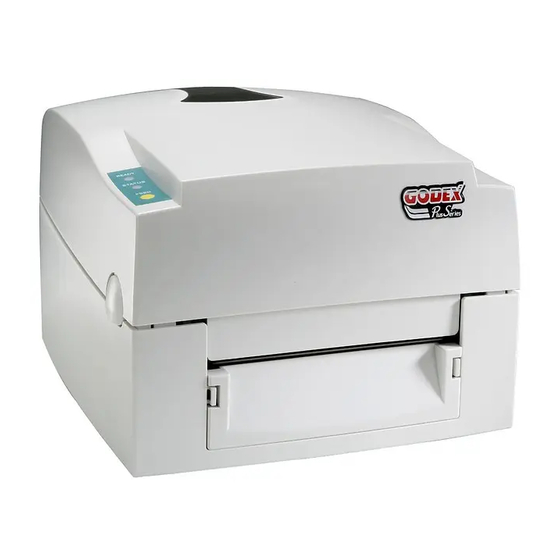
-
Contents
-
Table of Contents
-
Troubleshooting
-
Bookmarks
Quick Links
User’s Manual
EZ-1000Plus
P/N. 920-012411-03
Rev. A, 08.2009
Related Manuals for Godex EZ-1100Plus
Summary of Contents for Godex EZ-1100Plus
-
Page 1
User’s Manual EZ-1000Plus P/N. 920-012411-03 Rev. A, 08.2009… -
Page 2
FCC COMPLIANCE STATEMENT FOR AMERICAN USERS This equipment has been tested and found to comply with the limits for a CLASS A digital device, pursuant to Part 15 of the FCC Rules. These limits are designed to provide reasonable protection against harmful interference when the equipment is operated in a commercial environment. -
Page 3: Safety Instructions
Safety Instructions Bitte die Sicherheitshinweise sorgfältig lesen und für später aufheben. Die Geräte nicht der Feuchtigkeit aussetzen. Bevor Sie die Geräte ans Stromnetz anschließen, vergewissern Sie Sich, dass die Spannung des Geräts mit der Netzspannung übereinstimmt. Nehmen Sie das Gerät bei Überspannungen (Gewitter) vom Netz. Das Gerät könnte sonst Schaden nehmen.
-
Page 4
Safety Instructions Please read the following instructions seriously. Keep the equipment away from humidity. Before you connect the equipment to the power outlet, please check the voltage of the power source. Disconnect the equipment from the voltage of the power source to prevent possible transient over voltage damage. -
Page 5: Table Of Contents
1. BARCODE PRINTER…………..5 1-1. Printer Accessories ………………….5 1-2. General Specifications ………………..5 1-3. Communication Interface ………………..7 1-4. Printer Parts ……………………9 2. PRINTER INSTALLATION…………11 2-1. Ribbon Installation ………………….11 2-2. Label Installation ………………….13 2-3. Label Roll Core Installation Instruction …………….. 14 2-4.
-
Page 6: Barcode Printer
Width: 1.18” Min — 4.33” (30 mm — 110 mm) Max Ribbon roll diameter.: 2.67“ (68 mm) Core diameter: 1” (25.4 mm) Printer Language EZPL, GEPL (Godex Eltron® Printer Language) Label design software: QLabel-IV (for EZPL only) Software Driver & DLL: Windows 2000, XP and Vista Bitmap fonts: 6, 8, 10, 12, 14, 18, 24, 30, 16X26 and OCR A &…
-
Page 7
1-D Bar codes: Code 39, Code 93, Code 128 (subset A, B, C), UCC/EAN-128 K-Mart, UCC/EAN-128, UPC A / E (add on 2 & 5), I 2 of 5, I 2 of 5 with Shipping Bearer Bars, EAN 8 / 13 (add on 2 & 5), Codabar, Post NET, EAN 128, DUN 14, HIBC, Barcodes MSI (1 Mod 10), Random Weight, Telepen, FIM, China Postal Code, RPS 128 and GS1 DataBar… -
Page 8: Communication Interface
1-3. Communication Interface Parallel Interface Handshake : DSTB connects to the printer, BUSY connects to the host Interface cable : Parallel cable compatible to IBM PC Pin out : See below PIN NO. FUNCTION TRANSMITTER /Strobe host / printer Data 0-7 host /Acknowledge printer…
-
Page 9
Internal Interface UART1 wafer Ethernet module E_MD E_MD E_RST E_RST UART2 wafer Expansion module EZ-1000Plus User’s Manual… -
Page 10: Printer Parts
1-4. Printer Parts Cover Open Button Top Cover Label Roll Core Ribbon Rewind Wheel Print Mechanism Ribbon Rewind Shaft + Empty Ribbon Roll Locking Tenon (left/right) Front Cover Piece LED Light (Ready) LED Light (Status) FEED Key CF Card Slot Cover Print Head Pressure Adjustment Screw (left/right) EZ-1000Plus User’s Manual…
-
Page 11
Ribbon Supply Shaft Label Guide Platen Roller Print Line Adjustment Gear Label Sensor Fan-Fold Label Insert Power Switch Ethernet Socket (Option) USB Port Parallel Port Serial Port (RS-232) Power Socket * The communication ports may vary depending on product types. EZ-1000Plus User’s Manual… -
Page 12: Printer Installation
2. Printer Installation This printer model has the following print modes: Thermal When printing, ribbon must be installed to transfer the print contents onto the Transfer (TT) media. Direct Thermal When printing, no ribbon is necessary; it only requires direct thermal media. (DT) Please check which print mode you will use and then go into the Setting Mode to change the print mode setting if necessary.
-
Page 13
Feed the ribbon from the Ribbon Supply Shaft under the Print Head. Wrap the ribbon around the Ribbon Shaft and stick the ribbon onto the Empty Ribbon Roll Core. Firmly close the upper print mechanism. EZ-1000Plus User’s Manual… -
Page 14: Label Installation
2-2. Label Installation Open the top cover by pressing the Cover Open Buttons on both sides. Place the label roll onto the Label Roll Core. Loosen and lift the upper print mechanism by pressing the locking tenons. Feed the label through the two Label Guides to the Tear-off Bar.
-
Page 15: Label Roll Core Installation Instruction
2-3. Label Roll Core Installation Instruction (A) 1” roll core installation (B) 1.5” roll core installation (C) 3” roll core installation EZ-1000Plus User’s Manual…
-
Page 16: Card / Hang Tags Installation
2-4. Card / Hang tags Installation When installing cord tags, the tag hole must align with the sensor arrow (as indicated in figure), then use the Label Guide to secure the tags. Tag hole position Sensor Detection Position Sensor 2-5. PC Connection Please make sure the printer is powered off.
-
Page 17: Driver Installation
2-6. Driver Installation Insert product CD to your computer’s CD Drive and find the «Windows Drives» folder. Select the icon of driver file and click it to start the installation. Follow the instruction on screen to keep the installation going. Then the Driver Wizard utility should run automatically.
-
Page 18
Select connection port. Enter the printer name and set printer sharing option. A description page of printer settings will be displayed after all settings are completed. Check if all printer settings are correct and then press Finish to start copying driver files. -
Page 19: Accessory
3. Accessory 3-1. Stripper Module Installation Stripper Module Screw (TAP 3*8) x 2pcs 【 】 Note1 Please power off the printer before installing the stripper module. 【 】 Note2 Label liner thickness is recommended to be 0.06mm ± 10% with basic ㎡…
-
Page 20
Plug in the stripper connector onto the switchboard socket. (refer to the right figure) 【 】 Note There are 2 sockets on the converting boards (one is for stripper installation, and another one is for cutter), before plug the connector into socket, please check the pin first. -
Page 21
10. Follow the direction as shown in figure to feed the liner across the stripper. 11. Close the upper print mechanism and the stripper. 12. Press the FEED key to adjust the position of label and complete the installation. EZ-1000Plus User’s Manual… -
Page 22: Cutter Module Installation
3-2. Cutter Module Installation Cutter Module Screw (TAP 3*8) x 2pcs 【 】 Note1 Please power off the printer before installing the cutter module. 【 】 Note2 Do not cut self-adhesive labels! The traces of adhesive will pollute the rotary knife and impair safe operation! The service life of the cutter is 【…
-
Page 23
Place the left side of the stripper first, and then fit the right side. Flip the cutter module downward to open the cutter. Hold the cutter module and lock it with screws After the screws are locked, flip close the cutter module. -
Page 24: Ethernet Module Installation
3-3. Ethernet Module Installation Ethernet Cable 1.8M Bracket Ethernet module Module Connection Wire Bracket Screw*2 Secure Screw*1 【 】 Note Please make sure that anti-static precautions are adopted during the installation. Make sure the power is off and the power cable is unplugged. Place the printer onto a smooth surface and flip the whole printer unit upside down.
-
Page 25
Cut the cable tie on the Module Connection Wire. Then Plug the connector into the socket on Ethernet module. 【 】 Note Please cut the cable tie carefully. Do not damage the Module Connection Wire. Align the Ethernet module to the Ethernet port and plug into it. -
Page 26: Wlan Module Installation
3-4. WLAN Module Installation Ethernet Cable 1.8M Secure Screw*1 Bracket Screw*2 Module Bracket WLAN module Module Connection Wire WLAN Antenna Nut (for Antenna) Washer (for Antenna) Fixture Plate Antenna Bracket Make sure the power is off and the power cable is unplugged. Place the printer onto a smooth surface and flip the whole printer unit upside down.
-
Page 27
Cut the cable tie on the Module Connection Wire. Then Plug the connector into the socket on WLAN module. 【 】 Note Please cut the cable tie carefully. Do not damage the Module Connection Wire. Align the WLAN module to the Ethernet port and plug into it. -
Page 28
13. Put the Fixture Plate first then the Washer and tighten the Nut to mount Antenna Connection Wire on the printer. 【 】 Note It is suggested to tighten the Nut with long-nose pliers when mounting the Antenna Connection Wire. 14. -
Page 29: Cf Card Adapter Installation
3-5. CF Card Adapter Installation CF Card Adapter (Front) CF Card Adapter (Back) 【 】 Note Please power off the printer before installing the CF Card Adapter. Open the top cover by pressing the Cover Open Buttons on both sides. Take off the label roll core.
-
Page 30: Cf Card Instruction
If choose not to format the CF Card, just open the Top Cover of printer and wait for the turn-on procedure complete. After the format is complete, a file folder named “Godex” would be created automatically. This folder is for storing all the data from the printer, please don’t do any change on it.
-
Page 31: Printer Setting
4. Printer Setting 4-1. FEED Key After pressing the FEED key, printer will feed the media (according to media type) to the specified stop position. When printing with continuous media, pressing the FEED key will feed the media out to a certain length. When printing with labels, the printer will feed one label each time the FEED key is pressed.
-
Page 32
4-4. Self-Test page The Self-Test page helps user to figure out whether the printer is operating normally. Below are some general descriptions about the content of Self-Test page: Model & Version EZXXXX : VX.XXX Serial port setup Serial port :96,N,8,1 USB port setting int-usb sw setting: ext-USB Test pattern… -
Page 33: Error Messages
4-5. Error Messages LED Light Beep Description Solution Ready Status 4 beeps Re-open the print head and Print head is not firmly closed. twice make sure it closes tightly. Wait for the print head temperature drops to the The temperature of print head normal temperature range, None (Flash)
-
Page 34: Maintenance And Adjustment
5. Maintenance and Adjustment 5-1. Thermal Print Head Cleaning Unclear printouts may be caused by dusty print head, ribbon stain or label liner glue. Therefore when printing, it’s necessary to keep the top cover closed. Also, check and prevent paper/label from being stained or dusty to ensure print quality and to prolong the print head life.
-
Page 35: Print Line Adjustment
5-3. Print Line Adjustment To get better printing balance and quality, use print head adjusting gear to adjust the contacting surface between print head and label. When turning print head adjusting gear counter-clockwise (as arrow 1 shows), print head would move in the direction where arrow A shows.
-
Page 36: Troubleshooting
5-5. Troubleshooting Problem Recommended Solution ♦ Power on the printer, but the Check the power connector LED does not light up ♦ LED light turns red Check for software setting or program command errors ♦ (power/status) after printing Replace with suitable label or ribbon ♦…
-
Page 37: Appendix
Appendix Certifications EZ-1000Plus User’s Manual…
-
Page 38
EZ-1000Plus User’s Manual… -
Page 39
EZ-1000Plus User’s Manual… -
Page 40
EZ-1000Plus User’s Manual… -
Page 41
EZ-1000Plus User’s Manual… -
Page 42
EZ-1000Plus User’s Manual… -
Page 43
EZ-1000Plus User’s Manual…
Page 1 — Bedienungsanleitung
Bedienungsanleitung EZ-1000 Plus P/N. 920-012411-00 Rev. B, 12/05
Page 2
EZ-1000 Plus User’s Manual Rev. B 91-3. Schnittstellen Parallele Schnittstelle Handshake : DSTB verbindet zum Drucker, BUSY verbindet zum Computer S
Page 4
EZ-1000 Plus User’s Manual Rev. B 111-4. Bestandteile des Druckers 21345678 1. Tasten zum Öffnen des Gehäusedeckels 2. Gehäusedeckel 3. Eti
Page 5
EZ-1000 Plus User’s Manual Rev. B 12 45132 1. Farbbandaufwickelkern 2. Etikettenführung 3. Andruckwalze 4. Justage für die Druckzeile 5. Et
Page 6
EZ-1000 Plus User’s Manual Rev. B 132. Installation des Druckers Dieser Drucker unterstützt die folgenden Druckverfahren: Thermotransfer (TT) Zum Dru
Page 7
EZ-1000 Plus User’s Manual Rev. B 145. Führen Sie den Farbbandanfang unter dem Druckkopf her. 6. Wickeln Sie das Farbband auf den Rollenkern und b
Page 8 — 1. Barcode Drucker
EZ-1000 Plus User’s Manual Rev. B 152-2. Einlegen der Etikettenrollen 1. Öffnen Sie den Gehäuse- deckel. 2. Stecken Sie die Etikettenrolle au
Page 9
EZ-1000 Plus User’s Manual Rev. B 162-3. Handhabung des Etikettenrollenhalters (A) Installation des Etikettenrollenhalters für 1” Kerne (B) Instal
Page 10 — 1-3. Schnittstellen
EZ-1000 Plus User’s Manual Rev. B 172-4. Vorbereitung für den Druck von Anhängern Beim Druck von Etikettenanhängern wird die Lochmarke zur Steuerung
Page 11 — Interne Schnittstelle
EZ-1000 Plus User’s Manual Rev. B 182-6. Treiberinstallation 1. Beim USB Anschluss handelt es sich um eine Plug&Play Komponente. Sobald das USB
Page 12
EZ-1000 Plus User’s Manual Rev. B 1FCC COMPLIANCE STATEMENT FOR AMERICAN USERS This equipment has been tested and found to comply with the limits fo
Page 13
EZ-1000 Plus User’s Manual Rev. B 193. Einbau von Zubehör 3-1. Einbau des Etikettenspenders (Stripper) 1 Etikettenspender Modul 2 Schrauben (TAP 3*8
Page 15
EZ-1000 Plus User’s Manual Rev. B 218. Folgen Sie der Anleitung auf der Abbildung. 9. Schließen Sie den Druckmechanismus und den Etikettenspender.
Page 16
EZ-1000 Plus User’s Manual Rev. B 223-2. Einbau der Abschneidevorrichtung (Cutter) 1 Abschneidevorrichtung 2 Schrauben (TAP 3*8) x 2 Stück 21 【Hinwei
Page 17
EZ-1000 Plus User’s Manual Rev. B 235. Stecken Sie das Verbindungskabel in die Anschlussbuchse 【Hinweis】 Bevor Sie das Anschlusskabel in die Buchse
Page 18 — Tag hole position
EZ-1000 Plus User’s Manual Rev. B 2413. Drücken Sie die FEED Taste um die Position des Etiketts einzustellen.
Page 19
EZ-1000 Plus User’s Manual Rev. B 253-3. CF Card Adapter Installation 1 CF Karten Adapter (Vorderseite) 2 CF Karten Adapter (Rückseite) 21 1. Öff
Page 21
EZ-1000 Plus User’s Manual Rev. B 273-4. Anleitung zur CF Karte Die Drucker der EZ-1000 Plus Serie können, nachdem der CF Karten Adapter installiert
Page 22
EZ-1000 Plus User’s Manual Rev. B 284. Bedienfeld 4-1. LED Status Wenn Sie den Drucker einschalten und dabei die FEED Taste gedrückt halten, piept de
Page 23
EZ-1000 Plus User’s Manual Rev. B 2Sicherheitshinweise Bitte die Sicherheitshinweise sorgfältig lesen und für später aufheben. 1. Die Geräte nicht
Page 24
EZ-1000 Plus User’s Manual Rev. B 294-2. Bedienung Wird die FEED Taste gedrückt, so transportiert der Drucker das Druckmaterial zur nächsten Druckpos
Page 25
EZ-1000 Plus User’s Manual Rev. B 304-4. Automatische Erkennung der Etikettenlänge Mithilfe der Funktion “ Automatische Erkennung” erkennt der Drucke
Page 26
EZ-1000 Plus User’s Manual Rev. B 314-7. Durchscheinsensor Ein/Aus Im EZ-1000 Drucker befinden sich ein reflektierender und ein Durchschein-Sensor. D
Page 27
EZ-1000 Plus User’s Manual Rev. B 324-8. Fehlermeldungen LED Leuchte Ready Status Signaltöne Beschreibung Lösung rot 2 x 4 Signaltöne Druckko
Page 28 — 3-4. Anleitung zur CF Karte
EZ-1000 Plus User’s Manual Rev. B 335. Wartung und Einstellung 5-1. Reinigung des Druckkopfes Ein verschmutzter Druckkopf, Farbbandverschmutzung oder
Page 29 — 4. Bedienfeld
EZ-1000 Plus User’s Manual Rev. B 34 5-3. Einstellung der Druckzeile Um eine bessere Ausgewogenheit und Qualität des Drucks zu erlangen, benutzen S
Page 30 — 4-3. Selbsttest
EZ-1000 Plus User’s Manual Rev. B 355-5. Fehlerbehebung Fehler Fehlerbehebung Der Drucker ist eingeschaltet, aber die LEDs leuchten nicht. ♦ Überpr
Page 31 — 4-5. Dump Modus
EZ-1000 Plus User’s Manual Rev. B 36Bei der Verwendung des Strippers treten abnormale Funktionen auf. ♦ Überprüfen Sie, ob der Etikettenspender ver
Page 32
EZ-1000 Plus User’s Manual Rev. B 3
Page 35
EZ-1000 Plus User’s Manual Rev. B 6 1. BARCODE DRUCKER… 7 1-1. Lieferumfang …
Page 36 — 5-5. Fehlerbehebung
EZ-1000 Plus User’s Manual Rev. B 71. Barcode Drucker 1-1. Lieferumfang Überprüfen Sie bitte den Inhalt des Kartons auf Vollständigkeit. Barcode
Page 37
EZ-1000 Plus User’s Manual Rev. B 8 LCD Display zwei mehrfarbige LEDs: READY, STATUS Funktionstaste: FEED Spannungsversorgung Automatische Umstellung

EZ1000 PLUS BARCODE PRINTER
USER MANUAL
|
USER MANUAL |
||
|
: EZ1000 |
Plus |
|
|
VERSION |
: Rev. C |
|
|
ISSUE DATE |
: 2013.07.24 |
|
|
P/N |
: 920-012411-04 |
|
FCC COMPLIANCE STATEMENT
FOR AMERICAN USERS
This equipment has been tested and found to comply with the limits for a CLASS A digital device, pursuant to Part 15 of the FCC Rules. These limits are designed to provide reasonable protection against harmful interference when the equipment is operated in a commercial environment. This equipment generates, uses, and can radiate radio frequency energy and, if not installed and used in accordance with the instructions, may cause harmful interference to radio communications. Operation of this equipment in a residential area is likely to cause harmful interference in which case the user will be required to correct the interference at own expense.
EMS AND EMI COMPLIANCE STATEMENT
FOR EUROPEAN USERS
This equipment has been tested and passed with the requirements relating to electromagnetic compatibility based on the standards EN 55022:2006/A1:2007 Class A, EN61000-3-2:2006/A2:2009, EN 61000-3-3:2008 and EN55024:1998/A1:2001/A2:2003(IEC 61000-4-2:2001 ED. 1.2 series. The equipment has also been tested and passed in accordance with the European Standard EN55022 for both radiated and conducted emissions limits.
EZ PLUS SERIES
TO WHICH THIS DECLARATION RELATES
IS IN CONFORMITY WITH THE FOLLOWING STANDARDS
IEC 60950-1:2005(2nd Edition)+Am 1:2009, GB4943.1-2011 GB9254-2008 (Class A) GB17625.1-2003, EN 55022:2006/A1:2007 Class A, EN61000-3-2:2006/A2:2009, EN 61000-3-3:2008 and EN55024:1998/A1:2001/A2:2003, IEC 61000-4-2:2001 series, UL 60950-1, 1st Edition, 2007-10-31, CSA C22.2 No. 60950-1-03, 1st Edition, 2006-07, CFR 47, Part 15
WARNING
This is a Class A product. In a domestic environment this product may cause radio interference in which case the user may be required to take adequate measures.
Class A
EZ1000 Plus User Manual
Safety instructions
Please read the following instructions carefully.
1.Keep the equipment away from humidity.
2.Before you connect the equipment to the power outlet, please check the voltage of the power source.
3.Make sure the printer is off before plugging the power connector into the power jack.
4.It is recommended that you connect the printer to a surge protector to prevent possible transient overvoltage damage.
5.Be careful not to get liquid on the equipment to avoid electrical shock.
6.For safety and warranty reasons, ONLY qualified service personnel should open the equipment.
7.Do not repair or adjust energized equipment under any circumstances.
CAUTION
Danger of explosion if battery is incorrectly replaced
Replace only with the equivalent type recommended by the manufacture. Dispose of used batteries according to the manufacturer’s instructions.
Only use with power supply adapter model: WDS060240P (9A).
Changes or modifications not expressly approved by the party responsible for compliance could void the user’s authority to operate the equipment.
SPECIFICATIONS ARE SUBJECT TO CHANGE WITHOUT NOTICE.
EZ1000 Plus User Manual
|
1. BARCODE PRINTER …………………………………………………………… |
1 |
|
1-1. Box content ………………………………………………………………………………… |
1 |
|
1-2. Specifications……………………………………………………………………………… |
1 |
|
1-3. Interfaces……………………………………………………………………………………. |
3 |
|
1-4. Getting to know your printer ………………………………………………………. |
5 |
|
2. PRINTER SETUP………………………………………………………………….. |
7 |
|
2-1. Loading the ribbon …………………………………………………………………….. |
7 |
|
2-2. Loading the label roll ………………………………………………………………….. |
9 |
|
2-3. Installing the label supply hub…………………………………………………… |
10 |
|
2-4. Preparing for tag printing………………………………………………………….. |
11 |
|
2-5. Connecting the printer to the host computer…………………………… |
12 |
|
2-6. Installing the driver ……………………………………………………………………. |
13 |
|
3. OPERATOR PANEL…………………………………………………………… |
15 |
|
3-1. FEED button ………………………………………………………………………………. |
15 |
|
3-2. LED indicators……………………………………………………………………………. |
15 |
|
3-3. Label size calibration ………………………………………………………………… |
15 |
|
3-4. Self test ……………………………………………………………………………………… |
16 |
|
3-5. Error alerts …………………………………………………………………………………. |
17 |
|
4. ACCESSORIES………………………………………………………………… |
18 |
|
4-1. Installing the label dispenser……………………………………………………… |
18 |
|
4-2. Installing the cutter……………………………………………………………………. |
21 |
|
4-3. Installing the Ethernet module…………………………………………………… |
23 |
|
4-4. Installing the WLAN module………………………………………………………. |
25 |
|
4-5. Installing the CF card adapter ………………………………………………….. |
29 |
|
4-6. Instructions for using the CF card………………………………………………. |
30 |
|
5. MAINTENANCE AND ADJUSTMENT…………………………………… |
31 |
|
5-1. Cleaning the print head……………………………………………………………. |
31 |
|
5-2. Adjusting the print head pressure……………………………………………… |
31 |
|
5-3. Adjusting the print line ………………………………………………………………. |
32 |
|
5-4. Adjusting the cutter…………………………………………………………………… |
32 |
|
5-5. Troubleshooting ………………………………………………………………………… |
33 |
1. Barcode printer
1-1. Box content
Please check that all of the following items are included with your printer:
Barcode printer
Power cord
AC adapter
USB cable
Parallel cable (Centronics)
Label stock
Label supply hub
Label guide plates (set of 2)
Ribbon
Ribbon hubs (set of 2)
Cleaning card
Quick reference guide
CD (with QLabel label software / user manual)
1-2. Specifications
|
Model |
EZ1100 Plus |
||
|
Print Method |
Thermal Transfer / Direct Thermal |
||
|
Resolution |
203 dpi (8 dot/mm) |
||
|
Print Speed |
4 IPS (102 mm/s) |
||
|
Print Width |
4.25” (108 mm) |
||
|
Print Length |
Min. 0.16” (4 mm)** |
||
|
Max. 68” (1727 mm) |
|||
|
Memory |
4MB Flash (2MB for user storage) ; 8MB SDRAM |
||
|
Sensor Type |
Adjustable reflective sensor. Fixed transmissive sensor, central aligned |
||
|
Types: Continuous form, gap labels, black mark sensing, and punched |
|||
|
hole; label length set by auto sensing or programming |
|||
|
Media |
Width: 1” (25.4 mm) Min. — 4.64” (118 mm) Max. |
||
|
Thickness: 0.003” (0.06 mm) Min. — 0.01” (0.25 mm) Max. |
|||
|
Label roll diameter: Max. 5” (127 mm) |
|||
|
Core diameter: 1”, 1.5”, 3” (25.4 mm, 38.1 mm, 76.2 mm) |
|||
|
Types: Wax, wax/resin, resin |
|||
|
Ribbon |
Length: 981’ (300 m) |
||
|
Width: 1.18” Min — 4.33” (30 mm — 110 mm) Max |
|||
|
Ribbon roll diameter.: 2.67“ (68 mm) |
|||
|
Core diameter: 1” (25.4 mm) |
|||
|
Printer Language |
EZPL, GEPL (Godex Eltron® Printer Language), GZPL (Godex Zebra® |
||
|
Printer Language) |
|||
|
Software |
Label design software: QLabel-IV (for EZPL only) |
||
|
Driver & DLL: Windows 2000, XP and Vista |
|||
|
Bitmap fonts: 6, 8, 10, 12, 14, 18, 24, 30, 16X26 and OCR A & B |
|||
|
Resident Fonts |
Bitmap fonts 90°, 180°, 270° rotatable, single characters 90°, 180°, 270° |
||
|
rotatable |
|||
|
Bitmap fonts 8 times expandable in horizontal and vertical directions |
|||
|
Scalable fonts 90°, 180°, 270° rotatable |
|||
|
Bitmap fonts 90°, 180°, 270° rotatable, single characters 90°, 180°, 270° |
|||
|
Download Fonts |
rotatable |
||
|
Asian fonts 90°, 180°, 270° rotatable and 8 times expandable in |
|||
|
horizontal and vertical directions |
|||
|
EZ1000 Plus User Manual |
1 |

|
Scalable fonts 90°, 180°, 270° rotatable |
|||
|
1-D Bar codes: |
|||
|
Code 39, Code 93, Code 128 (subset A, B, C), UCC/EAN-128 K-Mart, |
|||
|
UCC/EAN-128, UPC A / E (add on 2 & 5), I 2 of 5, I 2 of 5 with Shipping |
|||
|
Barcodes |
Bearer Bars, EAN 8 / 13 (add on 2 & 5), Codabar, Post NET, EAN 128, DUN |
||
|
14, HIBC, MSI (1 Mod 10), Random Weight, Telepen, FIM, China Postal |
|||
|
Code, RPS 128 and GS1 DataBar |
|||
|
2-D Bar codes: |
|||
|
PDF417, Datamatrix code, MaxiCode, QR code and Micro QR code |
|||
|
CODEPAGE 437, 850, 851, 852, 855, 857, 860, 861, 862, 863, 865, 866, 869, |
|||
|
Code Pages |
737 |
||
|
WINDOWS 1250, 1251, 1252, 1253, 1254, 1255 |
|||
|
Unicode (UTF8, UTF16) |
|||
|
Graphics |
Resident graphic file types are BMP and PCX, other graphic formats are |
||
|
downloadable from the software |
|||
|
Interfaces |
Serial port: RS-232 (DB-9) |
||
|
USB port (default on) |
|||
|
Parallel port: Centronics 36-pin |
|||
|
Control Panel |
Two bi-color status-LEDs: Ready, Status |
||
|
Control key: FEED |
|||
|
Power |
Auto Switching 100-240VAC, 50-60Hz |
||
|
Environment |
Operation temperature: 41°F to 104°F (5°C to 40°C) |
||
|
Storage temperature: -4°F to 122°F (-20°C to 50°C) |
|||
|
Humidity |
Operation: 30-85%, non-condensing. |
||
|
Storage: 10-90%, non-condensing. |
|||
|
Agency |
CE(EMC), FCC Class A, CB, cUL, CCC |
||
|
Approvals |
|||
|
Dimension |
Length: 11.2” (285 mm) |
||
|
Height: 6.8” (171 mm) |
|||
|
Width: 8.9” (226 mm) |
|||
|
Weight |
6 lbs (2.72Kg), excluding consumables |
Rotary Cutter
Label Dispenser (peel)
External label roll holder for 10” (250 mm) O.D. label rolls Options External label rewinder
CF card adapter with real time clock (max. 1GB CF card)
Ethernet 10/100Mbps print server (default off; disables USB when in use) 802.11 b/g wireless print server (default off; disables USB when in use)
*Specifications are subject to change without notice. All company and/or product names are
trademarks and/or registered trademarks of their respective owners.
** Minimum print height specification compliance can be dependent on non-standard material
variables such as label type, thickness, spacing, liner construction, etc. Godex is pleased to test
non-standard materials for minimum height printing capability.
|
EZ1000 Plus User Manual |
2 |
1-3. Interfaces
Parallel port
|
Handshaking |
: DSTB is sent to the printer, BUSY to the host computer |
|||
|
Interface |
: Parallel cable compatible with IBM computers |
|||
|
cable |
||||
|
Pinout |
: See below |
|||
|
Pin No. |
Function |
Data source |
||
|
1 |
/Strobe |
Computer / printer |
||
|
2–9 |
Data 0-7 |
Computer |
||
|
10 |
/Acknowledge |
Printer |
||
|
11 |
Busy |
Printer |
||
|
12 |
/Paper empty |
Printer |
||
|
13 |
/Select |
Printer |
||
|
14 |
/Auto-Linefeed |
Computer / printer |
||
|
15 |
N/C |
|||
|
16 |
Signal Gnd |
|||
|
17 |
Chassis Gnd |
|||
|
18 |
+5V, max 500mA |
|||
|
19–30 |
Signal Gnd |
Computer |
||
|
31 |
/Initialize |
Computer / printer |
||
|
32 |
/Error |
Printer |
||
|
33 |
Signal Ground |
|||
|
34–35 |
N/C |
|||
|
36 |
/Select-in |
Computer / printer |
||
|
Serial port |
||||
|
Default |
Baud rate 9600, no parity, 8 data bits, 1 stop bit, XON/XOFF protocol |
|||
|
settings |
: and RTS/CTS |
RS232 housing (9-pin to 9-pin)
|
DB9 socket |
DB9 plug |
|||
|
— |
1 |
1 |
+5V, max 500mA |
|
|
2 |
2 |
|||
|
RXD |
TXD |
|||
|
3 |
3 |
|||
|
TXD |
RXD |
|||
|
DTR |
4 |
4 |
N/C |
|
|
5 |
5 |
|||
|
GND |
GND |
|||
|
6 |
6 |
|||
|
DSR |
RTS |
|||
|
RTS |
7 |
7 |
CTS |
|
|
8 |
8 |
|||
|
CTS |
RTS |
|||
|
9 |
9 |
|||
|
RI |
N/C |
|||
|
Computer |
Printer |
|||
Note The total current to the parallel and serial ports may not exceed 500 mA.
|
EZ1000 Plus User Manual |
3 |
USB port
Connector type : Type B
|
Pin No. |
1 |
2 |
3 |
4 |
|
Function |
VBUS |
D- |
D+ |
GND |
Internal interface
|
UART1 wafer |
Ethernet module |
|||||
|
N.C |
1 |
1 |
N.C |
|||
|
2 |
2 |
|||||
|
TXD |
RXD |
|||||
|
RXD |
3 |
3 |
TXD |
|||
|
4 |
4 |
|||||
|
CTS |
RTS |
|||||
|
5 |
5 |
|||||
|
GND |
GND |
|||||
|
RTS |
6 |
6 |
CTS |
|||
|
7 |
7 |
|||||
|
E_MD |
E_MD |
|||||
|
8 |
8 |
|||||
|
RTS |
CTS |
|||||
|
E_RST |
9 |
9 |
E_RST |
|||
|
10 |
10 |
|||||
|
+5V |
+5V |
|||||
|
11 |
11 |
|||||
|
GND |
GND |
|||||
|
+5V |
12 |
12 |
+5V |
|||
|
UART2 wafer |
Add-on module |
|||||
|
+5V |
1 |
1 |
+5V |
|||
|
2 |
2 |
|||||
|
CTS |
RTS |
|||||
|
TXD |
3 |
3 |
RXD |
|||
|
4 |
4 |
|||||
|
RTS |
CTS |
|||||
|
5 |
5 |
|||||
|
RXD |
TXD |
|||||
|
GND |
6 |
6 |
GND |
|||
|
EZ1000 Plus User Manual |
4 |

1-4. Getting to know your printer
1
2
|
3 |
5 |
|
|
4 |
6 |
|
|
7 |
||
|
8 |
||
|
1. |
Release buttons for opening the printer cover |
|
|
2. |
Printer cover |
|
|
3. |
Label supply hub |
|
|
4. |
Ribbon feed mechanism |
|
|
5. |
Print mechanism |
|
|
6. |
Ribbon rewind hub and empty ribbon core |
|
|
7. |
Release catches (left/right) |
|
|
8. |
Front cover |
 4
4
1
2
3
 5
5
|
1. |
LED indicator (READY) |
|
2. |
LED indicator (STATUS) |
|
3. |
FEED button |
|
4. |
CF card slot cover |
|
5. |
Screws for adjusting the print head pressure (left/right) |
|
EZ1000 Plus User Manual |
5 |

|
1 |
4 |
|||
2 

1.Ribbon supply hub
2.Label guides
3.Platen roller
4.Print line adjustment
5.Label sensor
|
1 |
3 |
|||
|
4 |
||||
|
5 |
1.Feed slot for continuous labels
2.On/off switch
3.Ethernet port (optional)
4.USB port
5.Parallel port
6.Serial port (RS-232)
7.Power jack
*Ports and interfaces vary depending on the model.
|
EZ1000 Plus User Manual |
6 |

2. Printer setup
This printer supports the following printing methods:
Thermal transfer Requires a ribbon for transferring a printed image to a medium. printing (TTP)
Direct thermal Does not require a ribbon, only thermal paper. printing (DTP)
Please check which printing method you are using and alter the settings accordingly in the printer driver, and/or software.
2-1. Loading the ribbon
1.Place the printer on a flat surface. Open the printer cover by pressing the release buttons on both sides of the printer housing and lift the cover.
2.Release and lift the print mechanism.
3.Remove the ribbon hub
at the back.
4.Place the ribbon on
the hub at the back and replace the ribbon hub.
|
EZ1000 Plus User Manual |
7 |

5.Pass the ribbon under the print head.
6.Wind the ribbon onto the rewind core, attaching it with the adhesive strip at the end of the ribbon. Wind the ribbon 2–3 times around the core.
7.Close the print mechanism. Ensure the release catches click into place.
|
EZ1000 Plus User Manual |
8 |
 Loading…
 Loading…
EZ1000 PLUS BARCODE PRINTER
USER MANUAL
USER MANUAL
VERSION
ISSUE DATE
P/N
: EZ1000 Plus
: Rev. C
: 2013.07.24
:
920-012411-04
Table of Contents for Godex EZ-1100Plus:
-
5. Maintenance and Adjustment 5-1. Thermal Print Head Cleaning Unclear printouts may be caused by dusty print head, ribbon stain or label liner glue. Therefore when printing, it’s necessary to keep the top cover closed. Also, check and prevent paper/label from being stained or dusty to ensure print quality and to prolong the print head life. Print head cleaning instructions are as follows: 1. Power-off the printer. 2. Open the top cover. 3. Take out the ribbon. 4. Open the print
-
3-3. Ethernet Module Installation 1 Ethernet Cable 1.8M 2 Bracket 3 Ethernet module 4 Module Connection Wire 5 Bracket Screw*2 6 Secure Screw*1 【 Note 】 Please make sure that anti-static precautions are adopted during the installation. 123 5 64 1. Make sure the power is off and the power cable is unplugged. Place the printer onto a smooth surface and flip the whole printer unit upside down. 2. Unscrew th
-
1. BARCODE PRINTER…………………………………………………………. 5 1-1. Printer Accessories…………………………………………………………………………………………… 5 1-2. General Specifications………………………………………………………………………………………. 5 1-3. Communication Interface……………………………………………………………………………….
-
FCC COMPLIANCE STATEMENT FOR AMERICAN USERS This equipment has been tested and found to comply with the limits for a CLASS A digital device, pursuant to Part 15 of the FCC Rules. These limits are designed to provide reasonable protection against harmful interference when the equipment is operated in a commercial environment. This equipment generates, uses, and can radiate radio frequency energy and, if not installed and used in accordance
-
2. Printer Installation This printer model has the following print modes: Thermal Transfer (TT) When printing, ribbon must be installed to transfer the print contents onto the media. Direct Thermal (DT) When printing, no ribbon is necessary; it only requires direct thermal media. Please check which print mode you will use and then go into the Setting Mode to change the print mode setting if necessary. 2-1. Ribbon Installation 1. Place the printer on a horizontal surface, and open the top cover by pressing the Cover O
-
Appendix Certifications EZ-1000Plus User’s Manual 36
-
1-4. Printer Parts 2 1 3 4 5 6 7 8 1. Cover Open Button 2. Top Cover 3. Label Roll Core 4. Ribbon Rewind Wheel 5. Print Mechanism 6. Ribbon Rewind Shaft + Empty Ribbon Roll 7. Locking Tenon (left/right) 8. Front Cover Piece 2 1 3 4 5 1. LED Light (Ready) 2. LED Light (Status) 3. FEED Key 4. CF Card Slot Cover 5. Print Head Pressu
-
EZ-1000Plus User’s Manual 38
-
13. Put the Fixture Plate first then the Washer and tighten the Nut to mount Antenna Connection Wire on the printer. 【 Note 】 It is suggested to tighten the Nut with long-nose pliers when mounting the Antenna Connection Wire. 14. Turn the Antenna according to the direction as arrow showed to mount it on the Antenna Connection Wire. The angle of Antenna can be adjusted if needed. 15. To complete the installation, reassemble the middle compartment and tighten the screws onto the bottom of the printer,
-
1-D Bar codes: Code 39, Code 93, Code 128 (subset A, B, C), UCC/EAN-128 K-Mart, UCC/EAN-128, UPC A / E (add on 2 & 5), I 2 of 5, I 2 of 5 with Shipping Bearer Bars, EAN 8 / 13 (add on 2 & 5), Codabar, Post NET, EAN 128, DUN 14, HIBC, MSI (1 Mod 10), Random Weight, Telepen, FIM, China Postal Code, RPS 128 and GS1 DataBar Barcodes 2-D Bar codes: PDF417, Datamatrix code, MaxiCode, QR code and Micro QR code Code Pages CODEPAGE 437, 850, 851, 852, 855, 857, 860, 861, 862, 863, 865, 866, 869, 737 WINDOWS 1250
-
6. Place the left side of the stripper first, and then fit the right side. 7. Flip the cutter module downward to open the cutter. 8. Hold the cutter module and lock it with screws 9. After the screws are locked, flip close the cutter module. 10. Feed the label through the Label Guides. 11. Close the mechanism to complete the cutter module installation. 【 Note 】 It is not suggested to use label-inside paper when printing with cutter module. 12. Press the FEED key to adjust the position of label and
-
5-3. Print Line Adjustment To get better printing balance and quality, use print head adjusting gear to adjust the contacting surface between print head and label. 1. When turning print head adjusting gear counter-clockwise (as arrow 1 shows), print head would move in the direction where arrow A shows. 2. When turning print head adjusting gear clockwise (as arrow 2 shows), print head would move in the direction where arrow B shows.
-
EZ-1000Plus User’s Manual 41
-
5-5. Troubleshooting Problem Recommended Solution Power on the printer, but the LED does not light up ♦ Check the power connector LED light turns red (power/status) after printing stops ♦ Check for software setting or program command errors ♦ Replace with suitable label or ribbon ♦ Check if label or ribbon is all out ♦ Check if label is jammed/tangled up ♦ Check if mechanism is not closed(Thermal Print Head not positi
Questions, Opinions and Exploitation Impressions:
You can ask a question, express your opinion or share our experience of Godex EZ-1100Plus device using right now.