
-
Contents
-
Table of Contents
-
Bookmarks
Quick Links
User
User
User
User
User
User
User
User
Model:
Model:
FI8904W
FI8904W
FI8904W/ / / / FI8905W
Model:
Model: FI8904W
Outdoor
Outdoor
Wireless
Wireless IP IP IP IP Camera
Wireless
Outdoor
Outdoor Wireless
FI8904W
FI8904W
FI8904W
FI8904W
Manual
Manual
Manual
Manual
Manual
Manual
Manual
Manual
FI8905W
FI8905W
FI8905W
Camera
Camera
Camera
FI8905W
FI8905W
FI8905W
FI8905W
Related Manuals for Foscam FI8904W
Summary of Contents for Foscam FI8904W
This manual is also suitable for:
Fi8905w
-
Страница 1
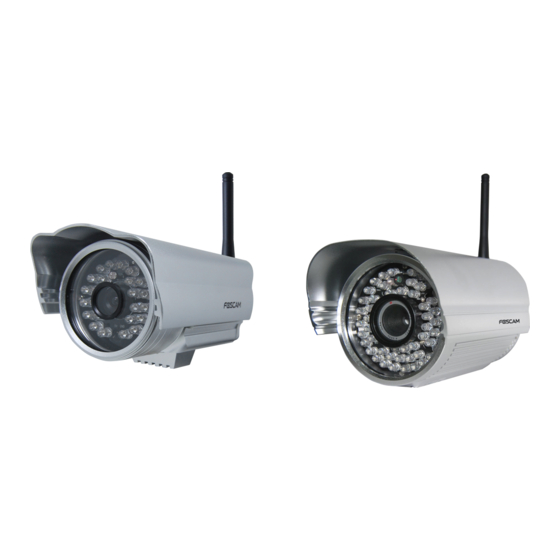
User Manual Model: FI8904W/FI8905W Ourdoor Wireless IP Camera FI8904W FI8905W[…]
-
Страница 2
WWW .FOSCAM.COM FI 8904W/ FI8905W User Manual Shenzhen Foscam Intelligent T echnology Co., Lt d T el: 86 755 2674 5668 Fax: 86 755 2674 5168 1 CONTENTS 1 WELCOME ………………………………………………………………………………………………………………. 2 1.1 Features ………………………………………[…]
-
Страница 3
WWW .FOSCAM.COM FI 8904W/ FI8905W User Manual Shenzhen Foscam Intelligent T echnolog y Co., Lt d T el: 86 755 2674 5668 Fax: 86 755 2674 5168 2 4 APPENDIX ……………………………………………………………………………………………………………… 3 9 4.1 Frequently Asked Que stions …………………………..[…]
-
Страница 4
WWW .FOSCAM.COM FI 8904W/ FI8905W User Manual 1.2 Packing List Untie the package and verify the items contained with the following list: ● IPCAM×1 ● Wi-Fi Antenna×1 (only available for wireless model) ● DC Power Supply×1 ● Quick Installation Guide×1 ● CD×1 ( Includes IPCAM user manual 、 IP camera tool 、 FOSCAM Video Installatio[…]
-
Страница 5
WWW .FOSCAM.COM FI 8904W/ FI8905W User Manual 1.3.2 Back V iew Figure 1.2 LAN: RJ-45/10-100 Base T Power: DC 5V/2A Power supply RESET BUTTON: Press and hold down the RESET BUTTON for 15 seconds. Release the power button and IP camera will be reset ba ck to the factory default parameter. 1.3.3 Bottom V iew There are three stickers at the bo ttom of […]
-
Страница 6
WWW .FOSCAM.COM FI 8904W/ FI8905W User Manual 1.4 Prep arations before use 1.4.1 Sof tware installation 1) Put the CD in the CD drive of your computer. Open the CD; fi nd the software per instructions; 2) Double click IPCamSetup.exe and install the softwar e per instruction. Figure 1.4 3)C lick Next to complete the software installation. Figure 1.5[…]
-
Страница 7
WWW .FOSCAM.COM FI 8904W/ FI8905W User Manual Figure 1.6 The computer restarts upon in stallation completion and an icon appears on the desktop automatically. NOTE: If you use Windows7 and could not find the icon on desktop after installing the IP camera tool, please check if the path of the camera software is c orrect. For example, if it was point[…]
-
Страница 8
WWW .FOSCAM.COM FI 8904W/ FI8905W User Manual non-approved power adapter may damage the camera. 4) The camera takes approximately 30 seconds to start up before it disp lays an IP address on the IP Camera Tool (details: 2.1 ) 5) When the camera is powered and network cable plugged correctly, the small green light (network jack) will turn on and the […]
-
Страница 9
WWW .FOSCAM.COM FI 8904W/ FI8905W User Manual Figure 2.2 z Basic Properties There are some devices information in the Basic Properties, such as Device ID, System Firmware Version, and Web UI Version. (Figure 2.3) If there are several cameras on the list, you can c hoose basic properties to check the device ID and recognize the IP address belong to […]
-
Страница 10
WWW .FOSCAM.COM FI 8904W/ FI8905W User Manual Figure 2.4 Obtain IP from DHCP server: If checked, the device will obtain IP from DHCP server. In other words, the camera will have a dynamic IP. (Mak e sure the Router which the camera connects has DHCP function and DHCP is enabled). Figure 2.5 IP Address: Fill in the IP address assigned and make sure […]
-
Страница 11
WWW .FOSCAM.COM FI 8904W/ FI8905W User Manual Password: Default password is blank, no password. NOTE: If the prompt “Subnet doesn’t match, dbc lick to change!” appears, please enable DHCP and choose obtain IP from DHCP server or set camera’s IP address and gateway once again. z Upgrade Firmware Enter the correct User and Password to upgrade[…]
-
Страница 12
WWW .FOSCAM.COM FI 8904W/ FI8905W User Manual 2.2 Camera Login You can access the camera through the IP Camera Tool or IE, Firefox, Google Chrome, Safari or other stand browser directly. (1) Double click the IP address of the IP Camera listed (Figure 2.1).The browser you use will be opened automatically and display the ca mera login page. (Figure 2[…]
-
Страница 13
WWW .FOSCAM.COM FI 8904W/ FI8905W User Manual If you use IE browser , select here to login If you use Firefox, Google Chrome, select this login Figure 2.9 For IE browser Fill in the user name and c hoose the first login button. Figure 2.10 The first time you login the UI. You will receive an activeX prompt as in t he picture above. (Figure 2.10) Ri[…]
-
Страница 14
WWW .FOSCAM.COM FI 8904W/ FI8905W User Manual Figure 2.11 Select Run on the next prompt (Figure 2.12) whic h will return to the login screen. Figure 2.12 Fill in the user name and choose login again . You will see a living video. (Figure 2.13) Shenzhen Foscam Intelligent T echnolog y Co., Lt d T el: 86 755 2674 5668 Fax: 86 755 2674 5168 13[…]
-
Страница 15
WWW .FOSCAM.COM FI 8904W/ FI8905W User Manual Figure 2.13 NOTE: If you could not see a live video after runni ng the activeX control. Only a red cross in the center of the video or just a black screen, try changi ng to another port number. Try using another port besides port 80 such as port 85, 8005 or 8100. Make sure all firewall or antivirus soft[…]
-
Страница 16
WWW .FOSCAM.COM FI 8904W/ FI8905W User Manual Figure 2.15 2.3 Device St atus For IE browser If the camera is connected properly, the light of the device status will show green. If the light shows yellow, check if the active X is enabled or change an other port number and try again. Figure 2.16 Shenzhen Foscam Intelligent T echnolog y Co., Lt d T el[…]
-
Страница 17
WWW .FOSCAM.COM FI 8904W/ FI8905W User Manual If you want to view the device information, choose For Administrator and then click Device info . Figure 2.17 For Firefox, Google Chrome and Safari When you login the UI, you will see De vice Status which is the same as Device Info in IE browser. (Figure 2.14) 2.4 For V isitor For IE browser Enable OSD […]
-
Страница 18
WWW .FOSCAM.COM FI 8904W/ FI8905W User Manual Figure 2.18 Multi-device window: The firmware inside the camera s upports up to maximum of 9 cameras monitoring at the same time. You can add t he other cameras in multi-device settings. OSD: OSD is used to add timestamp on the video. T here are five character colors to choos e from.. Add timestamp on r[…]
-
Страница 19
WWW .FOSCAM.COM FI 8904W/ FI8905W User Manual Figure 2.19 Flip & Mirror: You can choose flip or mirror if you set up the camera in a special position. Mode: There are three modes. (50HZ, 60HZ and outdoor) Brightness and Contrast are also used to adjust the quality of the video. For Firefox, Google Chrome and Safari Click Live Video . There are […]
-
Страница 20
WWW .FOSCAM.COM FI 8904W/ FI8905W User Manual Figure 2.21 For Firefox, Google Chrome and Safari Click Device Management and you will enter the sett ings page for administrator. Figure 2.22 IE have the three following opti ons which are not the same in Firefox, Google Chrome and Safari: Device Info: This is similar to Device Status which will have t[…]
-
Страница 21
WWW .FOSCAM.COM FI 8904W/ FI8905W User Manual Google Chrome will not allow these functions. 3 How to configure settings in For Administrator 3.1 Alias Settings Default alias is anonymous. You can set a name for your camera here. Such as Ipcam, then click Submit to save your change. The alias name supports special character. Figure 3.0 3.2 Date &[…]
-
Страница 22
WWW .FOSCAM.COM FI 8904W/ FI8905W User Manual Figure 3.2 3.3 User Settings You can set permission for visito r, operator and administrator. Click Submit to save these settings. The camera will reboot. Figure 3.3 Here you can set the record file path and the alarm file path for the camera, click Browse and choose the path. Record path will st ore th[…]
-
Страница 23
WWW .FOSCAM.COM FI 8904W/ FI8905W User Manual NOTE: In Windows7 or Vista, if you can not ch ange the record path. Please set as below: Windows7 or Vista’s security level is hi gher than Windows XP/2000.For «set record path» function, user should add the Device IP address to the IE’s ‘Trusted sites’ first. The step is: […]
-
Страница 24
WWW .FOSCAM.COM FI 8904W/ FI8905W User Manual Figure 3.5 Choose For Visitor and then click the four windows option. You will se e all four cameras you added. Figure 3.6 Shenzhen Foscam Intelligent T echnolog y Co., Lt d T el: 86 755 2674 5668 Fax: 86 755 2674 5168 23[…]
-
Страница 25
WWW .FOSCAM.COM FI 8904W/ FI8905W User Manual Figure 3.7 3.4.2 Add cameras in W AN If you want to view all cameras via internet (remote computer),you will need to add them use DDNS domain name. Firstly, make sure all of the cameras y ou added can be accessed through the internet. ( read How to configure DDNS settings in Quick Installation Guide ) L[…]
-
Страница 26
WWW .FOSCAM.COM FI 8904W/ FI8905W User Manual Figure 3.9 Add the other cameras in the same way. Click Submit to save. Figure 3.10 Go back to video window. You will see all of the cameras accessible through the internet. When you are away from home, y ou can use the first camera’s DDNS domain name and port to view all the cameras via internet. She[…]
-
Страница 27
WWW .FOSCAM.COM FI 8904W/ FI8905W User Manual Figure 3.11 3.5 Basic Network Settings If you want to set a static IP for the camera, select Basic Network Settings . Keep the camera in the same subnet of your router or computer. Figure 3.12 It is the same result if set these setti ngs in IP Camera Tool. (Figure 2.5) If you don’t know the subnet mas[…]
-
Страница 28
WWW .FOSCAM.COM FI 8904W/ FI8905W User Manual Figure 3.13 Figure 3.14 If you don’t know the DNS server, you can use the same settings as the default gateway. Shenzhen Foscam Intelligent T echnolog y Co., Lt d T el: 86 755 2674 5668 Fax: 86 755 2674 5168 27[…]
-
Страница 29
WWW .FOSCAM.COM FI 8904W/ FI8905W User Manual 3.6 Wireless LAN Settings Please view How to set Wireless LAN Settings in Quick Installation Guide . 3.7 ADSL Settings Figure 3.15 When connected to the Internet through ADSL di rectly, you can enter the ADSL username and password obtained from your ISP. Figure 3.16 3.8 UPnP Settings Choose Using UPnP t[…]
-
Страница 30
WWW .FOSCAM.COM FI 8904W/ FI8905W User Manual 3.10 Mail Service Settings If you want the camera to send ema ils when motion has been activated,, Mail Service Settings . will need to be configured. (Figure 3.18) Figure 3.18 Make sure your mailbox for sender supports SMTP. Four recipients can be added to receive images. SMTP port is usually set as 25[…]
-
Страница 31
WWW .FOSCAM.COM FI 8904W/ FI8905W User Manual 2) Network Error. Please try later 3) Server Error 4) Incorrect user or password 5) The sender is denied by the server. Maybe the server need to authenticate the user, please check it and try again 6) The receiver is denied by the server. Maybe because of the anti-spam privacy of the server 7) The messa[…]
-
Страница 32
WWW .FOSCAM.COM FI 8904W/ FI8905W User Manual Figure 3.20b All users entered on the MSN Friends list c an chat with the camera .For example: “foscam 13”(see Figure 3.20a,it is contained in the MSN Friends List) login MSN, double click the icon of “ foscam31 “(it is the MSN ID you applied fo r camera ,Figure3.20a) , which will start a chat s[…]
-
Страница 33
WWW .FOSCAM.COM FI 8904W/ FI8905W User Manual Figure 3.22 Figure 3.23 FTP server : If your FTP server is set up in LAN, you can set as Figure 3.22 If you have a FTP server which you can access on the internet, you can set as Figure 3.23 FTP Port : Usually the port is 21 FTP Upload Folder : Make sure that the folder you pl an to store images exists.[…]
-
Страница 34
WWW .FOSCAM.COM FI 8904W/ FI8905W User Manual Click Submit to save these settings. Click Test , the following screen displays if it succeeded. Figure 3.24 The following errors may occur: 1) Can not connect to the server. C heck it the FTP Server is correct. 2) Network Error. Please try later. 3) Server Error. 4) Incorrect user or password. Pl ease […]
-
Страница 35
WWW .FOSCAM.COM FI 8904W/ FI8905W User Manual Figure 3.25 Motion trigger Figure 3.26 If motion is detected after you enable Motion Detect Armed , the Alarm Status will turn to Motion Detect Alarm. There are five alarm indicators: 1) The light turns red when motion is detected. Figure 3.27 2) A beep will sound when the light turns red. 3) The camera[…]
-
Страница 36
WWW .FOSCAM.COM FI 8904W/ FI8905W User Manual To upload images to an FTP server when motion is detected, you must set FTP Service Settings first. (Figure 3.22/3.23) and then set motion alarm as picture blow. Figure 3.29 There are two ways to set the alarm. 1) Alarm at any time when motion is detected. Don’t choose Scheduler . Click Submit and the[…]
-
Страница 37
WWW .FOSCAM.COM FI 8904W/ FI8905W User Manual motion is detected between 6 and 7 o’clock during ever yday. Click the numbe r“06” at the second row, you can cancel the corresponding column you set. And it will turn gray. Figure 3.31 If you want to select discrete area, you can click left button on the box of time range. It will turn blue. If y[…]
-
Страница 38
WWW .FOSCAM.COM FI 8904W/ FI8905W User Manual Figure 3.33 3.14 Upgrade Device Firmware When you upgrade the camera, pl ease upgrade system firmware fi rst and then upgrade the Web UI. Figure 3.34 Click Browse , choose the correct bin file and then click Submit to upgrade. Don’t shut down the power durin g upgrade until the IP camera tool finds th[…]
-
Страница 39
WWW .FOSCAM.COM FI 8904W/ FI8905W User Manual Figure 3.35 3.16 Restore Factory Settings All parameters will return to factory settings if selected. Figure 3.36 3.17Reboot Device Click Reboot Device to reboot the camera . This is similar to unplugging the p ower to the camera. 3.18 Log The log record shows who accessed the camera. Figure 3.37 Shenzh[…]
-
Страница 40
WWW .FOSCAM.COM FI 8904W/ FI8905W User Manual Shenzhen Foscam Intelligent T echnolog y Co., Lt d T el: 86 755 2674 5668 Fax: 86 755 2674 5168 39 3.19 Back This will take you back to the video window . 4 APPENDIX 4.1 Frequently Asked Questions NOTE: Always verify network connections are working by checking the status of the indicators on the network[…]
-
Страница 41
WWW .FOSCAM.COM FI 8904W/ FI8905W User Manual Figure 4.1 If you allow the activeX to run, but still can not see living video, onl y a red cross in the center of the video. There is a yellow light in the device st atus. Not green. Please change another por t number to try . Don’t use por t 80, use port 85, 8005.etc. Figure 4.2 NOTE: Make sure that[…]
-
Страница 42
WWW .FOSCAM.COM FI 8904W/ FI8905W User Manual Shenzhen Foscam Intelligent T echnolog y Co., Lt d T el: 86 755 2674 5668 Fax: 86 755 2674 5168 41 4.1.4 Can’t access IP camera on internet Possible reasons why camera is not accessible on the internet: 1 ActiveX controller is not installed correctly (see more details: Fi gure 2.10~Figure 2.12). 2 The[…]
-
Страница 43
WWW .FOSCAM.COM FI 8904W/ FI8905W User Manual Shenzhen Foscam Intelligent T echnolog y Co., Lt d T el: 86 755 2674 5668 Fax: 86 755 2674 5168 42 4.1.9 I can’t find multi-device settings and record icon Record and multi-device function are controlled by activeX controller. These functions are not available in Firefox, Google Chrome and Safari. 4.1[…]
-
Страница 44
WWW .FOSCAM.COM FI 8904W/ FI8905W User Manual Shenzhen Foscam Intelligent T echnolog y Co., Lt d T el: 86 755 2674 5668 Fax: 86 755 2674 5168 43 4.3 Specifications ITEMS FI8904W/FI8905W Image Sensor High Definiti on Color CMOS Sensor Display Resolution 640 x 480 Pixels(300k Pixels) Lens(04) f: 3.6mm or f: 6mm Lens(05) f: 6mm, or f: 8mm or f:12mm ?[…]
-
Страница 45
WWW .FOSCAM.COM FI 8904W/ FI8905W User Manual 5 OBTAINING TECHNICAL SUPPORT While we hope your experience with the IPCAM network camera is enjoyable and easy to use, you may experience some issues or have questions that this User’s Guide has not answered. If you have problem with FOSCAM IP camera, pleas e first contact FOSCAM reseller for solving[…]
инструкцияFoscam FI8904W

User
User
Manual
Manual
Model: FI8904W/FI8905W
Outdoor Wireless IP Camera
FI8904W FI8905W
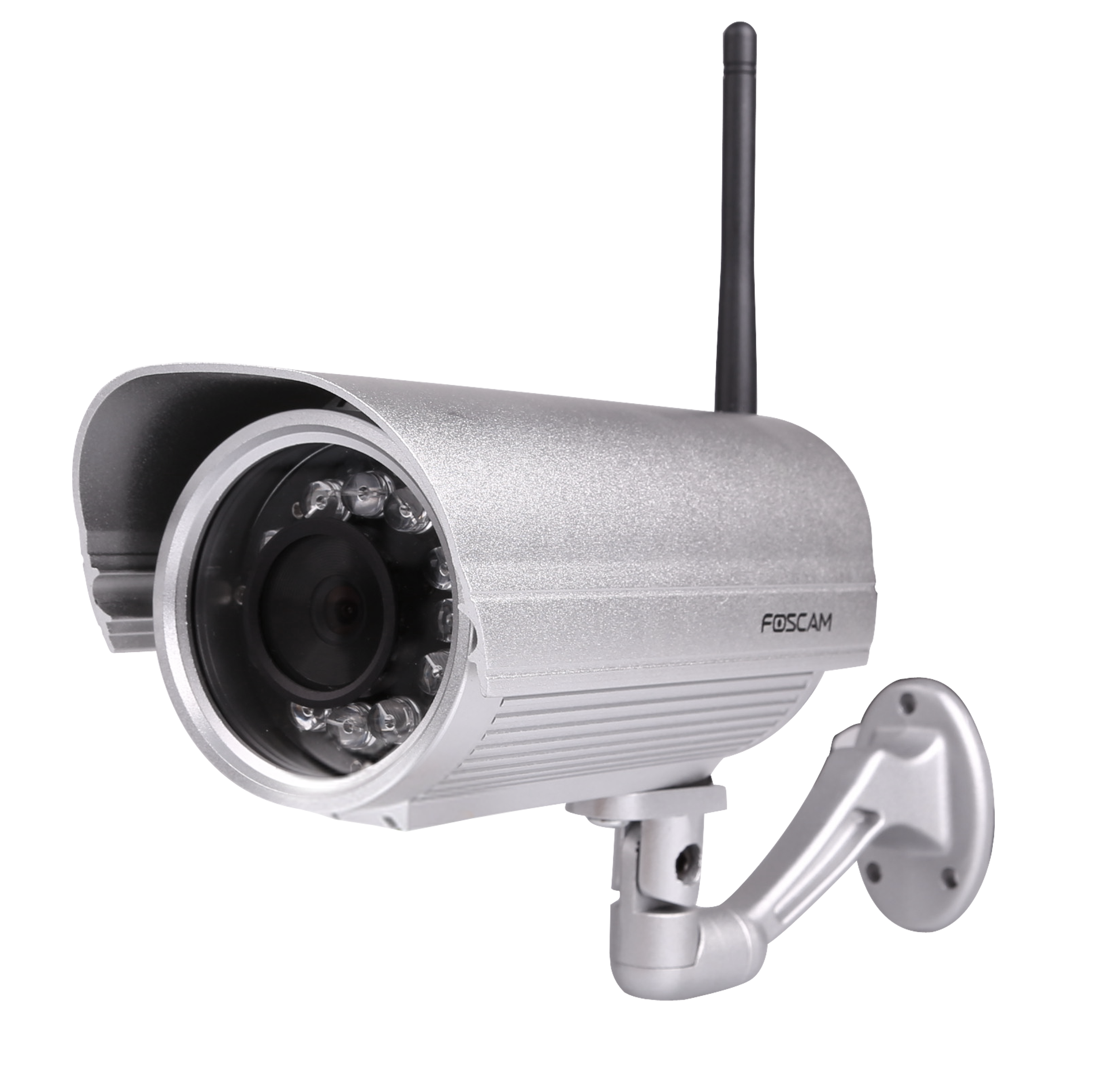
Посмотреть инструкция для Foscam FI8904W бесплатно. Руководство относится к категории камеры видеонаблюдения, 2 человек(а) дали ему среднюю оценку 8.2. Руководство доступно на следующих языках: английский. У вас есть вопрос о Foscam FI8904W или вам нужна помощь? Задайте свой вопрос здесь
- 1Overviews
- 2SurveillanceSoftwareGUI
- 4APPENDIX
- 5OBTAININGTECHNICALSUPPORT
Главная
| Foscam | |
| FI8904W | FI8904W | |
| камера видеонаблюдения | |
| 6954836090404, 0798304135114, 6952848660585, 6952848670829, 6952848639826, 6947842510042, 6952848676692, 0798304135923, 5053973546650, 6954836089040, 0700621849322, 0713458759894, 0033172484675, 0713458759887 | |
| английский | |
| Руководство пользователя (PDF) |
Видео
| Максимальное разрешение | 640 x 480 пикселей |
| Поддерживаемый видеоформат | M-JPEG |
| Поддерживаемые разрешения | 320 x 288 (QVGA), 640 x 480 (VGA) |
| Поддерживаемые видеоформаты | 480p |
| Частота смены кадров | 30 fps |
Камера
| Минимальное освещение | 0.5 lx |
Датчик изображения
| Тип сенсора | CMOS |
| Размер оптического сенсора | 1/4 « |
Объектив
Безопасность
| Алгоритмы шифрования данных | WEP, WPA |
Устройства хранения данных
| Встроенный жесткий диск | Нет |
Ночное видение
| Ночное видение | Да |
| Дистанция ночного видения | 20 m |
Производительность
| Тип | IP камера видеонаблюдения |
| PTZ-контроль | Нет |
| Поддерживаемое размещение | Вне помещения |
| Технология подключения | Беспроводной |
| Сертификация | CE, FCC |
Дизайн
| Формат | — |
| Цвет товара | Серебристый |
| Защитные возможности | Влагостойкость |
Порты и интерфейсы
| Количество портов Ethernet LAN ( RJ-45) | 1 |
Сеть
| Подключение Ethernet | Да |
| Свивка кабеля | 10/100Base-T(X) |
| Wi-Fi | Да |
| Wi-Fi стандартов | 802.11b, 802.11g |
| Скорость Wi-Fi (макс) | 54 Мбит/с |
Вес и размеры
| Ширина | 128 mm |
| Глубина | 228 mm |
| Высота | 108 mm |
| Вес | 1000 g |
Энергопитание
| Питание по Ethernet (PoE) | Нет |
| Частота входящего переменного тока | 50 — 60 Hz |
Условия эксплуатации
| Диапазон температур при хранении | -10 — 60 °C |
| Диапазон относительной влажности при хранении | 0 — 90 % |
Системные требования
| Минимальный процессор | 2.0GHZ |
| Минимальный объём ОЗУ | 256 MB |
показать больше
Не можете найти ответ на свой вопрос в руководстве? Вы можете найти ответ на свой вопрос ниже, в разделе часто задаваемых вопросов о Foscam FI8904W.
Какой вес Foscam FI8904W?
Foscam FI8904W имеет вес 1000 g.
Что такое мегапиксель?
Количество мегапикселей обозначает количество пикселей в датчике. 1 мегапиксель равен 1 миллиону пикселей. Чем больше пикселей, тем выше потенциальное качество изображения.
Что означает аббревиатура MП?
МП обозначает «мегапиксели».
Какие сертификаты Foscam FI8904W имеет?
Foscam FI8904W имеет следующие сертификаты: CE, FCC.
Какая высота Foscam FI8904W?
Foscam FI8904W имеет высоту 108 mm.
Какая ширина Foscam FI8904W?
Foscam FI8904W имеет ширину 128 mm.
Какая толщина Foscam FI8904W?
Foscam FI8904W имеет толщину 228 mm.
Инструкция Foscam FI8904W доступно в русский?
К сожалению, у нас нет руководства для Foscam FI8904W, доступного в русский. Это руководство доступно в английский.
Не нашли свой вопрос? Задайте свой вопрос здесь
Products
Model
Version
Size
Download
V5P
V1.0
3.81MB
download
FN9108E-T4
V1.0
3.51 MB
download
FN9108E-B4
V1.0
3.51 MB
download
FN9108H
V1.0
3.51 MB
download
FN9108HE
V1.0
3.51 MB
download
T8EP
V1.1
3.70MB
download
T5EP
V1.1
3.71MB
download
B4
V1.0
2.48
download
V8EP
V1.2
3.67 MB
download
V5EP
V1.2
3.68 MB
download
V4EC
V1.2
3.67 MB
download
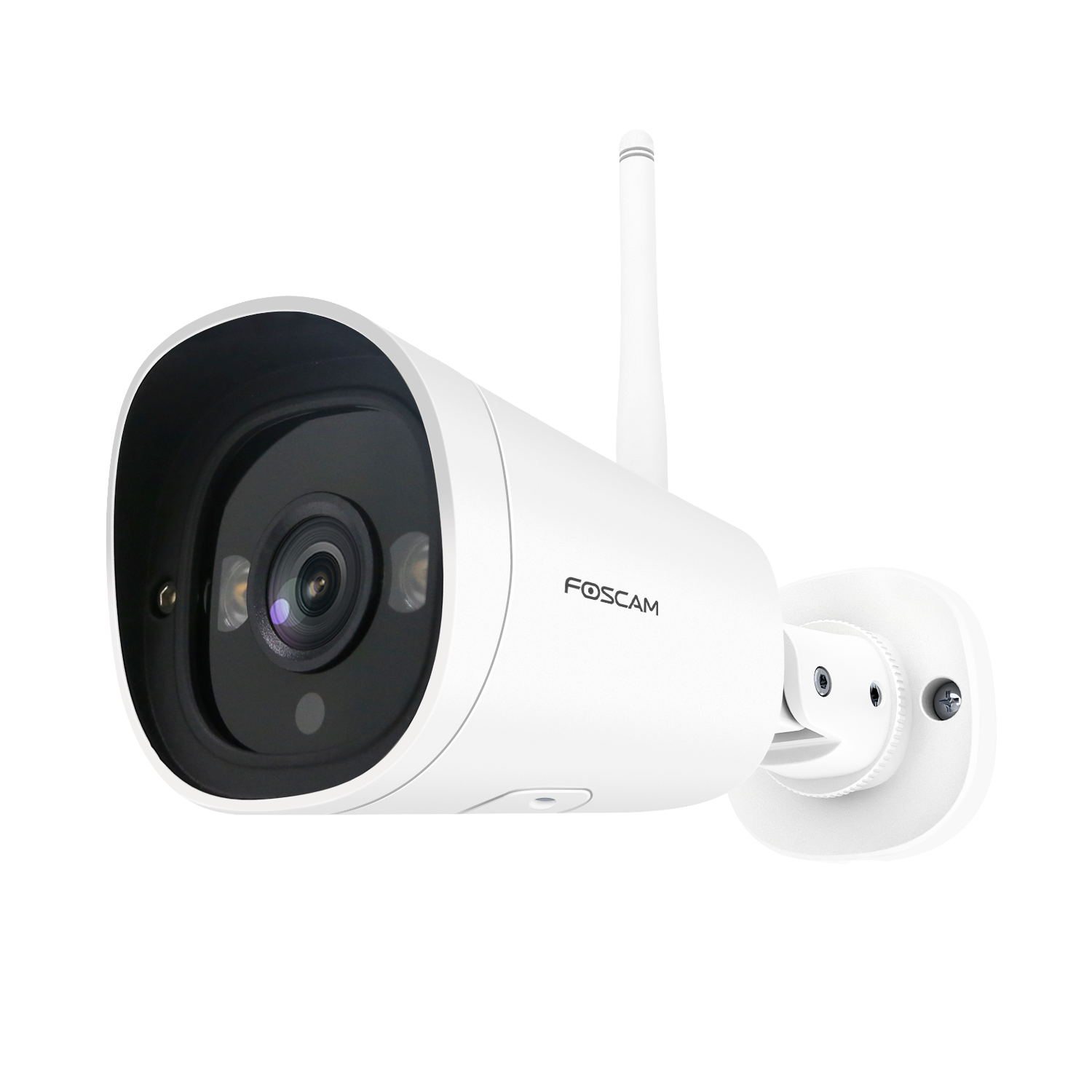
G4C
V1.2
3.61 MB
download
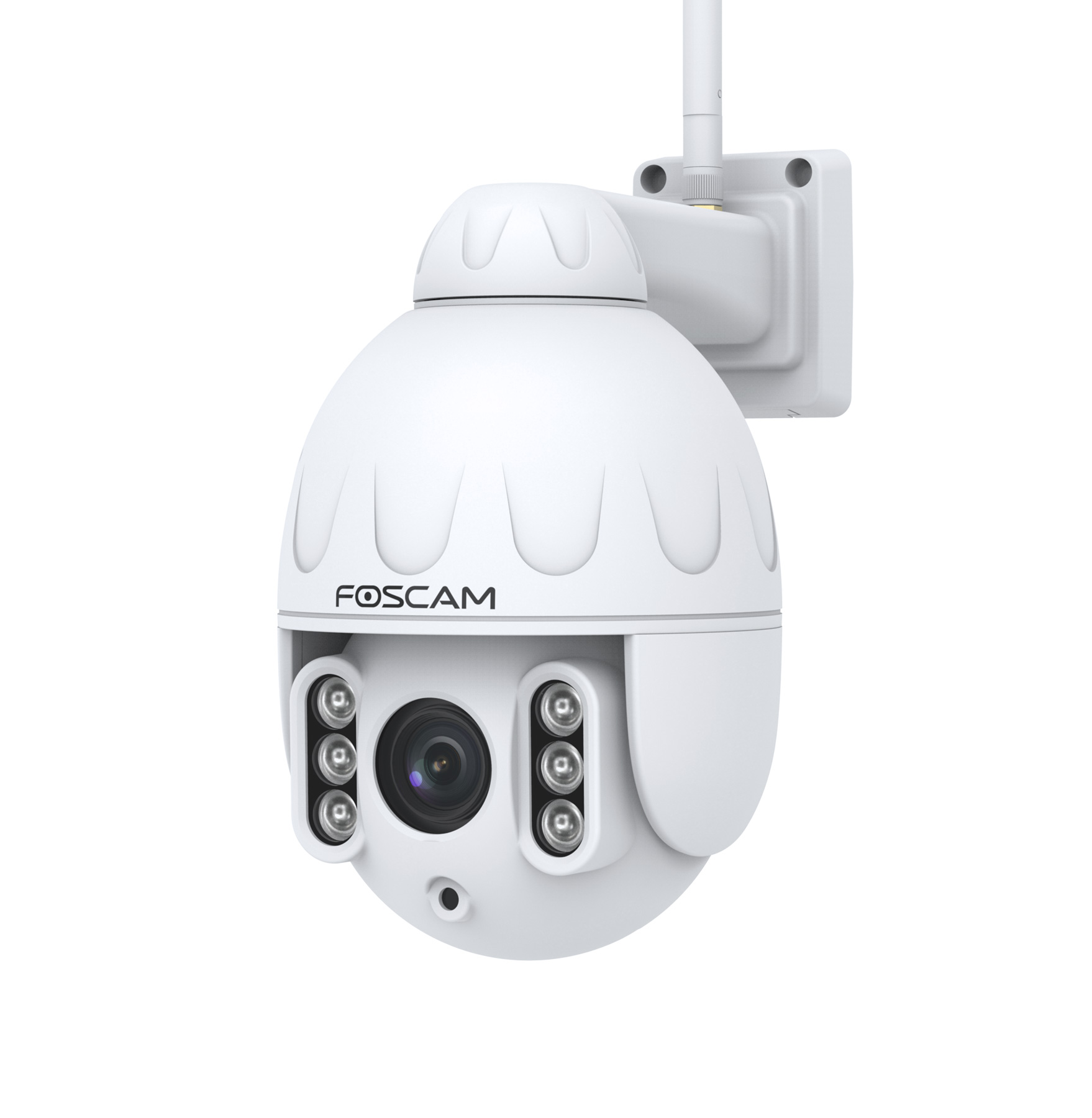
SD4
V3.1
3.64 MB
download
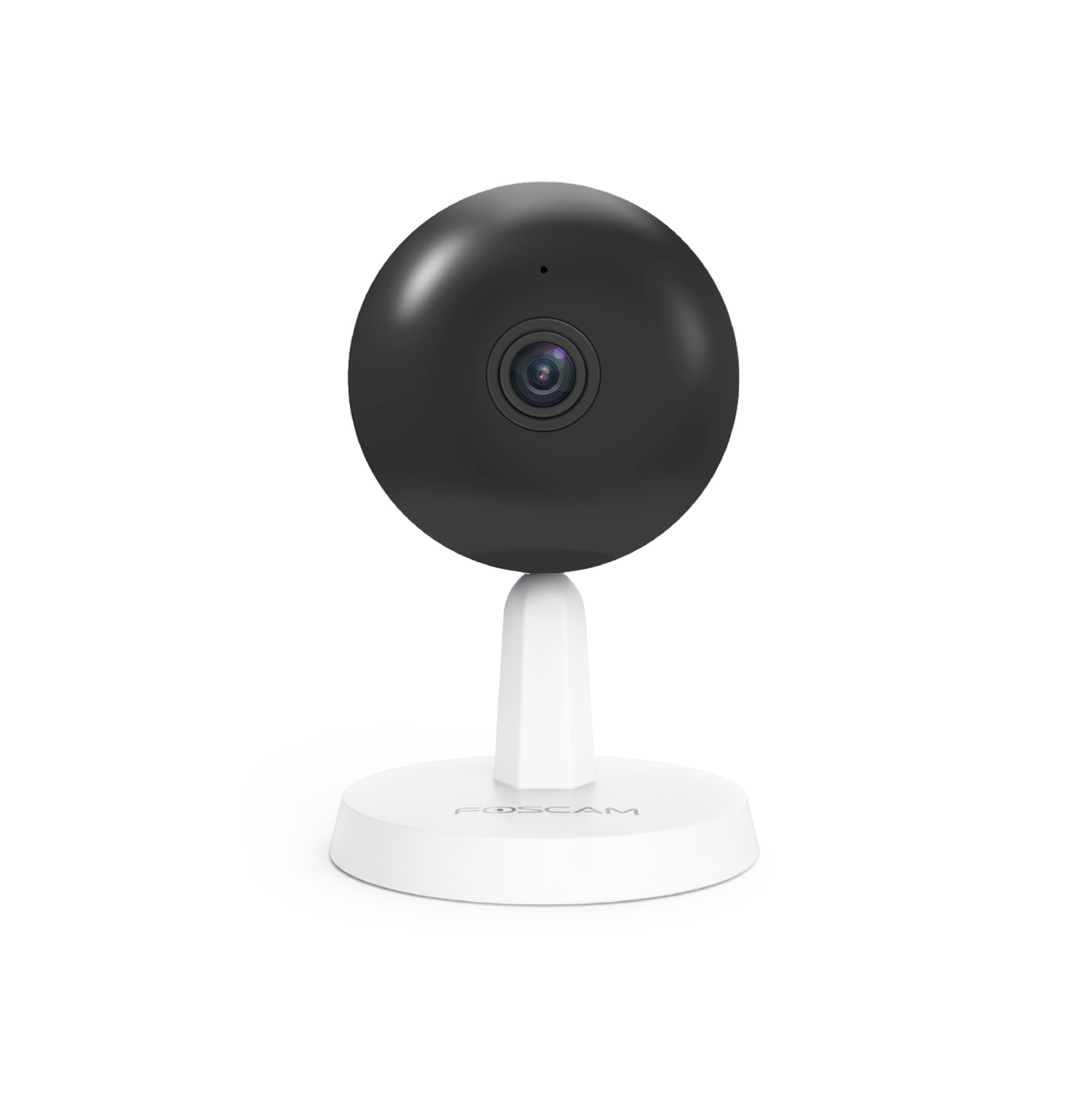
X4
V3.0
3.59 MB
download
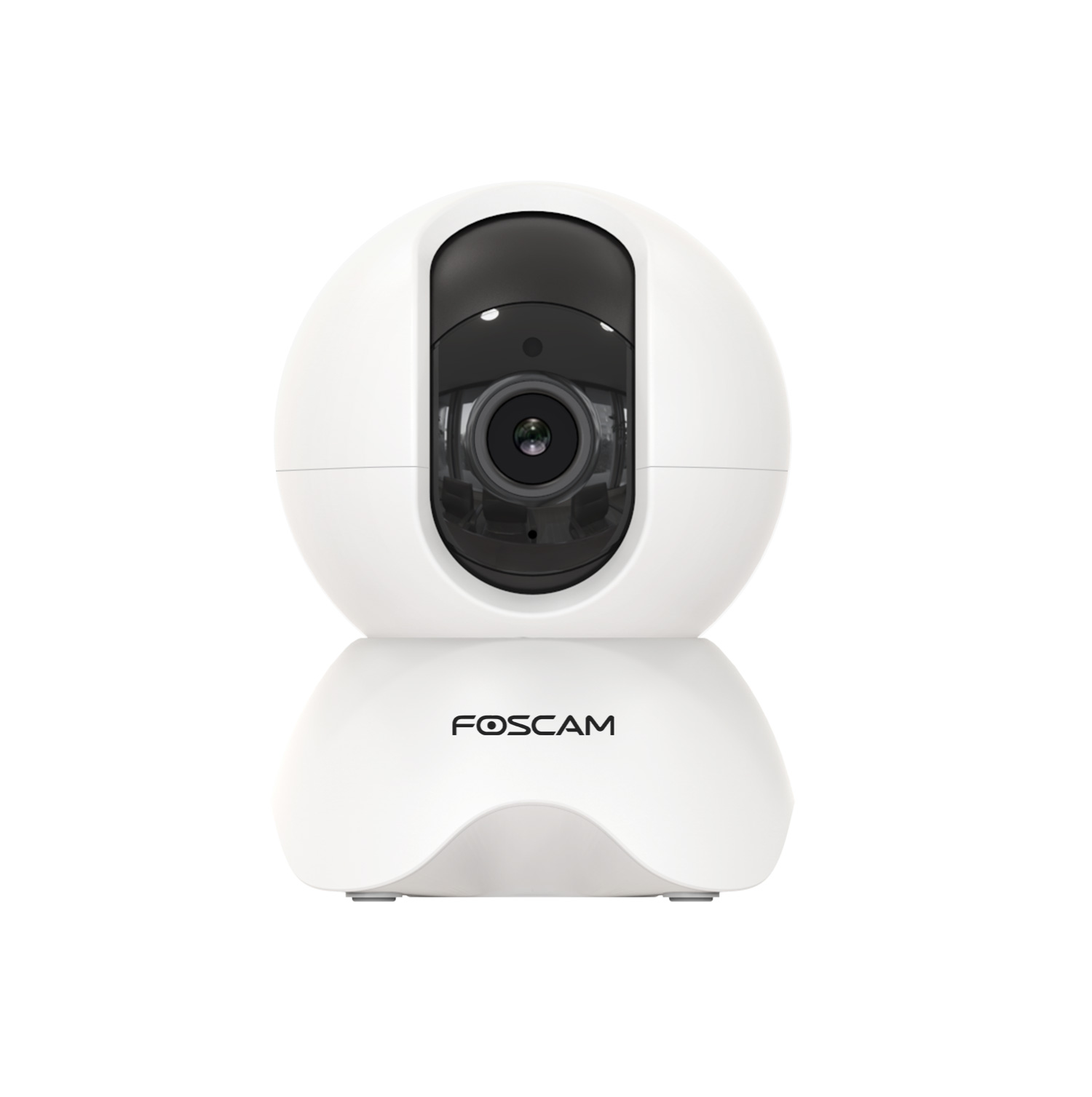
X3/R3/R5/X3E
V3.0
3.58 MB
download
FN8108HE
V1.0
3.60 MB
download
FN8108H
V1.0
3.60 MB
download
FN7108W-B4
V1.1
2.29 MB
download
FLC
V1.2
3.71 MB
download
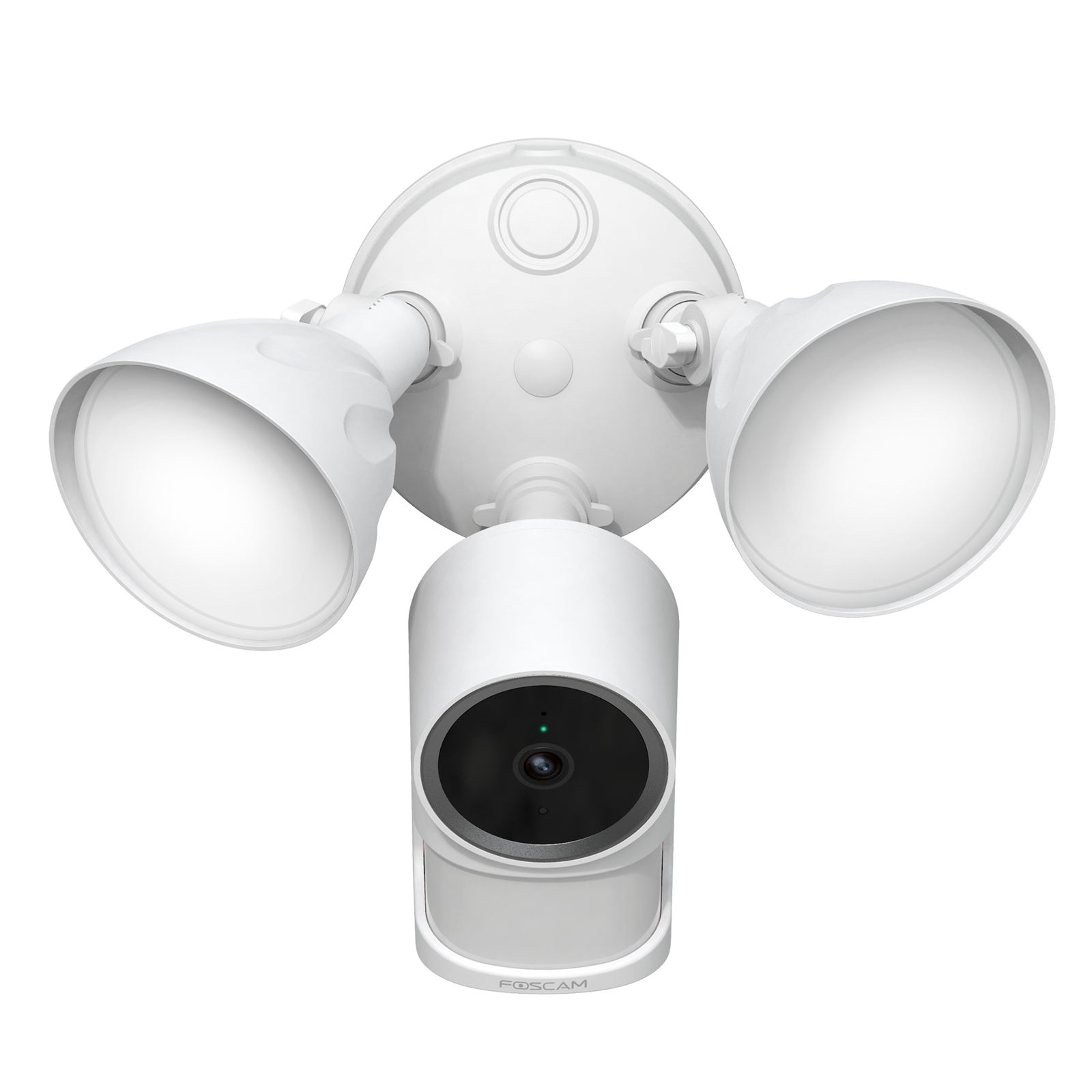
F41
V1.2
3.71 MB
download
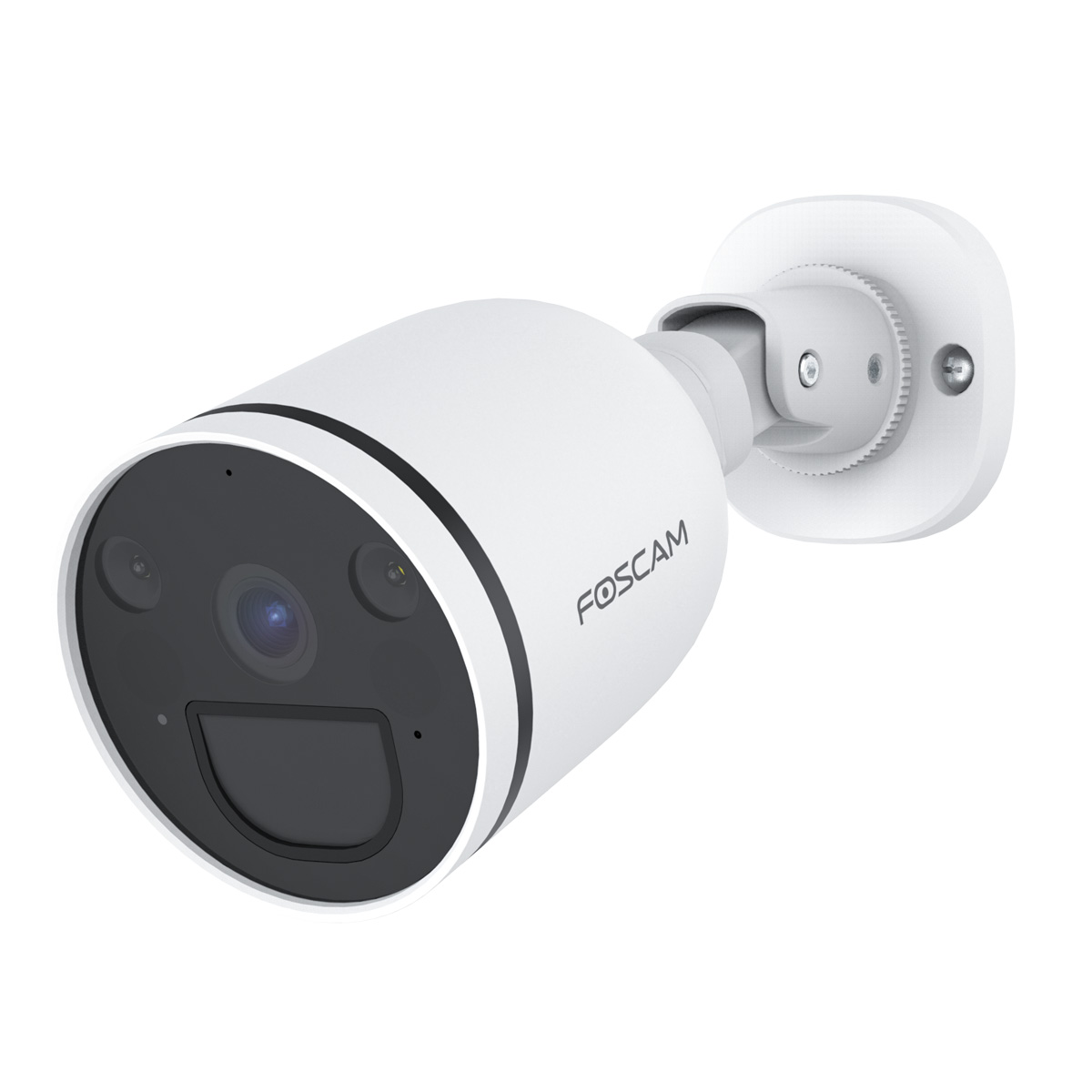
SPC
V1.2
3.66 MB
download
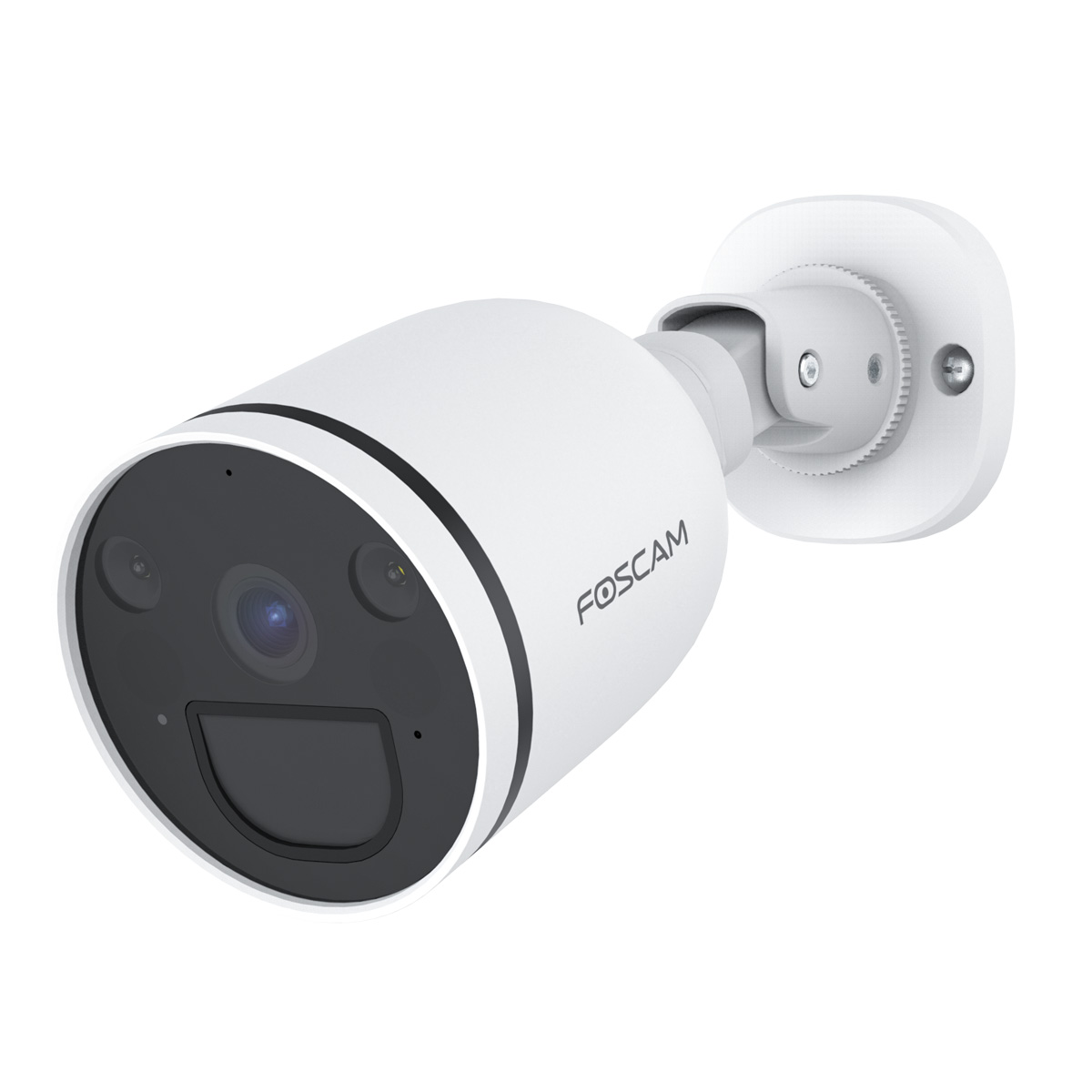
S41
V1.2
3.66 MB
download
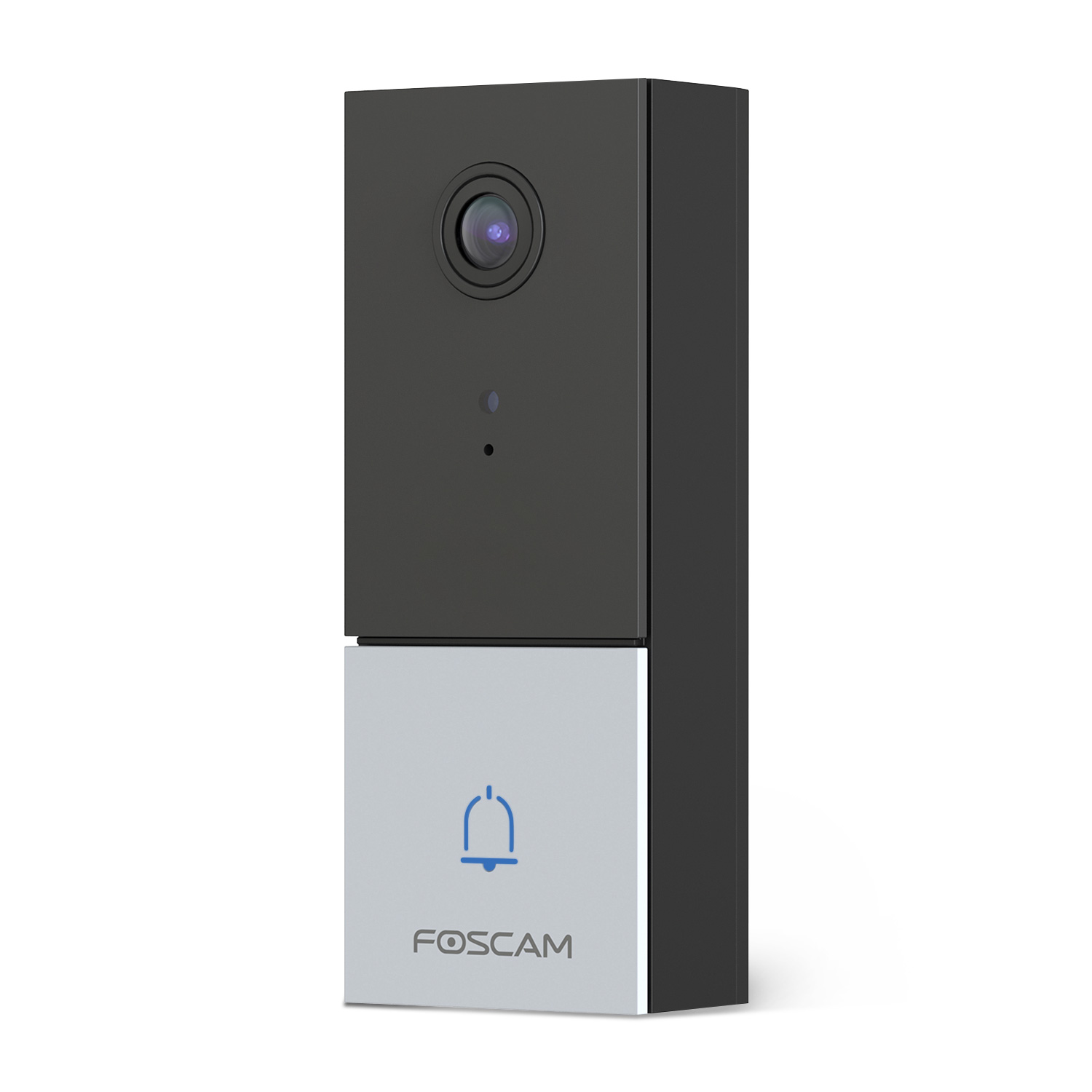
DBW5
V1.2
3.59 MB
download
VD1
V1.2
3.59 MB
download
BM1
V1.1
7.33 MB
download
BM1
V1.1
7.28 MB
download

FOSCAM VMS (Mac)
V1.3
2.69 MB
download

FOSCAM VMS (Windows)
V1.3
3.32 MB
download
FN7118E-B4
3.21 MB
download
FN7104W-B4
V1.4
1.62 MB
download
FFT-02
V1.1
2.25 MB
download
FI9905B
5.55 MB
download
FI9938B
5.34 MB
download
SD2X
V3.1
3.66MB
download
SD2/HT2
V1.3
3.55 MB
download
D4Z/VZ4
V3.1
3.66MB
download
X2
V1.0
3.38 MB
download
X1
V1.1
3.34 MB
download
FI9912P
V3.0
3.63 MB
download
QJ2
V1.1
3.43 MB
download
C2M
V3.0
3.61 MB
download
D2EP
V1.1.2
3.34 MB
download
R4M
V3.0
3.69 MB
download
R4S
V3.0
3.69 MB
download
FI9936P
V1.1
4.25 MB
download
Z2
V1.1
4.25 MB
download
FI9912EP
V1.1
3.43 MB
download
G4EP
V3.1
3.66 MB
download
QJ4
V3.1
3.66 MB
download
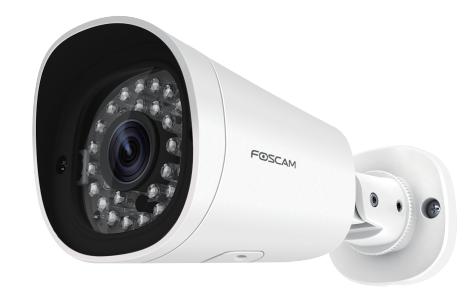
G2EP
V1.1
3.43 MB
download
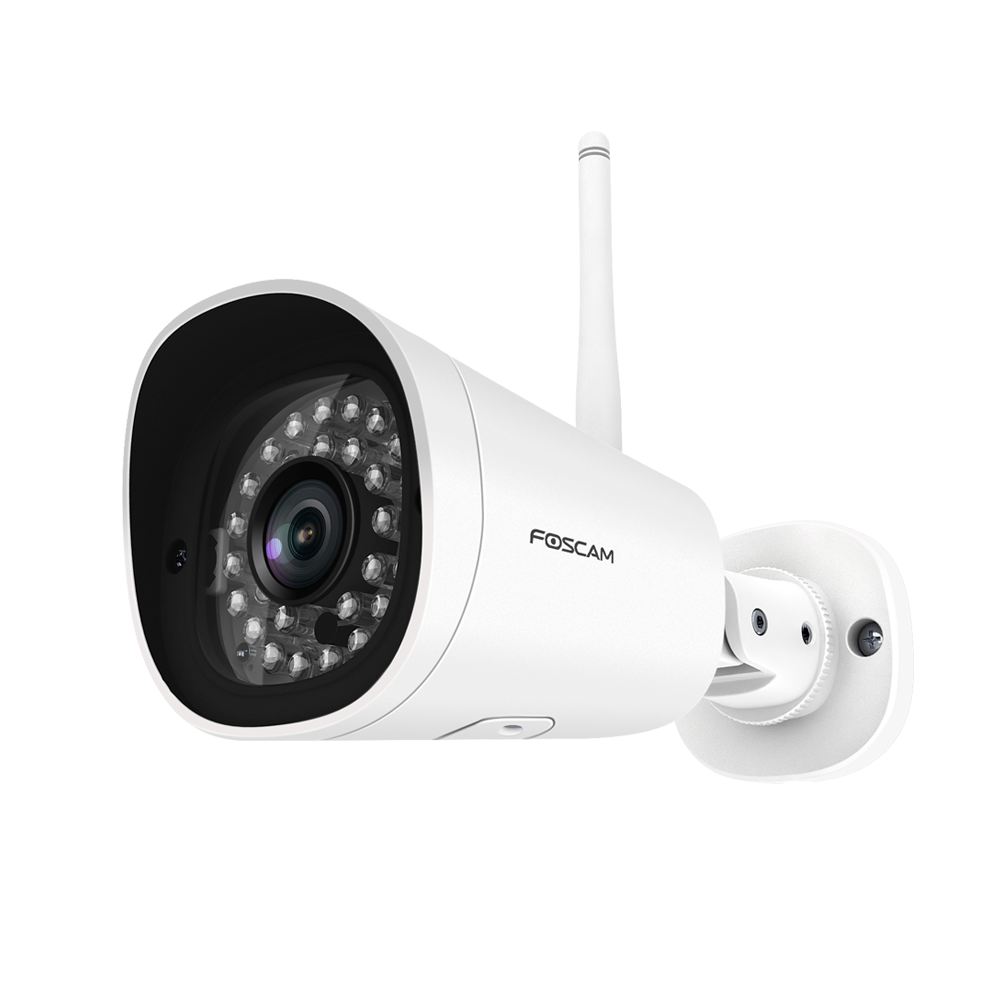
G4
V3.1
3.63 MB
download
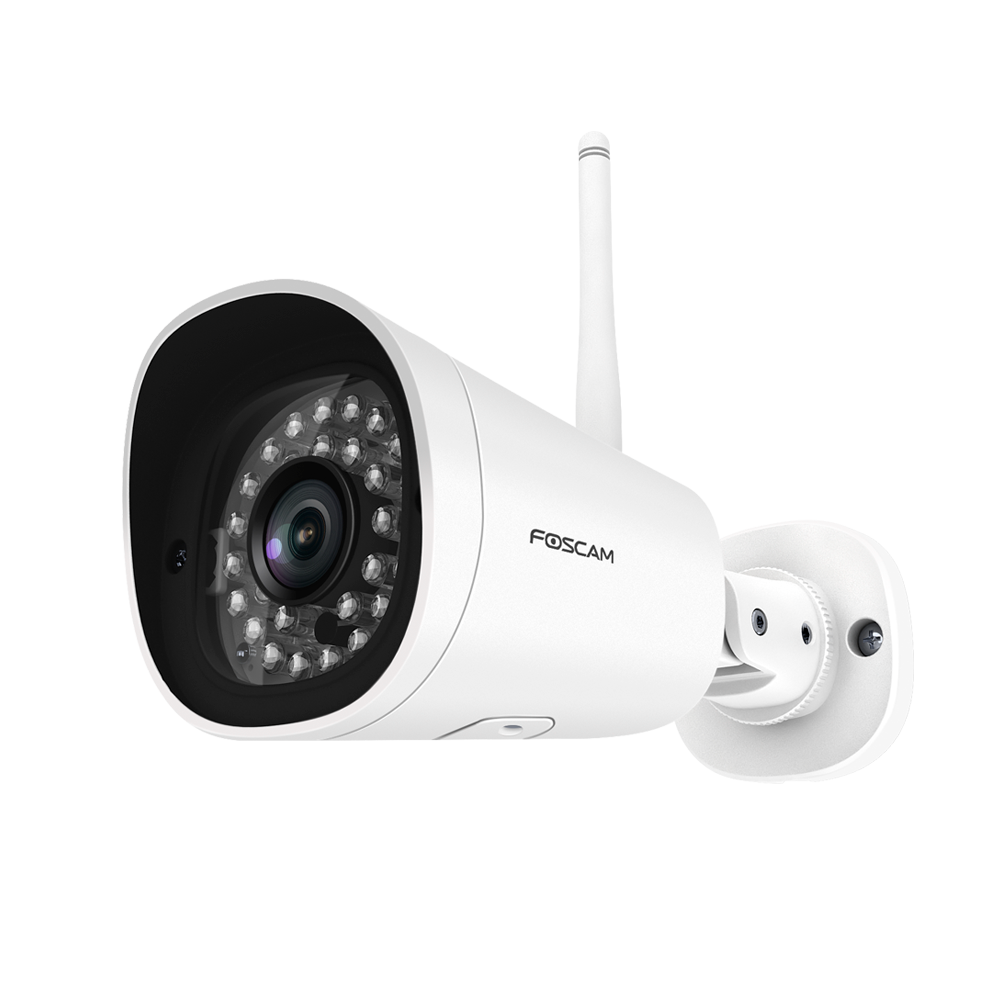
G2
V3.0
3.63 MB
download
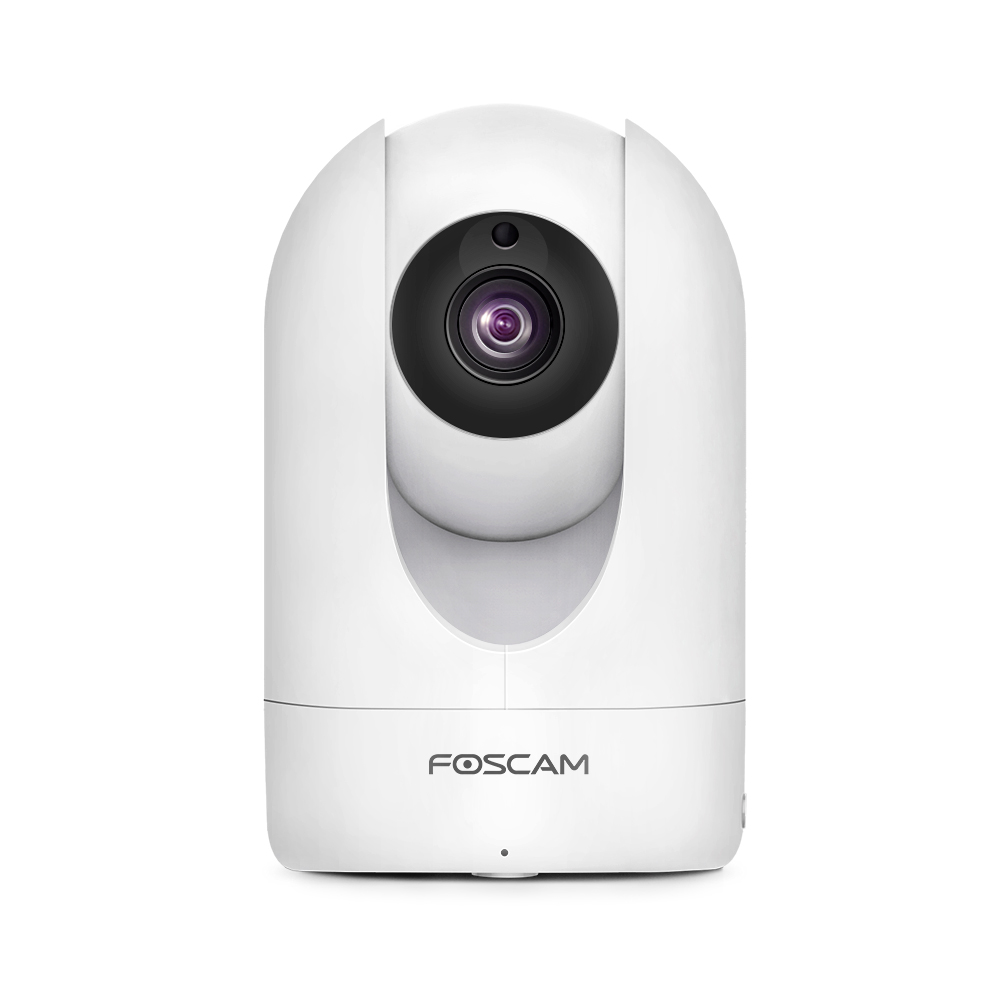
R2M
V1.1
3.49 MB
download
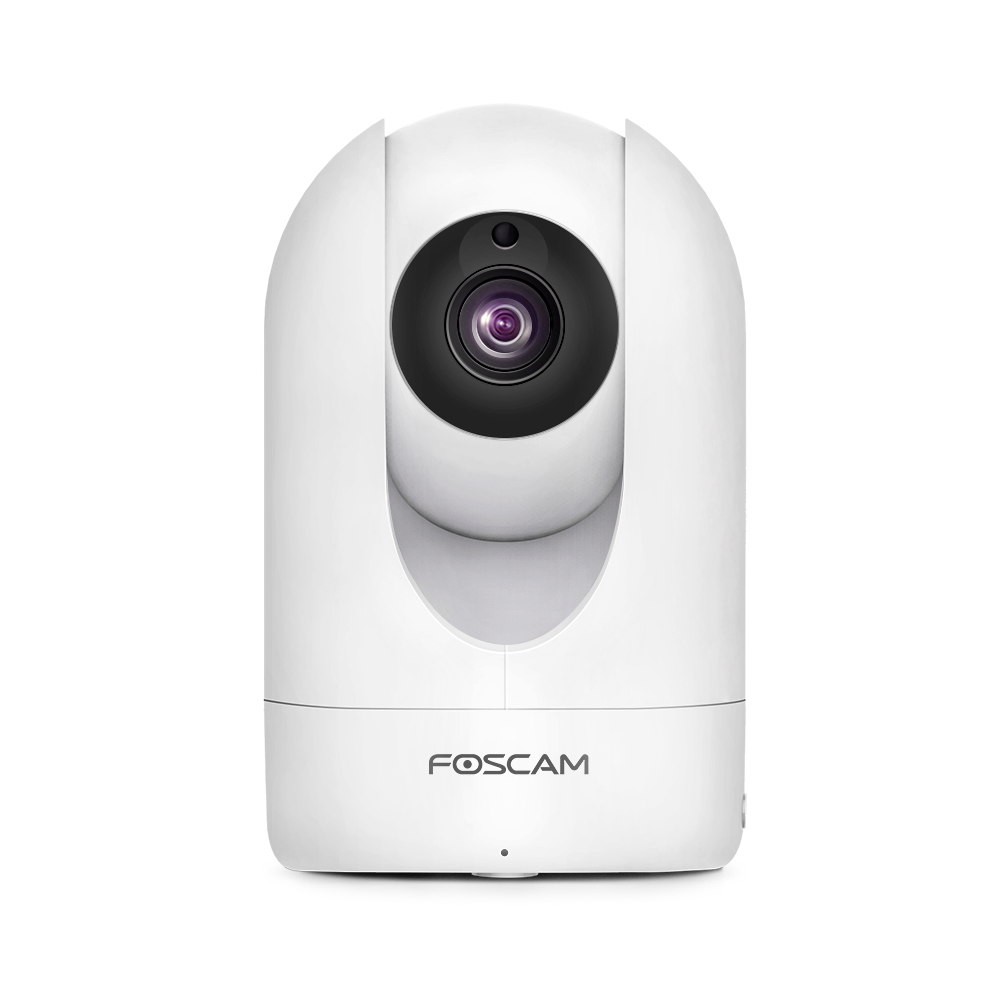
R2C
V1.1
3.49 MB
download

G4P
V3.1
3.63 MB
download
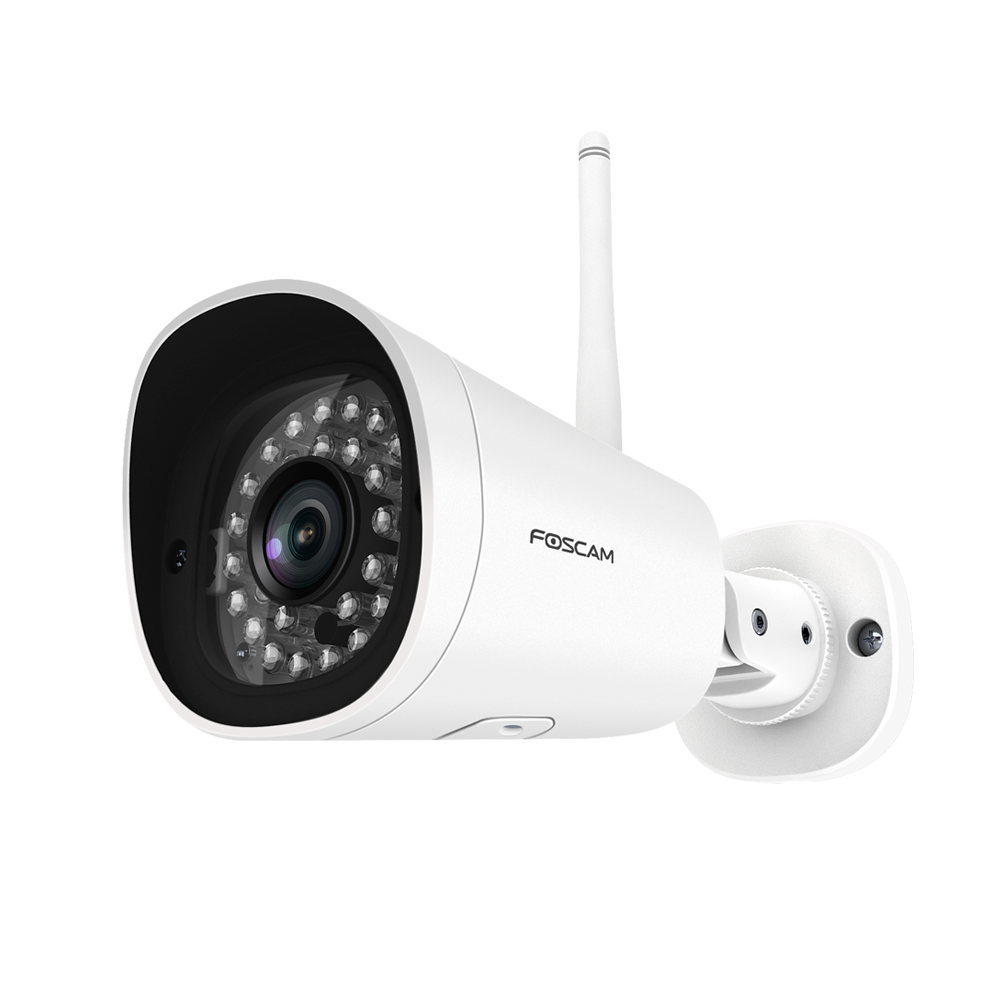
FI9902P
V3.0
3.63 MB
download
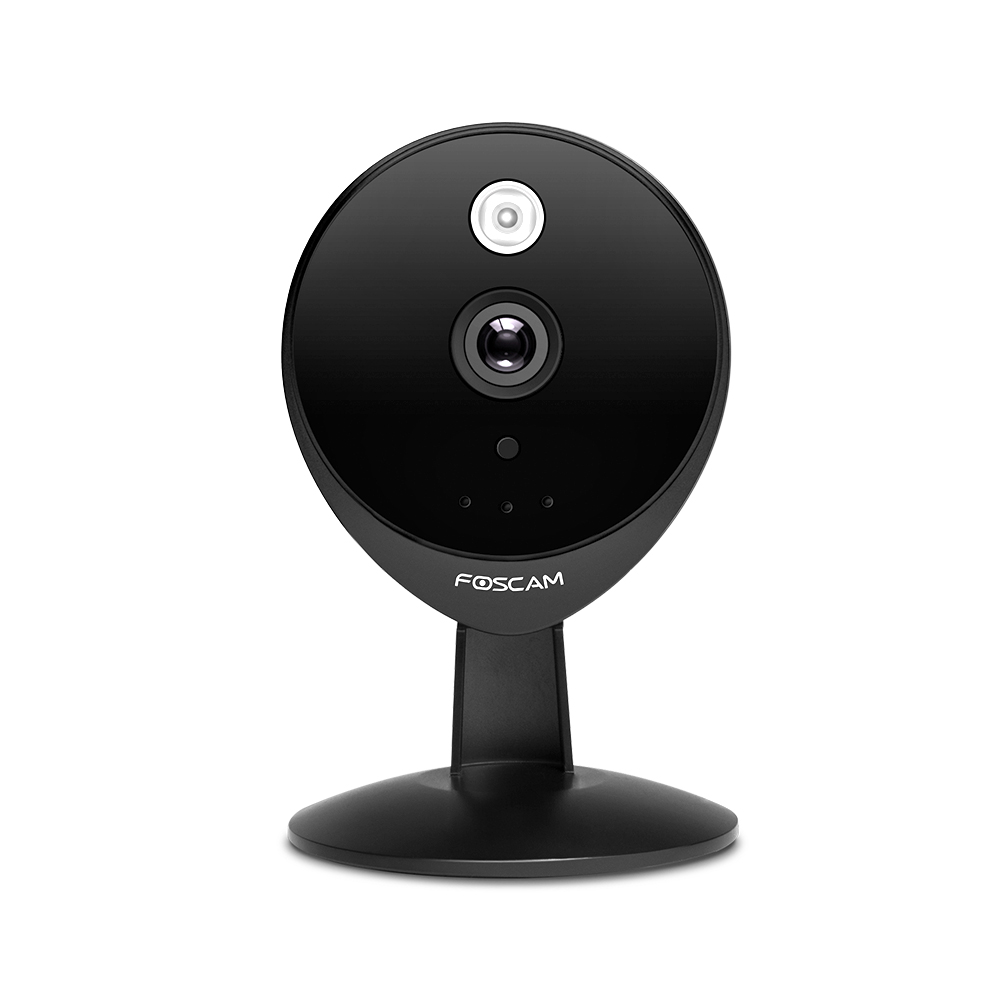
C2E
V1.1
2.21 MB
download
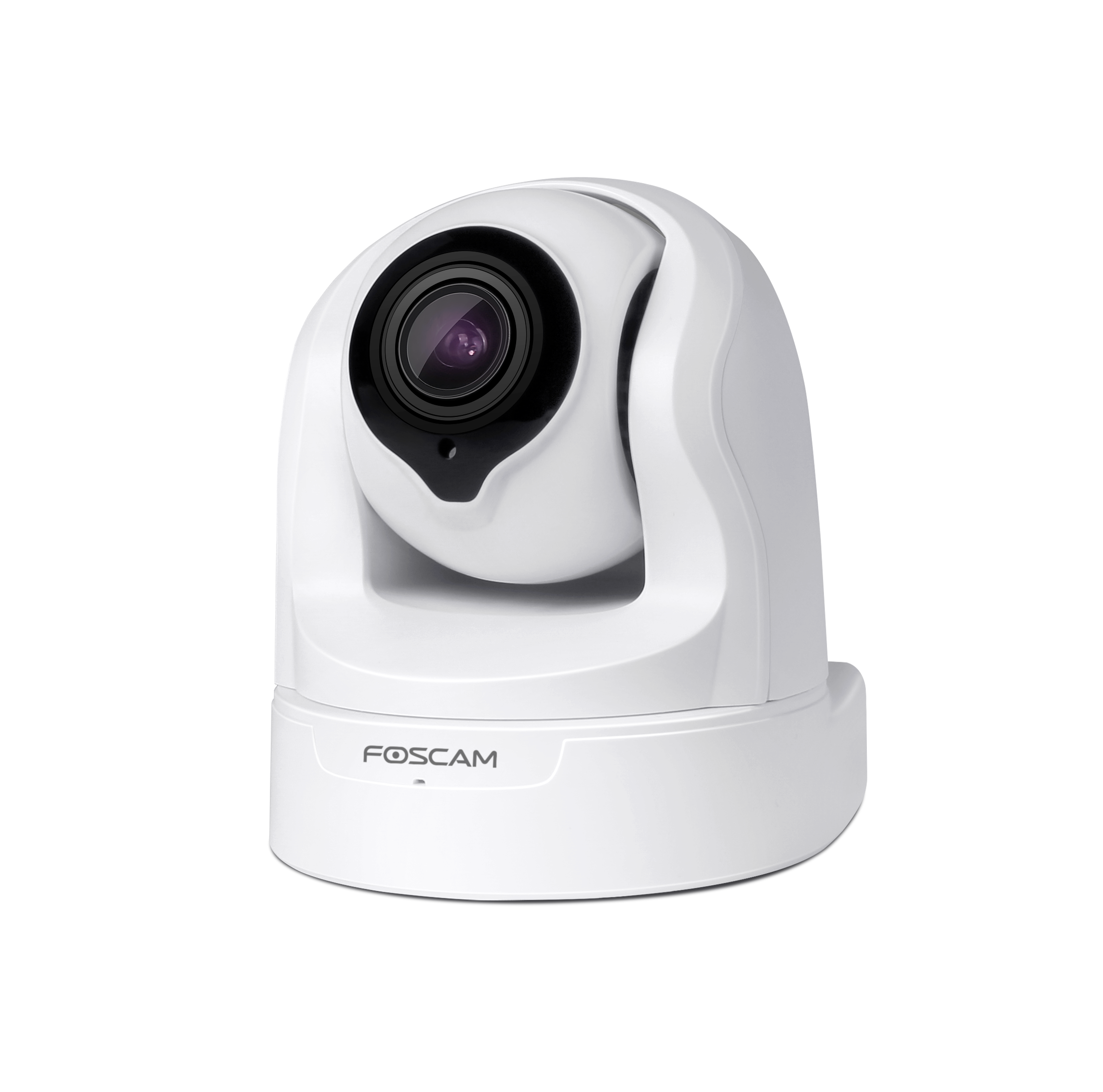
FI9926P
V1.2
3.74 MB
download
FN7108HE
V1.0.2
3.28MB
download
E1
V1.0
4.37MB
download
E1
V1.0
3.72MB
download
E1
V1.0
4.10MB
download
E1
V1.0
4.32MB
download
E1
V1.0
3.72MB
download
R2E
V2.6
5.30MB
download
E1
V1.1
4.37M
download
FI9928P
V1.0.8
5.34 MB
download
C1
V2.7
3.60 MB
download
FN7108E-B4-2T / FN7108E-B8-2T
V1.0.3
3.40MB
download
FN3108E-B4-1T / FN3108E-B8-2T
V1.0.3
3.27MB
download
FN3104W-B4
V1.0.4
3.28MB
download
FI9900EP / FI9901EP
V3.8.4
5.55 MB
download
FI9961EP
V1.1.2
3.34 MB
download
FI9828P
V2.2.7
6.31MB
download
FI9800P
V3.8.4
5.55MB
download
FN3108XE-B4-1T/FN3108XE-B8-2T
V1.2.5
3.26MB
download
C1 Lite
V1.8
3.43 MB
download
FI9900P
V3.8.4
5.55 MB
download
FN3109H / FN3104H
V1.6.4
4.57MB
download
R2 R4
V2.5
3.55 MB
download
FI9803P
V3.8.4
5.55 MB
download
FI9805P
V1.4
5.92MB
download
FI8916W
V50.01
3.31MB
download
FI9802W
V-1.4
3.3MB
download

FI9801W
V-1.4.1.9
3.2MB
download
FI9818W
V2.6
3.14MB
download
FI8906W
V1.8
3.31MB
download
FI8907W
V50.01
3.36MB
download
FI9831W
V2.8
5.85MB
download
FI8904W
V1.8
3.43MB
download
FI9818W V2
V2.6
6.88MB
download
FI9821W V2.1
V2.6.1
5.97MB
download
FI9821W V2
V2.6.1
5.97MB
download
FI9821EP
V3.5.1
5.22M
download
FI9821P
V4.0
3.80 MB
download
FI8918E
V50.01
3.38MB
download
FI9831P
V4.0
3.80 MB
download
FI9826P
V4.0
3.80 MB
download
FI9804P
V1.1
5.87MB
download
FI8909W
V2.0
2.89MB
download
FI9826W
V2.8
5.85MB
download
FI8919W
V1.8
3.88MB
download
FI9828W
V2.1
5.96MB
download
FI9853EP
V1.9.8
5.05MB
download
FI9851P
V1.9.7
5.43MB
download
FI8905W
V1.8
3.43MB
download
FI8905E
V1.8
3.25MB
download
FI9804W
V3.7.9
6.52MB
download
FI9805W
V3.7.9
6.52MB
download
X5
V3.0
3.58MB
download
FI9803EP
V3.8.4
5.55 MB
download
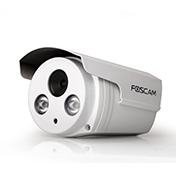
FI9903P
V3.8.4
5.55MB
download
FI8918W
V2.0
3.30MB
download
FI8910W
V2.0
3.46MB
download
FI8910E
V2.0
3.39MB
download
FI9821W
V2.8
5.85MB
download
FosBaby_P1
V2.1
5.40M
download
FosBaby
V2.1
5.40M
download
FI9816P
V4.0
3.80 MB
download
C2
V2.7
3.60 MB
download
Руководстве по эксплуатации Foscam FI8904W — вам приходилось его терять? Поскольку вы попали сюда, наверняка с вами это случилось. Но вы не единственный человек, сталкивающийся с проблемами с хранением руководства по эксплуатации всех домашних устройств. Ниже несколько советов, касающихся того, зачем собирать руководства по эксплуатации.
Руководстве по эксплуатации Foscam FI8904W это определенный вид технической документации, являющейся неразлучным элементом каждого устройства, которое мы приобретаем. Они отличаются между собой количеством информации, которую можно найти на тему данного устройства: напр. Foscam FI8904W. Конечно же, если производитель считает что необходимо передать нам большее количество информации, касающейся устройства Foscam FI8904W, то стоит ее хоть раз прочитать — в начале, сразу же после покупки данной вещи. Однако мы считаем, что инструкции должны заключать самую важную, наиболее необходимую информацию о Foscam FI8904W, так, чтобы не отнимать желания пользователя прочесть ее уже в самом начале. Несомненно, если устройство Foscam FI8904W имеет много продвинутых функций, неизбежно большое количество информации в содержании этого документа.
Które из информации в инструкции Foscam FI8904W необходимо обязательно прочитать?
- Информацию, касающуюся правильного использования и ухода за устройством Foscam FI8904W — нам необходимо ознакомиться с основными правилами, чтобы в случае проблем с устройством сервисный центр не отказал нам в гарантийном обслуживании, из-за неправильного использования
- Информация, касающаяся самых частых проблем с Foscam FI8904W и способы их решения
- Информация, касающаяся гарантии устройства Foscam FI8904W и ближайших сервисных центров, способных починить устройство в соответствии с рекомендациям производителя Foscam
Как хранить инструкции дома?
Хорошей идеей является предназначение одного ящика, в котором бы хранилась инструкция Foscam FI8904W а также всех других домашних устройств которыми мы пользуемся. Тогда значительно легче вам будет ее найти, чем искать в родных коробках, которые наверняка уже выбросили вы, или другие домочадцы. Раз в год достаточно просмотреть ящик и выбросить инструкции, которые касаются устройств, которыми вы уже не пользуетесь. Таким образом вы избежите хранения ненужных документов, а останутся только актуальные. Вы можете также скачать и распечатать инструкцию Foscam FI8904W чтобы разместить ее в своем ящике.