
-
Руководства по ремонту
1
-
Инструкции по эксплуатации
1

Toshiba e-STUDIO166 инструкция по эксплуатации
(134 страницы)
- Языки:Русский
-
Тип:
PDF -
Размер:
4.16 MB -
Описание:
Многофункциональное устройство (МФУ)
Просмотр
На NoDevice можно скачать инструкцию по эксплуатации для Toshiba e-STUDIO166. Руководство пользователя необходимо для ознакомления с правилами установки и эксплуатации Toshiba e-STUDIO166. Инструкции по использованию помогут правильно настроить Toshiba e-STUDIO166, исправить ошибки и выявить неполадки.
Скачать
MULTIFUNCTIONAL DIGITAL SYSTEMS
Operator’s Manual
for Copying Functions
MULTIFUNCTIONAL DIGITAL SYSTEMS
Operator’s Manual for Copying Functions

Preface
Thank you for purchasing the TOSHIBA multifunctional digital systems e-STUDIO166/206. We have provided you with this manual for the operation of this equipment.
This operator’s manual describes the following:
yHow to use this equipment
yHow to inspect and carry out maintenance on this equipment
yHow to remedy mechanical and copying problems
Be sure to read this manual before using the e-STUDIO166/206. Keep this manual handy and retain it for future reference.
Preface 1
Notice to Users
After a suitable place has been selected for the installation of the e-STUDIO166/206, please do not change it. Avoid excessive heat, dust, vibration and direct sunlight. Also, provide proper ventilation as the copier emits a small amount of ozone.
Warning:
This is a Class A product. In a domestic environment this product may cause radio interference in which case the user may be required to take adequate measures.
Working environment
From EMC (Electromagnetic Compatibility) point of view, the operation of this product is being restricted in following environments:
yMedical Environments: This product is not certified as a medical product according to the Medical Product Directive 93/42/EEC.
yDomestic environments (e.g. a private living room with TV / Radio sets in the nearby surrounding area) because this is a so called EMC class A product. In a domestic environment this product may cause radio interference in which case the user may be required to take adequate measures!
Any consequences resulting from the use of this product in restricted working environments are not the responsibility of TOSHIBA TEC.
The consequences of the use of this product in restricted working environments may be an electromagnetic interference with other devices or machines in the nearby surrounding area. This can result into malfunction including data loss / data error pertaining to this product or the other devices / machines involved in the electromagnetic interference.
Furthermore, for general safety reasons, the use of this product in environments with explosive atmospheres is not permitted.
CE compliance
This product is labelled with the CE mark in accordance with the provisions of the applicable European Directives, notably the Low Voltage Directive 73/23/EEC and the Electromagnetic Compatibility Directive 2004/108/EEC for this product and the electric accessories.
CE marking is the responsibility of TOSHIBA TEC GERMANY IMAGING SYSTEMS GmbH, Carl- Schurz-Str. 7, 41460 Neuss, Germany, phone +49-(0)-2131-1245-0.
For a copy of the related CE Declaration of Conformity please contact your dealer or TOSHIBA TEC.
For Germany only
Machine Noise Information
Ordinance 3. GPSGV: The maximum sound pressure level is equal or less than 70 dB(A) according to EN ISO 7779
2 Notice to Users
Following information is for EU-member states only:
This product is marked according to the requirement in EU-Directive 2002/96/EC. (Directive on Waste electrical and electronic equipment — WEEE)
The use of the symbol indicates that this product may not be disposed as unsorted municipal waste and has to be collected separately. By ensuring this product is disposed of correctly, you will help prevent potential negative consequences for the environment and human health, which could otherwise be caused by inappropriate waste handling of this product.
For more detailed information about the take-back and recycling of this product please contact your supplier where you purchased the product.
Notice to Users 3
Before Reading This Manual
Lineup of our manuals
These manuals are provided for the operation of the e-STUDIO166/206. Select and read the manual best suited to your needs. This manual is the Operator’s Manual for Copying Functions.
Operator’s Manual for Copying Functions (Booklet, This manual)
This manual describes the basic operations, mainly copying functions, of this equipment. It also describes safety precautions to ensure correct and safe use of this equipment. Be sure to read this before you use the equipment.
Operator’s Manual for TOSHIBA Viewer (PDF file)
This manual describes how to use the co-packed application software “TOSHIBA Viewer”. Various functions such as printing, scanning and setup can be used with a computer connected to this equipment with a USB.
To read manuals in the PDF file format
The operator’s manual in the PDF (Portable Document Format) can be displayed/printed using Adobe Reader or Adobe Acrobat Reader. If neither is installed in your computer, download one of them. This can be done via the website of Adobe Systems Incorporated.
4 Before Reading This Manual
How to read this manual
Signal in this manual
To ensure correct and safe use of this equipment, this operator’s manual describes safety precautions according to the three levels shown below.
You should fully understand the meaning and importance of these items before reading this manual.
Indicates a potentially hazardous situation which, if not avoided, could result in death, serious injury, or serious damage, or fire in the equipment or surrounding assets.
Indicates a potentially hazardous situation which, if not avoided, may result in minor or moderate injury, partial damage of the equipment or surrounding assets, or loss of data.
Indicates information to which you should pay attention when operating the equipment.
Other than the above, this manual also describes information that may be useful for the operation of this equipment with the following signage:
Describes handy information that is useful to know when operating the equipment.
Pages describing items related to what you are currently doing. See these pages as required.
Description of original/paper direction
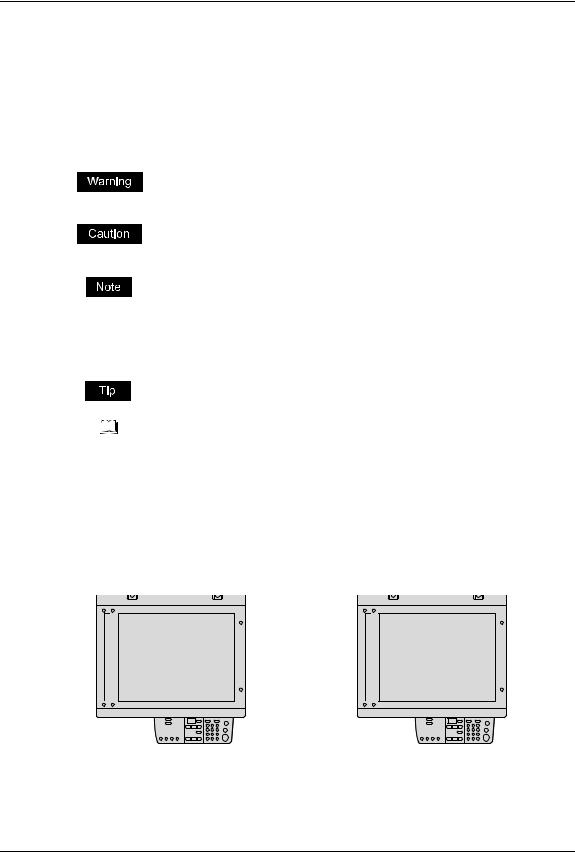
Paper or originals of A4 size can be placed either in a portrait direction or in a landscape direction. In this manual, “-R” is added to this paper size when this size of paper or original is placed in a landscape direction.
e.g.) A4 size original on the original glass
|
Placed in a portrait direction: A4 |
Placed in a landscape direction: A4-R |
Paper or originals of A3 or B4 size can only be placed in a landscape direction, therefore “-R” is not added to these sizes.
Before Reading This Manual 5

Trademarks
yMicrosoft and Windows are the trademarks of Microsoft Corporation in the US and other countries.
yAdobe, Acrobat, Adobe Reader and Adobe Acrobat Reader are the trademarks of Adobe Systems Incorporated.
yOther company or product names shown in this manual may be a brand name or a trademark of each company.
©2007 TOSHIBA TEC CORPORATION All rights reserved
Under the copyright laws, this manual cannot be reproduced in any form without prior written permission of TOSHIBA TEC CORPORATION. No patent liability is assumed, however, with respect to the use of the information contained herein.
6 Before Reading This Manual

CONTENTS |
|
|
Preface…………………………………………………………………………………………….. |
1 |
|
Notice to Users ………………………………………………………………………………… |
2 |
|
Before Reading This Manual …………………………………………………………….. |
4 |
|
TOSHIBA Quality Is Second to None……………………………………………….. |
11 |
|
Features of e-STUDIO166/206 …………………………………………………………. |
13 |
|
General Precautions……………………………………………………………………….. |
14 |
|
Disclaimer Notice …………………………………………………………………………… |
19 |
|
Environmental Information……………………………………………………………… |
20 |
|
Chapter 1 PREPARATION |
|
|
Description of Each Component……………………………………………………… |
22 |
|
Front / Right side …………………………………………………………………………. |
22 |
|
Left side / Inner side …………………………………………………………………….. |
23 |
|
Configuration of options………………………………………………………………… |
25 |
|
Control panel ………………………………………………………………………………. |
26 |
|
Preparation 1 — Turning Power ON…………………………………………………… |
29 |
|
Turning power ON ……………………………………………………………………….. |
29 |
|
Saving energy when not in use — Energy saving mode — ……………………. |
30 |
|
Preparation 2 — Placing Copy Paper…………………………………………………. |
31 |
|
Acceptable media types ……………………………………………………………….. |
31 |
|
Recommended paper…………………………………………………………………… |
32 |
|
Placing paper in drawers………………………………………………………………. |
33 |
|
Preparation 3 — Registering Size of Paper Placed …………………………….. |
37 |
|
Registering standard size (A3, A4, A4-R, A5-R, B4) …………………………. |
37 |
|
Registering other standard sizes ……………………………………………………. |
38 |
|
Chapter 2 HOW TO MAKE COPIES |
|
|
Placing Originals ……………………………………………………………………………. |
42 |
|
Acceptable originals …………………………………………………………………….. |
42 |
|
Placing originals on the original glass …………………………………………….. |
43 |
|
Placing booklet-type originals such as books or catalogues ………………. |
44 |
|
Using Automatic Document Feeder (optional)………………………………….. |
45 |
|
Placing originals on Automatic Document Feeder (optional)………………. |
46 |
|
Making Copies ……………………………………………………………………………….. |
47 |
|
Stopping/Resuming copying………………………………………………………….. |
48 |
|
Interrupting copying and making another copy — Interrupt copy — ………… |
49 |
|
Using Bypass Tray …………………………………………………………………………. |
50 |
|
Preparation — Registering paper size placed on bypass tray ………………. |
51 |
CONTENTS 7

|
Bypass copying on standard size paper………………………………………….. |
55 |
|
|
Chapter 3 |
COPYING FUNCTIONS |
|
|
Default Settings ……………………………………………………………………………… |
60 |
|
|
Paper Selection………………………………………………………………………………. |
61 |
|
|
Automatic paper selection (APS)……………………………………………………. |
61 |
|
|
Manual paper selection ………………………………………………………………… |
62 |
|
|
Zooming In/Out Copy Image……………………………………………………………. |
64 |
|
|
Automatic magnification selection (AMS) ………………………………………… |
64 |
|
|
Specifying both the sizes of the original and the copy paper ……………… |
66 |
|
|
Specifying reproduction ratio manually……………………………………………. |
67 |
|
|
Copying in Same Page Order as Originals — Sort Copying — …………….. |
69 |
|
|
Selecting Image Mode…………………………………………………………………….. |
70 |
|
|
Adjusting Density Level………………………………………………………………….. |
71 |
|
|
Chapter 4 SETTINGS AND MANAGEMENT OF EQUIPMENT |
||
|
Switching Operation Sound On/Off …………………………………………………. |
74 |
|
|
Checking Total Number Copied ………………………………………………………. |
75 |
|
|
Chapter 5 |
TROUBLESHOOTING |
|
|
When Message Lamp is Lit/Blinking ……………………………………………….. |
78 |
|
|
Paper Jams ……………………………………………………………………………………. |
81 |
|
|
Checking position of paper jams ……………………………………………………. |
81 |
|
|
Paper jams within Automatic Document Feeder (optional) ………………… |
82 |
|
|
Paper jams on bypass tray……………………………………………………………. |
84 |
|
|
Paper jam behind transfer unit ………………………………………………………. |
85 |
|
|
Paper jams within fuser unit ………………………………………………………….. |
86 |
|
|
Paper jams within Paper Feed Unit (optional) ………………………………….. |
88 |
|
|
Replacing Toner Cartridge ……………………………………………………………… |
89 |
|
|
Before Calling Service Technician…………………………………………………… |
94 |
|
|
General operation………………………………………………………………………… |
94 |
|
|
Toner-related items ……………………………………………………………………… |
95 |
|
|
Original/Copy paper-related items………………………………………………….. |
95 |
|
|
Image trouble ……………………………………………………………………………… |
96 |
|
|
Chapter 6 MAINTENANCE AND INSPECTION |
||
|
Daily Inspection ……………………………………………………………………………. |
100 |
8 CONTENTS

|
Cleaning charger ……………………………………………………………………….. |
101 |
|
Cleaning transfer charger……………………………………………………………. |
102 |
|
Chapter 7 SPECIFICATIONS AND OPTIONS |
|
|
e-STUDIO166/206 Specifications …………………………………………………… |
106 |
|
Continuous copying speed ………………………………………………………….. |
107 |
|
Specifications of Options ……………………………………………………………… |
108 |
|
Packing List …………………………………………………………………………………. |
109 |
|
INDEX ……………………………………………………………………………………………………………………… |
111 |
CONTENTS 9

10 CONTENTS
TOSHIBA Quality Is Second to None
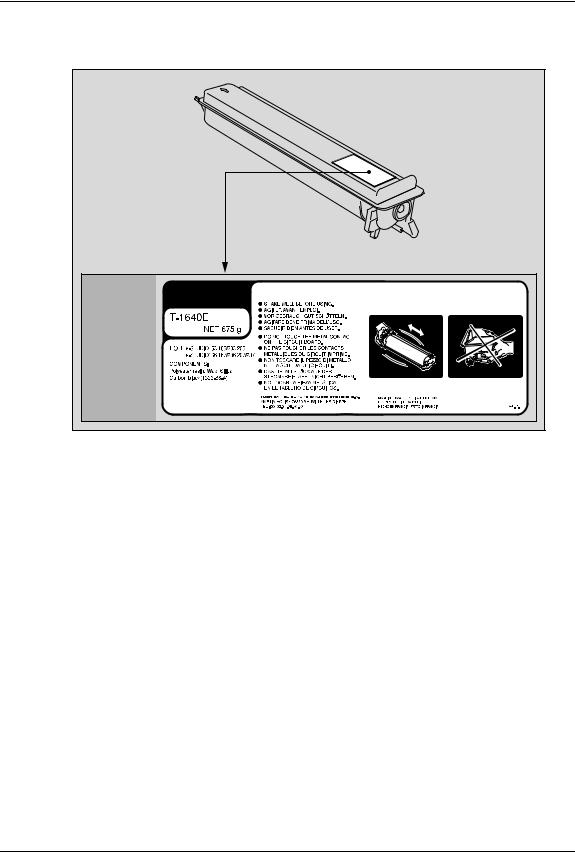
Recommended toner cartridges
To assure optimal printing performance, we recommend that you use TOSHIBA toner cartridges.
If you use a TOSHIBA-recommended toner cartridge, you can utilize the following two check functions of this equipment:
Cartridge detecting function:
This function checks if the toner cartridge is correctly installed and notifies you if it is not.
Toner remaining check function:
This function notifies you when there is little toner remaining in the cartridge.
Any copying or printing operation is available even if you are using a toner cartridge other than the one we recommend. In that case, however, the equipment cannot detect whether the toner cartridge is installed or not and therefore the toner lamp is lit even if the toner cartridge is correctly installed. You cannot utilize the toner remaining check function either.
If you are using a toner cartridge other than the one we recommend and you feel annoyed by this lighting lamp, contact your service representative. Your service technician will cancel the cartridge detecting function set by default. Remember once this function has been cancelled, you will not be able to utilize the two functions mentioned above even if you change the cartridge to the one we recommend.
TOSHIBA Quality Is Second to None 11

Supplies / Parts
Dependability
Genuine TOSHIBA supplies are subjected to the strictest of inspections so that every supply you receive will perform at optimal levels.
High Productivity
Genuine TOSHIBA supplies are created to meet the demands of our competitive world and provide high-speed reliable copies when you need them.
Stable Image Quality
Genuine TOSHIBA supplies are designed to provide consistently stable image output.
Copier Friendly Supplies
Genuine TOSHIBA supplies are designed to help to keep the equipment and all its parts in trou- ble-free working order. Reduction of machine wear is due to TOSHIBA’s intimate knowledge of the equipment’s characteristics ensuring the highest standard of care.
Perfectly Suited Supplies
From the beginning TOSHIBA supplies and machines were made for each other. Whenever TOSHIBA designs a new machine, it also designs a new toner that is made just for that machine. By using genuine TOSHIBA supplies with TOSHIBA equipment, you are guaranteed optimum performance.
Toner
Optimum Image Quality
TOSHIBA toner is manufactured using ultra-fine quality materials under precisely controlled conditions to ensure that your TOSHIBA equipment will continually generate sharp high-quality images.
Cost Advantage
Genuine TOSHIBA toner provides value. Only the proper amount of toner is used during the reproduction process, thereby enabling the machine to continue to operate until all the toner has been used. In this way you get the full value from each cartridge used.
Environmental Harmony
Genuine TOSHIBA toner is manufactured with the environment in mind. To protect our planet for the benefit of future generations, we use embossed or plastic labels making our toner cartridges fully recyclable. In addition, dust and ozone levels have been reduced to improve the working environment.
User Friendly
Before approving our toners for sale, we test them to be sure that they pass the strictest of health standards. This takes all the worry out of handling the toner.
General
Service and Support Benefits
TOSHIBA’s Service technicians are certified to keep your equipment performing at optimum levels. To ensure continuous image quality, utilize an authorized TOSHIBA Service provider to care for and perform periodical maintenance on your equipment.
12 TOSHIBA Quality Is Second to None

Features of e-STUDIO166/206
The e-STUDIO166/206 is a space-saving, black-and-white copier. The copying speed of the e-STUDIO166 is 16 copies per minute*1 and that of the e-STUDIO206 is 20 copies per minute*1. Both of them can be a printer when they are connected to your PC with a USB cable.*2
Lightweight and space-saving equipment with more emphasis on basic functions
yThe receiving tray is relocated to the equipment’s inner side, occupying as little space as possible.
yIts weight has been trimmed to approx. 33.7 kg.*3
yOperability of the control panel has been upgraded with larger buttons.
yA wide range of paper sizes from A3 to A5-R are acceptable.
yCopy images can be zoomed out or in between 25% and 200%.
yThe automatic copy density mode is adopted to detect the density of the original and automatically adjust it to the most suitable one for the copy image.
yThe bypass tray equipped as a standard unit makes copying on various media types such as overhead transparencies possible.
yScanning data with a TWAIN driver is enabled as a standard function.
Functions extended by various options
yThe Automatic Document Feeder (ADF) dramatically saves time when you need to copy massive amounts of originals.
yThe Paper Feed Unit (PFU) adds one more drawer.
yElectronic sorting*4 is realized with the Expansion Memory.
Ecological energy-saving design
yThe toner recycling system in which used toner is recovered and reused is adopted.
yIts warm-up time has become be approx. 25 seconds.*5
yThe low power mode, which reduces unnecessary electric power by having the fuser unit temperature lowered while the equipment is left inactive, is adopted.
yThe sleep mode, which maintains the smallest possible power consumption during the equipment’s inactive period after it has not been used within a specified period of time, is adopted.
*1 These speeds are realized in the non-sort mode, when A4 originals placed in a portrait direction are continuously copied and the Automatic Document Feeder (optional) is not used.
*2 When this equipment is used as a printer, the co-packed software needs to be installed into your PC. *3 This is the weight of the equipment itself (without any options).
*4 Electronic sorting is a function to have the copies exit and be sorted into the same page order as that of the originals in each set.
*5 This is the value when the room temperature is 20 °C or more at rated power input.
Features of e-STUDIO166/206 13

General Precautions
When installing or moving
Warning
yThis equipment requires 220 to 240 V AC, 8 A 50/60 Hz electric power. Do not use a power supply with a voltage other than that specified.
Avoid multiple connections in the same outlet. This could cause a fire or give you an electric shock. If you are considering increasing the number of outlets, contact an electrician.
yAlways connect this equipment to an outlet with an earth connection to avoid the danger of fire or electric shock in case of short-circuiting. Contact your service representative for the details. Be sure to use a 3-conductor, grounded wall outlet.
In areas, where a 2-pin plug is used, the equipment must be grounded for safety. Never ground it to a gas pipe, a water pipe, or any other object not suitable for grounding.
yPlug the power cable securely into the outlet. If it is not plugged in properly, it could heat up and cause a fire or give you an electric shock.
yDo not damage, break or attempt to repair the power cable. The following things should not be done to the power cable.
—Twisting it
—Bending it
—Pulling it
—Placing anything on it
—Making it hot
—Situating it near radiators or other heat sources
This could cause a fire or give you an electric shock. If the power cable is damaged, contact your service representative.
yDo not install the equipment by yourself or try to move it once it has been installed. This could result in an injury or damage to the device. Contact your service representative if the equipment needs to be installed or moved.
yPull the plug out from the outlet more than once a year to clean around the prongs. Accumulating dust and dirt could cause a fire due to the heat released by electric leakage.
14 General Precautions
Caution
yAvoid placing the equipment in a place unsuitable for its weight and also make sure the surface is level.
Remember that if the equipment falls over, serious injuries could result. Weight of the equipment: approx. 33.7 kg.
yWhen removing the plug from the outlet, do not pull the power cable. Always hold the plug when removing it from the outlet. If the power cable is pulled, the wires may become broken and this could cause a fire or give you an electric shock.
yMake sure that the ventilation holes are not blocked up.
If the temperature within the equipment becomes too high, a fire could result.
Other points
yThe socket outlet shall be installed near the equipment and shall be easily accessible.
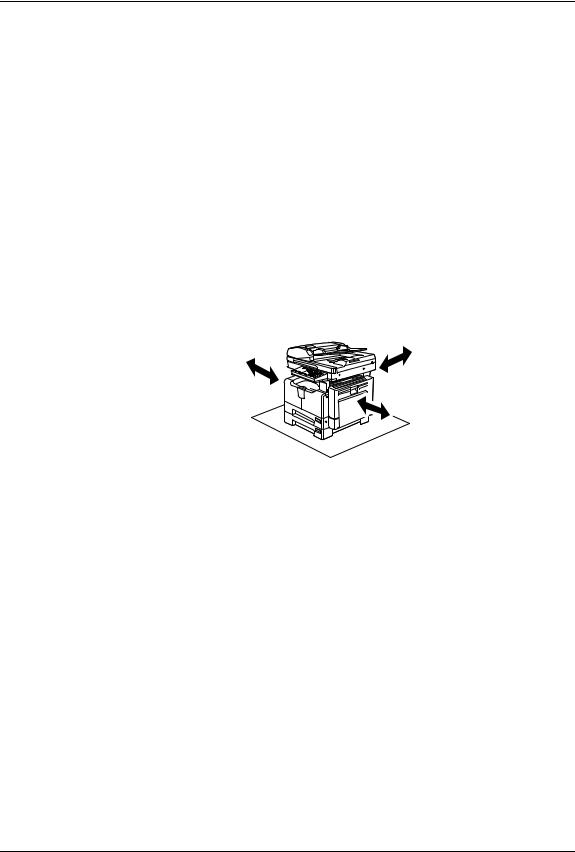
yMake sure that there is enough space around the system to facilitate changing of parts, maintenance and clearing paper jams.
If there is insufficient space, some operations, such as bypass feeding, will become difficult and the equipment could even break down.
To insure optimal operation, allow clearances of at least 80 cm on the right, and 10 cm on the left and behind.
10 cm
10 cm
80 cm
yBe sure to fix the power cable securely so that no one trips over it.
yAdverse environmental conditions may affect the safe operation and performance of the equipment, and the equipment could break down.
—Avoid locations near windows or with exposure to direct sunlight.
—Avoid locations with drastic temperature fluctuations.
—Avoid too much dust.
—Avoid locations that suffer from vibration.
yAllow the air to flow freely and make sure of ventilation.
With inadequate ventilation, the unpleasant odor released by the ozone will begin to dominate the atmosphere.
General Precautions 15

When using the equipment
Warning
yDo not take off the cover of the equipment; otherwise you could be injured or get an electric shock.
yDo not remove or connect the plug with wet hands, as this could give you an electric shock.
yDo not place any container with liquid (flower vases, coffee cups, etc.) on or near the equipment. This could cause a fire or give you an electric shock.
yKeep paper clips and staples away from the air vent. If not, a fire could result or you could get an electric shock.
yIf the equipment becomes excessively hot, smoke comes out of it or there is an odd smell or noise, proceed as follows.
Turn the power OFF and remove the plug from the outlet, then contact your service representative.
yIf the equipment will not be used for more than one month, remove the plug from the outlet for safety purposes during that time.
If an insulation failure occurs, this could cause a fire or give you an electric shock.
Caution
yDo not place heavy objects (4 kg or more) on the original glass and do not press on it with force. Breaking the glass could cause personal injury.
yDo not place heavy objects (4 kg or more) on the equipment. If the objects fall off, this could cause injury.
yBe careful not to let your fingers be caught when closing the drawer. This could injure you.
yDo not touch the fuser unit or the metal area around it. Since they are very hot, you could be burned or the shock could cause you to get your hand injured in the machine.
yBe careful not to let your fingers be caught between the equipment and the side cover. This could injure you.
yDo not touch the hinge (= a connecting part) on the rear side of the Automatic Document Feeder (optional). This could catch and injure your fingers when you open or close the Automatic Document Feeder (optional).
16 General Precautions
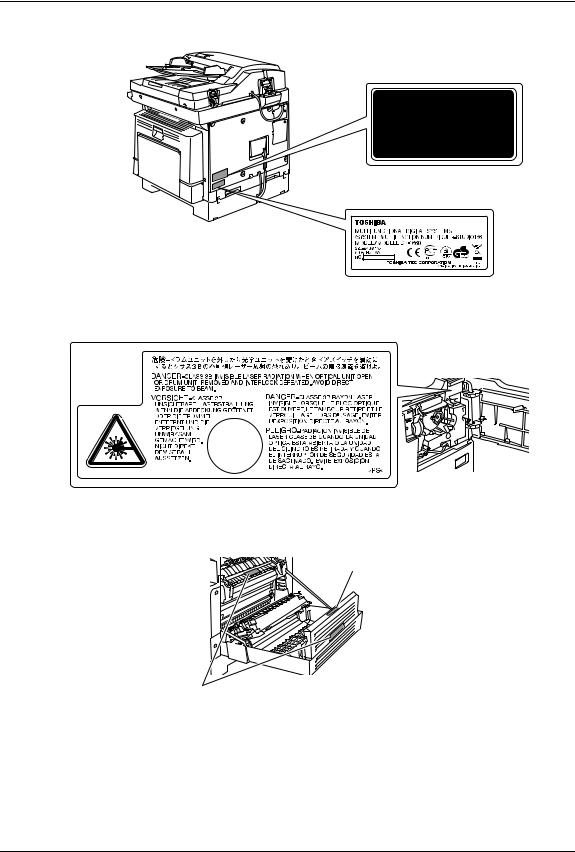
Position of Certification label, etc.
Explanatory label
Identification label
Warning label
Warning for high-temperature areas (ventilation holes)
Warning for high-temperature areas (fuser unit)
General Precautions 17

Other points
yDo not turn the power OFF with jammed paper left inside the equipment. This could cause malfunctions when the main switch is turned ON next time.
yBe sure to turn the power OFF when leaving the office or if there is a power failure.
yBe careful because the paper exit area and paper just after exiting are hot.
yDo not place anything other than paper on the receiving tray. This could disturb a normal operation and cause malfunctions.
yDo not touch the photoconductive drum surface or the transfer charger. This could cause image problems.
During maintenance or inspection
Warning
yNever attempt to repair, disassemble or modify the equipment by yourself. You could cause a fire or get an electric shock.
Always contact your service representative for maintenance or repair of the internal parts of the equipment.
yDo not let liquids such as water and oil get into the system when cleaning the floor. This could cause a fire and give you an electric shock.
Caution
yAlways keep the plug and outlet clean. Prevent them from accumulating dust and dirt. This could cause a fire and give you an electric shock due to the heat released by electric leakage.
Other points
yDo not use such solvents as thinner or alcohol when cleaning the surface of the equipment.
—This could warp the shape of the surface or leave it discoloured.
—When using a chemical cleaning pad to clean it, pay attention to any cautionary points.
When handling supplies
Warning
yNever attempt to incinerate toner cartridges. This could cause an explosion. Do not dispose of used toner cartridges. Contact your service representative.
18 General Precautions

Disclaimer Notice
The following notice sets out the exclusions and limitations of liability of TOSHIBA TEC CORPORATION (including its employees, agents and sub-contractors) to any purchaser or user (‘User’) of the e-STUDIO166/206, including its accessories, options and bundled software (‘Product’).
1.The exclusion and limitations of liability referred to in this notice shall be effective to the fullest extent permissible at law. For the avoidance of doubt, nothing in this notice shall be taken to exclude or limit TOSHIBA TEC CORPORATION’s liability for death or personal injury caused by TOSHIBA TEC CORPORATION’s negligence or TOSHIBA TEC CORPORATION’s fraudulent misrepresentation.
2.All warranties, conditions and other terms implied by law are, to the fullest extent permitted by law, excluded and no such implied warranties are given or apply in relation to the Products.
3.TOSHIBA TEC CORPORATION shall not be liable for any loss, cost, expense, claim or damage whatsoever caused by any of the following:
(a)use or handling of the Product otherwise than in accordance with the manuals, including but not limited to Operator’s Manual, User’s Guide, and/or incorrect or careless handling or use of the Product;
(b)any cause which prevents the Product from operating or functioning correctly which arises from or is attributable to either acts, omissions, events or accidents beyond the reasonable control of TOSHIBA TEC CORPORATION including without limitation acts of God, war, riot, civil commotion, malicious or deliberate damage, fire, flood, or storm, natural calamity, earthquakes, abnormal voltage or other disasters;
(c)additions, modifications, disassembly, transportation, or repairs by any person other than service technicians authorized by TOSHIBA TEC CORPORATION; or
(d)use of paper, supplies or parts other than those recommended by TOSHIBA TEC CORPORATION.
4.Subject to paragraph 1, TOSHIBA TEC CORPORATION shall not be liable to Customer for:
(a)loss of profits; loss of sales or turnover; loss of or damage to reputation; loss of production; loss of anticipated savings; loss of goodwill or business opportunities; loss of customers; loss of, or loss of use of, any software or data; loss under or in relation to any contract; or
(b)any special, incidental, consequential or indirect loss or damage, costs, expenses, financial loss or claims for consequential compensation;
whatsoever and howsoever caused which arise out of or in connection with the Product or the use or handling of the Product even if TOSHIBA TEC CORPORATION is advised of the possibility of such damages.
TOSHIBA TEC CORPORATION shall not be liable for any loss, cost, expense, claim or damage caused by any inability to use (including, but not limited to failure, malfunction, hang-up, virus infection or other problems) which arises from use of the Product with hardware, goods or software which TOSHIBA TEC CORPORATION has not directly or indirectly supplied.
Disclaimer Notice 19

Environmental Information
ENERGY STAR® programme
Toshiba Tec Corporation, as a member of the Energy Star Programme, confirms that this product meets the Energy Star Programme requirements.
The Energy Star Programme aims at the promotion of the development and wider usage of office equipment including energy-efficient computers in order to address environmental issues such as global warming. Manufacturers that participate in this Programme can attach the Energy Star logo to products after confirming that they meet the energy saving standards of this Programme. Also, these standards and logo are commonly used within the U.S. Environmental Protection Agency (EPA) and participating countries.
20 Environmental Information

PREPARATION
This chapter describes what you need to know before using this equipment, such as how to turn the power ON or how to set copy paper.
|
Description of Each Component ………………………………………………………………… |
22 |
|
Front / Right side………………………………………………………………………………………………………………. |
22 |
|
Left side / Inner side………………………………………………………………………………………………………….. |
23 |
|
Configuration of options …………………………………………………………………………………………………….. |
25 |
|
Control panel……………………………………………………………………………………………………………………. |
26 |
|
Preparation 1 — Turning Power ON………………………………………………………………. |
29 |
|
Turning power ON…………………………………………………………………………………………………………….. |
29 |
|
Saving energy when not in use — Energy saving mode -…………………………………………………………. |
30 |
|
Preparation 2 — Placing Copy Paper ……………………………………………………………. |
31 |
|
Acceptable media types …………………………………………………………………………………………………….. |
31 |
|
Recommended paper………………………………………………………………………………………………………… |
32 |
|
Placing paper in drawers……………………………………………………………………………………………………. |
33 |
|
Preparation 3 — Registering Size of Paper Placed………………………………………… |
37 |
|
Registering standard size (A3, A4, A4-R, A5-R, B4)………………………………………………………………. |
37 |
|
Registering other standard sizes…………………………………………………………………………………………. |
38 |
1 PREPARATION
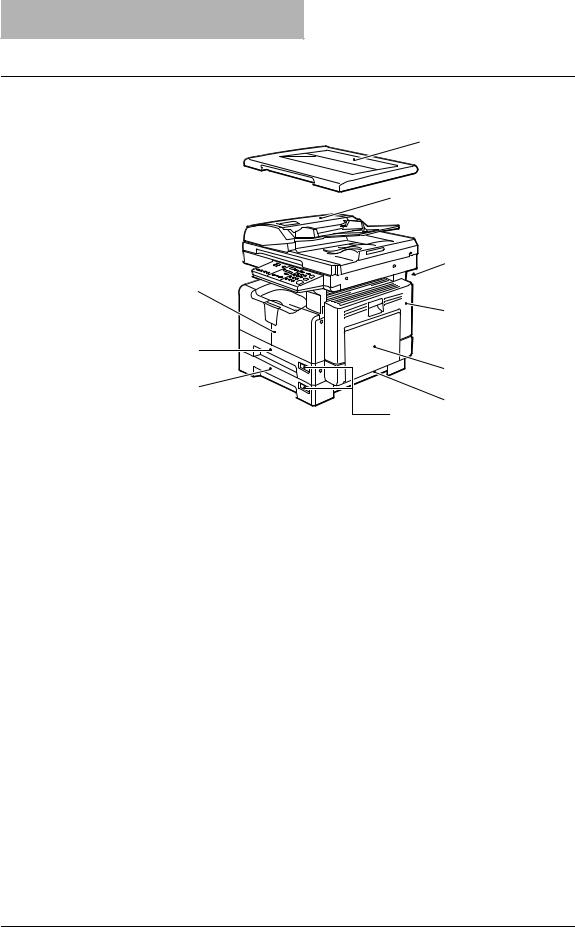
Description of Each Component
Front / Right side
3
10
9
8
6
7
1.Platen Cover
Place an original on the original glass and start copying with this cover closed.
2.Automatic Document Feeder (optional, MR-2017)
A stack of originals placed on this are scanned one sheet after another. Maximum 100 sheets (or stack height 16 mm) of originals can be placed in one go.
(The maximum number of sheets can be placed may vary depending on the media type of the originals.)
P.46 “Placing originals on Automatic Document Feeder (optional)”
P.82 “Paper jams within Automatic Document Feeder (optional)”
3.Operator’s Manual pocket (Back side) (optional, KK-1660)
Keep the Operator’s Manual in this.
4.Side cover
5.Bypass tray
Use this to make copies on special media types such as thick paper, overhead transparencies or tracing paper.
P.50 “Using Bypass Tray”
P.84 “Paper jams on bypass tray”
6.Paper feed cover (of the Paper Feed Unit (optional))
7.Paper size indicator
8.Paper Feed Unit (optional, MY-1027)
Use this to add one more drawer to the equipment. A maximum of 250 sheets of plain paper can be placed in one go.
22 Description of Each Component
9.Drawer
Maximum 250 sheets of plain paper can be placed in one go.
10.Front cover
Open this cover when you replace the toner cartridge. P.89 “Replacing Toner Cartridge”
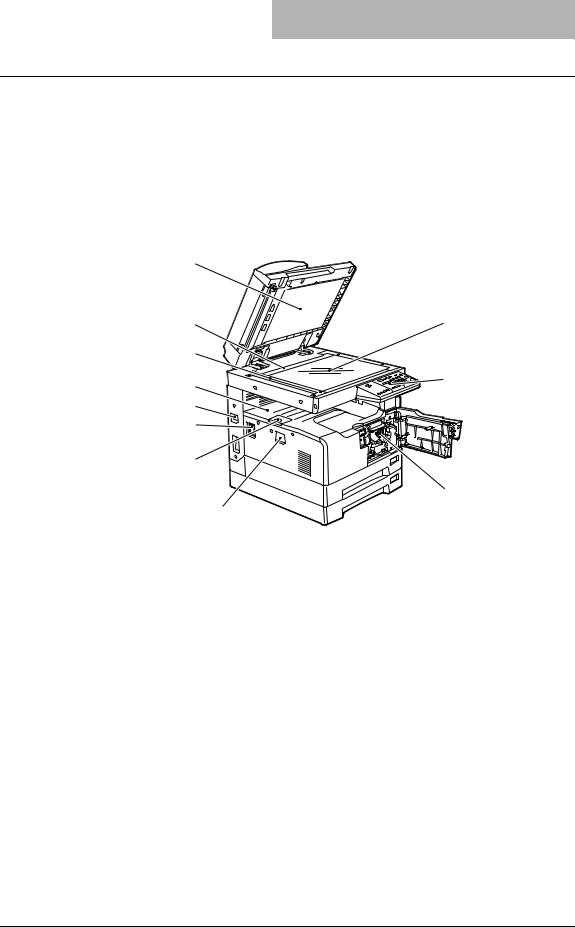
Left side / Inner side
9
5
1.Original glass
Use this to copy three-dimensional originals, book-type originals and special paper such as overhead transparencies or tracing paper, as well as plain paper.
P.42 “Placing Originals”
2.Control panel
Use this to perform copying, key in the copy quantity, or set other functions. P.26 “Control panel”
3.Toner cartridge
P.11 “Recommended toner cartridges”
P.89 “Replacing Toner Cartridge”
4.Power switch
Turn the power of the equipment ON or OFF with this. P.29 “Preparation 1 — Turning Power ON”
5.Paper exit stopper
Use this to prevent the exiting paper from falling. Open this when you make a large amount of copies on a larger size of paper (e.g. A3, B4).
6.AC-IN terminal
Use this to connect the co-packed power cable and the equipment.
Description of Each Component 23

1PREPARATION
7.USB terminal (4-pin)
With this terminal, the equipment can be connected to your PC using a commercially available USB cable.
yUse a USB2.0 Hi-Speed certified cable: USB cable supporting the USB2.0 Hi-Speed mode (480 Mbps of transfer speed) certified by the USB Implementers Forum.
yConnect the equipment with a PC directly by the USB cable. When it is connected with a PC via a USB hub, the equipment may not be recognized.
8.Receiving tray
9.Scanning area
The data of originals transported from the Automatic Document Feeder (optional, MR-2017) are scanned here.
P.100 “Daily Inspection”
10.Original scale
Use this to check the size of an original placed on the original glass.
11.Platen sheet
P.100 “Daily Inspection”
24 Description of Each Component
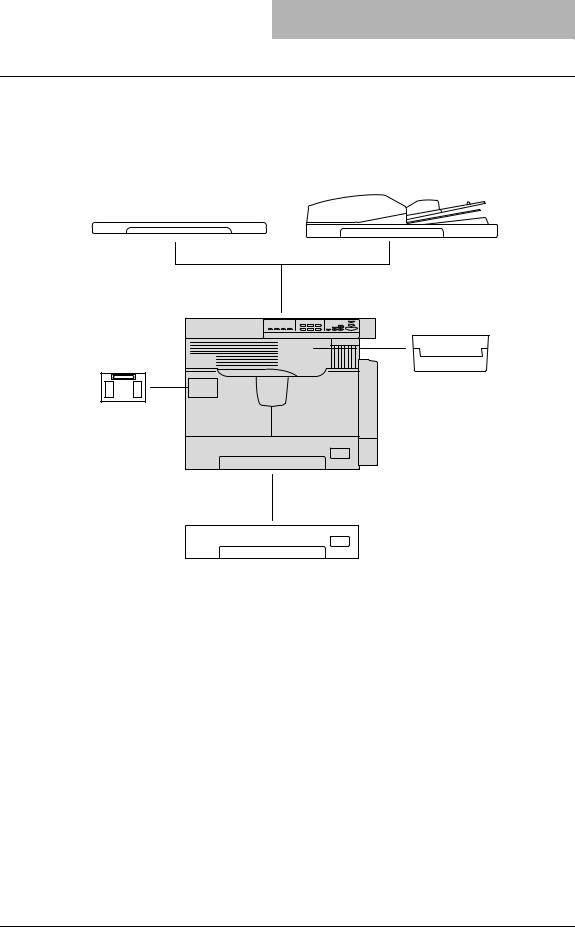
Configuration of options
The options listed below are available. Contact your service technician or service representative for the details.
Automatic Document Feeder
(MR-2017)
Platen Cover (included)
(KA-1640PC)
Operator’s Manual Pocket
(Back side) (KK-1660)
Expansion Memory
(GC-1240)
Main body
Paper Feed Unit
(MY-1027)
Description of Each Component 25
1 PREPARATION
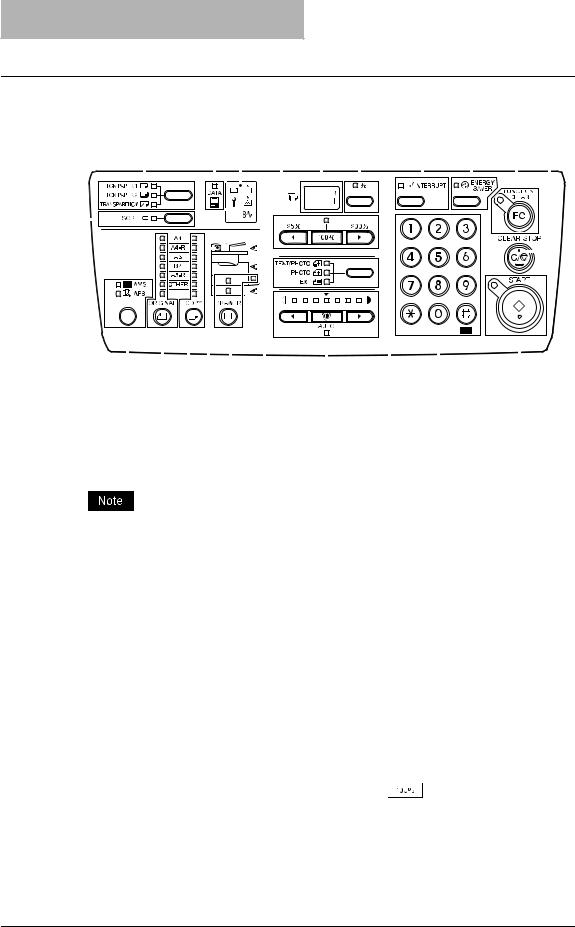
Control panel
|
1 |
2 |
3 |
4 |
5 |
6 |
7 |
8 |
9 |
10 |
11 |
||||||||||||||||||||||||||||||||
|
21 |
20 |
19 18 |
17 |
16 |
15 |
14 |
13 |
12 |
1.[SORT] button/lamp
Use this to use the sorting function.
P.69 “Copying in Same Page Order as Originals — Sort Copying -”
The sorting functions are available only when originals are placed on the Automatic Document Feeder (optional, MR-2017). These functions also require the Expansion Memory (optional, GC-1240).
2.Media type setting button/lamps
Use this button to switch the media type of paper placed on the bypass tray. P.50 “Using Bypass Tray”
3.[DATA] lamp
The lamp blinks when print data are being received from a PC connected to the equipment.
4.Message lamps
Each of five lamps shows you the current status of the equipment.
For the meaning of each lamp and countermeasure of each status, see the following page: P.78 “When Message Lamp is Lit/Blinking”
5.Zoom buttons/lamp
|
Use them to set reproduction ratio. The lamp above the |
button is lit when the repro- |
|
duction ratio is 100%. |
|
|
For how to zoom in or out copy image, see the following page: |
|
|
P.64 “Zooming In/Out Copy Image” |
26 Description of Each Component

6.LED display
Use this to display the number of copies set. The reproduction ratio appears here when the copy qty. / zoom display selecting button (7) is pressed.
7.Copy qty. / zoom display selecting button/lamp
The display of (6) is switched between copy quantity and reproduction ratio each time you press this button. The lamp beside the “%” mark is lit when the reproduction ratio appears.
8.[INTERRUPT] button/lamp
Use this to interrupt the copy job in process and perform another one (= interrupt copying). For the details of interrupt copying, see the following page:
P.49 “Interrupting copying and making another copy — Interrupt copy -”
9.[ENERGY SAVER] button/lamp
Use this to let the equipment enter into the energy saving mode when the equipment is not used. The lamp is lit when the equipment is in the energy saving mode.
For the details of the energy saving mode, see the following page: P.30 “Saving energy when not in use — Energy saving mode -”
10.[FUNCTION CLEAR] button/lamp
Use this to clear all setting changes.
11.[CLEAR/STOP] button
Use this to stop the copy job in process or return the copy quantity keyed in to “1”.
12.[START] button/lamp
Use this to start copying. Copies can be made when the lamp is lit. It blinks when the equipment is waiting for copying to be started.
For basic copy operations, see the following page: P.47 “Making Copies”
13.Digital keys
Use them to key in any number such as copy quantity.
14.Original mode button/lamps
Use this button to set the image quality of copy according to that of an original. For the details of image quality, see the following page:
P.70 “Selecting Image Mode”
15.Density adjustment buttons/lamps
Use this button to adjust the density of copy image. The [AUTO] lamp below the  (automatic copy density mode) button is lit when the density is being automatically adjusted. For the details of density adjustment, see the following page:
P.71 “Adjusting Density Level”
16.Paper jam position lamps
The lamp blinks when an original or copy paper is jammed. The position where the lamp is blinking shows where the paper jam has occurred.
P.81 “Paper Jams”
Description of Each Component 27

1PREPARATION
17.[DRAWER] button/lamps
Use this button to select a drawer or the bypass tray to be used as a paper source. The lamp of the paper source currently selected is lit. The lamp blinks when the selected drawer or tray is running out of paper.
When paper in the drawer or on the bypass tray has run out, see the following page to add paper:
P.31 “Preparation 2 — Placing Copy Paper”
18.Original setting lamp
The lamp is lit when originals are placed on the Automatic Document Feeder (optional). This lamp blinks in the following situations:
—When the original needs to be placed on the original glass (When the [START] button is pressed without the original cover being opened after copies are made)
—When the originals need to be placed on the Automatic Document Feeder (optional) (When a paper jam in the Automatic Document Feeder is released)
—When the Automatic Document Feeder (optional) on which the originals are placed is raised.
19.[COPY] button/lamps
Use this button to select the size of paper to be used. The lamp of the paper size currently selected blinks when this size of paper is not placed in the drawer or on the bypass tray. See the following page for details:
P.62 “Manual paper selection”
20.[ORIGINAL] button/lamps
Use this button to specify the size of an original.
P.66 “Specifying both the sizes of the original and the copy paper”
21.APS/AMS selecting button/lamps
Automatic paper selection (APS): The equipment detects the size of original and automatically selects the same size of copy paper.
P.61 “Paper Selection”
Automatic magnification selection (AMS): Set the size of copy paper to be used in advance. The equipment then detects the size of original and automatically selects the most suitable reproduction ratio to the copy paper.
P.64 “Automatic magnification selection (AMS)”
APS and AMS are available only when originals are placed on the Automatic Document Feeder (optional, MR-2017).
28 Description of Each Component

Preparation 1 — Turning Power ON
Turning power ON
1 Open the power switch cover, and then press the power switch to
“” (ON) side.
The equipment starts warming itself up. The warm-up time takes approx. 25 seconds. When the warm-up has finished, the [START] lamp is lit to show that the equipment is ready for copying.
If you place an original and press the [START] button during the warm-up, copying automatically starts when the warm-up has finished (= auto job start). The [START] lamp keeps blinking from when you press the [START] button to when the warm-up finishes.
2 Key in the access code if the equipment is managed under the access code function.
Key in the 3-digit access code, and then press the [START] button. Then the equipment is ready for copying.
yIf the access code function is enabled, press the [FUNCTION CLEAR] button after any operation has been finished to prevent unauthorized use of the equipment.
yFor the details of the access code setting, ask your service technician.
Turning power OFF
Open the power switch cover, and then press the power switch to “  ” (OFF) side.
Preparation 1 — Turning Power ON 29

1 PREPARATION
Saving energy when not in use — Energy saving mode —
To reduce power consumption, the equipment automatically enters into the energy saving mode when a specified period of time has passed since its last use. You can also turn the equipment into this mode manually.
The period of time at which the equipment enters into this mode is set at 20 minutes at the shipment from the factory.
To turn the equipment into the energy saving mode manually
Press the [ENERGY SAVER] button on the control panel.
The equipment is now in the energy saving mode. The [ENERGY SAVER] lamp is lit.
Cancelling the energy saving mode
Press the [ENERGY SAVER] button. The energy saving mode is canceled.
The energy saving mode can be cancelled also in the following cases:
yWhen the Platen Cover or the Automatic Document Feeder (optional) is raised
yWhen this equipment and a PC are connected with a USB cable
yWhen printing is performed from a PC connected with this equipment
yWhen TOSHIBA Viewer is operated with a PC connected with this equipment
30 Preparation 1 — Turning Power ON

Preparation 2 — Placing Copy Paper
Place copy paper in an appropriate paper source before you start copying.
Acceptable media types
Standard size plain paper (64 to 80 g/m2) can be used for the drawers in the equipment and the Paper Feed Unit (optional). See the table below for the details.
|
Feeder |
Media type |
Paper size |
Maximum sheet |
|
|
capacity *1 |
||||
|
Drawers of |
Plain paper |
A/B format: |
250 sheets (64 g/m2) |
|
|
the equip- |
(64 — 80 g/m2) |
A3, A4, A4-R, B4, B5, B5-R, FOLIO |
250 sheets (80 g/m2) |
|
|
ment and |
LT format: |
|||
|
Paper Feed |
LD, LG, LT, LT-R, COMP, 13″LG |
|||
|
Unit |
||||
|
(optional) |
||||
|
Bypass tray |
Plain paper |
A/B format: |
100 sheets (64 g/m2) |
|
|
(64 — 80 g/m2)*2 |
A3, A4, A4-R, A5-R, B4, B5, B5-R, FOLIO |
100 sheets (80 g/m2) |
||
|
LT format: |
||||
|
THICK PAPER 1 |
1 sheet |
|||
|
LD, LG, LT, LT-R, ST-R, COMP, 13″LG |
||||
|
(81 — 105 g/m2) |
(81 — 105 g/m2) |
|||
|
THICK PAPER 2 |
1 sheet |
|||
|
(106 — 163 g/m2) |
(106 — 163 g/m2) |
|||
|
Tracing paper |
1 sheet |
|||
|
(75 g/m2) |
||||
|
Sticker labels |
1 sheet |
|||
|
Transparencies*3 |
A4 only |
1 sheet |
*1 “Maximum sheet capacity” refers to the maximum number of sheets when TOSHIBA-recommended paper is used. See the following page for the TOSHIBA-recommended paper:
P.32 “Recommended paper”
*2 50 to 63 g/m2 paper can be used if it is set on the bypass tray sheet by sheet.
*3 Be sure to use the overhead transparencies that TOSHIBA recommends. When transparencies other than the TOSHIBA-recommended ones are used, this could cause an equipment malfunction.
yYou cannot mix various paper sizes in one drawer.
y“LT format” is the standard size for only use in North America.
Abbreviations for LT format sizes:
LT: Letter, LD: Ledger, LG: Legal, ST: Statement, COMP: Computer
Preparation 2 — Placing Copy Paper 31

1 PREPARATION
Recommended paper
To ensure the best copy performance, TOSHIBA recommends the paper types listed below. If you want to use paper other than that we recommend, contact your service technician.
|
Media type |
Product name |
|
|
Plain paper |
TGIS Paper/Neusiedler |
80 g/m2 |
|
THICK PAPER 1 |
Colour Copy/Neusiedler |
90 g/m2 |
|
Colour Copy/Neusiedler |
100 g/m2 |
|
|
THICK PAPER 2 |
Colour Copy/Neusiedler |
120 g/m2 |
|
Colour Copy/Neusiedler |
160 g/m2 |
|
|
Tracing paper |
75 g/m2 tracing paper |
|
|
Sticker labels |
3478/Zweckform-Avery |
|
|
Transparencies *1 |
PP2500/3M |
*1 Be sure to use the overhead transparencies that TOSHIBA recommends. When transparencies other than the TOSHIBA-recommended ones are used, this could cause an equipment malfunction.
Paper types not acceptable
Do not use the types of paper listed below since they may cause paper jams.
yDamp paper
yCreased paper
yWrinkled paper or paper prone to be curled
yPaper whose surface is extremely smooth or rough
Do not use the types of paper listed below since they may cause an equipment malfunction.
yPaper whose surface is specially treated
yPaper once printed with other copiers or printers
Storing paper
Observe the following cautions when storing copy paper:
yWrap copy paper in its wrapping paper to prevent it from gathering dust.
yDo not expose copy paper to direct sunlight.
yStore copy paper in a damp-free place.
yStore copy paper on a flat surface to prevent it from being creased or bent.
32 Preparation 2 — Placing Copy Paper

Placing paper in drawers
Follow the procedure below to place copy paper in the drawer. For the acceptable paper, see the following page:
P.31 “Acceptable media types”
Turn the power of the equipment ON.
Pull out the drawer carefully.
Pull out the drawer until it comes to a stop.
3 Press down the paper plate.
Press it down until you hear a click sound and it is no longer lifted up.
Preparation 2 — Placing Copy Paper 33
 Loading…
-
Page 1: Toshiba e-STUDIO166
MUL TIFUNCTIONAL DIGIT AL SYSTEMS Operator’s Manual for Copying Functions[…]
-
Page 2: Toshiba e-STUDIO166
[…]
-
Page 3: Toshiba e-STUDIO166
Preface 1 Preface Thank you for purchasing the T OSHIBA multifunctional digi tal systems e-STUDIO166/206. We have provided you with this manual for the operation of this equi pment. This operator ’s manual describ es the following: y How to use this equipment y How to inspect and carry out mainte nance on this equipment y How to remedy mechanical[…]
-
Page 4: Toshiba e-STUDIO166
2 Notice to Users Notice to Users For Germany only After a suitable place has been selected for the installation of the e-STUDIO166/206, please do not change it. Avoid excessive heat, dust, vi bration and direct sunlight. Also , provide proper ventilation as the copier emits a small amount of ozone. Wa r ni n g : This is a Class A product. In a dom[…]
-
Page 5: Toshiba e-STUDIO166
Notice to Users 3 Following information is for EU-member states only: This product is marked according to the requirement in EU-Directive 2002/96/EC. (Directive on W aste electrical and electronic equipment — WEEE) The use of the symbol indicates that this product may not be disposed as unsorted municipal waste and has to be collected separately . […]
-
Page 6: Toshiba e-STUDIO166
4 Before Reading This Manual Before Reading This Manual Lineup of our manuals These manuals are provided for the operation of the e-STUDIO 166/206. Se lect and read the manual best suited to your needs. This manual is the Operator ’s Manual for Copying Func- tions . T o read manuals in the PDF file format The operator ’s manual in the PDF (Port[…]
-
Page 7: Toshiba e-STUDIO166
Before Reading This Manual 5 How to read this manual Signal in this manual T o ensure correct and safe use of this equipment, this operator ’s manual describes safety pre- cautions according to the three levels shown bel ow . Y ou should fully understand the meaning and impor tance of these items before reading this manual. Other than the above, […]
-
Page 8: Toshiba e-STUDIO166
6 Before Reading This Manual T rademarks y Microsoft and Windows are the trademarks of Microsoft Corporation in the US and other countries. y Adobe, Acrobat, Adobe Reader and Adobe Ac ro bat Reader are the trade marks of Adobe Systems Incorpora ted. y Other company or product names shown in th is manual may be a brand name or a trade- mark of each […]
-
Page 9: Toshiba e-STUDIO166
CONTENTS 7 CONTENTS Preface …………… ……………. …………. ……………. ……………. ……………. …………… 1 Notice to Users ………….. ……………. ……………. ……………. ……………. …………. .. 2 Before Reading This Manual ……………… ………………. ……………. …..[…]
-
Page 10: Toshiba e-STUDIO166
8 CONTENTS Bypass copying on standard size paper ….. ……………….. ………………. …… 55 Chapter 3 COPYING FUNCTIONS Default Settings ……………. ……………. ……………. …………….. ……………. ……… 60 Paper Selection ……. ………. ……………. …………. ……………. ……………. […]
-
Page 11: Toshiba e-STUDIO166
CONTENTS 9 Cleaning charger ….. ……………. ……………. ……………. ……………. ………….. 101 Cleaning transfer charger . ……………. …………….. ……………. …………. ……. 102 Chapter 7 SPECIFICATIONS AND OPTIONS e-STUDIO166/206 Specifications ……………………… ………………. …….[…]
-
Page 12: Toshiba e-STUDIO166
10 CONTENTS[…]
-
Page 13: Toshiba e-STUDIO166
TOSHIBA Quality Is Second to None 11 TOSHIBA Quality Is Second to None Recommended toner cartridges T o assure optimal p rinting performance, we re comme nd that you use TOSHIBA toner cartridges. If you use a TOSHIBA-recommended toner cartri dge, you can utilize the following two check functions of this equipment: Cartridge detect ing function: Thi[…]
-
Page 14: Toshiba e-STUDIO166
12 TOSHIBA Quality Is Second to None Supplies / Part s Dependability Genuine TOSHIBA supplies are subjected to the stri ctest of inspections so that every supply you receive will perform at optimal level s. High Productivity Genuine TOSHIBA supplies are created to meet the demands of our competitive world and pro- vide high-speed reliable copies wh[…]
-
Page 15: Toshiba e-STUDIO166
Features of e-STUDIO166/206 13 Features of e-STUDIO166/206 The e-STUDIO166/206 is a space-saving, black- and-wh ite copier . The copying speed of the e-STUDIO166 is 16 cop ies per minute *1 and that of the e-STUDIO206 is 20 copies per minute *1 . Both of them can be a printer when they are connected to your PC with a USB cable. *2 Lightweight and s[…]
-
Page 16: Toshiba e-STUDIO166
14 General Precautions General Precautions When inst alling or moving Wa r n i n g y This equipment requires 220 to 240 V AC, 8 A 50/60 Hz electric power . Do not use a power supply with a voltage other than that specified. Avoid multiple connections in the same outlet. This cou ld cause a fire or give you an electric shock. If you are considerin g[…]
-
Page 17: Toshiba e-STUDIO166
General Precautions 15 Caution y Avoid placing the equipment in a place unsuitable for its weight and also make sure the sur- face is level. Remember that if the equipment falls o ver , serious injuries could result. Weight of the equipment: approx. 33.7 kg. y When removing the plug from the outlet, do not pull th e power cable. Always hold the plu[…]
-
Page 18: Toshiba e-STUDIO166
16 General Precautions When using the equipment Wa r n i n g y Do not take off the cover of the equipment; othe rwise you coul d be injured or get an electric shock. y Do not remove or connect the plug with wet hand s, as this could give you an electric shock. y Do not place any container with liquid (flower vases, coffee cups, etc.) on or near the[…]
-
Page 19: Toshiba e-STUDIO166
General Precautions 17 Position of Certification label, etc. Explanatory label Identification label W arning label W arning for high-temperature areas (fuser unit) W arning for high-temperature areas (ventilation holes)[…]
-
Page 20: Toshiba e-STUDIO166
18 General Precautions Other point s y Do not turn the power OFF with jammed paper left inside the equipment. This could cause malfunctions when the main switch is turned ON next time. y Be sure to turn the power OFF when leaving the office or if there is a power failure. y Be careful because the paper exit area and paper just af ter exiting are ho[…]
-
Page 21: Toshiba e-STUDIO166
Disclaimer Notice 19 Disclaimer Notice The following noti ce sets out the exclusions a nd limitations of liability of T OSHIBA TEC CORPO- RA TION (including its employees, agents and sub-co ntractors) to any p urchas er or user (‘User ’) of the e-STUDIO166/206, includi ng its accessorie s, options and bundled software (‘Product’). 1. The ex[…]
-
Page 22: Toshiba e-STUDIO166
20 Environmental Information Environment al Information ENERGY ST AR ® programme T oshiba T ec Corporation, as a member of the En ergy S tar Programme, confirms that this prod- uct meets the Energy S tar Programme requirements. The Energy S tar Programme aims at the prom otion of the development and wider usage of office equipment including energy[…]
-
Page 23: Toshiba e-STUDIO166
1. PREP ARA TION This chapter describes what you need to know before us in g this equipment, such as how to turn the power ON or how to set copy paper . Description of Each Component ……………………………………………….. ………………. 22 Front / Right side …………… ………….. ………….. ………….. …….[…]
-
Page 24: Toshiba e-STUDIO166
1 PREP ARA TION 22 Description of Each Component Description of Each Component Front / Right side 1. Platen Cover Place an original on the original glass and start copying with this cover closed. 2. Automatic Do cument Feeder (optiona l, MR-2017) A stack of originals placed on this are scanned one sheet after another . Maximum 100 sheets (or stack […]
-
Page 25: Toshiba e-STUDIO166
Description of Each Component 23 9. Drawer Maximum 250 sheets of plain paper can be placed in one go. 10. Front cover Open this cover when you replace the toner cartridge. P .89 “Replacing T oner Cartridge” Lef t side / Inner side 1. Original glass Use this to copy three -dimensional originals, book-type originals and specia l paper such as[…]
-
Page 26: Toshiba e-STUDIO166
1 PREP ARA TION 24 Description of Each Component 7. USB terminal (4-pin) With this terminal, the equipment can be connected to your PC using a commercial ly avail- able USB cable. y Use a USB2.0 Hi-S peed certified cable: USB cable supportin g the USB2.0 Hi-S peed mode (480 Mbps of transfer speed) ce rtified by the USB Implementers Forum. y Connect[…]
-
Page 27: Toshiba e-STUDIO166
Description of Each Component 25 Configuration of options The options listed below are ava ilable. Contact your service technician or service repre sentative for the details. Platen Cover ( included ) ( KA-1640PC ) Automatic Document Feeder ( MR-2017 ) Expansion Memory ( GC-1240 ) Main body Paper Feed Unit ( MY -1027 ) Operator’s Manual Pocket[…]
-
Page 28: Toshiba e-STUDIO166
1 PREP ARA TION 26 Description of Each Component Control p anel 1. [SORT] butto n/lamp Use this to use the sorting func tion. P .69 “Copying in Same Page Order as Originals — Sort Copying -” The sorting functions are available only when originals are p laced on the Au tomatic Docu- ment Feeder (optional, MR-2017). Th ese func tions also req[…]
-
Page 29: Toshiba e-STUDIO166
Description of Each Component 27 6. LED display Use this to display the number of copies se t. The reproductio n ratio appears here when the copy qty . / zoom display selecting button ( 7 ) is pressed. 7. Copy qt y . / zoom display selecting button /lamp The display of ( 6 ) is switched between copy quantity and reproduction ratio each time you pre[…]
-
Page 30: Toshiba e-STUDIO166
1 PREP ARA TION 28 Description of Each Component 17. [DRAWER] button/lamp s Use this button to select a drawer or th e bypass tray to be use d as a pape r source. The l amp of the paper source currently selected is lit. T he lamp blinks when the selected d rawer or tray is running out of paper . When paper in the drawer or on the bypass tr ay has r[…]
-
Page 31: Toshiba e-STUDIO166
Preparation 1 — Turn ing Power ON 29 Prep aration 1 — T urning Power ON T u rning power ON 1 Open the power switch cover , and then press the power switch to “ ” (ON) side. The equipment starts warming itself up. The warm-up time takes approx. 25 seconds. When the warm-up has finished, the [ST A RT] la mp is lit to show that the equipment is re[…]
-
Page 32: Toshiba e-STUDIO166
1 PREP ARA TION 30 Preparation 1 — Turning Power ON Saving energy when not in us e — Energy saving mode — T o reduce power consumption, the e quipment automatically enters in to the energy saving mo de when a specified pe riod of time has passed since its last use. Y ou can also turn the equipment into this mode manually . The period of time at whi[…]
-
Page 33: Toshiba e-STUDIO166
Preparation 2 — Placing Copy Paper 31 Prep aration 2 — Placing Copy Paper Place copy paper in an appropriate paper source before you start copying. Accept able media types S t andard size plain paper (64 to 80 g/m 2 ) can be used for the drawers in the equipment and the Paper Feed Unit (optional). See the table below for the details. *1 “Maximum […]
-
Page 34: Toshiba e-STUDIO166
1 PREP ARA TION 32 Preparation 2 — Placing Copy Paper Recommended p aper T o ensure the best copy performance, TOSHIBA recommends the paper types listed below . If you want to use paper other than that we recommend, contact your service technician. *1 Be sure to use the overhead transparencies that TOSHIBA recommends. When transparencies other than[…]
-
Page 35: Toshiba e-STUDIO166
Preparation 2 — Placing Copy Paper 33 Placing p aper in drawers Follow the procedure below to place copy paper in the drawer . For the acceptable paper , see the following page: P .31 “Acceptable media types” 1 T urn the power of the equipmen t ON. 2 Pull out the drawer carefully . Pull out the drawer until it comes to a stop. 3 Press down […]
-
Page 36: Toshiba e-STUDIO166
1 PREP ARA TION 34 Preparation 2 — Placing Copy Paper 4 Pull out the trailing guide (A), and then reinst all the guide at the position of the desired p aper size. The paper size is indicated on the botto m inner surface of the drawer . 5 While pushing the green knob of the side gui des fully , widen the gap between them. Widen the gap with both han[…]
-
Page 37: Toshiba e-STUDIO166
Preparation 2 — Placing Copy Paper 35 6 Place p aper in the drawer . y The maximum number of she ets can be placed in one go is 250 (80 g/m 2 ). Be sure that the stack height of paper is not higher than the line indicated at the inner side of the guide . P .31 “Acceptable media types” y Fan the paper well before placing it in the drawer , o[…]
-
Page 38: Toshiba e-STUDIO166
1 PREP ARA TION 36 Preparation 2 — Placing Copy Paper 8 Be sure that the st ack of paper fit s completely under the latches of the side guides. 9 Change the p aper size indicator to match the size of p aper placed. 10 Push the drawer straight into the equipment slowly until it comes to a stop. Do not let your fi ngers be caug ht when closing the dr[…]
-
Page 39: Toshiba e-STUDIO166
Preparation 3 — Register ing Size of Paper Placed 37 Prep aration 3 — Registering Size of Paper Placed When you place paper in a drawer for the first time or when you place paper whose size is differ- ent from that of the p aper which has been placed in the draw er , the new paper size needs to be registered into the equipment. Registration of stan[…]
-
Page 40: Toshiba e-STUDIO166
1 PREP ARA TION 38 Preparation 3 — Registering Size of Paper Placed 3 Press the [COPY] button several times until th e lamp of the p aper size you placed in the drawer is lit. If the [FUNCTION CLEAR] button is pressed at th is step, the size is not registered and the equipm ent will retu rn to it s normal st atus. 4 Press the [ST ART] button. The p[…]
-
Page 41: Toshiba e-STUDIO166
Preparation 3 — Register ing Size of Paper Placed 39 In this section, L T size is registered in the drawer of the equipment as an example. 1 Press and hold the [COPY] and [DRA WER] buttons simult aneously for more than two seconds. “Fnc” appears on th e LED display . 2 Press the [DRA WER] button several times until the lamp of the drawer in whi[…]
-
Page 42: Toshiba e-STUDIO166
1 PREP ARA TION 40 Preparation 3 — Registering Size of Paper Placed 4 Key in the code number of the p aper placed in the drawer . e.g.) Placing L T size (= code number “10”) If the [FUNCTION CLEAR] button is pressed at th is step, the size is not registered and the equipm ent will retu rn to it s normal st atus. 5 Press the [ST ART] button. The[…]
-
Page 43: Toshiba e-STUDIO166
2. HOW T O MAKE COPIES This chapter describes basic copy operations . Placing Originals………………………………………….. ……………………………………………42 Acceptable originals …………………… ………….. ………….. ………….. ………….. ………….. …………. …………… 42 Plac[…]
-
Page 44: Toshiba e-STUDIO166
2 HOW TO MAKE COPIES 42 Placing Originals Placing Originals Accept able originals Booklets, three-dimensional objects and some types of special media can be pla ced on the orig- inal glass, as well as plain paper . When th e Au tomatic Docu ment Feeder (option al) is used, a stack of plain paper originals can be automatically scanned one by one. *1[…]
-
Page 45: Toshiba e-STUDIO166
Placing Originals 43 Placing originals on the original glass Plain paper or some special media types which are not acceptable for the Automatic Document Feeder (optional), such as overhea d transparenci es or tracing paper , should be placed on the original glass. Do not place heavy objects (4 kg or more) and do not press on it with force. Breaking[…]
-
Page 46: Toshiba e-STUDIO166
2 HOW TO MAKE COPIES 44 Placing Originals Placing booklet-type original s such as book s or catalogues Place a book-type original on the origina l glass. Do not place heavy objects (4 kg or more) and do not press on it with force. Breaking the glass could injure you. 1 Raise the Platen Cover or the Automatic Document Feeder (optional). 2 Open the d[…]
-
Page 47: Toshiba e-STUDIO166
Placing Originals 45 Using Automatic Docume nt Feeder (optional) When a stack of originals are placed on the Automatic Document Feeder (op tional), the originals are automatically scanne d one by one. The following types of origin als are available: y Some media types may not be used. y The maximum number of sheets acceptable va ries depending on t[…]
-
Page 48: Toshiba e-STUDIO166
2 HOW TO MAKE COPIES 46 Placing Originals Placing originals on Automatic Document Feeder (optional) 1 Align all the originals. 2 Place them face up and align the side gu ides to the original length. y The top sheet of the originals will be scanned first. y The total sheets of originals placed must not exceed 100 (50 to 80 g/m 2 ) or the stack heigh[…]
-
Page 49: Toshiba e-STUDIO166
Making Copies 47 Making Copies Follow the procedure below to make co pies. The reproduction rati o or densit y of the copie d image can be set. See the following page for the details: P .59 “COPYING FUNCTIONS” 1 Check if p aper is placed i n the drawer . For the acceptable types and sizes of paper , see the following pages: P .31 “Acc[…]
-
Page 50: Toshiba e-STUDIO166
2 HOW TO MAKE COPIES 48 Making Copies When the number of sheet s exiting has exceeded 250 T o prevent exitin g paper from falling off the re ceiving tray , the equip ment causes copying to pause when approx. 250 sheets of p aper have co ntinuously exited. At th is time the [ST ART] lamp is lit and the [FUNCTION CLEAR] lamp bl inks on the control pa[…]
-
Page 51: Toshiba e-STUDIO166
Making Copies 49 Interrupting copying an d making another copy — Interrupt copy — Y ou can interrupt scanning or copying of one job and make another copy job (= i nterrupt copy- ing). The copy quantity or fu nctions applied to t he interrupted job are stored in the memory of this equipment, so that you will not need to se t them again when the inte[…]
-
Page 52: Toshiba e-STUDIO166
2 HOW TO MAKE COPIES 50 Using Bypass Tray Using Byp ass T ray Place paper on the bypass tray when you use the following media types as copy paper: y Thick paper (81 to 163 g/m 2 ) y S pecial media types such as tracing paper , sticker labels or overhead transparencies y S t andard size paper which cannot be placed in a drawer (e.g . A5-R) Using the[…]
-
Page 53: Toshiba e-STUDIO166
Using Bypass Tray 51 Prep aration — Registering p ape r size placed on byp ass tray Register the size of the paper into the equipment in advance. The registration procedure for other paper sizes is different from the standard sizes (A3, A4, A4- R, A5-R and B4). P .52 “Registering other standard sizes” Registering st andard size (A3, A4, A4-[…]
-
Page 54: Toshiba e-STUDIO166
2 HOW TO MAKE COPIES 52 Using Bypass Tray 3 Press the [COPY] button several times until th e lamp of the p aper size you placed on the byp ass tray is lit. If the [FUNCTION CLEAR] button is pressed at th is step, the size is not registered and the equipm ent will retu rn to it s normal st atus. 4 Press the [ST ART] button. The paper size has been r[…]
-
Page 55: Toshiba e-STUDIO166
Using Bypass Tray 53 In this section, the regi stration procedure is described wi th L T size paper placed on the bypass tray as an examp le. 1 Press and hold the [COPY] and [DRA WER] buttons simult aneously for more than two seconds. “Fnc” appears on th e LED display . 2 Press the [DRA WER] button several times until the lamp of the byp ass tr[…]
-
Page 56: Toshiba e-STUDIO166
2 HOW TO MAKE COPIES 54 Using Bypass Tray 4 Key in the code number of the p aper placed on the byp ass tray . e.g.) Placing L T size (= code number “10”) If the [FUNCTION CLEAR] button is pressed at th is step, the size is not registered and the equipm ent will retu rn to it s normal st atus. 5 Press the [ST ART] button. The paper size has been[…]
-
Page 57: Toshiba e-STUDIO166
Using Bypass Tray 55 Byp ass copying on st andard size p aper S t andard size paper can be used for bypass copying. In this secti on, the procedure is described with A4 size thick paper (90 g/m 2 ) placed on the bypass tray as an example. Register the size of the paper into the equipment in advance. P .51 “Preparation — Registering paper size[…]
-
Page 58: Toshiba e-STUDIO166
2 HOW TO MAKE COPIES 56 Using Bypass Tray 2 Check if the lamp of the p aper size placed on byp ass tray is lit. If not, press the [COPY] button several times until the lamp of the desired p aper size is lit. 3 Press the media type setting button until the lamp of the me dia type placed on the byp ass tray is lit. Y ou can select the media type from[…]
-
Page 59: Toshiba e-STUDIO166
Using Bypass Tray 57 5 Select the other copy modes as required, and the n press the [ST ART] button. Copying starts. When you make copies on overhead transpa rencies usi ng the bypass tray , pick up the transparencies which have exited onto the re ceiving tray one by one. If the transparen- cies pile up, they may become curled and not be goo d for […]
-
Page 60: Toshiba e-STUDIO166
[…]
-
Page 61: Toshiba e-STUDIO166
3. COPYING FUNCTIONS This chapter describes various functions related to copy operations, such as how to make enlargement or reduction copies, or ho w to adjust the quali ty of copy images. Default Settings……………………………………………………… ………………………………….60 Paper Selection …………………[…]
-
Page 62: Toshiba e-STUDIO166
3 COPYING FUNCTIONS 60 Default Settings Default Settings Initial settings established when the equipment is powered on before any of the user functions are changed are called default settin gs. Each setting returns to its default when the power is turned ON, when the energy saving mode is canc elled , and when the [FUNCTION CLEAR] but- ton is press[…]
-
Page 63: Toshiba e-STUDIO166
Paper Selection 61 Paper Selection Y ou can select the size of copy p aper in two ways; one is automat ic paper selection in whic h the equipment automatically selects copy paper of th e same size a s the original, and the other i s manual paper selection in which you can select the desired paper size manually . Automatic p aper selection (APS): Th[…]
-
Page 64: Toshiba e-STUDIO166
3 COPYING FUNCTIONS 62 Paper Selection 3 Press the APS/AMS selecting button and selec t APS. (The APS lamp is lit.) When the Automatic Document Feeder (optional) is not in stalled, the APS/AMS selecting button is no t enabled. 4 Select the other copy modes as required, and the n press the [ST ART] button. Manual p aper selection Select the paper si[…]
-
Page 65: Toshiba e-STUDIO166
Paper Selection 63 3 Press the [DRA WER] button several times until the lamp of the desired drawer is lit. e.g.) Selecti ng the drawer of the equipmen t 4 Select the other copy modes as required, and the n press the [ST ART] button.[…]
-
Page 66: Toshiba e-STUDIO166
3 COPYING FUNCTIONS 64 Zooming In/Out Copy Image Zooming In/Out Copy Image Y ou can set the reproduction ratio of the copy image in the following three ways: Automatic magnification selection (AMS): S pecify the size of the copy paper in advance. As the original is placed, the equipment then detects the size of the original and sets the repr oducti[…]
-
Page 67: Toshiba e-STUDIO166
Zooming In/Out Copy Image 65 1 Place p aper in the drawer . 2 Press the [COPY] button several times until the lamp of the desired p aper size is lit. e.g.) Selecting A4 size Y ou can select the desired paper size with the [DRA WER] button in the same procedure. 3 Press the APS/AMS selecting button until the AMS la mp is lit. 4 Place the original on[…]
-
Page 68: Toshiba e-STUDIO166
3 COPYING FUNCTIONS 66 Zooming In/Out Copy Image Specifying both the sizes of the original and the copy p aper 1 Place p aper in the drawer . 2 Place the original. 3 Press the [ORIGINAL] button several times until the lamp of the desired original size is lit. e.g.) Selecting B4 for the original 4 Press the [COPY] button several times until the lamp[…]
-
Page 69: Toshiba e-STUDIO166
Zooming In/Out Copy Image 67 Specifying reproduction ratio manually 1 Place p aper in the drawer . 2 Place the original. 3 Press the Copy qty . / zoom display selecting button. The reproduction ratio appears on the LED display . 4 Press the (zooming out) or (zooming in) button until the desired reproduction ratio appears. One press of each button i[…]
-
Page 70: Toshiba e-STUDIO166
3 COPYING FUNCTIONS 68 Zooming In/Out Copy Image 5 Press the [COPY] button several times until the lamp of the desired p aper size is lit. e.g.) Selecti ng A4 for cop y paper y Y ou can select the desired paper size with the [DRA WER] button in the same proce- dure. y When standard size paper other than A3, A4, A4-R, A5-R or B4 is placed, register […]
-
Page 71: Toshiba e-STUDIO166
Copying in Same Page Order as Or iginals — Sort Copying — 69 Copying in Same Page Order as Originals — Sort Copying — When you make severa l sets of copies, the cop ies can be made to exit in the same order as the originals in each set. This is called sort copying. Y ou can use this function only when the origi- nals are placed o n the Automatic Do[…]
-
Page 72: Toshiba e-STUDIO166
3 COPYING FUNCTIONS 70 Selecting Image Mode Selecting Image Mode Y ou can select the most suit ab le quality of the copied image in the following three mode s depending on the originals: TEXT/PHOTO : Originals with text and pho tographs mixed PHOTO : Originals with photographs TEXT : Originals with text only or with text an d fine illustrations onl[…]
-
Page 73: Toshiba e-STUDIO166
Adjusting Density Level 71 Adjusting Density Level The automa tic copy density mo de, which automatically selects the mo st suitable density level for the copied image by detecting th at of the original , is set by de fault at the installation of the equip- ment. Y ou can also adjust the density level as desire d manually (=manual copy de nsity mod[…]
-
Page 74: Toshiba e-STUDIO166
[…]
-
Page 75: Toshiba e-STUDIO166
4. SETTINGS AND MANAGEMENT OF EQUIPMENT This chapter describes how to swit ch ON or OFF the operation sound and how to check the total number of sheets you have copied with this equipment. Switching Operation Sound On/Off……………………………………………………………..74 Checking T ot al Number Copied ……………………[…]
-
Page 76: Toshiba e-STUDIO166
4 SETTINGS AND MANAGEMENT OF EQUIPMENT 74 Switching Operation Sound On/Off Switching Operation Sound On/Off Y ou can switch the operation sound of the equipment on o r off. 1 Press the (light) and (dark) buttons simult aneously for more than two seconds. “Fnc” appears on th e LED display . The density adjustment lamps show the sound status as f[…]
-
Page 77: Toshiba e-STUDIO166
Checking Total Number Copied 75 Checking T otal Number Copied Y ou can check the tot al number of sheets ever c opied or printed. The tota l number of sheets appears on the LED display . 1 Press the button for more than two seconds. The upper digits of the total number appear on the LED display . The total number is shown blinking. e.g.) The total […]
-
Page 78: Toshiba e-STUDIO166
[…]
-
Page 79: Toshiba e-STUDIO166
5. TROUBLESHOOTING This chapter describes how to release a paper jam, how to replace a toner cartridge and how to settle other trouble. When Message Lamp is Lit/Blinkin g ……………………….. ………………………………….78 Paper Jams ………………………………………………….. ……………………………..[…]
-
Page 80: Toshiba e-STUDIO166
5 TROUBLESH OOTING 78 When Message Lamp is Lit/Blinking When Message Lamp is Lit/Blinking Message lamps on the control panel are lit or blink dep ending on the status o f the equipment. Each lamp shows the foll owing status: 1. Cover o pen lamp This blinks when any cover of the equipment, such as the front cover , the side cover or the upper cover […]
-
Page 81: Toshiba e-STUDIO166
When Message Lamp is Lit/Blinking 79 When a toner cartridge other than the one we recommend is used, neither the cartridge detecting functi on nor the toner remaining check function can be utilized . In this case, the toner lamp blinks even if the to ner cartridge is installed in the equipment. See the following for the difference between when usin[…]
-
Page 82: Toshiba e-STUDIO166
5 TROUBLESH OOTING 80 When Message Lamp is Lit/Blinking 4. Paper jam lamp This blinks when an original or a sheet of copy paper is jammed. For how to release paper jams, see the following page: P .81 “Paper Jams” 5. Service call lamp This is lit or blinks when the support of your service technician is needed. Contact your ser- vice represen[…]
-
Page 83: Toshiba e-STUDIO166
Paper Jams 81 Paper Jams Checking position of p aper jams When an original or a sheet of copy paper has jammed within the equipment, copying stops and the paper jam lamp blinks. Additionally , the paper jam position lamp blinks to show yo u where the paper jam has occurred. Check the position and release the jammed paper . 1. Automatic Docu ment Fe[…]
-
Page 84: Toshiba e-STUDIO166
5 TROUBLESH OOTING 82 Pape r Jams When releasing jammed p aper Observe the following precauti ons when you release jammed paper: Do not tear jammed p aper . Pull out jammed paper carefully with both hands, trying not to tear it. If you release it forcibly , the jammed paper will be torn and it will make the release difficult. If it is torn, be sure[…]
-
Page 85: Toshiba e-STUDIO166
Paper Jams 83 2 Release the jammed original. 3 T urn the dial to re lease the jammed original. 4 Open the transport guide.[…]
-
Page 86: Toshiba e-STUDIO166
5 TROUBLESH OOTING 84 Pape r Jams 5 Raise the guide plate under t he transport guide, and then release the original jammed under the guide plate. 6 Close the transport guide, and the n close the upper cover . Paper jams on byp ass tray 1 Pull out the p aper jammed on the byp ass tray . Check the lower part of the transport gu ide in the paper feedi[…]
-
Page 87: Toshiba e-STUDIO166
Paper Jams 85 Paper jam behind transfer unit Be careful not to let your fingers be caught between the equipme nt and the side cover . This could injure you. 1 Open the side cover . 2 Pull the transfer unit toward you carefully to lay it down while hold- ing up the green lever . 3 Release the jammed p aper . Be sure not to touch the photoconductive […]
-
Page 88: Toshiba e-STUDIO166
5 TROUBLESH OOTING 86 Pape r Jams 4 Open the transport guide of the p aper feeding area and check if any p aper is jammed under this guide. Cle ar the p aper if there is any . 5 Close the transfer unit and the s ide cover . Paper jams within fuser unit y Be careful not to let your fingers be caught between the equipment and the side cover . This co[…]
-
Page 89: Toshiba e-STUDIO166
Paper Jams 87 2 Open the transport guide while holding the knob (A). 3 Release the jammed p aper . Pull the jammed paper up or down as shown below depending on the positio n of the paper . Be sure not to touch the photoconductive drum whe n releasing the jammed paper . 4 Return the transport guide to it s original position, and then close the trans[…]
-
Page 90: Toshiba e-STUDIO166
5 TROUBLESH OOTING 88 Pape r Jams Paper jams within Paper Feed Unit (optional) 1 Open the p aper feed cover of the unit. 2 Release the jammed p aper . 3 Close the p aper feed cover of the unit.[…]
-
Page 91: Toshiba e-STUDIO166
Replacing Toner Cartr idge 89 Replacing T oner Cartridge When the toner in the to ner cartridge has run out, replace the ton er cartridge following the pro- cedure below . y Before inserting a new toner cartridg e, check the product name of t he cartridge . If you can see “T -1 640”, this cartridge is us able. y Do not dispose of used toner car[…]
-
Page 92: Toshiba e-STUDIO166
5 TROUBLESH OOTING 90 Replacing Toner Cartri dge 3 Pull out the toner cartridge. Never attempt to incinerate toner cartridges. This could cause an explosion . Do not dispose of used toner cartridges . Contact your service representative. 4 Shake the new toner cartridge well to loosen the tone r inside. 5 Remove the protective sheet fro m the end of[…]
-
Page 93: Toshiba e-STUDIO166
Replacing Toner Cartr idge 91 6 Pull out the seal in the direction of the arro w . 7 Insert the toner cartridge along the rail. y Before inserting the toner cartridge, check if the green lever is raised and raise it if not. y Insert the toner cartridge un til you hear a click sound. 8 Clean the charger . Hold the cleanin g knob of the charger and p[…]
-
Page 94: Toshiba e-STUDIO166
5 TROUBLESH OOTING 92 Replacing Toner Cartri dge 9 Open the side cover . 10 Pull the transfer unit toward you carefully to lay it down while hold- ing up the green lever . 11 Remove the transfer charger cleaner from the front pocket of the transfer unit.[…]
-
Page 95: Toshiba e-STUDIO166
Replacing Toner Cartr idge 93 12 Wipe the transfer charger wire with the transfer charger cle aner . (1) Insert the transfer charger clean er into the front end of the transfer charger. (2) Push the cleaner onto the front wall, and then che ck if the cleaner pad has contacted with the transfer charger wire. (3) Clean the wire from its front end to […]
-
Page 96: Toshiba e-STUDIO166
5 TROUBLESH OOTING 94 Before Calling Service Technician Before Calling Service T echnician When you encounter trouble using this equi pment, check the items listed below . General operation Phenomenon Usual cause Countermeasure The equipment does not operate at all. The power cable is not plugged in securely . Plug in the power cable securely . The[…]
-
Page 97: Toshiba e-STUDIO166
Before Calling Service Technician 95 T oner-related items Original/Copy p aper-related items Phenomenon Usual cause Countermeasure The toner lamp is lit. There is only a little toners remaining in the toner car- tridge. This is not an equipment malfunction. (There is still some toner in the toner car- tridge. Do not replace the toner cartridge unti[…]
-
Page 98: Toshiba e-STUDIO166
5 TROUBLESH OOTING 96 Before Calling Service Technician Image trouble Phenomenon Usual cause Countermeasure The density of the copy image is light. T oner has run out. The toner lamp blinks when toner has r un out. Replace the toner cartridge if it is blinking. P .89 “Replacing T oner Cartridge” The copy density is set lighter . Make the de[…]
-
Page 99: Toshiba e-STUDIO166
Before Calling Service Technician 97 The copy image has black streaks in a horizontal direc- tion. The scanning area or guides are stained. Clean them. P .100 “Daily Inspection” The charger is dirty . Clean the charger . P .101 “Cle aning charger” The copy image has white streaks in a horizontal direc- tion. The transfer charger wir[…]
-
Page 100: Toshiba e-STUDIO166
[…]
-
Page 101: Toshiba e-STUDIO166
6. MAINTENANCE AND INSPECTION This chapter describes how to clean this equip ment to ensure you get the best possible copy performance. Daily Inspection ………………………… …………………………………………….. …………….. 100 Cleaning charger …………. ………….. ………….. ………….. …………..[…]
-
Page 102: Toshiba e-STUDIO166
6 MAINTENANCE AND INSPECTION 100 Daily Inspection Daily Inspection We recommend a weekly cleaning of the following items to assure you the best scan ning perfor- mance: y Be sure not to scratch the parts to be cleaned. y Do not use sol vent such as thinner or benze ne to clean machinery . This could cause defor- mation or tarnishing. y When using c[…]
-
Page 103: Toshiba e-STUDIO166
Daily Inspection 101 Cleaning charger If the inside of the charger is dirty , staining may appear on the co pied image. Clean the charger following the procedure below . 1 Open the front cover . 2 Clean the charger . Hold the cleanin g knob of the charger and pull it out toward you care fully until it comes to a stop. Then reinsert it in its origin[…]
-
Page 104: Toshiba e-STUDIO166
6 MAINTENANCE AND INSPECTION 102 Daily Inspection Cleaning transfer charger When the transfer charger wire is dirty , white steaks or u nevenness of the density may appear on copied images, or the density of the whole image may be lowered. Clean th e transfer charger wire following the p rocedure below . Be careful not to let your fingers be caught[…]
-
Page 105: Toshiba e-STUDIO166
Daily Inspection 103 4 Wipe the transfer charger wire with the transfe r charger cleaner . (1) Insert the transfer charger clean er into the front end of the transfer charger. (2) Push the cleaner onto the front wall, and then che ck if the cleaner pad has contacted with the transfer charger wire. (3) Clean the wire from its front end to the other […]
-
Page 106: Toshiba e-STUDIO166
[…]
-
Page 107: Toshiba e-STUDIO166
7. SPECIFICA TIONS AND OPTIONS e-STUDIO166/206 S pecifications …………………… ……………………………………. …… 106 Specificati ons of Options ………………………………………………… ………………………. 108 Packing List …………………………………………………. ……………..[…]
-
Page 108: Toshiba e-STUDIO166
7 SPECIFICA TIONS AND OPTIONS 106 e-STUDIO166/206 Specifications e-STUDIO166/206 S pecifications y These specifications vary dependin g on th e copying conditions and the environment. y S pecifications and appearance are su bject to ch ang e without notice in the interest of product improvement. Model name DP-1660/2060 T ype Desktop type Original g[…]
-
Page 109: Toshiba e-STUDIO166
e-STUDIO166/206 Specifications 107 Continuous copying speed sheets/min. *1 A5-R and ST -R can be placed only on the bypass tray . y The values above are me asured when originals are set on the original glass, 1 00% and non- sort multiple copies are made. y TOSHIBA-recommended p aper is us ed for t he values of the specifications above. y The bypass[…]
-
Page 110: Toshiba e-STUDIO166
7 SPECIFICA TIONS AND OPTIONS 108 Specifications of Options Specifications of Options Automatic Docu ment Feeder Paper Feed Unit TOSHIBA-recommended p aper is used for the val ues above. S pecifications and appeara nce are subject to change without notice in th e interest of product improvement. Model name MR-2017 Copy sides 1-side Number of origin[…]
-
Page 111: Toshiba e-STUDIO166
Packing List 109 Packing List Packing list Operator ’s Manual Power cable Photoconductive drum Set-up report CD-ROM (2 pcs. )[…]
-
Page 112: Toshiba e-STUDIO166
[…]
-
Page 113: Toshiba e-STUDIO166
INDEX 111 INDEX A Acceptable originals ………… ……………. …….. 42 Access code …………. ……………. ……………. .. 29 AC-IN terminal ……. …………. ……………. …….. 23 AMS ………….. …………….. ……………. ……….. 64 APS …………… …………….. ……………. ……….. 6[…]
-
Page 114: Toshiba e-STUDIO166
112 INDEX Precautions for Automatic Do cument Feeder ……………. ……………. …………. ……………. .. 45 R Receiving tray …….. ……………. …………. …….. 24 Recommended paper … ……………. …………… 32 Recommended toner cartridge … ………… 11 , 79 Registering paper size placed on bypass tray .[…]
-
Page 115: Toshiba e-STUDIO166
DP-1660/2060 OME06015700[…]
-
Page 116: Toshiba e-STUDIO166
R061 120C8500-TTEC 2007 — 01 2007 T OSHIBA TEC CORPORA TION All rights reserved MUL TIFUNCTIONAL DIGIT AL SYSTEMS Operator’s Manual for Copying Functions 2-17-2, HIGASHIGOT ANDA, SHINAGA W A-KU, TOKYO, 141-8664, JAP AN[…]