
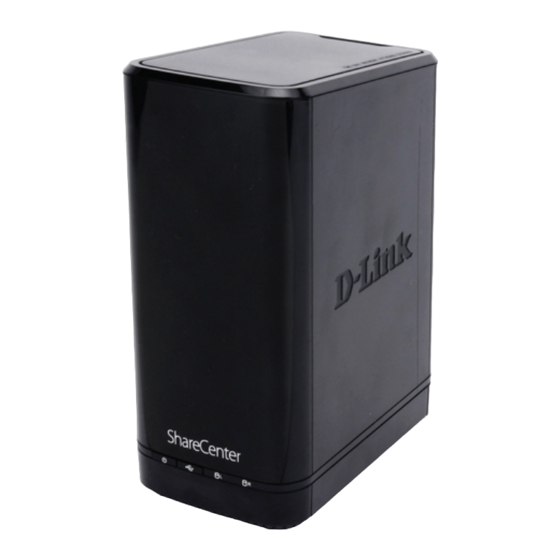
-
Contents
-
Table of Contents
-
Bookmarks
Quick Links
Version 1.0 | 08/28/2012
User Manual
ShareCenter 2-Bay Network Storage Enclosure
DNS-320
Related Manuals for D-Link ShareCenter DNS-320
Summary of Contents for D-Link ShareCenter DNS-320
-
Page 1
Version 1.0 | 08/28/2012 User Manual ShareCenter 2-Bay Network Storage Enclosure DNS-320… -
Page 2: Table Of Contents
Deleting a Group ……….105 Web UI Login …………….36 Quotas …………… 106 Web UI General Layout ………….37 Network Shares …………111 Home ………………37 Add/Modify Network Shares Wizard ..112 Applications …………..38 Deleting a Network Share ……119 Management …………..39 D-Link ShareCenter DNS-320 User Manual…
-
Page 3
MTP Backups …………. 188 System Settings …………. 158 USB Backups …………. 188 Power Management ……….159 MTP Backup Process……..189 Notifications …………161 USB Backup Process ……..191 Email Settings ……….. 161 P2P Downloads …………193 D-Link ShareCenter DNS-320 User Manual… -
Page 4
Creating an AWS Account ……197 Knowledge Base …………202 What is RAID? …………….202 RAID Options …………..204 UPS Connectivity …………..206 Deleting a UPS Slave …………210 USB Print Server …………… 212 Warranty ……………..215 D-Link ShareCenter DNS-320 User Manual… -
Page 5: Product Overview
The new drive will then be re-mirrored, allowing the DNS-320 to return to its full protection. 1 Hard Drive(s) not included. 2 D-Link cannot guarantee full compatibility or proper playback with all codecs. Playback capability depends on the codec support of the UPnP™ AV media player. D-Link ShareCenter DNS-320 User Manual…
-
Page 6: Before You Begin
• Mac OS® X 10.5.6 or greater • 3.5” SATA Hard Drive(s) Package Contents • D-Link ShareCenter® DNS-320 • CD-ROM with Manual and Software • Quick Installation Guide • 12V/3A Output Power Adapter • CAT5E Ethernet Cable D-Link ShareCenter DNS-320 User Manual…
-
Page 7: Features
Features The ShareCenter® DNS-320 is an easy to install data storage platform used for remote access through a local network or from the Internet. This ShareCenter® supports up to 2 SATA hard drives and includes the product features listed below: „…
-
Page 8
„ Supports Multilingual GUI Backup Management „ Web Browsers Supported • Schedule Backup from PC to NAS (D-Link ShareCenter Sync) • Internet Explorer 7+ • Apple Time Machine support • Mozilla Firefox 3+ • Local Backup • Apple Safari 4+ •… -
Page 9: Checking The Hardware Requirements
Section 1 — Product Overview Checking the Hardware Requirements To use your DNS-320, you will need at least one hard drive. If you plan to use RAID 1, which protects your data against one hard drive failure, you will need two hard drives.
-
Page 10: Hardware Overview
Press once to activate USB or press and hold to release USB activity. Left HDD/ Indicates the position of the drive (Left or Right) Right HDD LED Indicators Illuminates blue or red depending on activity (see the next page for details) D-Link ShareCenter DNS-320 User Manual…
-
Page 11: Led Description
HDD On/Off: Orange Light(s) — the hard drives are faulty No Light(s) — the hard drives are inactive HDD On/Off: Blue Light(s) — the hard drives are working Blinking Blue Light(s) — the HDD(s) is writing/reading D-Link ShareCenter DNS-320 User Manual…
-
Page 12: Rear Panel (Connections)
A single USB 2.0 (Type A) connector. The USB Host port is for Print Servers, USB memory disks, or USB UPS monitoring. Latch Press the latch to release the Top Panel and insert or remove the hard drives Security Lock Prevent theft by tying a lock to the ShareCenter NAS and a desk D-Link ShareCenter DNS-320 User Manual…
-
Page 13: Bottom Panel
COMPONENT DESCRIPTION Product Details Information about the product — DNS-320. Serial Number, Part Number, Manufacturer Number Reset Button Press and hold this button for more than 5 seconds to reset the unit to factory defaults. D-Link ShareCenter DNS-320 User Manual…
-
Page 14: Top Panel (Levers)
Section 1 — Product Overview Top Panel (Levers) Pull the handles to disconnect the hard drive(s) from the SATA sockets. Note: Remove the top cover before releasing the latches. D-Link ShareCenter DNS-320 User Manual…
-
Page 15: Getting Started
If a drive is not properly set in place, the hard drive LED will not illuminate after powering on the device. D-Link ShareCenter DNS-320 User Manual…
-
Page 16
Ensure the brackets are aligned so that when the hard drive is inserted, the arrow on the bracket points to the front of the ShareCenter. D-Link ShareCenter DNS-320 User Manual… -
Page 17
Ethernet port. This cable should connect the ShareCenter to your local network via a router, switch, or directly to a computer for configuration (cross-over cable required). Step 7 — Connect the power adapter to the power receptacle. D-Link ShareCenter DNS-320 User Manual… -
Page 18: D-Link Storage Utility
DHCP assigned IP address, the ShareCenter will be automatically assigned a 169.254.xxx.xxx address. It is recommended that you use the included D-Link Storage Utility software when accessing and configuring the ShareCenter for the first time. If you want to change the IP address before logging in or you are having trouble connecting to the ShareCenter IP address, you can use the Storage Utility software included on the product CD to locate the device on your network and make any necessary changes.
-
Page 19
ShareCenter. If your network is using a DHCP server and the computer receives IP settings from DHCP server, the ShareCenter will automatically be in the same subnet. D-Link ShareCenter DNS-320 User Manual… -
Page 20: Installation
Note: Windows Firewall presents you with a warning message to unblock the device. Click Unblock to give your computer access to the NAS. Step 2 — Select the Language of your choice and then click the Start button. D-Link ShareCenter DNS-320 User Manual…
-
Page 21
Step 3 — Follow the instructions to remove the top cover of your ShareCenter. Click Next to continue. Step 4 — Attach the Hard Drives Bracket(s) to the side of the hard drives as indicated. Click Next to continue. D-Link ShareCenter DNS-320 User Manual… -
Page 22
Section 3 — Installation Step 5 — Slide one, or two hard drive into an available hard drive bay of your ShareCenter. Click Next to continue. D-Link ShareCenter DNS-320 User Manual… -
Page 23
Click Next to continue. Step 7 — Connect a CAT5 Ethernet cable to your ShareCenter and connect the other end to a switch or router (Local LAN). Click Next to continue. D-Link ShareCenter DNS-320 User Manual… -
Page 24
Step 9 — With the power on, press the Next button on the device and check and make sure the IP address of your ShareCenter matches what you see on the screen. Note: Allow 1-2 minutes for the DNS-320 to be recognized. Click Next to continue. D-Link ShareCenter DNS-320 User Manual… -
Page 25
Step 11 — In this step you can create a new password for the Admin username. It is recommended you set a password, however you may also leave the fields blank. Click Next to continue. D-Link ShareCenter DNS-320 User Manual… -
Page 26
Step 12 — You may either use Static IP or DHCP to configure the IP network settings of the ShareCenter. If you select Static IP, then enter the IP parameters as listed. Click Next to continue. D-Link ShareCenter DNS-320 User Manual… -
Page 27
Step 14 — Click the Yes radio button if you already have a DDNS account to use for the ShareCenter DDNS. Click the No radio button and proceed to step 15 to obtain a new DDNS account. Click Next to continue. D-Link ShareCenter DNS-320 User Manual… -
Page 28
Step 16 — Click Yes to go to a Wizard with instructions and links on how to obtain a free DDNS account. Click No skips the DDNS account setup wizard and transfers you back to the ShareCenter Setup Wizard. D-Link ShareCenter DNS-320 User Manual… -
Page 29
Click Close to continue. Step 18 — Select your time zone and then set the time and date. You can set the time and date manually, from an NTP server, or from your computer. Click Next to continue. D-Link ShareCenter DNS-320 User Manual… -
Page 30
If you do not want to configure your e-mail settings, click Skip to continue. Step 20 — This step is informational and shows any currently configured Volumes previously setup on the ShareCenter®. Click Next to continue. D-Link ShareCenter DNS-320 User Manual… -
Page 31
Step 21 — Select one of the volume RAID types. Clicking on each RAID type radio button will display a description. For more information concerning the different RAID Disk Formats please refer to the Knowledge Base section in this manual. Click Next to continue. D-Link ShareCenter DNS-320 User Manual… -
Page 32
Step 23 — Review the detailed summary of your volume configuration here before clicking next and starting the drive format. If necessary use the PREV button to go back and reconfigure the RAID configuration of the volume(s). Click Next to continue. D-Link ShareCenter DNS-320 User Manual… -
Page 33
Click Yes to proceed or No to exit. Click Next to continue. Step 25 — During the formatting process the wizard displays a percentage complete bar for each hard drive. Click Next to continue. D-Link ShareCenter DNS-320 User Manual… -
Page 34
Section 3 — Installation Formatting Hard Drives Step 26 — The wizard will notify you when formatting has completed successfully. Click Next to continue. Step 27 — The Format is complete. Click Next to continue. D-Link ShareCenter DNS-320 User Manual… -
Page 35
Wizard Complete Step 28 — The ShareCenter Setup Wizard is complete. Click Finish to exit the wizard and start using your DNS-320. Your ShareCenter is now installed and ready to use. If your drives are mapped using the wizard, you will be able to access them under your ‘My Computer’… -
Page 36: Mapping A Drive
Begin by clicking on ‘Map network drive’. Step 2 — This screen shows some details on selecting a network drive. Click Browse to find your network. D-Link ShareCenter DNS-320 User Manual…
-
Page 37
Step 3 — Windows will automatically detect all devices on your network including your ShareCenter. Step 4 — Click on your ShareCenter to see the volumes you created earlier. Then select the volume that you wish to access and click OK. D-Link ShareCenter DNS-320 User Manual… -
Page 38
Step 5 — After selecting your volume, click Finish to proceed. Step 6 — The drive will then appear in your Windows® Explorer under Network. This means the drive is active and ready for use. D-Link ShareCenter DNS-320 User Manual… -
Page 39: Configuration
Configures local backups, Time Machine© settings, and USB backups P2P Downloads Configure your P2P downloads and control your download schedules My Files Access files on your NAS via a web browser Amazon S3 Create, modify, and delete your Amazon S3© settings D-Link ShareCenter DNS-320 User Manual…
-
Page 40: Web Ui Login
To access the Web UI, open a web browser, type in the IP address of your ShareCenter, and log in. You can find the IP address of your NAS by pressing the Next button on the front of the DNS-320.
-
Page 41: Web Ui General Layout
Section 4 — Configuration Web UI General Layout Home After logging in, the ShareCenter ‘Home’ tab will appear. You will see the Applications and Management tabs alongside of it. D-Link ShareCenter DNS-320 User Manual…
-
Page 42: Applications
Section 4 — Configuration Applications The Applications tab contains FTP/HTTP Downloads, Remote Backups, Local Backups, P2P Downloads, My Files, and Amazon S3 icons. Click on each icon to see the submenus. D-Link ShareCenter DNS-320 User Manual…
-
Page 43: Management
Section 4 — Configuration Management The Management tab contains the Setup Wizard, Disk Management, Account Management, Network Management, Application Management, System Management, and Status icons. Click on each icon to see the submenus. D-Link ShareCenter DNS-320 User Manual…
-
Page 44: Management
The ShareCenter has a Setup Wizard that allows you to quickly configure some of the basic device settings. Click the Setup Wizard icon to start the Setup Wizard. Step 1 — Click the Run Wizard button to start the setup wizard. Step 2 — Click Next to continue. D-Link ShareCenter DNS-320 User Manual…
-
Page 45
Click Next to continue. Step 4 — Set the time zone from the drop-down menu to the appropriate geographical zone closest to your location. Click Next to continue or click Skip to ignore these settings. D-Link ShareCenter DNS-320 User Manual… -
Page 46
Step 5 — Select DHCP to obtain IP settings automatically from a DHCP server (router) or Static to assign the parameters below manually. IP Address: Enter an IP address for the DNS-320. Subnet Mask: Enter the subnet mask of your network. Gateway IP Address: Enter the IP address of your gateway (usually the local IP of your router). -
Page 47
Step 8 — Click the Previous button to go back and check your settings. If you are satisfied with the settings, click the Finish button to save and complete the wizard. Click Exit to end the wizard without saving the settings. D-Link ShareCenter DNS-320 User Manual… -
Page 48: Disk Management
Note: You can still rebuild a drive using the RAID 1 functionality however you must initiate the rebuild manually. Manual Rebuild Now: If Auto-Rebuild is disabled then you can use the Manual Rebuild option by clicking this button. D-Link ShareCenter DNS-320 User Manual…
-
Page 49: Hard Drive Configuration Wizard
RAID format. The following is an example of a standard volume configuration: The Hard Drive Configuration page displays the current RAID configuration under ‘Current RAID Type’ . Click Set RAID Type and Re-Format. The Setup Wizard begins. D-Link ShareCenter DNS-320 User Manual…
-
Page 50
Section 4 — Configuration The ‘Physical Disk Information’ page displays all of the hard drives on the DNS-320. It shows the array number, vendor, model, serial number, and drive capacity. Click Next to continue. Select the format you want by clicking on the RAID type box (highlight in blue). -
Page 51
Select Standard to create separate volumes for each individual drive. Click Next to continue. The ‘Volume Configuration Summary’ shows details on all of the configured drives. Check the details on the list and click Format to continue or click Previous to make changes. D-Link ShareCenter DNS-320 User Manual… -
Page 52
Once the partition is completed, the formatting process will begin. A graphical bar will show the volume being formatted. Do not turn off your NAS during this process. If you would like to change your settings at this stage, click Exit. D-Link ShareCenter DNS-320 User Manual… -
Page 53
If you would like to change your settings at this stage, click Exit. The system will now update all of the changes made. Please be patient during this process. Do not turn off your NAS during this process. D-Link ShareCenter DNS-320 User Manual… -
Page 54
The wizard is now complete. It will show the volume number(s), file system selected, the type of RAID, and the disk formation in the RAID. Click Finish to complete the process and start using your DNS-320. D-Link ShareCenter DNS-320 User Manual… -
Page 55: Jbod
Select JBOD to create a single volume from all of the drives. Click Next to continue. The wizard displays a Volume Configuration Summary of the drive you want to convert to JBOD. Click Format to continue or Previous make changes. D-Link ShareCenter DNS-320 User Manual…
-
Page 56
Section 4 — Configuration A warning message will appear to inform you that all volumes and data will be formatted and erased. Click Yes to continue. Wait for the Wizard to prepare the drive for configuration D-Link ShareCenter DNS-320 User Manual… -
Page 57
Section 4 — Configuration The Format process begins The System Updates D-Link ShareCenter DNS-320 User Manual… -
Page 58
The wizard is now complete. It will show the volume name, file system, and Mode. Click Finish to complete the process and start using your DNS-320. The wizard returns you to the main screen. Here you can see the current RAID Type. D-Link ShareCenter DNS-320 User Manual… -
Page 59: Raid 0
Section 4 — Configuration RAID 0 Select RAID 0 (stripes all of the drives). Click Next to continue. View the Physical Disk Information. Click Next to continue. D-Link ShareCenter DNS-320 User Manual…
-
Page 60
Section 4 — Configuration Select the RAID Type. In this example it’s RAID 0 Click Next to continue. Select the size of your RAID 0 configuration. Click Next to continue. D-Link ShareCenter DNS-320 User Manual… -
Page 61
Check the details on the list and click Format to continue or click Previous to make changes. A warning message will appear to inform you that all volumes and data will be formatted and erased. Click Yes to continue. D-Link ShareCenter DNS-320 User Manual… -
Page 62
Partitioning will now begin. Please be patient while this process takes place. Do not turn off your NAS during this process. The system formats the First Volume. If you would like to change your settings at this stage, click Exit. D-Link ShareCenter DNS-320 User Manual… -
Page 63
Please be patient during this process. Do not turn off your NAS during this process. The system will now update all of the changes made. Please be patient during this process. Do not turn off your NAS during this process. D-Link ShareCenter DNS-320 User Manual… -
Page 64
RAID, and the disk formation in the RAID. Click Finish to complete the process and start using your DNS-320. The wizard returns you to main Hardware Configuration page. Under Current RAID Type, you can view your changes. D-Link ShareCenter DNS-320 User Manual… -
Page 65: Raid 1
Section 4 — Configuration RAID 1 Select RAID 1 to mirror all the hard drives. Click Next to continue. View the Physical Disk Information. Click Next to continue. D-Link ShareCenter DNS-320 User Manual…
-
Page 66
Section 4 — Configuration Select the RAID TYPE you want Click Next to continue. Enter the amount of disk space you would like to assign to the first volume for RAID 1. Click Next to continue. D-Link ShareCenter DNS-320 User Manual… -
Page 67
Select Disable Auto-Rebuild if you want to start the rebuild process manually after replacing a failed drive. Click Next to continue. The Volume Configuration Summary shows the Volume Name, Type, File System, and size of the RAID volume. Click Format to continue. D-Link ShareCenter DNS-320 User Manual… -
Page 68
Partitioning will now begin. Please be patient while this process takes place. Do not turn off your NAS during this process. The system formats the First Volume. If you would like to change your settings at this stage, click Exit. D-Link ShareCenter DNS-320 User Manual… -
Page 69
Section 4 — Configuration The system updates. Click Next to continue. Setup is complete. Setup provides a Volume Name, File System, and Mode. D-Link ShareCenter DNS-320 User Manual… -
Page 70
Section 4 — Configuration Once you have completed the wizard. ShareCenter will return to the main screen. The RAID 1 configuration you just set will be displayed. D-Link ShareCenter DNS-320 User Manual… -
Page 71: Upgrade From Standard Mode To Raid 1
Standard Mode doesn’t offer any redundancy and security of data. It is best then to migrate from Standard Mode to RAID 1. To do this follow these instructions: Step 1 — Insert a second hard drive into the DNS-320. Step 2 — Replace the top and restart the DNS-320.
-
Page 72
Type and Re-Format, the Hard Drive Configuration Wizard only has four procedures. Take a look at the two images below to compare. Click Next to continue. Format the new drive as Standard type. Set RAID Type and Re-Format. D-Link ShareCenter DNS-320 User Manual… -
Page 73
Reconfigure the drive to RAID 1. Click the checkbox to proceed. Click Next to continue. Step 5 — Under Auto-Rebuild Settings, select whether you want to enable auto rebuild or disable auto rebuild. Click Next to continue. D-Link ShareCenter DNS-320 User Manual… -
Page 74
Step 6 — A warning message will appear prompting you to confirm whether you want to format your hard drive. Click Yes to continue or No to exit. Click Next to continue. Step 7 — The software communicates with the hardware to build a list. D-Link ShareCenter DNS-320 User Manual… -
Page 75
Section 4 — Configuration Step 6 — The Wizard formats the hard drive. Click Next to continue. Step 7 — The System updates. Click Next to continue. D-Link ShareCenter DNS-320 User Manual… -
Page 76
Step 8 — Setup is completed when it shows final information on the slot, vendor, model number, and serial number. Click Finish to continue. Step 9 — The wizard returns to the main Hard Drive Configuration D-Link ShareCenter DNS-320 User Manual… -
Page 77: S.m.a.r.t. Test
A warning message will prompt you to stop all services and network activity. Click Yes to continue the Quick S.M.A.R.T. test. The test will run and a percentage completed will display under the Progress Tab. The Start button will change to a Stop button. D-Link ShareCenter DNS-320 User Manual…
-
Page 78
Section 4 — Configuration When the test is complete, the results will be displayed in the Result column. D-Link ShareCenter DNS-320 User Manual… -
Page 79: Creating A Schedule
Click Create To view the Schedule List, click on the Schedule List arrow. A new table will appear showing details of the new schedule created. To delete a schedule, click on the Trash Can. D-Link ShareCenter DNS-320 User Manual…
-
Page 80: Scan Disk
Scan Disk provides a method to test the disk’s file system on your ShareCenter. Scan Disk scans your disks file system for errors and/or corruption. Click Management, Disk Management, and then Scan Disk. Select the volume from the drop-down list you wish to scan. Click Scan Disk D-Link ShareCenter DNS-320 User Manual…
-
Page 81
A warning message will prompt you to stop running all services (hard drive and network activity). Click Yes to proceed or No to cancel. The DNS-320 will initialize the volume(s) and begin scanning. Please wait while the software scans the volume(s) or click Exit to cancel the scan. -
Page 82: Account Management
However access rules can be created and edited in the Network Shares menu. Click Management > Account Management. Click Users/Groups on the left side and then click Create. The User Setup Wizard will appear. Click Next to continue. D-Link ShareCenter DNS-320 User Manual…
-
Page 83
Section 4 — Configuration Step 1 — Select Create a Single User and then click Next to continue. Step 2 — Enter the user name and password for the new user and then click Next to continue. D-Link ShareCenter DNS-320 User Manual… -
Page 84
Step 3 — Add the user to a group by clicking the Group checkbox. Click Next to continue. Step 4 — Select the network share settings. Select Read Only, Read/Write, or Deny Access. Click Next to continue. D-Link ShareCenter DNS-320 User Manual… -
Page 85
• WebDAV is short for Web-based Distribution, Authoring, and Versioning. • Click Next to continue. Select the volumes the user can have WebDAV access to and then select whether to give Read Only or Read/Write rights. Click Next to continue. D-Link ShareCenter DNS-320 User Manual… -
Page 86
Click Next to continue. Step 6 — The final step is a summary of all the configurations you made. Click Finish to accept the changes or click Exit to cancel the changes. D-Link ShareCenter DNS-320 User Manual… -
Page 87: Creating Multiple Users
Enter the amount of users you want to create. Next to the input field is the remaining amount of users you can add to the NAS. Enter a password and confirm it. Click Next to continue. D-Link ShareCenter DNS-320 User Manual…
-
Page 88
Step 3 — Add the user(s) to a group by clicking the Group checkbox. Click Next to continue. Step 4 — Select the network share settings. Select Read Only, Read/Write, or Deny Access. Click Next to continue. D-Link ShareCenter DNS-320 User Manual… -
Page 89
Click Next to continue. Step 5 — Enter the amount of disk space you wish to assign the user(s) on each volume. Type 0 to provide unlimited disk space to the user(s). Click Next to continue. D-Link ShareCenter DNS-320 User Manual… -
Page 90
Step 6 — The final step is a summary of all the configurations you made. Click Finish to accept the changes or click Exit to cancel the changes. The User Settings window will show a list of the users created. D-Link ShareCenter DNS-320 User Manual… -
Page 91: Modify Users
Modify Users Step 1 — Click the user you wish to modify. The user will be highlighted in red. Click Modify to continue. Step 2 — The User Setup Wizard will appear. Click Next to continue. D-Link ShareCenter DNS-320 User Manual…
-
Page 92
Section 4 — Configuration Step 3 — Change the username or password. Click Next to continue. Step 4 — Change the Network Share Settings. Click Next to continue. D-Link ShareCenter DNS-320 User Manual… -
Page 93
Click Next to continue. Step 6 — Enter the re-assigned amount of disk space you wish to assign the user on each volume. Type 0 to provide unlimited disk space to the user. Click Next to continue. D-Link ShareCenter DNS-320 User Manual… -
Page 94
Click Finish to accept the changes or Exit to cancel the changes. Step 8 — A message will appear stating the user details have been changed successfully. Click Yes to exit the wizard. D-Link ShareCenter DNS-320 User Manual… -
Page 95: Deleting Users
Step 1 — Click the user you wish to delete. The user will be highlighted in red. Click Delete to continue. Step 2 — A message will appear prompting you to confirm deleting the user. Click Yes to confirm. The user is now removed from the list. D-Link ShareCenter DNS-320 User Manual…
-
Page 96: Importing Users
Section 4 — Configuration Importing Users Step 1 — Click Account Management > Users/Groups > Import Users. Step 2 — The Import Users Wizard will start. Click Next to continue. D-Link ShareCenter DNS-320 User Manual…
-
Page 97
Check the Overwrite Duplicate Accounts box if this is necessary. Click Browse to select the file you want to import. Click Next to continue Step 4 — Assign the privileges and access methods. Click Next to continue. D-Link ShareCenter DNS-320 User Manual… -
Page 98
Step 5 — The Summary will show a list of the imported users. If there are problems with the user list, the wizard will show the errors in red on the table. Click Finish to close the wizard or go back to change the imported file. D-Link ShareCenter DNS-320 User Manual… -
Page 99: Creating A Group
Step 1 — Click Account Management > Users/Groups. Click the blue arrow next to Group Settings and settings window will appear. Click New to create a new Group. Step 2 — The Group Setup Wizard will now start. Click Next to continue. D-Link ShareCenter DNS-320 User Manual…
-
Page 100
Section 4 — Configuration Step 3 — Enter a Group Name. Click Next to continue Step 4 — Click the checkbox to select the user(s) you wish to add to the group and then click Next to continue. D-Link ShareCenter DNS-320 User Manual… -
Page 101
Click Next to continue. Step 6 — Select the Privileges/Access Methods you want to assign to the group. The greyed out selections are assigned by default. Click Next to continue. D-Link ShareCenter DNS-320 User Manual… -
Page 102
Next to continue. Step 8 — Enter the amount of space you want to assign to the group for each volume. Enter zero to give unlimited disk space to the group. Click Next to continue. D-Link ShareCenter DNS-320 User Manual… -
Page 103
Step 9 — The wizard is now complete. The last step shows a summary of the group you created. Click Previous to change your settings or Finish to end the wizard. Step 10 — Under Group Settings, a table will display the group you just created. D-Link ShareCenter DNS-320 User Manual… -
Page 104: Modifying A Group
Click the blue arrow next to Group Settings and the Group Settings table will appear. Step 2 — Select the group you want to modify. Your selection will turn red. Click Modify to change the settings for the Group. D-Link ShareCenter DNS-320 User Manual…
-
Page 105
Section 4 — Configuration Step 3 — The Group Setup Wizard will now start. Click Next to continue. Step 4 — Make the necessary modifications to the group and then click Next to continue. D-Link ShareCenter DNS-320 User Manual… -
Page 106
Click Next to continue. Step 6 — Select the appropriate privileges you want to assign to the group. The greyed out selections are assigned by default and cannot be modified. Click Next to continue. D-Link ShareCenter DNS-320 User Manual… -
Page 107
Enter zero to give unlimited disk space to the group. Click Next to continue. Step 8 — When editing the quota, make sure the size is not smaller than the user quota on his/her account. Click Yes to change the quota. D-Link ShareCenter DNS-320 User Manual… -
Page 108
Step 9 — The wizard is now complete and will display a summary of the group you edited. Click Previous to change your settings or Finish to end the wizard. Exit will cancel all changes you made. D-Link ShareCenter DNS-320 User Manual… -
Page 109: Deleting A Group
Step 1 — Select the Group you want to delete and click Delete. Step 2 — A warning message will appear asking you to verify if you want to delete the Group. Click Yes to delete the Group or No to cancel your decision. D-Link ShareCenter DNS-320 User Manual…
-
Page 110: Quotas
Click Enable to activate Quota Settings. The status will now display ‘Started’ notifying you that the Quota Settings are enabled. To Modify a User’s Quota Settings, click the blue arrow next to User Quota Settings to reveal a table of users. D-Link ShareCenter DNS-320 User Manual…
-
Page 111
Click Modify to change the user’s settings. The Quota Settings configuration box will display the user account you want to modify. Enter a new quota amount for each volume. Click Apply to confirm your settings. D-Link ShareCenter DNS-320 User Manual… -
Page 112
Section 4 — Configuration The modified quota settings will be displayed in the table. For Group Quota Settings, click the blue drop-down arrow next to Group Quota Settings to view the group quota table. D-Link ShareCenter DNS-320 User Manual… -
Page 113
Select the group you want to modify. Your selection will turn red. Click Modify. The Group Quota Settings screen will display the group you want to modify. Enter a new quota amount for each volume for the current group and click Apply. D-Link ShareCenter DNS-320 User Manual… -
Page 114
Section 4 — Configuration The modified quota settings will be displayed in the table. D-Link ShareCenter DNS-320 User Manual… -
Page 115: Network Shares
At the bottom of the table, the user can navigate through pages and also refresh the window by click on the Refresh button. Click on the Reset Network Shares button to reset the network access list to the default configuration. D-Link ShareCenter DNS-320 User Manual…
-
Page 116: Add/Modify Network Shares Wizard
2) Configure shared folder access rights. 3) Configure network access settings. 4) View a summary of the configuration before completing. Click Next to continue. Step 2 — Select the Share Folder from one of the volumes. Click Next to continue. D-Link ShareCenter DNS-320 User Manual…
-
Page 117
Step 4 — Select the appropriate access rights for the share. Options to select from are Read Only, Read/Write, and Deny Access. This procedure can also be used to block certain users from accessing certain folders. Click Next to continue. D-Link ShareCenter DNS-320 User Manual… -
Page 118
Click Next to continue. Step 6 — If you selected Specific user/Group in Step 3, then this step allows you to set the access rights for each Group configured on the ShareCenter. Click Next to continue. D-Link ShareCenter DNS-320 User Manual… -
Page 119
No (off) when using file-based database applications. When enabled, the file attribute “Map Archive” will be copied as the file is being stored on the ShareCenter. Click Next to continue. D-Link ShareCenter DNS-320 User Manual… -
Page 120
• AFP is short for Apple Filing Protocol. • FTP is short for File Transfer Protocol • NFS is short for Network File System. • WebDAV is short for Web-based Distributed Authoring and Versioning. Click Next to continue. D-Link ShareCenter DNS-320 User Manual… -
Page 121
• Root Squash — Disables writing to the Root owned directories and files on the system when the user has root access privileges. • Write — provide write permission to the file system. Click Next to continue. D-Link ShareCenter DNS-320 User Manual… -
Page 122
If you checked WebDAV as an access method, then this step will allow you to set the access parameters. Click Next to continue. Step 10 — Here a summary of the created shares will be displayed. Click Finish to save your settings. D-Link ShareCenter DNS-320 User Manual… -
Page 123: Deleting A Network Share
Select the Network Share you wish to delete. Your selection will turn red. Click Delete to remove the share. A warning message will appear prompting you to verify if you wish to delete the Share. Click Yes to delete or No to Cancel. D-Link ShareCenter DNS-320 User Manual…
-
Page 124
Section 4 — Configuration The deleted Share will be removed from the Network Share List. D-Link ShareCenter DNS-320 User Manual… -
Page 125: Resetting The Network Shares
Section 4 — Configuration Resetting the Network Shares Click the Reset Network Shares button. A warning message will prompt you to confirm your selection. Click Yes to confirm or No to cancel. D-Link ShareCenter DNS-320 User Manual…
-
Page 126: Iso Shares Setup Wizard
The following section will describe how to add a new ISO mount on the ShareCenter. To add an ISO Mount, click on the New button. An easy to configure wizard will launch. Click Next to continue. Select the ISO file to mount. Check the box to the left of the .iso file to select it and click Next to continue. D-Link ShareCenter DNS-320 User Manual…
-
Page 127
Click Next to continue. You can assign Read Only or Deny Access privileges to the ISO Mount share here. Click on the appropriate radio button for the privileges you would like to assign. Click Next to continue. D-Link ShareCenter DNS-320 User Manual… -
Page 128
• AFP is short for Apple Filing Protocol. • FTP is short for File Transfer Protocol • NFS is short for Network File System. • WebDAV is short for Web-based Distributed Authoring and Versioning. Click Next to continue. D-Link ShareCenter DNS-320 User Manual… -
Page 129
A summary of the share will be displayed. Click on the Finish button to accept the change and complete the wizard. Through the D-Link Storage Utility, the ISO Mount Share can now be mapped to your computer as a normal network share. D-Link ShareCenter DNS-320 User Manual… -
Page 130: Creating An Iso Image
The following section will describe how to create an ISO image from your NAS, export the data out to your PC. Click Account Management > Network Shares > ISO Mount Share Settings. Click on the Create ISO Image button at the bottom. D-Link ShareCenter DNS-320 User Manual…
-
Page 131: Iso Image Creation Wizard
Section 4 — Configuration ISO image Creation Wizard The ISO image wizard helps you create an ISO image on your ShareCenter. Read the instructions for the ISO Image Creation Wizard and then click Next to continue. D-Link ShareCenter DNS-320 User Manual…
-
Page 132: Iso Name And File Path Settings
— DVD5 (4.7GB) — This creates an ISO file 4.7GB in size ready for burning onto a single-layer DVD at a later stage. — DVD9 (8.5GB) — This creates an ISO file 8.5GB in size ready for burning onto a double-layer DVD at a later stage. D-Link ShareCenter DNS-320 User Manual…
-
Page 133
Section 4 — Configuration Select the Image Path. Click the Browse button to select the destination folder on your NAS. Click the Volume to save it there or click New to create a new directory. D-Link ShareCenter DNS-320 User Manual… -
Page 134
Section 4 — Configuration Enter a name that resembles the ISO file you are writing. Click Next. A warning message appears asking you to confirm your decision. Click Yes to continue or click No to cancel. D-Link ShareCenter DNS-320 User Manual… -
Page 135: Iso Tree Editing
At the bottom of the window it shows the path where the ISO file will be saved. Click Next to continue. The wizard will create the ISO image. Click the Auto Mount checkbox if you want the ISO file to be mounted automatically. Click Finish to close the wizard. D-Link ShareCenter DNS-320 User Manual…
-
Page 136: Verifying The Iso Image
Section 4 — Configuration Verifying the ISO image Open your Windows Explorer, click the Network icon, double-click your ShareCenter NAS. Double-click the volume you saved the ISO. Your ISO image should be there. D-Link ShareCenter DNS-320 User Manual…
-
Page 137: Admin Password
Password settings. 1. Enter a new Username 2. Type the original Password 3. Enter a New Password 4. Confirm the New Password Click Save Settings to accept the changes or Don’t Save Settings to cancel changes. D-Link ShareCenter DNS-320 User Manual…
-
Page 138: Network Management
LAN throughput. It also enables redundancy. If one of the ports fails, the other acts as backup. The network load is balanced across all links. Go to Network Management and then LAN Setup. Click Setup. D-Link ShareCenter DNS-320 User Manual…
-
Page 139
This step allows you to configure your LAN settings. Here you can choose between DHCP Client or Static IP. If you select Static IP, you will need to manually configure your own IP settings. Click Next to continue. D-Link ShareCenter DNS-320 User Manual… -
Page 140
Section 4 — Configuration A summary of what you just configured will be displayed. Click Finish to exit the wizard. D-Link ShareCenter DNS-320 User Manual… -
Page 141: Ipv6 Settings
Section 4 — Configuration IPv6 Settings Go to Management > Network Management > LAN Setup > IPv6 Settings and click the Setup button. An IPv6 setup window will appear. D-Link ShareCenter DNS-320 User Manual…
-
Page 142: Ipv6 Setup
Auto — Requests information specifically from an IPv6-enabled router and automatically configure your settings. DHCP — Requests information from a DHCP server. Static — Enter your own IP configuration Off — Do not use IPv6 D-Link ShareCenter DNS-320 User Manual…
-
Page 143
64; no more, no less. Enter the Default Gateway, and DNS settings. Click Apply when complete. The IPv6 Settings table will now display the settings in table format. In order for the changes to take effect, you are prompted to re-login. Click OK and log in. D-Link ShareCenter DNS-320 User Manual… -
Page 144: Link Speed And Lltd Settings
Settings button to save the new settings. LLTD: The device supports LLTD (Link Layer Topology Discovery) and is used by the Network Map application that is included in Windows Vista® and Windows® 7. Select to enable or disable LLTD. D-Link ShareCenter DNS-320 User Manual…
-
Page 145: Ddns
When the user clicks on the “Sign up for D-Link’s Free DDNS service at www.DLinkDDNS.com link, the user will be re-directed to the D-Link DDNS page. Here the user can create or modify a D-Link DDNS account to use in this configuration. D-Link ShareCenter DNS-320 User Manual…
-
Page 146: Port Forwarding
Section 4 — Configuration Port Forwarding The DNS-320 supports UPnP port forwarding which configures port forwarding automatically on your UPnP-enabled router. Note: You will need a UPnP router on your network. Log in and click Network Management > Port Forwarding.
-
Page 147
A message will notify you that the wizard has found a UPnP router on the network. Note that you have to enable UPnP on your router. Click the blue arrow next to port forwarding to reveal the Port Forwarding options. D-Link ShareCenter DNS-320 User Manual… -
Page 148
Section 4 — Configuration Click Add. The Port Forwarding wizard will start. Click Next to continue. D-Link ShareCenter DNS-320 User Manual… -
Page 149
Internet via your UPnP-enabled router. Note: You can select more than one port. Click Previous to change the Port Forward Rule or Finish to configure the port forwarding on the UPnP router automatically. D-Link ShareCenter DNS-320 User Manual… -
Page 150: Application Management
FTP server The Application Management section allows you to configure many services for your DNS-320. The server and service settings include: FTP server, UPnP AV server, iTunes server, AFP, and NFS services. Let’s begin by looking at configuration options for the FTP server.
-
Page 151
Select IPv4 or IPv6 and then enter the IP address of a machine you wish to block. Select Permanent if you wish to block the IP address permanently or Temporary if you wish to set a time frame. If you selected permanent, click Apply and continue. D-Link ShareCenter DNS-320 User Manual… -
Page 152
Section 4 — Configuration If you selected Temporary, then select a time frame and click Apply to continue. The Blocked IP list will display the IP addresses you blocked. D-Link ShareCenter DNS-320 User Manual… -
Page 153
Section 4 — Configuration Click the blue arrow next to FTP server status to reveal the FTP details. The FTP server is stopped by default. Click Start FTP Server to run the process. D-Link ShareCenter DNS-320 User Manual… -
Page 154: Upnp Av Server
Click Application Management, then UPnP AV Server. Click the Enable radio button to enable the UPnP AV server. Click Add to configure the UPnP AV share. Select the volume you like to share and click Apply. D-Link ShareCenter DNS-320 User Manual…
-
Page 155
Section 4 — Configuration The NAS is building the media library. When the system has finished building the media library, a success message will appear. Click Yes to continue. D-Link ShareCenter DNS-320 User Manual… -
Page 156
Section 4 — Configuration The selected volume will appear in the table under the UPnP AV server. D-Link ShareCenter DNS-320 User Manual… -
Page 157: Itunes Server
Server The DNS-320 features an iTunes Server. This server provides the ability to share music and videos to computers on the local network running iTunes. If the server is enabled, the device will be automatically detected by the iTunes program and the music and videos contained in the specified directory will be available to stream over the network.
-
Page 158: Afp Service
The ShareCenter supports Network File System (NFS) service. To enable this multi-platform file system on your ShareCenter enable it here. Otherwise disable the option to prevent unnecessary CPU overhead. Click Application Management > NFS Service. Click the Enable radio button to turn NFS service on. Click Save Settings. D-Link ShareCenter DNS-320 User Manual…
-
Page 159: System Management
Language The language packs help users customize the DNS-320 to their specific region. Download your language pack from the D-Link website or the CD and follow the instructions below. When you disable the language pack, the GUI will return to English.
-
Page 160: Time And Date
Select your time zone from the drop-down menu. Click Save Settings. You can also select a NTP server from the drop-down menu to sync the time and date with an online server. Then click Save Settings. D-Link ShareCenter DNS-320 User Manual…
-
Page 161: Device
Enter your device name here. This name is what the device will appear as on the network. By default, the device name is dlink-xxxxxx, where xxxxxx is the last six digits of the MAC address. Description: Assign a device description to the device. D-Link ShareCenter DNS-320 User Manual…
-
Page 162: System Settings
Section 4 — Configuration System Settings System Settings provides features to control your DNS-320. Users can restart the NAS, restore the system to it’s original state, set idle times, shutdown the system, configure settings, and configure system temperature settings. Restart: Click to reboot the DNS-320.
-
Page 163: Power Management
Set the amount of idle time before the drives go into Drives: hibernation. Click Enable or Disable. The Power Recovery Power Recover: feature will automatically restart your device from a previously unexpected shutdown due to a power failure. D-Link ShareCenter DNS-320 User Manual…
-
Page 164
Click Enable to turn on this function. Power Off Scheduling: Enable or disable the power off days using the check box and configure the time for each day that the power off will occur. D-Link ShareCenter DNS-320 User Manual… -
Page 165: Notifications
Select STARTTLS or SSL from the drop-down menu if it is Connection: required by your SMTP server, or select NONE. Click the Test E-Mail button to send a test alert and confirm Test E-Mail: your settings are correct. D-Link ShareCenter DNS-320 User Manual…
-
Page 166: Sms Settings
Mobile Service Provider. Test SMS button: Click this button to send a test message to your mobile phone to verify the settings are correct and the API URL is functioning with your provider. D-Link ShareCenter DNS-320 User Manual…
-
Page 167: Adding An Sms Service Provider
URL. Enter your SMS Provider name here. Enter the HTTP API URL provided to you. Choose the appropriate type parameter in the drop-down menu for the parsed parameters of the URL on the left. D-Link ShareCenter DNS-320 User Manual…
-
Page 168: Event Settings
You can limit which events are sent as alerts to the Email or SMS settings by checking the events here. Event Settings: Select the information you want e-mailed to the above address or sent over SMS messages to the above mobile number. The items checked will be sent when necessary. D-Link ShareCenter DNS-320 User Manual…
-
Page 169: Logs
Clear Log: Click Clear Log to delete all the existing logs. Backup Log: Click Backup Log to save the existing logs to a text file on your computer. D-Link ShareCenter DNS-320 User Manual…
-
Page 170: Firmware Upgrade
The Firmware Upgrade Page makes it simple to check for and upload new firmware releases to the device. This section provides a link to check for new firmware on the D-Link support website. If new firmware is available, download the file to your local computer.
-
Page 171: Usb Devices
IP address(es) of the network UPS slaves to notify them in the event of a power failure. For more details, refer to the UPS Connectivity section. USB Storage Information Click the blue arrow to reveal the USB storage Information. It displays information on the manufacturer, product name, and size (capacity). Click the Unmount button to eject the USB device. D-Link ShareCenter DNS-320 User Manual…
-
Page 172: Printer Information
Section 4 — Configuration Printer Information Click the blue arrow to reveal Printer Information. It displays information on the manufacturer, product type, and connection details. Click Clear Print Queue(s) to remove all active print jobs. D-Link ShareCenter DNS-320 User Manual…
-
Page 173: System Status
System Info The System Status information screen provides information on the DNS-320. System Info provides information on the LAN ports, Device Information, and Volume information. Hard Drive Info displays information on all hard drives including the manufacture details, temperatures, size, and status.
-
Page 174
Section 4 — Configuration Click System Status > Resource Monitor, then click the blue arrow to reveal the resource details. It provides information on the CPU, memory, bandwidth, and processes in action. D-Link ShareCenter DNS-320 User Manual… -
Page 175: Home
The Home tab is the center for all files on your ShareCenter. Home is divided into one main subfolder called My Folder. Under My Folder resides My Files. Let’s take a closer look at this utility independently. D-Link ShareCenter DNS-320 User Manual…
-
Page 176: My Files
NAS. Click My Files. The My Files window provides a list of all volumes created on the NAS. Click on any Volume you created to see a directory listing of the files. D-Link ShareCenter DNS-320 User Manual…
-
Page 177: Upload
To upload more files to the volume you have selected, click the Upload button. Click the Select Files button to find files on your computer to upload to the NAS. Locate the path of the file you want to upload and click Open. D-Link ShareCenter DNS-320 User Manual…
-
Page 178
Section 4 — Configuration Click Upload to start the uploading process. Then click Exit to close the upload window. The file updates to the NAS and is displayed on the directory table. D-Link ShareCenter DNS-320 User Manual… -
Page 179: Download
To download files from the NAS to your computer, select the file you want to download and click the Download button. Depending on your browser download settings, the browser automatically downloads the file to your saved location. D-Link ShareCenter DNS-320 User Manual…
-
Page 180: My Favorites Application
My Favorites Application The My Favorites Application section allows users to add applications to the Home section so users can easily access these applications. Follow these easy steps to setup Favorite Applications on the Home screen. D-Link ShareCenter DNS-320 User Manual…
-
Page 181: Adding Applications
Click the Add/Remove button to add Applications. Click the checkbox under each application you wish to add to the Home screen. Click Apply to continue. The shortcut is now created on the Home screen. Click the shortcut to access the application. D-Link ShareCenter DNS-320 User Manual…
-
Page 182: Applications
Click on Test to verify access to the site address and file/folder. If you selected File from the above drop- down list, you must specify the exact file in the URL path, including the file extension. (e.g. http://example.com/test/ testfile.txt). D-Link ShareCenter DNS-320 User Manual…
-
Page 183
In addition, there is an option to delete a download event at any time. Current download statistics, such as % completed and download speed, are displayed for each event. A refresh button is also provided to produce updated listings at any time. D-Link ShareCenter DNS-320 User Manual… -
Page 184: Remote Backups
Backup list. You must select the remote backup job first and then click the Modify button. Delete: To remove a Remote Backup job select the job in the list and then click the Delete button. D-Link ShareCenter DNS-320 User Manual…
-
Page 185: Create Wizard
NAS or Linux file system. Remote To Local: sets the backup source as the remote NAS or Linux file system and the target destination for the backup files as the local NAS. D-Link ShareCenter DNS-320 User Manual…
-
Page 186
The subsequent backups in the incremental series contain new files and folders plus the links to the first incremental backup. D-Link ShareCenter DNS-320 User Manual… -
Page 187
Once — Select this option to run the Remote Backup once at a specific date and time set here. Scheduled: Select this option to set the backup to occur daily, weekly, monthly per a specific schedule. D-Link ShareCenter DNS-320 User Manual… -
Page 188
Navigation buttons: Use these buttons to move up and down in the list when there are multiple jobs configured. Refresh Button: Click this button during a backup or recovery process to monitor the progress by updating the progress completed bar. D-Link ShareCenter DNS-320 User Manual… -
Page 189: Local Backups
ShareCenter compare identical file names at the source Save To: Enter a valid destination drive on the ShareCenter, or and destination. Files will only be overwritten if the click Browse to select the destination. source file is more recent. D-Link ShareCenter DNS-320 User Manual…
-
Page 190: Time Machine
Adds a NAS folder as a Time Machine destination. Delete: Deletes a NAS folder setup as a Time Machine destination. Remove all Delete all the NAS folders in the list configured as Network Time Machine Destinations. Shares: D-Link ShareCenter DNS-320 User Manual…
-
Page 191: Usb Backups
USB Backups This section allows the user to configure the ShareCenter so that it becomes a backup destination for a USB device that is connected to your DNS-320. MTP Backups (Media Transfer Protocol) basically backup digital media content from a MTP compatible USB device such as digital cameras, MP3 players, and smartphones to your ShareCenter.
-
Page 192: Mtp Backups
Type: folder. Select Synchronize to overwrite all the files in the existing USB folder named USBDisk1_1. Status: Displays the current USB backup status. Click on the Save Settings button to save the USB Backups settings. D-Link ShareCenter DNS-320 User Manual…
-
Page 193: Mtp Backup Process
MTP Backup Process 1. Connect a MTP USB device to the USB port on the back panel of the device. The DNS-320 will enter backup mode if MTP Backups has been enabled in the MTP backup settings. 2. Press the USB button to start the backup process. The blue USB LED flashes briefly to display that the backup is in the process.
-
Page 194
3. Go to System Management, USB Devices. Under USB Storage Information, you will see detailed information on the device you plugged into the DNS-320. You can connect an Android device but enable USB debugging. 4. When the backup is complete, the flashing blue LED will become solid blue. -
Page 195: Usb Backup Process
The ShareCenter will copy or sync all the files from the source folder to the destination folder. Please Note: No warning message will appear to indicate that all data on the destination folder will be deleted automatically. D-Link ShareCenter DNS-320 User Manual…
-
Page 196
3. When the backup is complete, the flashing blue LED will become solid blue. To unmount the USB storage device, you can click and hold the USB button at the front of the DNS-320 or you can go to the USB Devices menu of the System Management icon in the Management Tab of the Web GUI of the device. -
Page 197: P2P Downloads
Here the user can choose to enable or disable the encryption. Bandwidth You can manually configure the maximum download Control: rate and maximum upload rate. Enter the value -1 to set the respective field to unlimited. D-Link ShareCenter DNS-320 User Manual…
-
Page 198: Downloads
The Refresh button allows the user to refresh a selected download. This will remove not the P2P task list so it displays the most updated only the torrent file, but also the partially statistics. downloaded files too. D-Link ShareCenter DNS-320 User Manual…
-
Page 199: My Files
Moves the file to a new folder on the disk. Delete: Removes the selected file from disk. Rename: Allows you to configure a new file name for the selected file. Properties: Displays the file properties such as ownership, access rights, and modify time. D-Link ShareCenter DNS-320 User Manual…
-
Page 200: Amazon S3
With Amazon S3 support, it is possible to upload the data from your DNS-320 to Amazon S3 or download the data from Amazon S3 to your DNS-320.
-
Page 201: Creating An Aws Account
1. Access Key ID 2. Secret Access Key Save these keys in a secure location as your ShareCenter will need them to create the backup and recovery jobs to and from the Amazon S3 Cloud Storage. D-Link ShareCenter DNS-320 User Manual…
-
Page 202
You will need the following configuration data to create a backup/restore job: Step 1: Job Name Settings Enter a 16 character name to identify the name of the backup or the restore job. D-Link ShareCenter DNS-320 User Manual… -
Page 203
Region: Select your Region from the drop-down menu. Step 3: Server Type Type: Select Upload or Download from the drop-down menu. Backup Type: Use the drop-down menu and select Overwrite Existing Files, Full Backup or Incremental Backup. D-Link ShareCenter DNS-320 User Manual… -
Page 204
Select the Schedule Mode for the job to be executed. You may select Manual (now or later from the job list), Once (at a predetermined time and day), or Scheduled (a predetermined time on a daily basis). D-Link ShareCenter DNS-320 User Manual… -
Page 205
This field of the jobs controls whether the job will execute or not. If the button shows a green triangle, clicking it enables the job to function. If the button shows the red square, clicking it disables the job from executing. D-Link ShareCenter DNS-320 User Manual… -
Page 206: Knowledge Base
RAID, short for Redundant Array of Independent Disks, is a combination of two or more disks with the aim of providing fault tolerance and performance improvement. There are several different levels of RAID, with each one providing a different method of sharing or distributing data amongst the drives. The DNS-320 supports Standard, JBOD, RAID 0, and RAID 1. JBOD…
-
Page 207
Because the data is stored on multiple disks, fault tolerance means that if one drive fails, all RAID 1 provides fault tolerance and protection, in data in the array will be lost. addition to performance advantages. D-Link ShareCenter DNS-320 User Manual… -
Page 208: Raid Options
Section 5 — Knowledge Base RAID Options Here is a list of the RAID options available on the ShareCenter DNS-320 Standard RAID — creates a single volume for one drive or more drives. JBOD — allows you to create a large virtual disk drive by concatenating two or more smaller drives together.
-
Page 209
This ensures that your data is protected against loss if any hard drive in the RAID 1 set fails. In fact, as long as any single member of the set remains functional, you will continue to operate normally, with complete access to your data. D-Link ShareCenter DNS-320 User Manual… -
Page 210: Ups Connectivity
UPS Connectivity The DNS-320 supports USB UPS, giving users the ability to share the UPS on their local network and protect from an abnormal shutdown due to a power failure. Connect a UPS to the USB port on the back of the ShareCenter®.
-
Page 211
Click the blue arrow next to UPS Settings. There are two modes — Standalone and Master. Select Standalone to use the UPS only on the DNS-320 or select Master to share the UPS with the network UPS slaves. The UPS Status screen shows the mode, manufacturer, product type, battery charge meter, and status. -
Page 212
Enter the IP address of the other UPS slave on the network. Click the + button to add more IP addresses. Make sure the DNS-320 and the UPS slaves are on the same physical network. D-Link ShareCenter DNS-320 User Manual… -
Page 213
Once you have entered an IP address, the system will check its database for IP address records. The UPS Settings table will display the IP address(es) you added. Your DNS-320 is now setup as the network master to notify the network slaves about critical power status. D-Link ShareCenter DNS-320 User Manual… -
Page 214: Deleting A Ups Slave
Section 5 — Knowledge Base Deleting a UPS Slave Under Management > System Management > USB Devices > UPS Setting, select the IP address. Your selection will turn red. Click Delete. The DNS-320 will process your request. D-Link ShareCenter DNS-320 User Manual…
-
Page 215
Section 5 — Knowledge Base The IP address will no longer be listed in the table. D-Link ShareCenter DNS-320 User Manual… -
Page 216: Usb Print Server
Note: The print function is supported in Microsoft Windows OS only. The device does not support the copy and scan functions of Multi-Function Printers either. To add a printer, connect your printer via USB cable to the USB port of your device: The printer should appear in the USB Devices menu of the System Management icon. D-Link ShareCenter DNS-320 User Manual…
-
Page 217
The Windows Add Printer Wizard will launch: ® Select the printer driver from the installed Manufacturer list or use the Have Disk button to browse for the printer driver file. Click OK to continue. D-Link ShareCenter DNS-320 User Manual… -
Page 218
Section 5 — Knowledge Base Once you have selected the proper driver as shown in the browse list then click OK to install the printer. The printer is now installed and the printer queue will appear. D-Link ShareCenter DNS-320 User Manual… -
Page 219: Warranty
Any repair or replacement will be rendered by D-Link at an Authorized D-Link Service Office. The replacement hardware need not be new or have an identical make, model or part. D-Link may, at its option, replace the defective Hardware or any part thereof with any reconditioned product that D-Link reasonably determines is substantially equivalent (or superior) in all material respects to the defective Hardware.
-
Page 220
Software or to refund the portion of the actual purchase price paid that is attributable to the Software. Except as otherwise agreed by D-Link in writing, the replacement Software is provided only to the original licensee, and is subject to the terms and conditions of the license granted by D-Link for the Software. -
Page 221
• USA residents send to 17595 Mt. Herrmann, Fountain Valley, CA 92708. D-Link will not be held responsible for any packages that are lost in transit to D-Link. The repaired or replaced packages will be shipped to the customer via UPS Ground or any common carrier selected by D-Link. -
Page 222: Governing Law
FOR WARRANTY SERVICE) RESULTING FROM THE USE OF THE PRODUCT, RELATING TO WARRANTY SERVICE, OR ARISING OUT OF ANY BREACH OF THIS LIMITED WARRANTY, EVEN IF D-LINK HAS BEEN ADVISED OF THE POSSIBILITY OF SUCH DAMAGES. THE SOLE REMEDY FOR A BREACH OF THE FOREGOING LIMITED WARRANTY IS REPAIR, REPLACEMENT OR REFUND OF THE DEFECTIVE OR NONCONFORMING PRODUCT.
-
Page 223
(1) This device may not cause harmful interference, and (2) this device must accept any interference received, including interference that may cause undesired operation. For detailed warranty information applicable to products purchased outside the United States, please contact the corresponding local D-Link office. D-Link ShareCenter DNS-320 User Manual…

DNS-320
Что делает этот продукт
Системные рекомендации
• Компьютер с: процессором1 ГГц/ оперативной памятью 512 Мб/
свободным пространством 200 Мб/ приводом CD-ROM
• Internet Explorer версии 6.0 или Mozilla Firefox 1.0 и выше
• Жесткий диск (и) SATA 3.5”
• Windows® 7, Vista® или XP (с Service Pack 2)
Мастер по установке на CD-диске содержит пошаговые инструкции для
подключения, установки и настройки DNS-320.
Шаг 1:
Разместите CD-диск в привод CD-ROM компьютера. Когда появится экран
автозагрузки, нажмите ShareCenter
TM
Pulse Setup Wizard.
Шаг 2:
Следуйте инструкциям на экране. После окончания установки можно
зарегистрироваться в DNS-320 для дополнительных настроек.
Для пользователей Mac или Linux или установки вручную следуйте шагам
ниже:
Шаг 1:
Для того, чтобы снять крышку корпуса, переместите замок корпуса
вправо.
Шаг 2:
Передвиньте крышку корпуса назад, удерживая замок при этом. После
этого поднимите крышку.
Шаг 3:
Установите жесткий диск SATA 3.5” в доступный отсек. Затем закрепите
крышку на корпусе.
Установка – только в ОС Windows
Установка – не в ОС Windows/ установка вручную
Сетевое хранилище D-Link DNS-320 ShareCenter
TM
Pulse с 2 отсеками для
жестких дисков предоставляет общий доступ к документам, фотографиям,
музыке и видео по сети и Интернет членам семьи или сотрудникам. Этот
ShareCenter
TM
Pulse позволяет подключить два жестких диска SATA 3.5” и
создавать сетевой центр для резервного копирования важных файлов.
-
Страница 1
Document Created by Nick Schuster USER MANUAL ShareCenter™ Pulse DNS-320 VERSION 1.1[…]
-
Страница 2
D-Link ShareCenter Pulse User Manual Page 2 Page 2 ?[…]
-
Страница 3
D-Link ShareCenter Pulse User Manual Page 3 Page 3 Support Section …………………………………………………………………78 Schedule Downloads Section ……………………………………………… 79 Local Backups Page …………………………………………………….80 FTP/HTTP Downloads Page ………….[…]
-
Страница 4
D-Link ShareCenter Pulse User Manual Page 4 • D-Link ShareCenter Pulse 2-Bay Network Storage • CD-ROM with Manual and Software • Quick Installation Guide • Power Adapter • CA T5 Ethernet Cable Note: Using a power supply with a different voltage than the one included with the ShareCenter Pul[…]
-
Страница 5
D-Link ShareCenter Pulse User Manual Page 5 The D-Link ShareCenter Pulse, 2-Bay Network Storage shares your documents, photos, music, and videos across the Internet so family members, friends, or employees can access them. This enclosure, which can hold two 3.5” SA T A hard drives of any capacity , creates a central point for backing up valuable […]
-
Страница 6
D-Link ShareCenter Pulse User Manual Page 6 Supports System Logging/FTP Logging • Supports Remote File Access via Built-in AjaXplorer or via FTP Server • Supports Apple Time Machine • USB port support External Storage Device, Printer Server , UPS Monitoring • Supports USB Copy Function • Supports RAID Migration: Standard to RAID1 • Supp[…]
-
Страница 7
D-Link ShareCenter Pulse User Manual Page 7 These lights will be solid BLUE when drives are connected but inactive. The […]
-
Страница 8
D-Link ShareCenter Pulse User Manual Page 8 . This hook can be used to neatly store the cables connected to the ShareCenter P[…]
-
Страница 9
D-Link ShareCenter Pulse User Manual Page 9 This section provides installation information for the ShareCenter Pulse. T o install the ShareCenter Pulse on your local network, refer to the steps below: 1. T o remove the top cover you have move the cover lock to the right. 2. While holding the cover lock, sl[…]
-
Страница 10
D-Link ShareCenter Pulse User Manual Page 10 5. Connect an Ethernet cable to the available Ethernet port. This cable should connect the ShareCenter Pulse to your local network via a router or switch, or directly to a computer for configuration. Make sure to align the drive connector to the SA T A connector on the bottom edge inside the drive bay o[…]
-
Страница 11
D-Link ShareCenter Pulse User Manual Page 11 When first powered on, during the initial boot sequence, the ShareCenter Pulse will wait to be assigned an IP address via DHCP . It is recommended that you use the included D-Link Easy Search Utility when accessing and configuring the ShareCenter Pulse for the first time. If you want to change the IP […]
-
Страница 12
D-Link ShareCenter Pulse User Manual Page 12 o run the Easy Search Utility , insert the ShareCenter Pulse CD into your CD-ROM drive: Click Easy Search Utility . Configuration to access the web-based utility .[…]
-
Страница 13
D-Link ShareCenter Pulse User Manual Page 13 ype ‘admin’ for the username and leave the password field blank. Click on the ‘ ’ button. will be prompted to format the HDD in the device. In this window , information about the HDDs inserted will be displayed. Click ‘ ’ to continue to the n[…]
-
Страница 14
D-Link ShareCenter Pulse User Manual Page 14 RAID 1. — Combines both hard drives in a linear fashion which will create one large volume geared towards maximum available space. — Combines both hard drives in a striped fashion which will create one large volume geared towards maximum performance. — M[…]
-
Страница 15
D-Link ShareCenter Pulse User Manual Page 15 that RAID 1 can use on the hard drives installed. Then the user can configure the desired capacity to be used for the RAID 1 configuration by entering the desired capacity amount in the block provided. T o utilize the remaining space, (if the two HDDs differ in capacity), the user can choose to use JBO[…]
-
Страница 16
D-Link ShareCenter Pulse User Manual Page 16 procedure starts stating that hard drives will be formatted and if the user wishes to continue. Click ‘ ’ to continue. This RAID configuration starts with Initializing. Then continues to format and configure the RAID configuration. Lastly a configuration summary will be displayed. Click in[…]
-
Страница 17
D-Link ShareCenter Pulse User Manual Page 17 On the Wizard page the user can configure some basic settings for this device. The Storage Enclosure, provides a convenient and safe location on the network for storing data and media. On the LAN Setup page the user can configure the Link Speed and to the IP addr[…]
-
Страница 18
D-Link ShareCenter Pulse User Manual Page 18 The storage device has a setup Wizard that allows you to quickly configure some of the basic device settings. Click on the ‘Run Wizard’ button to start the setup wizard quick configuration. In this window the user will be informed about the steps that will follow in this configuration. These steps[…]
-
Страница 19
D-Link ShareCenter Pulse User Manual Page 19 ime Zone that will be used for this device from the drop-down menu. Click the ‘Next’ button to accept the changes and continue to the next step. Click the ‘Back’ button to discard the changes and return to the previous window . Click the ‘Skip’ button to forward to the next step Click the ‘[…]
-
Страница 20
D-Link ShareCenter Pulse User Manual Page 20 orkgroup settings used on this device. Click the ‘Next’ button to accept the changes and continue to the next step. Click the ‘Back’ button to discard the changes and return to the previous window . Click the ‘Skip’ button to forward to the next step Click the ‘Exit’ button to return to t[…]
-
Страница 21
D-Link ShareCenter Pulse User Manual Page 21 wizard is complete and to finish the setup must click on the ‘Completed’ button. Click the ‘Completed’ button to accept the changes and continue with the restart. Click the ‘Back’ button to discard the changes and return to the previous window . Click the ‘Exit’ button to return to the m[…]
-
Страница 22
D-Link ShareCenter Pulse User Manual Page 22 By selecting ‘DHCP Client’, the ShareCenter Pulse will act as a DHCP client and obtain its LAN IP settings from the DHCP (Dynamic Host Configuration Protocol) server on the local network. By default, the ShareCenter Pulse is set to obtain an IP address from a DHCP server on your network. If necessar[…]
-
Страница 23
D-Link ShareCenter Pulse User Manual Page 23 TD (Link Layer T opology Discovery) and is used by the Network Map application that is included in Windows Vista™ and Windows 7™. Select to enable or disable LL TD on your ShareCenter Pulse.[…]
-
Страница 24
D-Link ShareCenter Pulse User Manual Page 24 Enter the complete time and date settings manually . Click ‘Save Settings’ to apply these settings. T o synchronize the device clock with your computer , click the ‘Set time from my computer’ button. ime configuration option allows you to configure, update, and maintain the correct time on the […]
-
Страница 25
D-Link ShareCenter Pulse User Manual Page 25 Enter your Workgroup name here. The workgroup name should be the same as the computers on the network. Devices using the same workgroup will have additional file sharing methods available. Enter your device Name here. This name is what the ShareCenter Pulse will appear as on the network. By default, the[…]
-
Страница 26
D-Link ShareCenter Pulse User Manual Page 26 Click on “Browse” to search for the specific language pack you want to install. After selecting the language pack, then click “Apply” to install the language pack. language needs. In the summary section the loaded language packs will be displayed and can be enabled at will by simply clicking the[…]
-
Страница 27
D-Link ShareCenter Pulse User Manual Page 27 The section allows you to create and manage user accounts and groups. Here you can set user and group privileges for specific shared folders. Up to 64 users and 10 groups can be created. The Network Shares page allows the user to configure shared folders and rights to specific users and groups. This s[…]
-
Страница 28
D-Link ShareCenter Pulse User Manual Page 28 Users and Groups can be created here. Users’ accounts can be added to rules in the Network Shares and FTP Server sections. Each user created will also have access to the Scheduled Download section. Once a group has been created, it will be available in the Group selection on the Users page. The created[…]
-
Страница 29
D-Link ShareCenter Pulse User Manual Page 29 The following section will describe how to add a new user on this device. T o add a user click on the ‘Add’ button. A easy to configure wizard will be launched and look like the following: This window welcomes the user to the setup wizard for adding or modifying a user . This wizard will guide the u[…]
-
Страница 30
D-Link ShareCenter Pulse User Manual Page 30 new user account. The password needs to be confirmed be re-entering the password in the Confirm Password field. Click on the ‘Back’ button to return to the previous window . Click on the ‘Next’ button to accept the change and continue to the next window . Click on the ‘Exit’ button to disc[…]
-
Страница 31
D-Link ShareCenter Pulse User Manual Page 31 settings for the user by simply ticking one of the following options. Read Only , Read Write or Deny Access. Click on the ‘Back’ button to return to the previous window . Click on the ‘Next’ button to accept the change and continue to the next window . Click on the ‘Exit’ button to discard th[…]
-
Страница 32
D-Link ShareCenter Pulse User Manual Page 32 user account. Enter the quota amount in the block indicated in Megabytes. By entering 0Mb the quota will be set to unlimited. Click on the ‘Back’ button to return to the previous window . Click on the ‘Next’ button to accept the change and continue to the next window . Click on the ‘Exit’ but[…]
-
Страница 33
D-Link ShareCenter Pulse User Manual Page 33 The following section will describe how to add a new group on this device. T o add a group click on the ‘Add’ button. A easy to configure wizard will be launched and look like the following: This window welcomes the user to the setup wizard for adding or modifying a group. This wizard will guide the[…]
-
Страница 34
D-Link ShareCenter Pulse User Manual Page 34 being created. Click on the ‘Back’ button to return to the previous window . Click on the ‘Next’ button to accept the change and continue to the next window . Click on the ‘Exit’ button to discard the changes made and return to the User/Group window . belong to this group or not. Select the a[…]
-
Страница 35
D-Link ShareCenter Pulse User Manual Page 35 settings for this group by simply ticking one of the following options. Read Only , Read Write or Deny Access. Click on the ‘Back’ button to return to the previous window . Click on the ‘Next’ button to accept the change and continue to the next window . Click on the ‘Exit’ button to discard […]
-
Страница 36
D-Link ShareCenter Pulse User Manual Page 36 group. Enter the quota amount in the block indicated in Megabytes. By entering 0Mb the quota will be set to unlimited. Click on the ‘Back’ button to return to the previous window . Click on the ‘Next’ button to accept the change and continue to the next window . Click on the ‘Exit’ button to […]
-
Страница 37
D-Link ShareCenter Pulse User Manual Page 37 The Network Shares Settings window allows the user to add, modify and remove new and existing network share rules. T o add a rule click on the ‘Add’ button. T o modify an existing rule click on the ‘Modify’ button. T o remove a rule click on the ‘Delete’ button. T o select a rule, simply clic[…]
-
Страница 38
D-Link ShareCenter Pulse User Manual Page 38 The following section will describe how to add a new network share on this device. T o add a network share click on the ‘Add’ button. A easy to configure wizard will be launched and look like the following: This window welcomes the user to the setup wizard for adding or modifying a network share. Th[…]
-
Страница 39
D-Link ShareCenter Pulse User Manual Page 39 are allowed to access this folder(s). Select ‘All account’ to allow access to this folder to all the accounts. Select ‘Specific User/group’ to only allow certain users or groups access to this folder . Click on the ‘Back’ button to return to the previous window . Click on the ‘Next’ butt[…]
-
Страница 40
D-Link ShareCenter Pulse User Manual Page 40 Opportunistic locks (oplocks) are a characteristic of the LAN Manager networking protocol implemented in the 32bit Windows family . Oplocks are guarantees made by a server for a shared logical volume to its clients. These guarantees inform the Client that a file’ s content will not be allowed to be ch[…]
-
Страница 41
D-Link ShareCenter Pulse User Manual Page 41 share. FTP access can be: 1) FTP Anonymous None (No Access). 2) FTP Anonymous Read Only (Limited Access). 3) FTP Anonymous Read/Write (Full Access). Click on the ‘Back’ button to return to the previous window . Click on the ‘Next’ button to accept the change and continue to the next window . Clic[…]
-
Страница 42
D-Link ShareCenter Pulse User Manual Page 42 Here the user can enable the quota settings option. Once the quota settings have been enabled the Status will change to started. users. Assigning a quota to a group or user will limit the amount of storage they are allocated. By default, users and groups do not have a quota. In this window all the users […]
-
Страница 43
D-Link ShareCenter Pulse User Manual Page 43 will be displayed. Here the user can quickly and easily change the quota for each individual group by simply clicking on the parameter listed in the Limit column, shown here as ‘Unlimited’. , the user will be able to configure the quota for the respective group. T o accep[…]
-
Страница 44
D-Link ShareCenter Pulse User Manual Page 44 Set the maximum amount of users that can connect to the FTP server . Set the amount of time a user can remain idle before being disconnected. Set the FTP port. Default is 21. In situations where the device is behind a firewall and unable to accept incoming TCP connections, passive mode must be used. Mos[…]
-
Страница 45
D-Link ShareCenter Pulse User Manual Page 45 ver . If you are behind a router , you will need to forward the FTP port from the router to the ShareCenter Pulse. Additional filtering and firewall settings may need to be modified on your router to allow FTP Access to the ShareCenter Pulse from the Internet. Once the port has been forwarded on the r[…]
-
Страница 46
D-Link ShareCenter Pulse User Manual Page 46 If you are behind a router , you will need to forward the FTP port from the router to the ShareCenter Pulse. Additional filtering and firewall settings may need to be modified on your router to allow FTP Access to the ShareCenter Pulse from the Internet. Once the port has been forwarded on the router […]
-
Страница 47
D-Link ShareCenter Pulse User Manual Page 47 Below we’ll examine FTP over over TLS. For this example we’ll use FireFTP . FireFTP is an open-source, cross platform FTP client for Mozilla Firefox users who want to use FTP or FTPS. ools menu click to open the application in Mozilla Firefox. Go to the […]
-
Страница 48
D-Link ShareCenter Pulse User Manual Page 48 Enter a name for this FTP connection here. Enter the IP of the ShareCenter Pulse in here. Enter the user’ s username in here. Enter the user’ s password in here. Go to the T ab and set […]
-
Страница 49
D-Link ShareCenter Pulse User Manual Page 49 confirmations. The first warning should look like this. Click on the “ ” button to accept the security change. The second warning should look like this. Click on th[…]
-
Страница 50
D-Link ShareCenter Pulse User Manual Page 50 “ ” button to finish the security confirmations. Select the newly added FTP connection and click on the option if it has not already connected by itself. If you can see your file[…]
-
Страница 51
D-Link ShareCenter Pulse User Manual Page 51 Select Enable or Disable to enable or disable the ShareCenter Pulse UPnP A V ser ver . After enabling the UPnP A V Ser ver option, the following window will appear . In the window the user will be able to add, delete and view existing UPnP A V Ser ver shared folders. T o add a new folder to the shared li[…]
-
Страница 52
D-Link ShareCenter Pulse User Manual Page 52 certain folder that will be included in the UPnP A V Ser ver folder list. Select the appropriate folder and click on the ‘Save Settings’ button to add the folders.[…]
-
Страница 53
D-Link ShareCenter Pulse User Manual Page 53 Select to enable or disable the iT unes Server . Specifies the folder or directory that will be shared by the iT unes server . Select root to share all files on all volumes, or click Browse to select a specific folder . Sets password for the iT unes server . (Optional) Here the user can select the MP3[…]
-
Страница 54
D-Link ShareCenter Pulse User Manual Page 54 Here the user can enable the Time Machine option. After enabling the Time Machine option the following window will appear . In this window the user can add, delete and view Time Machine entries. T o add an entry , click on the ‘Add’ button. T o delete an entry , click on the ‘Delete’ button. T o […]
-
Страница 55
D-Link ShareCenter Pulse User Manual Page 55 ‘Next’ button to continue. In this window the user can view the path selected and click on the ‘Completed’ button to compete the wizard. Alternatively the user can click on the ‘Back’ button to re-configure the path.[…]
-
Страница 56
D-Link ShareCenter Pulse User Manual Page 56 Here the user can enable the AFP Service option. Enabling this service will disable the oplocks option. Click on the ‘Apply’ button to accept the change. vice option. If the Time Machine option is used, this option should be enabled automatically . Here the user can enable the NFS Service option. Cli[…]
-
Страница 57
D-Link ShareCenter Pulse User Manual Page 57 This section allows you to set a password for your admin account. By default there is no password configured. It is highly recommended that you set an admin password in order to keep your system secure. The System Settings section allows you to restart the system, shutdown the system, or restore the dev[…]
-
Страница 58
D-Link ShareCenter Pulse User Manual Page 58 The administrator user name is admin, and this cannot be changed. Enter the current password. (Leave this blank if you have not set a password yet.) Enter a new password. Enter the new password again for confirmation. […]
-
Страница 59
D-Link ShareCenter Pulse User Manual Page 59 Click on the ‘Restart’ button to reboot the device. loading configuration settings, and idle times setting. Click on the ‘Restore’ button to reset the device to its factory default settings. This will erase all previous configuration changes. will help to prevent data loss. configuration setti[…]
-
Страница 60
D-Link ShareCenter Pulse User Manual Page 60 be allowed to remain idle while accessing the device configuration utility that users will be allowed to remain idle while accessing the download schedule settings. threshold value. This value can be set in Fahrenheit or Celsius. […]
-
Страница 61
D-Link ShareCenter Pulse User Manual Page 61 The current firmware version is displayed here. The current firmware version date is displayed here. When upgrading the firmware, click Browse to select the new firmware file on your local computer . Click Apply to begin the firmware upgrade process. ?[…]
-
Страница 62
D-Link ShareCenter Pulse User Manual Page 62 Select either Account or Anonymous. Choosing Anonymous does not require a User Name or Password. Enter the appropriate user name for your e-mail account. Enter the appropriate password for your e-mail account. Enter the SMTP port number used here. Enter the IP address or domain name of your outgoing mail[…]
-
Страница 63
D-Link ShareCenter Pulse User Manual Page 63 address. The space status can be sent in intervals, while the other items will only be sent when necessary .[…]
-
Страница 64
D-Link ShareCenter Pulse User Manual Page 64 Enable or Disable HDD Hibernation settings. Set the amount of idle time before the drives will go into hibernation. to shut down while power remains constant to the device. The drives will power up again when data is accessed. Enable or disa[…]
-
Страница 65
D-Link ShareCenter Pulse User Manual Page 65 Here the user can view the current RAID configuration and also (re-)configure the RAID setup. Click on the ‘Set RAID T ype and Re-Format’ button to change the current drive configuration. All data will be lost on your hard drives when changing the drive configuration. T o configure the remaining[…]
-
Страница 66
D-Link ShareCenter Pulse User Manual Page 66 There are 4 types of RAID configuration to choose from, Standard, JBOD, RAID 0 and RAID 1. This section covers the Standard configuration. Standard configuration creates two separate volumes (or one volume if only one hard drive is present). Each hard drive is its own volume. Select the appropriate RA[…]
-
Страница 67
D-Link ShareCenter Pulse User Manual Page 67 Standard, JBOD, RAID 0 and RAID 1. This section covers the JBOD configuration. JBOD combines both hard drives in a linear fashion which will create one large volume geared towards maximum available space. Click ‘ ’. The next window will display the volumes connected and prompts that the[…]
-
Страница 68
D-Link ShareCenter Pulse User Manual Page 68 Standard, JBOD, RAID 0 and RAID 1. This section covers the RAID 0 configuration. RAID 0 combines both hard drives in a striped fashion which will create one large volume geared towards maximum performance. Click ‘ ’. In this section the user can view the available capacity that RAID 0 c[…]
-
Страница 69
D-Link ShareCenter Pulse User Manual Page 69 Standard, JBOD, RAID 0 and RAID 1. This section covers the RAID 1 configuration. RAID 1 mirrors the hard drives for redundancy . If one hard drive fails, the other still has all of the data. Replace the failed hard drive and it will re-mirror , restoring maximum data protection. Click ‘ ?[…]
-
Страница 70
D-Link ShareCenter Pulse User Manual Page 70 prompted to click on the ‘ ’ button. Auto-Rebuild allows a degraded RAID 1 array to be automatically rebuilt when the failed hard drive is replaced by automatically restoring data from the existing hard drive to the newly inserted hard drive. […]
-
Страница 71
D-Link ShareCenter Pulse User Manual Page 71 Select Enable or Disable. Enter the DDNS server address or select from the drop- down menu. Enter your DDNS host name. Enter your DDNS username or key . Enter your DDNS password or key . Re-enter your password or key . Displays your DDNS status. […]
-
Страница 72
D-Link ShareCenter Pulse User Manual Page 72 Scan Disk will scan your system’ s file system for errors and/or corruption. After completion, any errors on your file system will be displayed accordingly . echnology”. This is a system on a hard drive used to monitor and report on the health of the drive. If the HDD is grayed out, then it does no[…]
-
Страница 73
D-Link ShareCenter Pulse User Manual Page 73 displayed. By clicking the ‘Create Schedule” button the user can create a S.M.A.R.T test schedule where this test will run automatically at the configured time. Select the frequency (Daily , Weekly , Monthly) and the Time here. Click on the ‘Create’ button to add a schedule. ?[…]
-
Страница 74
D-Link ShareCenter Pulse User Manual Page 74 View a summary of the device information here. View a summary of the hard drive information here. Use this option to view the NAS system logs and the FTP logs. […]
-
Страница 75
D-Link ShareCenter Pulse User Manual Page 75 Displays the local network settings of the ShareCenter Pulse. y of the device information here. Displays the workgroup, name, description and current temperature of the ShareCenter Pulse. mode, total size, used and remaining drive space.[…]
-
Страница 76
D-Link ShareCenter Pulse User Manual Page 76 This section will display a summary of the hard drive(s) currently installed in the ShareCenter Pulse. The summary will include information such as the hard drive manufacturer , model, serial number , temperature, total capacity size, and status. The “Status” of the hard drive will display the health[…]
-
Страница 77
D-Link ShareCenter Pulse User Manual Page 77 View the System log.[…]
-
Страница 78
D-Link ShareCenter Pulse User Manual Page 78 In the Support Section, the user can find more information about every feature listed on this device.[…]
-
Страница 79
D-Link ShareCenter Pulse User Manual Page 79 Schedule local file and folder backups from the local network share. Always test the URL before applying changes. This will help to ensure a successful download. Schedule file and folder backups from an FTP server , web server , or local network share. Always test the URL before applying changes. This […]
-
Страница 80
D-Link ShareCenter Pulse User Manual Page 80 Use the radio buttons to select the backup method. If your NAS device has two volumes you can click the Internal Backup radio button to backup the data from the first volume to the second volume and vice-versa. The Internal Backup feature also allows you to backup an existing folder on a volume to anoth[…]
-
Страница 81
D-Link ShareCenter Pulse User Manual Page 81 pending scheduled downloads and backups. In this window the user can also modify an entry by clicking on the ‘Edit’ button, and remove an entry by clicking on the ‘Delete’ button.[…]
-
Страница 82
D-Link ShareCenter Pulse User Manual Page 82 Use the radio buttons to select the type of server that the source files/folders for the Schedule Downloads are located on. Click the HTTP radio button to specify that the source files are located on a web server . Click the FTP radio button to specify that the source files/folders are located on an F[…]
-
Страница 83
D-Link ShareCenter Pulse User Manual Page 83 ver , enter the name you would like the file to be renamed to in this field. Use the drop-down menu to select the language used in the file or folder that you are trying to download. Select the date and time for the download to occur . If you wish to schedule a recurring backup, select the desired int[…]
-
Страница 84
D-Link ShareCenter Pulse User Manual Page 84 On this page the user can add, view and remove current downloads. On this page the user can configure the P2P download manager settings. […]
-
Страница 85
D-Link ShareCenter Pulse User Manual Page 85 In the field provided you can copy and paste a link to a torrent file hosted on the internet. The BitT orrent download manager will add the torrent file to the download manager and being downloading your files. Here you can browse for a torrent file you have downloaded onto your PC. This allows you […]
-
Страница 86
D-Link ShareCenter Pulse User Manual Page 86 Here the user can enable or disable the peer to peer function. In the block provided the user can configure the running schedule for P2P downloads. Simply select the ‘Start’ and ‘Stop’ block for the appropriate Date and Time. Here the user can enable or disable the automatic download option. Her[…]
-
Страница 87
D-Link ShareCenter Pulse User Manual Page 87 This section allows you to configure the AjaXplorer function. AjaXplorer is a file explorer that allows you to remotely manage the files stored under the AjaXplorer folder by using a web browser .[…]
-
Страница 88
D-Link ShareCenter Pulse User Manual Page 88 T o launch the AjaXplorer’ s Interface for configuration, click on the ‘Launch Interface’ button. . Below is what the Interface looks like. Y ou will now be able to upload, download, rename, copy , move, delete, or create files and folders on your NAS.[…]
-
Страница 89
D-Link ShareCenter Pulse User Manual Page 89 In the Support Section, the user can find more information about every feature listed on this device.[…]
-
Страница 90
D-Link ShareCenter Pulse User Manual Page 90 Y ou can use the D-Link Easy Search Utility to map drives to your computer . Insert the DNS-320 CD into your CD-ROM drive. 3. Double-click the My Computer icon on your desktop. Double-click on the mapped drive to access the files and folders. 2. Highlight an[…]
-
Страница 91
D-Link ShareCenter Pulse User Manual Page 91 It is recommended that you backup your important files before replacing or adding a new hard drive to the ShareCenter Pulse. Please make sure the power is off before replacing a hard drive. After you have installed the new drive, turn[…]
-
Страница 92
D-Link ShareCenter Pulse User Manual Page 92 RAID, short for Redundant Array of Independent Disks, is a combination of two or more disks with the aim of providing fault tolerance and improving performance. There are several different levels of RAID, with each providing a different method of sharing or distributing data amongst the drives. The Share[…]
-
Страница 93
D-Link ShareCenter Pulse User Manual Page 93 When a hard drive fails or becomes corrupted RAID 1 provides a the feature to enable the Auto Rebuild configuration. This configuration will take the information from one of the existing hard drives and rebuild the new hard drive with the same information to get the RAID 1 configuration completed. […]
-
Страница 94
D-Link ShareCenter Pulse User Manual Page 94 will start and take some time to finish. T o monitor the progress of the Auto Rebuilding process you can go to and monitor the ?[…]
-
Страница 95
D-Link ShareCenter Pulse User Manual Page 95 D-Link provides an added feature to the ShareCenter called a Y ahoo! Widget. Y ahoo! Widgets are free application platforms that can be used in Microsoft Windows and Mac OS X. The engine uses a JavaScript runtime environment combined w[…]
-
Страница 96
D-Link ShareCenter Pulse User Manual Page 96 The D-Link Widget is mainly used for monitoring the activities taking place on your ShareCenter Pulse. , ShareCenter Pulse, IP Address, Firmware Version and Current Operational T emperature are displayed. In the Hard Driv[…]
-
Страница 97
D-Link ShareCenter Pulse User Manual Page 97 Y our ShareCenter has a USB Copy feature, which allows you to connect a USB storage drive to the front USB port and upon pressing the USB Copy button, the contents of the USB storage drive will be automatically copied to the ShareCenter . located behind the fro[…]
-
Страница 98
D-Link ShareCenter Pulse User Manual Page 98 Operating T emp : 0 ~ 40°C Operating Humidity : 90% Maximum (Non-condensing) Storage T emp : -20 ~ 50°C Storage Humidity : 5 ~ 90% (Non-condensing) Dimensions : Item: 18.2 x 14.6 x 11.3 cm (h/l/w) Packaging: 18.2 x 14.6 x 11[…]
-
Страница 99
D-Link ShareCenter Pulse User Manual Page 99 Product registration is entirely voluntary and failure to complete or return this form will not diminish your warranty rights.[…]
 06:12
06:12
ShareCenter D-Link DNS-320L network file server — The correct configuration on Windows 10
 24:14
24:14
Чтобы не потерять самое ценное в компе! Как уберечь важные файлы?
 04:40
04:40
Обзор сетевого файлохранилища D-Link 320L
 04:38
04:38
D-Link DNS-320 ShareCenter NAS Introduction
 10:01
10:01
How To: Set Up A NAS (D-LINK 320L)
 07:25
07:25
Мой NAS D-Link DNS-343
 02:55
02:55
DLink DNS-320 Dynamic DNS Setup
 02:41
02:41
Замена кулера на DNS-320L
SHARECENTER
TM
PULSE 2-BAY NETWORK
STORAGE
DNS-320
QUICK
INSTALLATION
GUIDE
Руководство по быстРой установке

Руководство по быстрой установке, Комплект поставки, Сетевое хранилище sharecenter
Pulse с 2 отсеками для жестких дисков
- Изображение
- Текст
DNS-320
Руководство по быстрой установке
Сетевое хранилище ShareCenter
TM
Pulse с 2 отсеками для
жестких дисков
Спасибо за приобретение сетевого хранилища ShareCenter
TM
Pulse с 2
отсеками для жестких дисков. Следуйте простым шагам этого руководства для
корректной установки сетевого хранилища. Пожалуйста, проверьте комплект
поставки.
Если что-либо из перечисленного отсутствует, пожалуйста, обратитесь к продавцу.
Комплект поставки
D-Link DNS-320 — сетевое хранилище ShareCenter
TM
с 2 отсеками
для жестких дисков
Кабель Ethernet 5 категории
Шнур питания
Адаптер питания (12В/4A)
CD-диск с руководством пользователя и программным
обеспечением

DNS-320
Что делает этот продукт
Системные рекомендации
• Компьютер с: процессором1 ГГц/ оперативной памятью 512 Мб/
свободным пространством 200 Мб/ приводом CD-ROM
• Internet Explorer версии 6.0 или Mozilla Firefox 1.0 и выше
• Жесткий диск (и) SATA 3.5”
• Windows® 7, Vista® или XP (с Service Pack 2)
Мастер по установке на CD-диске содержит пошаговые инструкции для
подключения, установки и настройки DNS-320.
Шаг 1:
Разместите CD-диск в привод CD-ROM компьютера. Когда появится экран
автозагрузки, нажмите ShareCenter
TM
Pulse Setup Wizard.
Шаг 2:
Следуйте инструкциям на экране. После окончания установки можно
зарегистрироваться в DNS-320 для дополнительных настроек.
Для пользователей Mac или Linux или установки вручную следуйте шагам
ниже:
Шаг 1:
Для того, чтобы снять крышку корпуса, переместите замок корпуса
вправо.
Шаг 2:
Передвиньте крышку корпуса назад, удерживая замок при этом. После
этого поднимите крышку.
Шаг 3:
Установите жесткий диск SATA 3.5” в доступный отсек. Затем закрепите
крышку на корпусе.
Установка – только в ОС Windows
Установка – не в ОС Windows/ установка вручную
Сетевое хранилище D-Link DNS-320 ShareCenter
TM
Pulse с 2 отсеками для
жестких дисков предоставляет общий доступ к документам, фотографиям,
музыке и видео по сети и Интернет членам семьи или сотрудникам. Этот
ShareCenter
TM
Pulse позволяет подключить два жестких диска SATA 3.5” и
создавать сетевой центр для резервного копирования важных файлов.

DNS-320
Примечание: За инструкциями по установке программного обеспечения,
пожалуйста, обратитесь к руководству пользователя.
RESET
LAN
10/100/1000
DC IN
Model: DNS-320
INTERNET
5V — — — 3A
1
2 LAN
3
4
INTERNET
USB
RESET
Router
Modem
DNS-320
Шаг 4:
Подключите Ethernet кабель к доступному порту Ethernet. Этот кабель
должен соединить ShareCenter
TM
Pulse с локальной сетью через
маршрутизатор или коммутатор, или напрямую к компьютеру для
настройки.
Шаг 5:
Подключите адаптер питания к разъему питания.
Шаг 6:
Откройте web-браузер и введите IP-адрес DNS-320 для доступа к web-
интерфейсу. Если в сети есть маршрутизатор или сервер с включенным
DHCP, то можно проверить таблицу DHCP для того, чтобы посмотреть
IP-адрес, назначенный для DNS-320.
Примечание: Компьютер, используемый для доступа к базовым web настройкам
ShareCenter
TM
Pulse должен быть в той же подсети, что и ShareCenter
TM
Pulse. Если в
сети используется DHCP-сервер, и компьютер получает IP настройки с сервера DHCP,
ShareCenter
TM
Pulse будет автоматически находиться в той же подсети.

Техническая поддержка офисы, Техническая поддержка d-link, Техническая поддержка через интернет
Украина, Беларусь, Казахстан, Узбекистан, Армения, Грузия, Lietuva
- Изображение
- Текст
DNS-320
техническая поддеРжка
офисы
обновления программного обеспечения и документация доступны на интернет-сайте d-link.
d-link предоставляет бесплатную поддержку для клиентов
в течение гарантийного срока.
клиенты могут обратиться в группу технической поддержки d-link по телефону или через
интернет.
Техническая поддержка D-Link:
+7(495) 744-00-99
Техническая поддержка через Интернет
http://www.dlink.ru
e-mail: support@dlink.ru
Украина,
04080 г. киев , ул. Межигорская, 87-а, офис 18
тел.: +38 (044) 545-64-40
e-mail: kiev@dlink.ru
Беларусь
220114, г. Минск, проспект независимости,
169 , бЦ «XXI век»
тел.: +375(17) 218-13-65
e-mail: minsk@dlink.ru
Казахстан,
050008, г. алматы, ул. курмангазы, дом 143
(уг. Муканова)
тел./факс: +7 727 378-55-90
e-mail: almaty@dlink.ru
Узбекистан
100015, г.ташкент, ул. нукусская, 89
тел./факс: +998 (71) 120-3770, 150-2646
e-mail: tashkent@dlink.ru
Армения
0038, г. ереван, ул. абеляна, 6/1, 4 этаж
тел./факс: + 374 (10) 398-667
e-mail: erevan@dlink.ru
Грузия
0162, г. тбилиси,
проспект чавчавадзе 74, 10 этаж
тел./факс: + 995 (32) 244-563
Lietuva
09120, Vilnius, Žirmūnų 139-303
tel./faks. +370 (5) 236-3629
e-mail: info@dlink.lt
Eesti
peterburi tee 46-205
11415, tallinn, eesti , susi Bürookeskus
tel +372 613 9771
e-mail: info@dlink.ee
Latvija
mazā nometņu 45/53 (ieeja no nāras ielas)
lV-1002, Rīga
tel.: +371 6 7618703 +371 6 7618703
e-pasts: info@dlink.lv
