
-
Contents
-
Table of Contents
-
Troubleshooting
-
Bookmarks
Quick Links
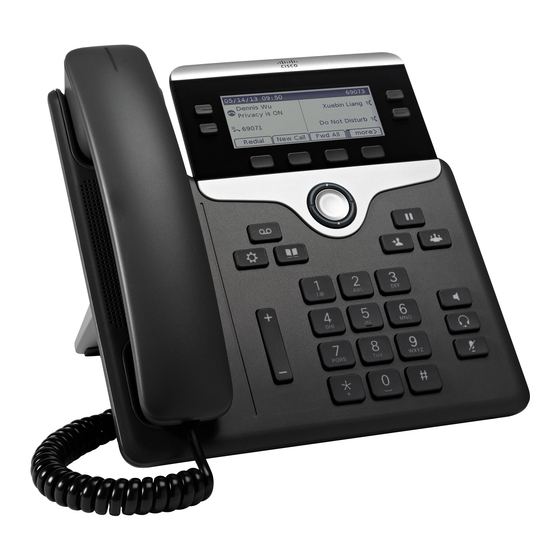
Cisco IP Phone 7800 Series Multiplatform Phones User Guide
First Published: 2016-01-29
Last Modified: 2018-05-14
Related Manuals for Cisco 7811
Summary of Contents for Cisco 7811
-
Page 1
Cisco IP Phone 7800 Series Multiplatform Phones User Guide First Published: 2016-01-29 Last Modified: 2018-05-14… -
Page 2: Table Of Contents
Sign Out of a Phone as a Guest Set the Profile Rule on the Phone Monitor a Coworker’s Line Phone Web Page Speed-Dial Numbers Buttons and Hardware Navigation Softkey, Line, and Feature Buttons Phone Screen Features Cisco IP Phone 7800 Series Multiplatform Phones User Guide…
-
Page 3
Make a Call with a Speed-Dial Code Configure a Speed Dial on a Line Key Remove a Speed Dial from a Line Key Use the Line in Focus for Speed-Dial Calls Cisco IP Phone 7800 Series Multiplatform Phones User Guide… -
Page 4
Put a Call on Hold Answer a Call Left on Hold for Too Long Swap Between Active and Held Calls Swap Between Active and Held Calls on the Cisco IP Phone 7811 Call Park Place a Call on Hold with Call Park… -
Page 5
Add a New Contact to Your Personal Address Book Add a New Contact to Your Personal Address Book with Phone Web Page Search for a Contact in Your Personal Address Book Call a Contact in Your Personal Address Book Cisco IP Phone 7800 Series Multiplatform Phones User Guide… -
Page 6
Turn on DND for All Lines from the Phone Web Page Block an Anonymous Call Block Your Caller ID Display Secure a Call Set Up an Auto Answer Page Set Up Voicemail Change the Display Mode Cisco IP Phone 7800 Series Multiplatform Phones User Guide… -
Page 7
Compliance Statements for the European Union CE Marking Compliance Statements for Canada Compliance Information for Brazil FCC Compliance Statements FCC Part 15.19 Statement FCC Part 15.21 Statement FCC RF Radiation Exposure Statement Cisco IP Phone 7800 Series Multiplatform Phones User Guide viii… -
Page 8
Contents FCC Receivers and Class B Digital Statement Cisco Product Security Overview Important Online Information Cisco IP Phone 7800 Series Multiplatform Phones User Guide… -
Page 9
Contents Cisco IP Phone 7800 Series Multiplatform Phones User Guide… -
Page 10: Your Phone
Energy Savings, on page 15 • Additional Help and Information, on page 16 The Cisco IP Phone 7800 Series The Cisco IP Phones 7811, 7821, 7841, and 7861 deliver easy-to-use, highly-secure voice communications. Table 1: Cisco IP Phone 7800 Series Major Features Features 7811…
-
Page 11: New And Changed Features
Revision Updated Section Configure a line key to perform a speed dial Use the Line in Focus for Speed-Dial Calls, on page 26 either with a VID or without a VID Cisco IP Phone 7800 Series Multiplatform Phones User Guide…
-
Page 12
View the Transaction Status, on page 19 Added support for adding a new contact in personal Add a New Contact to Your Personal Address Book directory in configuraiton utility page with Phone Web Page, on page 47 Cisco IP Phone 7800 Series Multiplatform Phones User Guide… -
Page 13
Updated Problem Report Tool support Report All Phone Issues, on page 20 Updated DND support Turn On Do Not Disturb, on page 28 Turn On Do Not Disturb For a Specific Line, on page Cisco IP Phone 7800 Series Multiplatform Phones User Guide… -
Page 14: New And Changed Features For Firmware Release 10.4(1)Sr1
If your phone is wall-mounted or if the handset slips out of the cradle too easily, you may need to adjust the handset rest to ensure that the receiver does not slip out of the cradle. Cisco IP Phone 7800 Series Multiplatform Phones User Guide…
-
Page 15: Change The Viewing Angle Of Your Phone
Step 5 Return the handset to the handset rest. Change the Viewing Angle of Your Phone You can change the angle of the phone, except the Cisco IP Phone 7811, to eliminate glare on the screen. Procedure Step 1 Unplug the phone from the network.
-
Page 16: Connect To The Network
Options softkey on the phone. Use this softkey to change the current password input type. Select Input all for alphanumeric input and select Input num for numeric entry. Your administrator configures the password input method on the phone web page. Cisco IP Phone 7800 Series Multiplatform Phones User Guide…
-
Page 17: Sign Out Of Your Extension From Another Phone
The location is sent to the emergency services when you make an emergency call. Sign Out of a Phone as a Guest Procedure Step 1 Press Guest Out. Step 2 Press Sign Out. Cisco IP Phone 7800 Series Multiplatform Phones User Guide…
-
Page 18: Set The Profile Rule On The Phone
Field, Call Speed Dial, Call Speed Dial Field Call Pickup Call Pickup Speed Dial, Pickup, and Call Pickup, and Call and Call and Call Park Park Park Park Idle Alerting In use Cisco IP Phone 7800 Series Multiplatform Phones User Guide…
-
Page 19: Phone Web Page
For example, if you need to dial 9 to get an outside line, you enter the number 9 and then the number you want to dial. Cisco IP Phone 7800 Series Multiplatform Phones User Guide…
-
Page 20: Buttons And Hardware
• After the call connects, you must dial the extension 56789#. In this scenario, the speed-dial number is 95556543,1234,9876,,56789#. Buttons and Hardware The Cisco IP Phone 7800 Series has distinct hardware types: Cisco IP Phone 7800 Series Multiplatform Phones User Guide…
-
Page 21
Your Phone Buttons and Hardware • Cisco IP Phone 7811 No buttons on either side of the screen • Cisco IP Phone 7821 Two buttons on the left side of the screen • Cisco IP Phone 7841 Two buttons on either side of the screen •… -
Page 22: Navigation
Headset Toggle the headset on or off. When the headset is on, the button is lit. The Cisco IP Phone 7811 does not have a Headset button. Contacts, Applications, and Contacts Access personal and corporate directories.
-
Page 23: Phone Screen Features
There will be no highlight for an active call. Active and incoming call screen supports more than 21 characters. The Cisco IP Phone can display 15 digits on the phone screen when line is inactive.
-
Page 24: Clean The Phone Screen
Only one of those calls is active and the other seven are held calls. Power Requirements The following Cisco-approved power adaptors must be used with the Cisco IP Phone 7800 Series: • Phihong adapter (PSC18U-480); Rating: 48 VDC 0.38A •…
-
Page 25: Additional Help And Information
• For licensing information, follow this link: https://www.cisco.com/c/en/us/support/collaboration-endpoints/ ip-phone-7800-series-multiplatform-firmware/products-licensing-information-listing.html Accessibility Features Cisco IP Phones provide accessibility features for the vision impaired, the blind, and the hearing and mobility impaired. For detailed information about the accessibility features on these phones, see http://www.cisco.com/c/en/us/ support/collaboration-endpoints/unified-ip-phone-7800-series/products-technical-reference-list.html.
-
Page 26: View The Customization State On The Phone
Software version—Version number of the Cisco IP Phone firmware. Hardware version—Version number of the Cisco IP Phone hardware. Certificate—Status of the client certificate, which authenticates the Cisco IP Phone for use in the ITSP network. This field indicates if the client certificate is properly installed in the phone.
-
Page 27: View The Network Status
• MAC address—Unique Media Access Control (MAC) address of the phone. • Host name—Displays the current host name assigned to the phone. • Domain—Displays the network domain name of the phone. Default: cisco.com • Switch port link—Status of the switch port.
-
Page 28: View The Status Messages On The Phone
View the Transaction Status Procedure Step 1 Press Applications Step 2 Select Network configuration > Ethernet configuration > 802.1X authentication > Transaction status. You can view the following information: • Transaction status • Protocol Cisco IP Phone 7800 Series Multiplatform Phones User Guide…
-
Page 29: View The Reboot History
To identify the cause, add a specific IP address or a domain name to the phone admin page. Then, try to access so that the phone can ping the destination and display the cause. Cisco IP Phone 7800 Series Multiplatform Phones User Guide…
-
Page 30: Lost Phone Connectivity
Cisco One-Year Limited Hardware Warranty Terms Special terms apply to your hardware warranty and services that you can use during the warranty period. Your formal Warranty Statement, including the warranties and license agreements applicable to Cisco software, is available on Cisco.com at this URL: https://www.cisco.com/go/hwwarranty.
-
Page 31
Your Phone Cisco One-Year Limited Hardware Warranty Terms Cisco IP Phone 7800 Series Multiplatform Phones User Guide… -
Page 32: Calls
Enter a number and pick up the handset. Make a Call with the Speakerphone Use your speakerphone for hands-free calling. Keep in mind that your coworkers might be able to hear your call too. Cisco IP Phone 7800 Series Multiplatform Phones User Guide…
-
Page 33: Make A Call With A Headset
Your phone must be set up to obtain your physical location. Emergency services personnel need your location to find you when you make an emergency call. Procedure Enter the emergency number and lift the handset. Redial a Number You can call the most recently dialed phone number. Cisco IP Phone 7800 Series Multiplatform Phones User Guide…
-
Page 34: Speed Dial
Make a Call with a Speed-Dial Code Before you begin Set up speed-dial codes on the phone web page or from your phone’s Applications menu. Procedure Enter the speed-dial code and press Call. Cisco IP Phone 7800 Series Multiplatform Phones User Guide…
-
Page 35: Configure A Speed Dial On A Line Key
Configure a speed-dial key without using VID. Step 2 Change the focus to the line that you prefer. Step 3 Press the speed-dial key to make a call. The call is made with the line in focus. Cisco IP Phone 7800 Series Multiplatform Phones User Guide…
-
Page 36: Use The Line In Focus To Check Speed-Dial Calls
Answer Calls Your Cisco IP Phone works just like a regular phone. But we make it easier for you to answer calls. Cisco IP Phone 7800 Series Multiplatform Phones User Guide…
-
Page 37: Answer A Call
When you enable DND, by default, it affects all lines on your phone. You can also enable DND on a specific line from the Preferences menu. However, you will always receive intercom and emergency calls, even when DND is turned on. Cisco IP Phone 7800 Series Multiplatform Phones User Guide…
-
Page 38: Turn On Or Turn Off Dnd Using A Star Code
Press PickUp to transfer an incoming call within your pickup group to your phone. Mute Your Call While you are on a call, you can mute the audio so that you can hear the other person, but they cannot hear you. Cisco IP Phone 7800 Series Multiplatform Phones User Guide…
-
Page 39: Hold Calls
• Ringing notification on the phone if a hold reminder is configured with phone web page Procedure Press Hold or Resume to resume the held call. Swap Between Active and Held Calls You can easily switch between active and held calls. Cisco IP Phone 7800 Series Multiplatform Phones User Guide…
-
Page 40: Swap Between Active And Held Calls On The Cisco Ip Phone 7811
Swap Between Active and Held Calls on the Cisco IP Phone 7811 The Cisco IP Phone 7811 does not have line buttons. If you have a held call and an active call, you see the Calls softkey. Also, If you have more than two calls, you see the Calls softkey.
-
Page 41: Retrieve A Call On Hold With Call Park
Enter the call forward target number exactly as you would dial it from your phone, or select an entry from your list of recent calls. Step 3 Press Dial to forward all calls to the specified number. Related Topics Phone Web Page, on page 10 Cisco IP Phone 7800 Series Multiplatform Phones User Guide…
-
Page 42: Forward A Call In Specific Situations With The Phone Web Page
If you don’t want to talk, then transfer the call before the other person answers. You can also swap between both callers to consult with them individually before you remove yourself from the call. Cisco IP Phone 7800 Series Multiplatform Phones User Guide…
-
Page 43: Consult Before You Complete A Transfer
Add Another Person to a Call Procedure Step 1 From an active call, press Conference Step 2 Enter the phone number for the party you want to add and press Dial. Step 3 Press Conference. Cisco IP Phone 7800 Series Multiplatform Phones User Guide…
-
Page 44: Conference With A Star Code
During a recording, you see different recording icons on the Calls screen. The icon depends on the recording state: Table 3: Recording Icons Icon Meaning Recording in progress. Recording in (7811) Recording paused Recording paused (7811) Before you begin Your administrator enables your phone with call recording. Cisco IP Phone 7800 Series Multiplatform Phones User Guide…
-
Page 45: Instant Message And Presence Contacts
When you call someone on your IM&P contacts, their presence state is displayed in your call history. Procedure Step 1 Select IM&P. Step 2 Select a directory. Step 3 Select an entry. The entry shows the status of your contact. Cisco IP Phone 7800 Series Multiplatform Phones User Guide…
-
Page 46: Change Your Presence State
View All Calls on Your Primary Line You can have a list of current and missed calls display on your primary line. Cisco IP Phone 7800 Series Multiplatform Phones User Guide…
-
Page 47: Answer The Oldest Call First
If a user with whom you share a line has privacy turned on, you can’t see their line settings and you can’t add yourself to their call. Procedure Step 1 Press the line button for the shared line. Step 2 Press Barge or BargeSilent. Cisco IP Phone 7800 Series Multiplatform Phones User Guide…
-
Page 48: Call Center Features
Step 1 Press Agt status. Step 2 Highlight the Unavailable status. Step 3 Press Select. Step 4 When you are available again, press Agt status. Step 5 Highlight the Available status. Cisco IP Phone 7800 Series Multiplatform Phones User Guide…
-
Page 49: Accept A Call Center Call
Before you begin Your administrator enables your phone to add a disposition code. Procedure Step 1 Press Disp Code. Cisco IP Phone 7800 Series Multiplatform Phones User Guide…
-
Page 50: Trace A Call
In the Emergency Escalation window, click OK. You can enter preferred emergency escalation number, or you can leave it empty if you do not have any supervisor preference. You will not see any emergency escalation number. Cisco IP Phone 7800 Series Multiplatform Phones User Guide…
-
Page 51
Calls Escalate a Call to a Supervisor Cisco IP Phone 7800 Series Multiplatform Phones User Guide… -
Page 52: Contacts
You can search and view your personal, group, and enterprise contacts in your Broadsoft Directory, which makes it easier to give them a call. Your administrator configures the Broadsoft Directory in your phone. This application feature uses BroadSoft’s Extended Services Interface (XSI). Cisco IP Phone 7800 Series Multiplatform Phones User Guide…
-
Page 53: Search For A Contact In Your Broadsoft Directory (Simple Search)
Enter your search criteria, and press Submit. Edit Your Contact Type in Your Broadsoft Directory Procedure Step 1 Press Contacts Step 2 Select the Broadsoft Directory. Step 3 Press Option. Step 4 Select Edit Settings. Cisco IP Phone 7800 Series Multiplatform Phones User Guide…
-
Page 54: Edit Your Broadsoft Directory Name
Edit User ID of Your Broadsoft Directory Procedure Step 1 Press Contacts Step 2 Select the Broadsoft Directory. Step 3 Press Option. Step 4 Select Edit Settings. Step 5 Select UserID. Cisco IP Phone 7800 Series Multiplatform Phones User Guide…
-
Page 55: Edit Your Broadsoft Directory Password
Press Save to apply the change. LDAP Directory The Cisco IP Phone supports Lightweight Directory Access Protocol (LDAP) v3. You can search for a specified LDAP directory for a name, phone number, or both. LDAP-based directories, such as Microsoft Active Directory 2003 and OpenLDAP-based databases, are supported.
-
Page 56: Personal Address Book
Step 3 Select Option > Search. Step 4 Enter the address entry to search for, and press Submit. You can only search by name (case insensitive). Search by number is not supported. Cisco IP Phone 7800 Series Multiplatform Phones User Guide…
-
Page 57: Call A Contact In Your Personal Address Book
The reverse name lookup acts when the phone cannot find a name using the service provider directory, Call History, or your contacts. Reverse name lookup needs a valid LDAP Directory or XML Directory configuration. Cisco IP Phone 7800 Series Multiplatform Phones User Guide…
-
Page 58
Reverse name lookup is enabled by default. Reverse name lookup searches the directories in the following order: 1. Phone contacts 2. Call History 3. Third-party Server Directory (BroadSoft, Asterisk, or MetaSphere) 4. LDAP Directory 5. XML Directory Cisco IP Phone 7800 Series Multiplatform Phones User Guide… -
Page 59
Contacts Reverse Name Lookup for Incoming and Outgoing Calls Cisco IP Phone 7800 Series Multiplatform Phones User Guide… -
Page 60: Recent Calls
This can get overwritten in the Recents list. Procedure Step 1 Select a line to view. Step 2 Press Applications Cisco IP Phone 7800 Series Multiplatform Phones User Guide…
-
Page 61: Return A Recent Call
Choose to view all recent calls, or to view a certain kind of recent call. • All Calls • Missed Calls • Received Calls • Placed Calls Step 5 Press Select. Cisco IP Phone 7800 Series Multiplatform Phones User Guide…
-
Page 62: Create A Contact From A Recents Record
Highlight the individual record or call group that you want to delete. Step 6 Press Delete entry. Step 7 Press Delete again to confirm. Step 8 Press Back. Delete All Call Records You can delete all call history records on your phone. Cisco IP Phone 7800 Series Multiplatform Phones User Guide…
-
Page 63: Step 2 Press Applications
Delete All Call Records Procedure Step 1 Press Applications Step 2 Select Recents. Step 3 Press Recents. Step 4 Select Option > delete All. Step 5 Press Delete again to confirm. Cisco IP Phone 7800 Series Multiplatform Phones User Guide…
-
Page 64: Voicemail
If your administrator has not set up your voicemail phone number on your phone, you can set it up yourself. Procedure Step 1 Press Applications Step 2 Select User preferences > Call preferences. Step 3 Enter your voicemail phone number in Voice mail. Step 4 Press Set. Cisco IP Phone 7800 Series Multiplatform Phones User Guide…
-
Page 65: Check For New Voice Messages
When prompted, enter your voicemail credentials. Phone Behavior with Voicemail Setting This table lists the phone behavior in various scenarios when the Handset LED Alert field in the Configuration Utility is set to Voicemail. Cisco IP Phone 7800 Series Multiplatform Phones User Guide…
-
Page 66: Phone Behavior With Voicemail And Missed Call Configuration Setting
Missed Call Voicemail comes in LED On User interacts with the phone and calls the voicemail to retrieve a message. Cisco IP Phone 7800 Series Multiplatform Phones User Guide…
-
Page 67
Voicemail Phone Behavior with Voicemail and Missed Call Configuration Setting Starting State Event LED Status After LED Turn Off Criteria Event No Voicemail, No No event LED Off Missed Call Cisco IP Phone 7800 Series Multiplatform Phones User Guide… -
Page 68: Settings
Select User preferences > Audio preferences > Ext (n) — Ring tone, where n= extension number. Step 3 Scroll through the list of ringtones and press Play to hear a sample. Step 4 Press Select softkey and then Set softkey to save a selection. Cisco IP Phone 7800 Series Multiplatform Phones User Guide…
-
Page 69: Assign A Ring Tone To An Extension With The Phone Web Page
If your administrator enables feature key synchronization (FKS) on your phone, you can enter the value as number of rings after which call needs to be forwarded. Cisco IP Phone 7800 Series Multiplatform Phones User Guide…
-
Page 70: Turn On Do Not Disturb For A Specific Line
Select User preferences > Call Preference > Block anonymous call. Step 3 Select On if you want to block the call that does not have caller information, or select Off to allow the call. Cisco IP Phone 7800 Series Multiplatform Phones User Guide…
-
Page 71: Block Your Caller Id Display
Select User preferences > Call preference > Auto answer page. Step 3 Press On to enable the Auto answer page or press Off to disable Auto answer page. Step 4 Press Set to save the changes. Cisco IP Phone 7800 Series Multiplatform Phones User Guide…
-
Page 72: Set Up Voicemail
Step 4 Press Set to confirm the assigned number. Change the Display Mode This feature is supported on Cisco IP Phone 7821, 7841, and 7861. Procedure Step 1 Press Applications Step 2 Select User preferences >…
-
Page 73: Change The Date Format
• Logo: Displays a logo as the phone screensaver. This image is added in the Logo URL field of the pone web page. • Lock—Displays a lock icon on the phone screen. • Trigger interval—Enter the number of seconds that the phone remains idle before the screen saver turns Cisco IP Phone 7800 Series Multiplatform Phones User Guide…
-
Page 74: Configure The Screen Saver With The Phone Web Page
• Lock —Enables locking of the screensaver. Screen Saver Wait Amount of idle time before screen saver displays. Enter the number of seconds of idle time to elapse before the screen saver starts. Default: 300 Cisco IP Phone 7800 Series Multiplatform Phones User Guide…
-
Page 75: Add A Logo As A Phone Background
Procedure Step 1 Press Applications Step 2 Select User preferences > Screen preferences > Contrast level. Step 3 Press the Navigation cluster up or down to increase or decrease the brightness. Cisco IP Phone 7800 Series Multiplatform Phones User Guide…
-
Page 76: Adjust The Phone Screen Backlight
Adjust the Phone Screen Backlight Step 4 Press Save. Adjust the Phone Screen Backlight You can adjust the backlight to make the phone screen easier to read. Backlights are not supported on the Cisco IP Phone 7811. Procedure Step 1 Press Applications Step 2 Select User preferences >…
-
Page 77: Set Password
Step 3 Enter your current password in the Old password field. Step 4 Enter your new password in the New password and the Reenter new password fields. Step 5 Select Save. Cisco IP Phone 7800 Series Multiplatform Phones User Guide…
-
Page 78: Accessories
External Headsets Check with the headset manufacturer to confirm whether you can use it with your Cisco phone. If you plug a headset into the phone during an active call, the audio path automatically changes to the headset. Cisco IP Phone 7800 Series Multiplatform Phones User Guide…
-
Page 79: Standard Headsets
Headset key on the phone. Though the phone is connected to multiple devices, you see a specific headset is selected as the preferred audio device in the following priority order: Cisco IP Phone 7800 Series Multiplatform Phones User Guide…
-
Page 80
• When you connect only an analog headset to the phone, you can make your analog headset the preferred audio device. Procedure Step 1 Before you make or answer a call, press Headset. Step 2 (Optional) If you place a call, dial the number. Cisco IP Phone 7800 Series Multiplatform Phones User Guide… -
Page 81
Accessories Swap Headsets While on a Call Cisco IP Phone 7800 Series Multiplatform Phones User Guide… -
Page 82: Product Safety And Security
• Shorten the length of the external device cable. • Apply ferrites or other such devices on the cables for the external device. Cisco cannot guarantee the performance of external devices, cables, and connectors. Cisco IP Phone 7800 Series Multiplatform Phones User Guide…
-
Page 83: Ways To Provide Power To Your Phone
This device complies with Industry Canada license-exempt RSS standard(s). Operation is subject to the following two conditions: (1) this device may not cause interference, and (2) this device must accept any interference, including interference that may cause undesired operation of the device. Cisco IP Phone 7800 Series Multiplatform Phones User Guide…
-
Page 84: Compliance Information For Brazil
However, there is no guarantee that interference will not occur in a particular installation. Cisco IP Phone 7800 Series Multiplatform Phones User Guide…
-
Page 85: Cisco Product Security Overview
This product contains cryptographic features and is subject to U.S. and local country laws that govern import, export, transfer, and use. Delivery of Cisco cryptographic products does not imply third-party authority to import, export, distribute, or use encryption. Importers, exporters, distributors, and users are responsible for compliance with U.S.
-
Page 1
Cisco IP Phone 7800 Series Multiplatform Phones User Guide First Published: 2016-01-29 Last Modified: 2018-05-14… -
Page 2: Table Of Contents
Sign Out of a Phone as a Guest Set the Profile Rule on the Phone Monitor a Coworker’s Line Phone Web Page Speed-Dial Numbers Buttons and Hardware Navigation Softkey, Line, and Feature Buttons Phone Screen Features Cisco IP Phone 7800 Series Multiplatform Phones User Guide…
-
Page 3
Make a Call with a Speed-Dial Code Configure a Speed Dial on a Line Key Remove a Speed Dial from a Line Key Use the Line in Focus for Speed-Dial Calls Cisco IP Phone 7800 Series Multiplatform Phones User Guide… -
Page 4
Put a Call on Hold Answer a Call Left on Hold for Too Long Swap Between Active and Held Calls Swap Between Active and Held Calls on the Cisco IP Phone 7811 Call Park Place a Call on Hold with Call Park… -
Page 5
Add a New Contact to Your Personal Address Book Add a New Contact to Your Personal Address Book with Phone Web Page Search for a Contact in Your Personal Address Book Call a Contact in Your Personal Address Book Cisco IP Phone 7800 Series Multiplatform Phones User Guide… -
Page 6
Turn on DND for All Lines from the Phone Web Page Block an Anonymous Call Block Your Caller ID Display Secure a Call Set Up an Auto Answer Page Set Up Voicemail Change the Display Mode Cisco IP Phone 7800 Series Multiplatform Phones User Guide… -
Page 7
Compliance Statements for the European Union CE Marking Compliance Statements for Canada Compliance Information for Brazil FCC Compliance Statements FCC Part 15.19 Statement FCC Part 15.21 Statement FCC RF Radiation Exposure Statement Cisco IP Phone 7800 Series Multiplatform Phones User Guide viii… -
Page 8
Contents FCC Receivers and Class B Digital Statement Cisco Product Security Overview Important Online Information Cisco IP Phone 7800 Series Multiplatform Phones User Guide… -
Page 9
Contents Cisco IP Phone 7800 Series Multiplatform Phones User Guide… -
Page 10: Your Phone
Energy Savings, on page 15 • Additional Help and Information, on page 16 The Cisco IP Phone 7800 Series The Cisco IP Phones 7811, 7821, 7841, and 7861 deliver easy-to-use, highly-secure voice communications. Table 1: Cisco IP Phone 7800 Series Major Features Features 7811…
-
Page 11: New And Changed Features
Revision Updated Section Configure a line key to perform a speed dial Use the Line in Focus for Speed-Dial Calls, on page 26 either with a VID or without a VID Cisco IP Phone 7800 Series Multiplatform Phones User Guide…
-
Page 12
View the Transaction Status, on page 19 Added support for adding a new contact in personal Add a New Contact to Your Personal Address Book directory in configuraiton utility page with Phone Web Page, on page 47 Cisco IP Phone 7800 Series Multiplatform Phones User Guide… -
Page 13
Updated Problem Report Tool support Report All Phone Issues, on page 20 Updated DND support Turn On Do Not Disturb, on page 28 Turn On Do Not Disturb For a Specific Line, on page Cisco IP Phone 7800 Series Multiplatform Phones User Guide… -
Page 14: New And Changed Features For Firmware Release 10.4(1)Sr1
If your phone is wall-mounted or if the handset slips out of the cradle too easily, you may need to adjust the handset rest to ensure that the receiver does not slip out of the cradle. Cisco IP Phone 7800 Series Multiplatform Phones User Guide…
-
Page 15: Change The Viewing Angle Of Your Phone
Step 5 Return the handset to the handset rest. Change the Viewing Angle of Your Phone You can change the angle of the phone, except the Cisco IP Phone 7811, to eliminate glare on the screen. Procedure Step 1 Unplug the phone from the network.
-
Page 16: Connect To The Network
Options softkey on the phone. Use this softkey to change the current password input type. Select Input all for alphanumeric input and select Input num for numeric entry. Your administrator configures the password input method on the phone web page. Cisco IP Phone 7800 Series Multiplatform Phones User Guide…
-
Page 17: Sign Out Of Your Extension From Another Phone
The location is sent to the emergency services when you make an emergency call. Sign Out of a Phone as a Guest Procedure Step 1 Press Guest Out. Step 2 Press Sign Out. Cisco IP Phone 7800 Series Multiplatform Phones User Guide…
-
Page 18: Set The Profile Rule On The Phone
Field, Call Speed Dial, Call Speed Dial Field Call Pickup Call Pickup Speed Dial, Pickup, and Call Pickup, and Call and Call and Call Park Park Park Park Idle Alerting In use Cisco IP Phone 7800 Series Multiplatform Phones User Guide…
-
Page 19: Phone Web Page
For example, if you need to dial 9 to get an outside line, you enter the number 9 and then the number you want to dial. Cisco IP Phone 7800 Series Multiplatform Phones User Guide…
-
Page 20: Buttons And Hardware
• After the call connects, you must dial the extension 56789#. In this scenario, the speed-dial number is 95556543,1234,9876,,56789#. Buttons and Hardware The Cisco IP Phone 7800 Series has distinct hardware types: Cisco IP Phone 7800 Series Multiplatform Phones User Guide…
-
Page 21
Your Phone Buttons and Hardware • Cisco IP Phone 7811 No buttons on either side of the screen • Cisco IP Phone 7821 Two buttons on the left side of the screen • Cisco IP Phone 7841 Two buttons on either side of the screen •… -
Page 22: Navigation
Headset Toggle the headset on or off. When the headset is on, the button is lit. The Cisco IP Phone 7811 does not have a Headset button. Contacts, Applications, and Contacts Access personal and corporate directories.
-
Page 23: Phone Screen Features
There will be no highlight for an active call. Active and incoming call screen supports more than 21 characters. The Cisco IP Phone can display 15 digits on the phone screen when line is inactive.
-
Page 24: Clean The Phone Screen
Only one of those calls is active and the other seven are held calls. Power Requirements The following Cisco-approved power adaptors must be used with the Cisco IP Phone 7800 Series: • Phihong adapter (PSC18U-480); Rating: 48 VDC 0.38A •…
-
Page 25: Additional Help And Information
• For licensing information, follow this link: https://www.cisco.com/c/en/us/support/collaboration-endpoints/ ip-phone-7800-series-multiplatform-firmware/products-licensing-information-listing.html Accessibility Features Cisco IP Phones provide accessibility features for the vision impaired, the blind, and the hearing and mobility impaired. For detailed information about the accessibility features on these phones, see http://www.cisco.com/c/en/us/ support/collaboration-endpoints/unified-ip-phone-7800-series/products-technical-reference-list.html.
-
Page 26: View The Customization State On The Phone
Software version—Version number of the Cisco IP Phone firmware. Hardware version—Version number of the Cisco IP Phone hardware. Certificate—Status of the client certificate, which authenticates the Cisco IP Phone for use in the ITSP network. This field indicates if the client certificate is properly installed in the phone.
-
Page 27: View The Network Status
• MAC address—Unique Media Access Control (MAC) address of the phone. • Host name—Displays the current host name assigned to the phone. • Domain—Displays the network domain name of the phone. Default: cisco.com • Switch port link—Status of the switch port.
-
Page 28: View The Status Messages On The Phone
View the Transaction Status Procedure Step 1 Press Applications Step 2 Select Network configuration > Ethernet configuration > 802.1X authentication > Transaction status. You can view the following information: • Transaction status • Protocol Cisco IP Phone 7800 Series Multiplatform Phones User Guide…
-
Page 29: View The Reboot History
To identify the cause, add a specific IP address or a domain name to the phone admin page. Then, try to access so that the phone can ping the destination and display the cause. Cisco IP Phone 7800 Series Multiplatform Phones User Guide…
-
Page 30: Lost Phone Connectivity
Cisco One-Year Limited Hardware Warranty Terms Special terms apply to your hardware warranty and services that you can use during the warranty period. Your formal Warranty Statement, including the warranties and license agreements applicable to Cisco software, is available on Cisco.com at this URL: https://www.cisco.com/go/hwwarranty.
-
Page 31
Your Phone Cisco One-Year Limited Hardware Warranty Terms Cisco IP Phone 7800 Series Multiplatform Phones User Guide… -
Page 32: Calls
Enter a number and pick up the handset. Make a Call with the Speakerphone Use your speakerphone for hands-free calling. Keep in mind that your coworkers might be able to hear your call too. Cisco IP Phone 7800 Series Multiplatform Phones User Guide…
-
Page 33: Make A Call With A Headset
Your phone must be set up to obtain your physical location. Emergency services personnel need your location to find you when you make an emergency call. Procedure Enter the emergency number and lift the handset. Redial a Number You can call the most recently dialed phone number. Cisco IP Phone 7800 Series Multiplatform Phones User Guide…
-
Page 34: Speed Dial
Make a Call with a Speed-Dial Code Before you begin Set up speed-dial codes on the phone web page or from your phone’s Applications menu. Procedure Enter the speed-dial code and press Call. Cisco IP Phone 7800 Series Multiplatform Phones User Guide…
-
Page 35: Configure A Speed Dial On A Line Key
Configure a speed-dial key without using VID. Step 2 Change the focus to the line that you prefer. Step 3 Press the speed-dial key to make a call. The call is made with the line in focus. Cisco IP Phone 7800 Series Multiplatform Phones User Guide…
-
Page 36: Use The Line In Focus To Check Speed-Dial Calls
Answer Calls Your Cisco IP Phone works just like a regular phone. But we make it easier for you to answer calls. Cisco IP Phone 7800 Series Multiplatform Phones User Guide…
-
Page 37: Answer A Call
When you enable DND, by default, it affects all lines on your phone. You can also enable DND on a specific line from the Preferences menu. However, you will always receive intercom and emergency calls, even when DND is turned on. Cisco IP Phone 7800 Series Multiplatform Phones User Guide…
-
Page 38: Turn On Or Turn Off Dnd Using A Star Code
Press PickUp to transfer an incoming call within your pickup group to your phone. Mute Your Call While you are on a call, you can mute the audio so that you can hear the other person, but they cannot hear you. Cisco IP Phone 7800 Series Multiplatform Phones User Guide…
-
Page 39: Hold Calls
• Ringing notification on the phone if a hold reminder is configured with phone web page Procedure Press Hold or Resume to resume the held call. Swap Between Active and Held Calls You can easily switch between active and held calls. Cisco IP Phone 7800 Series Multiplatform Phones User Guide…
-
Page 40: Swap Between Active And Held Calls On The Cisco Ip Phone 7811
Swap Between Active and Held Calls on the Cisco IP Phone 7811 The Cisco IP Phone 7811 does not have line buttons. If you have a held call and an active call, you see the Calls softkey. Also, If you have more than two calls, you see the Calls softkey.
-
Page 41: Retrieve A Call On Hold With Call Park
Enter the call forward target number exactly as you would dial it from your phone, or select an entry from your list of recent calls. Step 3 Press Dial to forward all calls to the specified number. Related Topics Phone Web Page, on page 10 Cisco IP Phone 7800 Series Multiplatform Phones User Guide…
-
Page 42: Forward A Call In Specific Situations With The Phone Web Page
If you don’t want to talk, then transfer the call before the other person answers. You can also swap between both callers to consult with them individually before you remove yourself from the call. Cisco IP Phone 7800 Series Multiplatform Phones User Guide…
-
Page 43: Consult Before You Complete A Transfer
Add Another Person to a Call Procedure Step 1 From an active call, press Conference Step 2 Enter the phone number for the party you want to add and press Dial. Step 3 Press Conference. Cisco IP Phone 7800 Series Multiplatform Phones User Guide…
-
Page 44: Conference With A Star Code
During a recording, you see different recording icons on the Calls screen. The icon depends on the recording state: Table 3: Recording Icons Icon Meaning Recording in progress. Recording in (7811) Recording paused Recording paused (7811) Before you begin Your administrator enables your phone with call recording. Cisco IP Phone 7800 Series Multiplatform Phones User Guide…
-
Page 45: Instant Message And Presence Contacts
When you call someone on your IM&P contacts, their presence state is displayed in your call history. Procedure Step 1 Select IM&P. Step 2 Select a directory. Step 3 Select an entry. The entry shows the status of your contact. Cisco IP Phone 7800 Series Multiplatform Phones User Guide…
-
Page 46: Change Your Presence State
View All Calls on Your Primary Line You can have a list of current and missed calls display on your primary line. Cisco IP Phone 7800 Series Multiplatform Phones User Guide…
-
Page 47: Answer The Oldest Call First
If a user with whom you share a line has privacy turned on, you can’t see their line settings and you can’t add yourself to their call. Procedure Step 1 Press the line button for the shared line. Step 2 Press Barge or BargeSilent. Cisco IP Phone 7800 Series Multiplatform Phones User Guide…
-
Page 48: Call Center Features
Step 1 Press Agt status. Step 2 Highlight the Unavailable status. Step 3 Press Select. Step 4 When you are available again, press Agt status. Step 5 Highlight the Available status. Cisco IP Phone 7800 Series Multiplatform Phones User Guide…
-
Page 49: Accept A Call Center Call
Before you begin Your administrator enables your phone to add a disposition code. Procedure Step 1 Press Disp Code. Cisco IP Phone 7800 Series Multiplatform Phones User Guide…
-
Page 50: Trace A Call
In the Emergency Escalation window, click OK. You can enter preferred emergency escalation number, or you can leave it empty if you do not have any supervisor preference. You will not see any emergency escalation number. Cisco IP Phone 7800 Series Multiplatform Phones User Guide…
-
Page 51
Calls Escalate a Call to a Supervisor Cisco IP Phone 7800 Series Multiplatform Phones User Guide… -
Page 52: Contacts
You can search and view your personal, group, and enterprise contacts in your Broadsoft Directory, which makes it easier to give them a call. Your administrator configures the Broadsoft Directory in your phone. This application feature uses BroadSoft’s Extended Services Interface (XSI). Cisco IP Phone 7800 Series Multiplatform Phones User Guide…
-
Page 53: Search For A Contact In Your Broadsoft Directory (Simple Search)
Enter your search criteria, and press Submit. Edit Your Contact Type in Your Broadsoft Directory Procedure Step 1 Press Contacts Step 2 Select the Broadsoft Directory. Step 3 Press Option. Step 4 Select Edit Settings. Cisco IP Phone 7800 Series Multiplatform Phones User Guide…
-
Page 54: Edit Your Broadsoft Directory Name
Edit User ID of Your Broadsoft Directory Procedure Step 1 Press Contacts Step 2 Select the Broadsoft Directory. Step 3 Press Option. Step 4 Select Edit Settings. Step 5 Select UserID. Cisco IP Phone 7800 Series Multiplatform Phones User Guide…
-
Page 55: Edit Your Broadsoft Directory Password
Press Save to apply the change. LDAP Directory The Cisco IP Phone supports Lightweight Directory Access Protocol (LDAP) v3. You can search for a specified LDAP directory for a name, phone number, or both. LDAP-based directories, such as Microsoft Active Directory 2003 and OpenLDAP-based databases, are supported.
-
Page 56: Personal Address Book
Step 3 Select Option > Search. Step 4 Enter the address entry to search for, and press Submit. You can only search by name (case insensitive). Search by number is not supported. Cisco IP Phone 7800 Series Multiplatform Phones User Guide…
-
Page 57: Call A Contact In Your Personal Address Book
The reverse name lookup acts when the phone cannot find a name using the service provider directory, Call History, or your contacts. Reverse name lookup needs a valid LDAP Directory or XML Directory configuration. Cisco IP Phone 7800 Series Multiplatform Phones User Guide…
-
Page 58
Reverse name lookup is enabled by default. Reverse name lookup searches the directories in the following order: 1. Phone contacts 2. Call History 3. Third-party Server Directory (BroadSoft, Asterisk, or MetaSphere) 4. LDAP Directory 5. XML Directory Cisco IP Phone 7800 Series Multiplatform Phones User Guide… -
Page 59
Contacts Reverse Name Lookup for Incoming and Outgoing Calls Cisco IP Phone 7800 Series Multiplatform Phones User Guide… -
Page 60: Recent Calls
This can get overwritten in the Recents list. Procedure Step 1 Select a line to view. Step 2 Press Applications Cisco IP Phone 7800 Series Multiplatform Phones User Guide…
-
Page 61: Return A Recent Call
Choose to view all recent calls, or to view a certain kind of recent call. • All Calls • Missed Calls • Received Calls • Placed Calls Step 5 Press Select. Cisco IP Phone 7800 Series Multiplatform Phones User Guide…
-
Page 62: Create A Contact From A Recents Record
Highlight the individual record or call group that you want to delete. Step 6 Press Delete entry. Step 7 Press Delete again to confirm. Step 8 Press Back. Delete All Call Records You can delete all call history records on your phone. Cisco IP Phone 7800 Series Multiplatform Phones User Guide…
-
Page 63: Step 2 Press Applications
Delete All Call Records Procedure Step 1 Press Applications Step 2 Select Recents. Step 3 Press Recents. Step 4 Select Option > delete All. Step 5 Press Delete again to confirm. Cisco IP Phone 7800 Series Multiplatform Phones User Guide…
-
Page 64: Voicemail
If your administrator has not set up your voicemail phone number on your phone, you can set it up yourself. Procedure Step 1 Press Applications Step 2 Select User preferences > Call preferences. Step 3 Enter your voicemail phone number in Voice mail. Step 4 Press Set. Cisco IP Phone 7800 Series Multiplatform Phones User Guide…
-
Page 65: Check For New Voice Messages
When prompted, enter your voicemail credentials. Phone Behavior with Voicemail Setting This table lists the phone behavior in various scenarios when the Handset LED Alert field in the Configuration Utility is set to Voicemail. Cisco IP Phone 7800 Series Multiplatform Phones User Guide…
-
Page 66: Phone Behavior With Voicemail And Missed Call Configuration Setting
Missed Call Voicemail comes in LED On User interacts with the phone and calls the voicemail to retrieve a message. Cisco IP Phone 7800 Series Multiplatform Phones User Guide…
-
Page 67
Voicemail Phone Behavior with Voicemail and Missed Call Configuration Setting Starting State Event LED Status After LED Turn Off Criteria Event No Voicemail, No No event LED Off Missed Call Cisco IP Phone 7800 Series Multiplatform Phones User Guide… -
Page 68: Settings
Select User preferences > Audio preferences > Ext (n) — Ring tone, where n= extension number. Step 3 Scroll through the list of ringtones and press Play to hear a sample. Step 4 Press Select softkey and then Set softkey to save a selection. Cisco IP Phone 7800 Series Multiplatform Phones User Guide…
-
Page 69: Assign A Ring Tone To An Extension With The Phone Web Page
If your administrator enables feature key synchronization (FKS) on your phone, you can enter the value as number of rings after which call needs to be forwarded. Cisco IP Phone 7800 Series Multiplatform Phones User Guide…
-
Page 70: Turn On Do Not Disturb For A Specific Line
Select User preferences > Call Preference > Block anonymous call. Step 3 Select On if you want to block the call that does not have caller information, or select Off to allow the call. Cisco IP Phone 7800 Series Multiplatform Phones User Guide…
-
Page 71: Block Your Caller Id Display
Select User preferences > Call preference > Auto answer page. Step 3 Press On to enable the Auto answer page or press Off to disable Auto answer page. Step 4 Press Set to save the changes. Cisco IP Phone 7800 Series Multiplatform Phones User Guide…
-
Page 72: Set Up Voicemail
Step 4 Press Set to confirm the assigned number. Change the Display Mode This feature is supported on Cisco IP Phone 7821, 7841, and 7861. Procedure Step 1 Press Applications Step 2 Select User preferences >…
-
Page 73: Change The Date Format
• Logo: Displays a logo as the phone screensaver. This image is added in the Logo URL field of the pone web page. • Lock—Displays a lock icon on the phone screen. • Trigger interval—Enter the number of seconds that the phone remains idle before the screen saver turns Cisco IP Phone 7800 Series Multiplatform Phones User Guide…
-
Page 74: Configure The Screen Saver With The Phone Web Page
• Lock —Enables locking of the screensaver. Screen Saver Wait Amount of idle time before screen saver displays. Enter the number of seconds of idle time to elapse before the screen saver starts. Default: 300 Cisco IP Phone 7800 Series Multiplatform Phones User Guide…
-
Page 75: Add A Logo As A Phone Background
Procedure Step 1 Press Applications Step 2 Select User preferences > Screen preferences > Contrast level. Step 3 Press the Navigation cluster up or down to increase or decrease the brightness. Cisco IP Phone 7800 Series Multiplatform Phones User Guide…
-
Page 76: Adjust The Phone Screen Backlight
Adjust the Phone Screen Backlight Step 4 Press Save. Adjust the Phone Screen Backlight You can adjust the backlight to make the phone screen easier to read. Backlights are not supported on the Cisco IP Phone 7811. Procedure Step 1 Press Applications Step 2 Select User preferences >…
-
Page 77: Set Password
Step 3 Enter your current password in the Old password field. Step 4 Enter your new password in the New password and the Reenter new password fields. Step 5 Select Save. Cisco IP Phone 7800 Series Multiplatform Phones User Guide…
-
Page 78: Accessories
External Headsets Check with the headset manufacturer to confirm whether you can use it with your Cisco phone. If you plug a headset into the phone during an active call, the audio path automatically changes to the headset. Cisco IP Phone 7800 Series Multiplatform Phones User Guide…
-
Page 79: Standard Headsets
Headset key on the phone. Though the phone is connected to multiple devices, you see a specific headset is selected as the preferred audio device in the following priority order: Cisco IP Phone 7800 Series Multiplatform Phones User Guide…
-
Page 80
• When you connect only an analog headset to the phone, you can make your analog headset the preferred audio device. Procedure Step 1 Before you make or answer a call, press Headset. Step 2 (Optional) If you place a call, dial the number. Cisco IP Phone 7800 Series Multiplatform Phones User Guide… -
Page 81
Accessories Swap Headsets While on a Call Cisco IP Phone 7800 Series Multiplatform Phones User Guide… -
Page 82: Product Safety And Security
• Shorten the length of the external device cable. • Apply ferrites or other such devices on the cables for the external device. Cisco cannot guarantee the performance of external devices, cables, and connectors. Cisco IP Phone 7800 Series Multiplatform Phones User Guide…
-
Page 83: Ways To Provide Power To Your Phone
This device complies with Industry Canada license-exempt RSS standard(s). Operation is subject to the following two conditions: (1) this device may not cause interference, and (2) this device must accept any interference, including interference that may cause undesired operation of the device. Cisco IP Phone 7800 Series Multiplatform Phones User Guide…
-
Page 84: Compliance Information For Brazil
However, there is no guarantee that interference will not occur in a particular installation. Cisco IP Phone 7800 Series Multiplatform Phones User Guide…
-
Page 85: Cisco Product Security Overview
This product contains cryptographic features and is subject to U.S. and local country laws that govern import, export, transfer, and use. Delivery of Cisco cryptographic products does not imply third-party authority to import, export, distribute, or use encryption. Importers, exporters, distributors, and users are responsible for compliance with U.S.

Back
Quickstart
Learn how to do the most common functions on your phone. For information not covered below, please refer to the manufacturer’s user guide.
- Are you a visual learner? Watch this video playlist.
Call Forwarding
Automatically forward incoming calls to an internal extension or external number.

- Press
 .
. - Select .
- Enter the internal extension or external number to which calls will be forwarded.
- Turn On call forwarding and then scroll to the desired type.
- Forward all: Forwards all incoming calls.
- Busy: Forwards calls that arrive when you’re already in a call.
- No answer: Forwards all unanswered incoming calls.
- If you selected No Answer, enter how many rings to wait before forwarding (delay).
- Press the Set softkey (to disable call forwarding, change the Call Forward Mode to Off).
Tip: While your phone rings, press the Decline softkey to forward the incoming call to your voicemail.
Do Not Disturb (DND)
Stop your phone from ringing and send all incoming calls directly to voicemail.
- Press the DND softkey to enable.
- Press the clr DND softkey to disable.
Voicemail Access
Check your voicemail from your phone.
- Press
 .
. - Dial your password (default 0000).
Speed Dial
Assign regularly dialed numbers to additional line keys on your phone.
Please contact your system administrator regarding your speed dial assignments.
3-Way Calls
Speak with two parties simultaneously by creating a mini-conference call on your line.
- While on an active call, press
 .
. - Dial the internal extension or external number to add to the conference.
- Wait for the second party to answer, and then let them know that you would like to add them to a 3-way call.
- Press again.
Transfer A Call
Warm Transfer
Place a current call on hold and speak with the destination party before transferring the call.
- While on an active call, press
 .
. - Dial the transfer destination (internal extension or external number).
- Speak to the destination party.
Tip: To cancel a warm transfer and go back to the original call, look for the Cancel or EndCall softkey.
- Press again.
Blind Transfer
Transfer a call to another party without speaking to them first.
- While on an active call, press the
 softkey.
 - Select the blindxfer softkey.
- Dial the transfer destination (internal extension or external number).
Tip: To transfer a call directly to voicemail, dial 0 + extension.
Hold
Place a call on hold while you take some time to look up an answer to a question or answer another call.
Press  to hold and resume the call.
Modify Ringtone
Choose a new ringtone for your phone or assign a different ringtone to each of your lines.
- Press .
- Select .
- Enter the extension number.
- Select the desired ringtone (press Play to sample ringtones).
- Press the Set softkey.
Note: This device does not support silent ringtones.
Presence Monitoring
Visually monitor the speed dial contacts assigned to your phone to know whether or not they are on an active call. These line keys will light up (busy lamp field) indicating if someone is busy or available.
- To presence monitor, a system admin must enable this feature on your phone.
- The lines you want to presence monitor must be speed dial assignments on your phone.
Supported Features
Call Handling Features
- Warm Transfer
- Blind Transfer
- Do Not Disturb (DND) (synchronization with all of the user’s other devices)
- Call Forward All
- Call Forward Busy
- Call Forward No Answer
- Intercom (* + ext)
- Hold
- Reject
- Multi-way Calling
- Anonymous Call Rejection
- Call Waiting
- On-hook Dialing
- Speakerphone
User Interface Features
- Adjustable Ringer Volume
- On Device Directory
- Call Logs
- Resync
Feature Keys
- 4 SIP Accounts
- 1 Physical Line Key
- 4 Virtual Dedicated Line Keys
- Upper Multifunction Keys* – 3 Physical / 4 Virtual (supports line assignments)
- Voicemail Button
- Mute Button
- On Device Speed Dial Edit
Display
- Black & White Display
- Message Waiting Indicator (MWI)
- Caller ID (CID)
- Busy Lamp Field (BLF)
- Time/Date Display
- On-Screen Message Display
Network & Provisioning
- On Device Ethernet (PoE)
- PC Connection
- Secure Provisioning
- Cisco Multicast
- Web Interface Provisionable
Hardware
- Sidecar w/32 Programmable Keys
- Up to 2 Sidecars
- Wired Headset
Provisioning
Restriction: GoToConnect only supports Cisco 78xx models with PID VID 3PCC or 3PW below the SKU number.
From the Phone Menu
Learn how to provision your phone from the phone menu.
Note: If you are prompted to enter a User password after booting up the phone, select Skip to proceed.
- Press .
- Select .
- Enter http://‹domain›.onjive.com/p/$MA for the Profile Rule.
Note: Replace ‹domain› with your unique domain. PBX Administration (classic) users will find their domain in the parentheses at the top of their portal dashboard. portal users will find their domain in Account Settings.
- Press Resync.
What to do next: If the phone doesn’t automatically reboot,
power cycle the device to apply its provisioning settings.
From the Web UI
Learn how to provision your phone from the web UI.
- Press .
- Select and then write down the phone’s IP Address.
- Open an incognito window in Google Chrome, enter the IP address in the address (URL) bar and then press enter on your keyboard. If the web UI doesn’t load, enter https:// before the phone’s IP address.
- Click .
- If you’re prompted to enter a password, enter your Device Admin Password.
- Go to .
- Enter the following Configuration Profile settings:
Option Description Provision Enable Yes Profile Rule http://‹domain›.onjive.com/p/$MA Note: Replace ‹domain› with your unique domain. PBX Administration (classic) users will find their domain in the parentheses at the top of their portal dashboard. portal users will find their domain in Account Settings.
- Click Submit All Changes.
What to do next: If the phone doesn’t automatically reboot,
power cycle the device to apply its provisioning settings.
Factory Reset
Factory resetting a phone is when you restore a device to its original factory settings. This will delete everything that was previously on the device.
- Press the Settings button.
- Select .
Result: The phone will automatically reboot.
Reset Secure Provisioning
After you factory reset a phone, you’ll need to reset secure provisioning from the admin portal so it can reconnect.
- Sign in to PBX Administration (classic) at https://my.jive.com/pbx.
- Click Devices in the left sidebar and then choose the device that needs secure provisioning reset.
- From , click Reset.
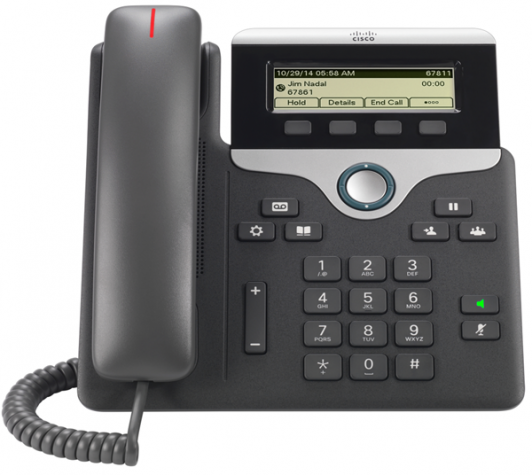
IP-телефоны Cisco 7811 являются надежными устройствами для коммерческого применения, которые объединяют функциональность, точность передачи голоса. Устанавливаются в небольших и крупных компаниях, признаны мощными и простыми в использовании. Выделяются оригинальным эргономичным дизайном.
Эта модель предназначена для обеспечения как эффективного, так и экономически выгодного обслуживания. Телефон облегчает одну IP-линию (одна учетная запись SIP) и зашифровывает вызовы, чтобы гарантировать, вашу безопасность во время общения по телефону.
IP-телефон может быть PoE или питаться от адаптера переменного тока, а функция настольного или настенного монтажа позволяет использовать этот IP-телефон для многих различных бизнес-сред. Этот телефон является полнофункциональным IP-телефоном, который надежен и имеет гладкий эргономичный дизайн. Особенности телефона включают в себя: 1 линию, размер экрана 3,28 дюйма и простоту в использовании. Функция «Всегда включено” обеспечивает надежность и безопасность зашифрованной голосовой связи.
Линейные клавиши на каждой модели могут быть полностью запрограммированы. Вы можете настроить клавиши для поддержки любой линии, например номеров каталогов, или функций вызова, таких как быстрый набор. Вы также можете повысить производительность, обрабатывая несколько вызовов для каждого номера каталога, используя функцию multi call per line appearance. Трехцветные светодиоды на линейных клавишах поддерживают эту функцию и делают телефон более простым и удобным в использовании.
Телефоны оснащены качественной аудио-акустикой и удобным пользовательским интерфейсом. Содержат пять программируемых линейных клавиш, поддерживают функции: быстрый вызов, переподключение, конференция. Отличаются расширенным экраном, энергоэффективностью и безопасностью.
Варианты исполнения:
|
CP-7811-K9= |
● Cisco IP Phone 7811 Серый (charcoa) |
Дополнительные опции:
|
Signaling protocol support |
● Session Initiation Protocol (SIP) |
|
Codec support |
● G.711a/μ, G.722, G.729a, iLBC |
|
Key call features support |
● + Dialing (E.164) ● Abbreviated dial ● Adjustable ringing and volume levels ● Adjustable display contrast ● Agent greeting ● Auto-answer ● Auto-detection of headset (Not available on the IP Phone 7811) ● Busy Lamp Field (BLF) (Not available on the IP Phone 7811) ● Call back ● Call forward ● Call history ● Call park ● Call Pickup ● Call timer ● Call waiting ● Caller ID ● cBarge ● Corporate directory ● Conference ● Cross Cluster Extension Mobility (EMCC) ● Dial from the list ● Direct transfer ● Do not disturb ● Extension Mobility (EM) ● Forced access codes and client matter codes ● Group call pickup ● Hold/resume ● Immediate divert ● Intercom (Not available on the IP Phone 7811) ● Join (Not available on the IP Phone 7811) ● Message-waiting indicator ● Meet me conference ● Mobility ● Music on hold ● Mute ● Network profiles (automatic) ● On- and off-network distinctive ringing ● Personal directory ● Privacy ● Private Line Automated Ringdown (PLAR) ● Redial ● Ring tone per line appearance ● Shared line ● Silent monitoring and recording ● Speed dial ● Time and date display ● Transfer ● Voicemail ● Whisper coaching |
|
Multiple ring tones |
● The phone supports user-adjustable ring tones. |
|
Directories |
● The phone identifies incoming messages and categorizes them for users on the screen. This makes it fast and easy to return calls using direct dial-back capability. The corporate directory integrates with the Lightweight Directory Access Protocol (LDAP) standard directory. |
|
Quality-of-service (QoS) options |
● The phone supports CDP and 802.1Q/p standards, and can be configured with an 801.1Q VLAN header containing the VLAN ID overrides configured by the Admin VLAN ID. |
|
Security |
● Certificates ● Image authentication ● Device authentication ● File authentication ● Signaling authentication ● Media encryption using Secure Real-Time Transfer Protocol (SRTP) using AES-128 ● Signaling encryption using Transport Layer Security (TLS) Protocol using AES-128 or AES-256 ● Encrypted configuration files ● 802.1X authentication ● Cryptography |
|
Configuration options |
● The user can configure IP address assignment statically or through the DHCP client. |
|
Physical dimensions (H×W×D) |
● IP Phone 7811: 207 x 195 x 33mm (exclude foot stand) |
|
Weight |
● IP Phone 7811: 806g |
|
Display |
IP Phone 7811: 3.28” 384×106 pixels |
|
Ethernet switch |
● The phone has a 10/100BASE-T (The Cisco® IP Phone 7811, 7821 & 7861) or a10/100/1000BASE-T (The Cisco® IP Phone 7841) Ethernet connection through two RJ-45 ports, one for the LAN connection and the other for a downstream Ethernet device connection like a PC. |
|
Phone casing composition |
● Polycarbonate acrylonitrile butadiene styrene (ABS) textured plastic. |
|
Power requirements |
● The phone is an interoperable IEEE 802.3af PoE (Class 1 device); 48 VDC is required; it can be supplied locally at the desktop using an optional AC-to-DC power supply (CP-PWR-CUBE-3=). Use of the power supply also requires the use of one of the corresponding AC country cords. |
|
Operational temperature |
● 32 to 104°F (0 to 40°C) |
|
Nonoperational temperature shock |
● 14 to 140°F (-10 to 60°C) |
|
Humidity |
● Operating 10% to 90%, non-condensing ● Non-operating 10% to 95%, non-condensing |
|
Cosmetic |
● Cisco cosmetic class A |
|
Certification and compliance |
● Regulatory Compliance ◦ CE Markings per directives 2004/108/EC and 2006/95/EC ● Safety ◦ UL 60950 Second Edition ◦ CAN/CSA-C22.2 No. 60950 Second Edition ◦ EN 60950 Second Edition (including A11 & A12) ◦ IEC 60950 Second Edition (including A11 & A12) ◦ AS/NZS 60950 ◦ GB4943 ● EMC — Emissions ◦ 47CFR Part 15 (CFR 47) Class B ◦ AS/NZS CISPR22 Class B ◦ CISPR22: 2005 w/Amendment 1: 2005 Class B ◦ EN55022: 2006 w/Amendment 1: 2007 Class B ◦ ICES003 Class B ◦ VCCI Class B ◦ EN61000-3-2 ◦ EN61000-3-3 ◦ KN22 Class B ● EMC — Immunity ◦ EN55024 ◦ CISPR24 ◦ EN60601-1-2 ◦ KN24 ◦ Armadillo Light ● Telecom ◦ FCC Part 68 HAC ◦ CS-03-HAC ◦ AS/ACIF S004 ◦ AS/ACIF S040 ◦ NZ PTC 220 ◦ Industry Standards: TIA 810 and TIA 920 ◦ Industry Standards: IEEE 802.3 Ethernet, IEEE 802.3af and 802.3at |