
INTRODUCTION
We wish you a great FREECOM 4+ experience and encourage you to visit www.cardosystems.com/support/freecom-4-plus/ regarding any questions, suggestions or comments you may have.
If you have not yet installed the FREECOM 4+ unit on your helmet, please install it as described in the Installation Guide provided in the package.
And don’t forget to register your FREECOM 4+ at www.cardosystems.com/update.
Register your FREECOM 4+
Registering your device allows you to download software patches, enjoy new features that are offered from time to time, and most importantly, assures smooth handling of any warranty issues you may have. Your registered FREECOM4+ is also eligible for free product upgrades.
It’s easy, just visit www.cardosystems.com/update and you’ll be done in no time. Also, rest assured: Cardo does not share your details with others.
Be SMART, register your FREECOM 4+.
GETTING STARTED
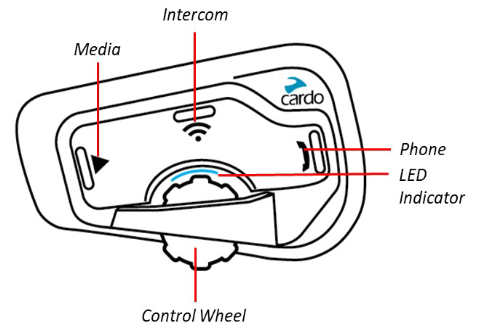
GETTING TO KNOW YOUR FREECOM 4+
CHARGING THE FREECOM 4+
Make sure that your FREECOM 4+ battery is charged for at least 4 hours before initial use.
To charge the unit:
- Using the supplied USB cable, connect your computer or wall charger to the USB port on your FREECOM 4+.
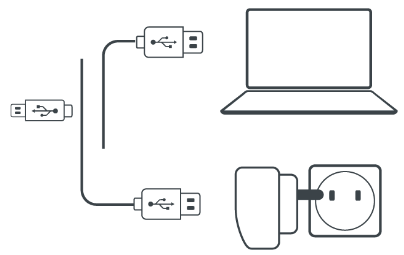
- Charging with the wall charger is faster than via a computer USB port.
- Charging your unit switches it off automatically. To use your unit while it is being charged, switch it on. (see Switching Your Unit On/Off).
While charging, the LED indicates the charging status as follows:
- Red LED on — charging
- Red LED off — charging complete
TIP: You can check the battery charge at any time by saying «Hey Cardo, battery status.«
SWITCHING YOUR UNIT ON/OFF
To switch your FREECOM 4+ on:
The LED confirms your FREECOM 4+ is on:
- Normal and low battery — LED flashes blue three times.
- Charging — LED flashes red and purple three times.
To switch your FREECOM 4+ off:
USING YOUR FREECOM 4+
You can operate the various features of your FREECOM 4+ in the following ways:
- Press a button or combination of buttons on the unit.
- Use the Cardo Mobile App on your mobile device (once it is paired with the unit).
- Use automatic voice recognition (by saying a command, for example «Hey Cardo, Radio On»).
You can also configure your unit by connecting it to a computer with the supplied USB cable and running the Cardo Updater while your computer is connected to the Cardo Update website.
PAIRING YOUR UNIT TO BLUETOOTH DEVICES
Your FREECOM 4+ has two Bluetooth channels for connection to Bluetooth devices such as mobile phones, GPS devices, and Bluetooth music players with A2DP.
To connect your unit to a Bluetooth device, you must first pair them. Once paired, they automatically recognize each other whenever they are within range.
If you are pairing more than one device, Cardo recommends that you pair the mobile phone to channel 1, and the additional device (such as GPS, music player or additional mobile phone) to channel 2.
If you are pairing the unit to more than one mobile phone, the phone paired with channel 1 is the default phone for outgoing calls.
To pair Bluetooth channel 1 to a mobile phone:
- Enable Bluetooth on the mobile phone.
- On the unit in standby mode, press
 for 5 seconds. The LED flashes red and blue.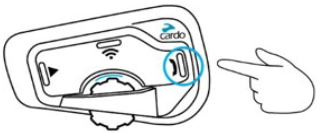
- On your mobile phone, search for Bluetooth devices.
- When your FREECOM 4+ appears in the list of available devices, select it. If prompted for a PIN or Passkey, enter 0000 (four zeros).
The phone confirms that pairing has succeeded and the LED flashes purple for 2 seconds.
To pair Bluetooth channel 2 to another Bluetooth device:
- Enable Bluetooth on the device (for example, your mobile phone, GPS device, or music player).
- On the unit in standby mode, press for 5 seconds. The LED flashes red and blue.
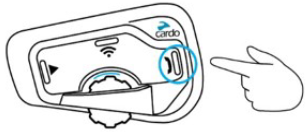
- Tap twice. The LED flashes red and green.
- If you are pairing a GPS device, roll the control wheel forward.
The LED flashes slower.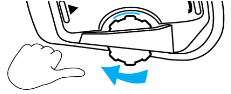
- On the device you are pairing, search for Bluetooth devices.
- When your FREECOM 4+ appears in the list of available devices, select it. If prompted for a PIN or Passkey, enter 0000 (four zeros).
The device confirms that pairing has succeeded and the LED flashes purple for 2 seconds.
- If pairing is not completed within 2 minutes, the unit automatically returns to Standby.
- If you have paired two different mobile phones directly to your FREECOM 4+, set one as default for making calls (see Setting the Default Mobile Phone).
- Not all Bluetooth mobile phones broadcast Bluetooth Stereo music (A2DP) even if the phone has an MP3 player function. Consult your mobile phone’s user manual for more information.
- Not all Bluetooth GPS devices allow connection to Bluetooth audio devices. Consult your GPS User Manual for more information.
To cancel the pairing process:
To reset all Bluetooth device pairing:
- Press for 5 seconds.
The LED flashes red and blue.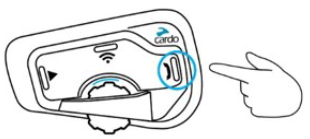
- Press
 and
and  for 2 seconds.
The LED flashes purple 5 times, confirming that pairing has been reset.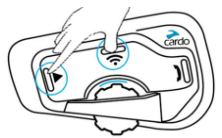
ON THE ROAD
FREECOM 4+ makes it easy for you to receive phone calls and listen to music in a convenient and safe manner.
BASIC AUDIO FUNCTIONS
The basic audio functions are the same whether you are listening to music, speaking on the intercom, or having a phone conversation.
To turn the volume up:
- Roll the Control Wheel forward.
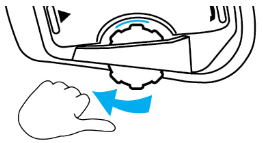
An increasingly louder tone is played on the speaker until you reach the maximum volume, as indicated by the maximum volume tone.
To turn the volume down:
- Roll the Control Wheel backward.
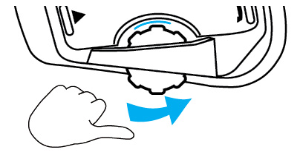
An increasingly quieter tone is played on the speaker until you reach the minimum volume, as indicated by the minimum volume tone.
To mute the microphone and lower the speaker volume to the minimal level:
- Roll the Control Wheel backward, then forward.
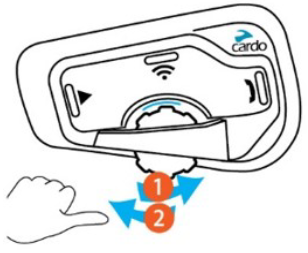
To unmute the microphone and raise the speaker volume to the previous level:
- Roll the Control Wheel in any direction.
An ascending tone is played on the speaker.
MAKING AND RECEIVING PHONE CALLS
You can use your mobile phone to make and receive phone calls while paired to your FREECOM 4+.
You can make a hands-free call using your mobile phone’s voice dial option or using the Cardo speed dial or redial last call options.
To make a phone call:
- If you connected two mobile phones to your unit, you cannot make an additional phone call from the other phone while a phone call is already active.
- During Bluetooth intercom 3 or 4-way calls, riders that are connected on both channels A and B cannot receive phone calls.
To answer a call:
To reject a call:
To ignore a call:
- Roll the Control Wheel backward, then forward, or say Ignore.
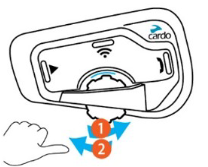
To end a call:
SWITCHING BETWEEN TWO CALLS ON TWO MOBILE PHONES
Your FREECOM 4+ can toggle between two calls on two mobile phones when both mobile phones are paired to your unit.
To toggle between two calls on two mobile phones (without disconnecting either call):
To disconnect the current call and switch to the other call:
- Tap .
STREAMING MUSIC
You can stream music from your paired device to your FREECOM 4+.
To start music streaming from your paired device:
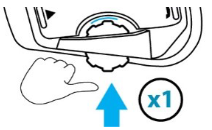
To stop music streaming:
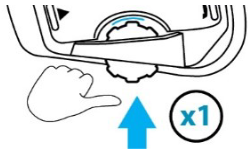
- Press the edge of the Control Wheel upward or say «Hey Cardo, music off.»
To skip to the next track (while streaming):
- Tap or say «Hey Cardo, next track.»
To skip back to the previous track (while streaming):
- Tap twice or say «Hey Cardo, previous track.»
To toggle between FM and A2DP music:
- Press for 2 seconds.
SWITCHING MUSIC SOURCES
If two music (A2DP) audio sources are paired, FREECOM 4+ uses the audio source from which you last played music.
To switch to the other audio source:
- Stop music (A2DP) playback from the current device (see Streaming Music).
- Play music (A2DP) from the other device.
FREECOM 4+ automatically remembers your last played device.
LISTENING TO FM RADIO
The FREECOM 4+ is equipped with a built-in FM radio.
To turn on the FM radio:
When you switch on your FM radio, the station that was playing when you last switched off resumes playing.
To turn the FM radio off:
- Press the edge of the Control Wheel upward or say «Hey Cardo, radio off.»
To skip to the next station:
- Tap or say «Hey Cardo, next station.»
To skip back to the previous station:
- Tap twice or say «Hey Cardo, previous station.»
To scan for and select a station:
- Press the edge of the Control Wheel upward and simultaneously roll it forward. The FM radio plays each station that it finds for several seconds.
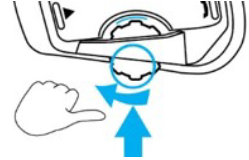
- When you hear a station you want to select, tap .
To store a scanned station in the active preset:
- Tap within 20 seconds of stopping the scan.
To toggle between FM and A2DP music:
- Press for 2 seconds.
VOICE COMMANDS
You can use voice commands for hands-free operation of certain FREECOM 4+ features. Voice commands use voice recognition. You say a command and FREECOM 4+ performs the action. Voice commands are available in various languages. English is the default language. You can change the language to another available language.
FREECOM 4+ uses the following predefined voice commands.
| To… | Say… |
| Turn on the radio | «Hey Cardo, radio on» |
| Turn off the radio | «Hey Cardo, radio off» |
| Skip to the next preset radio station | «Hey Cardo, next station» |
| Skip to the previous preset radio station | «Hey Cardo, previous station» |
| Turn on music | «Hey Cardo, music on» |
| Turn off music | «Hey Cardo, music off» |
| Play the next music track | «Hey Cardo, next track» |
| Play the previous music track | «Hey Cardo, previous track» |
| Raise volume | «Hey Cardo, volume up» |
| Lower volume | «Hey Cardo, volume down» |
| Mute audio | «Hey Cardo, mute audio» |
| Unmute audio | «Hey Cardo, unmute audio» |
| Call the default number (configurable) | «Hey Cardo, speed dial» |
| Redial the last number | «Hey Cardo, redial number» |
| Answer an incoming call | «Answer» |
| Ignore an incoming call | «Ignore» |
| Access Siri (when connected to an iOS device) | «Hey Siri» |
| Access Google (when connected to an Android device) | «OK Google» |
| Check the battery status | «Hey Cardo, battery status» |
| Open the call intercom | «Hey Cardo, call intercom» |
RIDING WITH OTHERS
BLUETOOTH INTERCOM
To connect your unit to another unit with a Bluetooth intercom, such as a Cardo Bluetooth unit or other Bluetooth-enabled devices, you must first pair their channels. Once paired, the units automatically recognize each other whenever they are in range (line of sight up to 1.2 km / 3,900 ft subject to terrain).
- Pairing a channel replaces any existing paired unit on that channel with the new unit.
- If you purchased the FREECOM 4+ DUO, the retail package contains two pre-paired units.
- The Intercom range with other models is limited to the distance of the unit with the shorter range.
SETTING UP BLUETOOTH INTERCOM GROUPS
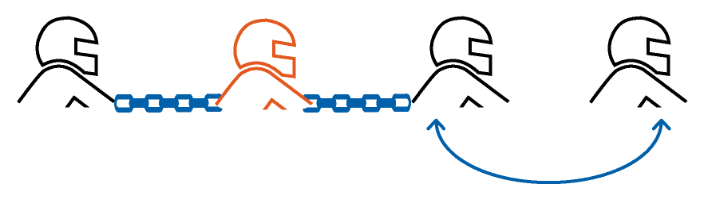
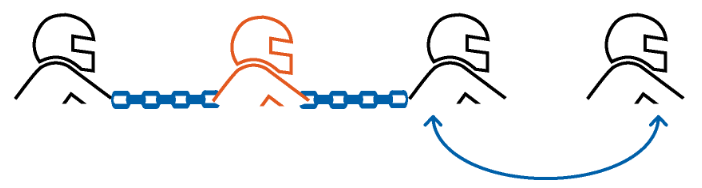
You can use your FREECOM 4+ to create or join a Bluetooth group. The participating riders are connected in a chain with a maximum total of four riders.
To set up a Bluetooth group:
- Confirm your unit is in Standby mode (LED flashes blue slowly).
- To initiate 2-way pairing:
Bluetooth intercom pairing needs to be initiated on the other device.
The unit confirms that pairing has succeeded.
- To add a 3rd rider:
Bluetooth intercom pairing needs to be initiated on the other device.
The unit confirms that pairing has succeeded.
- To add a 4th rider, Rider 1 or Rider 2 connects to the additional rider.
To pair a non-Cardo Bluetooth intercom group unit:
- Confirm your unit is in Standby mode (LED flashes blue slowly).
- To initiate 2-way pairing:
Mobile phone pairing needs to be initiated on the other device.
- The unit confirms that pairing has succeeded.
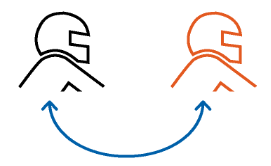
- To add a 3rd rider:
Mobile phone pairing needs to be initiated on the other device.
The unit confirms that pairing has succeeded.
- To add a 4th rider, Rider 1 or Rider 2 connects to the additional rider.
- To cancel the pairing process, press for 2 seconds. The LED stops flashing.
- If pairing is not completed within 2 minutes, the unit automatically returns to Standby.
STARTING/ENDING INTERCOM CALLS
You can initiate Bluetooth intercom calls with other riders, including non-Cardo riders.
To start or end communication with Rider 1:
To start or end communication with Rider 2:
To initiate a 4-way intercom conference:
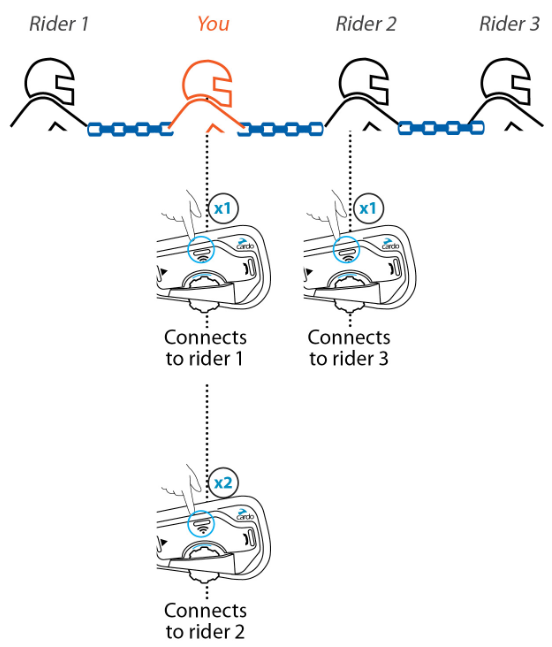
Optionally, FREECOM 4+ can pair a third rider directly.
To pair a third rider:
- Confirm your unit is in Standby mode (LED flashes blue slowly).
- To initiate pairing:
- Bluetooth intercom pairing needs to be initiated on the other device.
The unit confirms that pairing has succeeded.
To start or end communication with a rider on channel C:
- Tap 3 times.
*FREECOM 4+ supports direct, simultaneous connection with up to 2 riders. (Channels: A+B, A+C, B+C)
**Voice command can be used to start intercom calls to Channels A and/or B only.
You can also start the Bluetooth intercom by making a loud noise, for example, by saying «Hey.» If channels A and B are already paired, the conversation starts for both of them.
RECEIVING BLUETOOTH INTERCOM CALLS
If another paired unit calls you via Bluetooth intercom, the call begins instantly.
RESETTING BLUETOOTH INTERCOM PAIRING
Resetting Bluetooth intercom pairing also resets all Bluetooth device pairing.
To reset Bluetooth intercom pairing:
- Press for 5 seconds. The LED flashes red.
- Press and for 2 seconds.
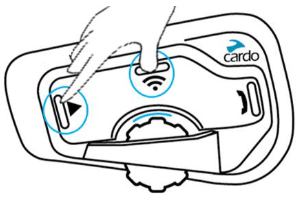
The LED flashes purple 5 times slowly, confirming that pairing has been reset.
SHARING MUSIC AND RADIO
You can share music and FM radio with a passenger or other rider. Music sharing is more suitable for rider/passenger combinations, whereas FM radio is also intended for rider/rider combinations.
- Music and radio can be shared with only one passenger/rider.
- Bluetooth intercom calls are disabled when sharing music.
- FM radio sharing opens a Bluetooth intercom call automatically.
- If you paired your unit to two mobile phones, music will be shared from the mobile phone through which you last played music.
- When sharing FM radio, either passenger/rider can change station while the Bluetooth intercom call remains open.
- When you stop sharing FM radio, the Bluetooth intercom call remains open and the FM radio continues to play independently on each passenger/rider’s unit.
- When you stop sharing music, the music continues to play on your unit only.
To start/stop sharing:
- Start playing music or the FM radio.
- Press for 2 seconds to start sharing on Channel A (by default).
To manually select the channel on which to share music or radio:
- Start playing music or the FM radio.
- Start a Bluetooth intercom call on either channel (A or B).
- Press for 2 seconds.
To stop sharing:
- Press for 2 seconds.
TROUBLESHOOTING
SOFT RESET
If your FREECOM 4+ stops responding, reset it in one of these ways:
- Turning it off and then on again (see Getting Started).
- Using the supplied USB cable, connect your unit to the computer or wall charger for 30 seconds.
RESET PAIRING
The options below delete all paired units or devices.
To reset mobile device pairing:
- While in standby mode, press for 5 seconds. The LED flashes red and blue.
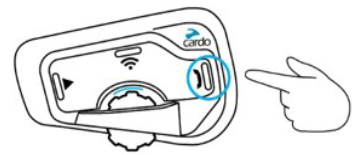
- Press and for 2 seconds.
The LED flashes purple 5 times slowly, confirming that pairing has been reset.
To reset intercom pairing:
- While in standby mode, press for 5 seconds. The LED flashes red
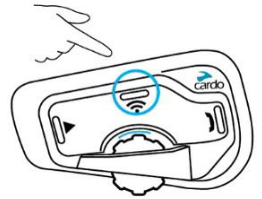
- Press and for 2 seconds.
The LED flashes purple 5 times slowly, confirming that pairing has been reset.
RESET TO FACTORY SETTINGS
This option deletes all paired units, devices and all configuration settings.
To perform a factory reset through the unit:
- Check that your FREECOM 4+ is in Standby mode (see FREECOM 4+ LED Indications).
- Simultaneously press ++ for 5 seconds.
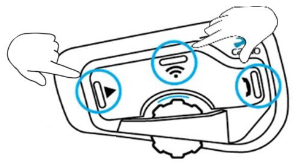
The LED flashes purple 5 times slowly, confirming that pairing has been reset.
FAQ
Additional answers to common problems can be found at www.cardosystems.com/support/freecom-4-plus/.
PERSONALIZING YOUR DEVICE
Get the most out of your FREECOM 4+ by changing the settings and customizing your unit according to your own personal preferences, using either of the following methods:
- Cardo Mobile App on iOS or Android devices.
- Unit buttons.
Cardo recommends you customize your settings before going out on the road. You can adjust any of these settings as required after experiencing them under road conditions.
| Object | Default Value | Description | Cardo Mobile App (iOS/Android) |
| AGC sensitivity (Off/Low/Medium/High) | Medium | AGC automatically adjusts speaker volume according to ambient noise and riding speed. For example, when set to Low, higher ambient noise will cause the volume increase to kick in at a higher level. |  |
| Audio priority (A2DP/ Bluetooth intercom) | Bluetooth intercom | Priority of audio source playing through speakers. Either music is not interrupted by an intercom call, or vice-versa. | |
|
|||
| Background Audio Level | N/A | Sets the background audio volume when parallel audio streaming is on (see Parallel audio streaming in Bluetooth intercom (Enable/Disable)). | |
| Bluetooth friendly name | FREECOM 4+ | Sets the name that appears on your phone while pairing and in the Cardo app. | |
| FM Band | According to Your Region | If you are in Japan, select Japan. Otherwise, select Worldwide. | |
| Language | According to Your Region | Voice announcements and voice-assisted menus language (see Spoken Status Announcements). | |
| Mobile priority | Mobile 1 | If you paired your unit to two mobile phones, you must set one of them as the default phone for outgoing calls. | |
| Parallel audio streaming in Bluetooth intercom (Enable/Disable) | Disable | You can hear two audio sources simultaneously. For example, hear GPS while listening to music. NOTE: Parallel audio streaming may not work properly with some iOS devices (i.e., music player or GPS navigator) due to connected device limitations. |
|
| RDS (Enable/Disable) | Disable | Radio Data System allows the radio to automatically retune to the strongest frequency available for the FM station you are listening to when the signal becomes too weak. | |
| Set speed dial numbers | Empty | Pre-set phone numbers for automatic dialing. | |
| Set the 6 FM radio presets | 107.5 | Pre-set FM radio stations. | |
| Spoken Status Announcements (Enable/Disable) | Enable | Voice announcements inform you to whom or to what device you are connected. | |
AGC and voice control performance vary based on environmental conditions, including riding speed, helmet type and ambient noise. For improved voice control performance, minimize the wind impact on the microphone by closing the visor and using the large microphone sponge.
SETTING THE DEFAULT MOBILE PHONE
If you paired your unit to two mobile phones, you must set one of them as the default phone for outgoing calls.
If you do not set a default phone, the phone that you first paired with your unit is automatically set as the default phone.
To set the default phone:
USING PARALLEL AUDIO STREAMING
With parallel audio streaming, you can hear GPS instructions during a mobile or Bluetooth intercom call, or while listening to other audio sources, such as music or FM radio.
Parallel audio streaming may not work properly with some iOS devices (i.e., music player or GPS navigator) due to connected device limitations.
Your FREECOM 4+ sets the various audio sources to either foreground (volume remains the same) or background (volume reduced) as described in the following table:
| Mobile Phone 1/2 | GPS | Intercom 1 | Intercom 2 | Music | FM Radio |
| Foreground | Foreground | ||||
| Foreground1 | Foreground1 | ||||
| Foreground | Foreground | ||||
| Foreground | Background | ||||
| Foreground | Background | ||||
| Foreground | Background | ||||
| Foreground | Background | ||||
| Foreground2,3 | Foreground2,3 | Background | |||
| Foreground4 | |||||
| Foreground5 |
1 If you add an intercom call to a mobile phone call creating a conference call, the volume for both audio sources is the same.
2 If you make two intercom calls simultaneously creating an intercom conference call, the volume for both audio sources is the same.
3 If you make two intercom calls simultaneously creating an intercom conference call, you cannot hear the mobile phone or GPS.
4 If you play music only, the music volume is not reduced.
5 If you play the FM radio only, the FM radio volume is not reduced.
In some cases, parallel audio streaming may not work properly due to connected device limitations (music player or GPS navigator). For more information, see www.cardosystems.com/support/freecom-4-plus/.
Cardo recommends that during a 3-way or 4-way Bluetooth intercom conference call, the rider who is connected to only one intercom call listens for mobile phone and GPS announcements.
You cannot use music sharing for voice audio with riders during parallel audio streaming.
You can configure parallel audio streaming via the Cardo app.
AUDIO SOURCE PRIORITIES
If Parallel Audio Streaming is disabled, FREECOM 4+ manages the audio sources you hear through the speakers according to the following audio source priorities.
| Priority | Audio Source |
Higher Priority Lower Priority |
Mobile phone, GPS device instructions Intercom or Music1 Music or Intercom2 FM Radio |
1When audio priority is set to Intercom, you cannot hear navigation app or SMS messages from your phone during an ongoing intercom call.
2When audio priority is set to A2DP (music), the intercom is disabled while listening to music (via A2DP). A rider calling you by intercom hears a sound indicating you are not available.
Intercom modes all have the same priority, so ongoing intercom calls will not be interrupted by any other intercom call.
If you paired your unit to two mobile phones (see Setting the Default Mobile Phone), music will be shared from the mobile phone through which you last played music.
UPDATING YOUR DEVICE
Always keep your unit updated. Stay up-to-date by downloading software updates whenever a new version is available.
- Cardo Update on Windows / Mac — minimum requirements — Windows® 7 / macOS X 10.8
To upgrade your FREECOM 4+ unit:
- Download and install the Cardo Update tool https://www.cardosystems.com/update
- Open the app.
- Register (first time only).
- Connect the unit to the computer using an USB cable and update the firmware.
FREECOM 4+ LED INDICATIONS
Your FREECOM 4+ operates in various modes. Each mode consists of a group of features currently available for your use. For example, when FREECOM 4+ plays music, it will be in music playing mode, enabling features related to playing music such as skipping to the next and previous tracks.
Events are considered to occur whenever you operate a feature and when FREECOM 4+ responds. For example, turning on music is an event.
The device’s current mode is indicated by the unit LEDs. You also hear voice announcements on your unit for mode changes and events.
The following table shows LED indications for modes and events according to the current battery state.
| LED | Flashing | Battery State | Mode or Event |
| Blue | For 2 seconds | Normal |
|
| Blue | Fast (three times) | Normal Low Battery Charging |
|
| Blue | Fast (repeating fast) | Normal, Low Battery Charging |
|
| Blue | Slow (repeated at 3-second intervals) | Normal |
|
| Blue | Slow twice (repeated at 3-second intervals) | Normal |
|
| Purple | For 2 seconds | Normal Low Battery Charging |
|
| Purple | Slow (5 times) | Normal Low Battery |
|
| Purple/Red | Purple twice slowly, then red | Charging |
|
| Purple/Red | Slow purple and red (repeating) | Charging |
|
| Red | Slow twice (repeated at 3-second intervals) | Low Battery |
|
| Red | Fast (repeated at 3-second intervals) | Low Battery |
|
| Red | Fast (repeating fast) | Normal Low Battery Charging |
|
| Red | Fast (3 times) | Normal Low Battery Charging |
|
| Red | For 2 seconds | Normal Low Battery Charging |
|
| Red | Remains on | Charging |
|
| Red/Blue | Alternating fast | Normal Low Battery Charging |
|
| Red/Blue | Alternating slow | Normal Low Battery |
|
| Red/Green | Alternating fast | Normal Low Battery Charging |
|
| Red/Green | Alternating slow | Normal Low Battery |
|
| Yellow | For 2 seconds | Normal Low Battery Charging |
|
GLOSSARY
| Term/Abbreviation | Description |
| A2DP | Advanced Audio Distribution Profile (for music). A protocol for playing music over Bluetooth. |
| AGC sensitivity | AGC (Automatic Gain Control) automatically adjusts speaker volume and microphone sensitivity according to ambient noise and riding speed. |
| Device | Mobile phone, GPS or music player. |
| Language | Voice announcements and voice commands language. |
| Unit | Cardo or non- Cardo Bluetooth Communication system. |
| Voice control | Voice activation (by saying a word or phrase) of certain features for handsfree operation. |
| Voice control sensitivity | Adjusts your microphone sensitivity for voice activation while you are riding. |
SUPPORT
For additional information: www.cardosystems.com/support/freecom-4-plus/
To avoid potential problems and to receive our support and warranty coverage, we strongly recommend buying our products only from authorized Cardo dealers.
Your favorite brick-and-mortar store is always your best bet. Unauthorized online resellers and online auction sites such as eBay are not among Cardo’s authorized dealers, and purchasing our products from such sites will be at your own risk. Cardo strives to provide quality products and exceptional customer service. We select dealers who share that vision. Buying grey market items from unauthorized online dealers is counterproductive and also adversely affects unsuspecting online consumers who may be purchasing used, counterfeit or defective products or devices whose warranties are void. Protect your investment by purchasing genuine Cardo products only from authorized dealers.
© 2021 Cardo Systems
All rights reserved. Cardo, the Cardo logo and other Cardo marks are owned by Cardo and may be registered. All other trademarks are the property of their respective owners. Cardo Systems assumes no responsibility for any errors that may appear in this document. Information contained herein is subject to change without notice.

Here you can download full pdf version of manual, it may contain additional safety instructions, warranty information, FCC rules, etc.
Посмотреть инструкция для Cardo Scala Rider Freecom 4 бесплатно. Руководство относится к категории гарнитуры, 7 человек(а) дали ему среднюю оценку 9. Руководство доступно на следующих языках: русский. У вас есть вопрос о Cardo Scala Rider Freecom 4 или вам нужна помощь? Задайте свой вопрос здесь
Не можете найти ответ на свой вопрос в руководстве? Вы можете найти ответ на свой вопрос ниже, в разделе часто задаваемых вопросов о Cardo Scala Rider Freecom 4.
Можно ли с помощью гарнитура совершать звонки без использования рук?
В более новые гарнитуры обычно встроен небольшой микрофон, позволяющий не использовать руки.
Что такое шумоподавление?
Технология шумоподавления обеспечивает снижение уровня окружающего шума.
Когда звук считается слишком громким?
Уровень звука выше 80 децибел может нанести вред слуху. Уровень звука выше 120 децибел может нанести прямое повреждение слуху. Вероятность повреждения слуха зависит от частоты и продолжительности прослушивания.
Инструкция Cardo Scala Rider Freecom 4 доступно в русский?
Да, руководствоCardo Scala Rider Freecom 4 доступно врусский .
Не нашли свой вопрос? Задайте свой вопрос здесь
 for 5 seconds. The LED flashes red and blue.
The phone confirms that pairing has succeeded and the LED flashes purple for 2 seconds.
To pair Bluetooth channel 2 to another Bluetooth device:
- Enable Bluetooth on the device (for example, your mobile phone, GPS device, or music player).
- On the unit in standby mode, press for 5 seconds. The LED flashes red and blue.
- Tap twice. The LED flashes red and green.
- If you are pairing a GPS device, roll the control wheel forward.
The LED flashes slower. - On the device you are pairing, search for Bluetooth devices.
- When your FREECOM 4+ appears in the list of available devices, select it. If prompted for a PIN or Passkey, enter 0000 (four zeros).
The device confirms that pairing has succeeded and the LED flashes purple for 2 seconds.
- If pairing is not completed within 2 minutes, the unit automatically returns to Standby.
- If you have paired two different mobile phones directly to your FREECOM 4+, set one as default for making calls (see Setting the Default Mobile Phone).
- Not all Bluetooth mobile phones broadcast Bluetooth Stereo music (A2DP) even if the phone has an MP3 player function. Consult your mobile phone’s user manual for more information.
- Not all Bluetooth GPS devices allow connection to Bluetooth audio devices. Consult your GPS User Manual for more information.
To cancel the pairing process:
To reset all Bluetooth device pairing:
- Press for 5 seconds.
The LED flashes red and blue. - Press and for 2 seconds.
The LED flashes purple 5 times, confirming that pairing has been reset.
ON THE ROAD
FREECOM 4+ makes it easy for you to receive phone calls and listen to music in a convenient and safe manner.
BASIC AUDIO FUNCTIONS
The basic audio functions are the same whether you are listening to music, speaking on the intercom, or having a phone conversation.
To turn the volume up:
- Roll the Control Wheel forward.
An increasingly louder tone is played on the speaker until you reach the maximum volume, as indicated by the maximum volume tone.
To turn the volume down:
- Roll the Control Wheel backward.
An increasingly quieter tone is played on the speaker until you reach the minimum volume, as indicated by the minimum volume tone.
To mute the microphone and lower the speaker volume to the minimal level:
- Roll the Control Wheel backward, then forward.
To unmute the microphone and raise the speaker volume to the previous level:
- Roll the Control Wheel in any direction.
An ascending tone is played on the speaker.
MAKING AND RECEIVING PHONE CALLS
You can use your mobile phone to make and receive phone calls while paired to your FREECOM 4+.
You can make a hands-free call using your mobile phone’s voice dial option or using the Cardo speed dial or redial last call options.
To make a phone call:
- If you connected two mobile phones to your unit, you cannot make an additional phone call from the other phone while a phone call is already active.
- During Bluetooth intercom 3 or 4-way calls, riders that are connected on both channels A and B cannot receive phone calls.
To answer a call:
To reject a call:
To ignore a call:
- Roll the Control Wheel backward, then forward, or say Ignore.
To end a call:
SWITCHING BETWEEN TWO CALLS ON TWO MOBILE PHONES
Your FREECOM 4+ can toggle between two calls on two mobile phones when both mobile phones are paired to your unit.
To toggle between two calls on two mobile phones (without disconnecting either call):
To disconnect the current call and switch to the other call:
- Tap .
STREAMING MUSIC
You can stream music from your paired device to your FREECOM 4+.
To start music streaming from your paired device:
To stop music streaming:
- Press the edge of the Control Wheel upward or say «Hey Cardo, music off.»
To skip to the next track (while streaming):
- Tap or say «Hey Cardo, next track.»
To skip back to the previous track (while streaming):
- Tap twice or say «Hey Cardo, previous track.»
To toggle between FM and A2DP music:
- Press for 2 seconds.
SWITCHING MUSIC SOURCES
If two music (A2DP) audio sources are paired, FREECOM 4+ uses the audio source from which you last played music.
To switch to the other audio source:
- Stop music (A2DP) playback from the current device (see Streaming Music).
- Play music (A2DP) from the other device.
FREECOM 4+ automatically remembers your last played device.
LISTENING TO FM RADIO
The FREECOM 4+ is equipped with a built-in FM radio.
To turn on the FM radio:
When you switch on your FM radio, the station that was playing when you last switched off resumes playing.
To turn the FM radio off:
- Press the edge of the Control Wheel upward or say «Hey Cardo, radio off.»
To skip to the next station:
- Tap or say «Hey Cardo, next station.»
To skip back to the previous station:
- Tap twice or say «Hey Cardo, previous station.»
To scan for and select a station:
- Press the edge of the Control Wheel upward and simultaneously roll it forward. The FM radio plays each station that it finds for several seconds.
- When you hear a station you want to select, tap .
To store a scanned station in the active preset:
- Tap within 20 seconds of stopping the scan.
To toggle between FM and A2DP music:
- Press for 2 seconds.
VOICE COMMANDS
You can use voice commands for hands-free operation of certain FREECOM 4+ features. Voice commands use voice recognition. You say a command and FREECOM 4+ performs the action. Voice commands are available in various languages. English is the default language. You can change the language to another available language.
FREECOM 4+ uses the following predefined voice commands.
| To… | Say… |
| Turn on the radio | «Hey Cardo, radio on» |
| Turn off the radio | «Hey Cardo, radio off» |
| Skip to the next preset radio station | «Hey Cardo, next station» |
| Skip to the previous preset radio station | «Hey Cardo, previous station» |
| Turn on music | «Hey Cardo, music on» |
| Turn off music | «Hey Cardo, music off» |
| Play the next music track | «Hey Cardo, next track» |
| Play the previous music track | «Hey Cardo, previous track» |
| Raise volume | «Hey Cardo, volume up» |
| Lower volume | «Hey Cardo, volume down» |
| Mute audio | «Hey Cardo, mute audio» |
| Unmute audio | «Hey Cardo, unmute audio» |
| Call the default number (configurable) | «Hey Cardo, speed dial» |
| Redial the last number | «Hey Cardo, redial number» |
| Answer an incoming call | «Answer» |
| Ignore an incoming call | «Ignore» |
| Access Siri (when connected to an iOS device) | «Hey Siri» |
| Access Google (when connected to an Android device) | «OK Google» |
| Check the battery status | «Hey Cardo, battery status» |
| Open the call intercom | «Hey Cardo, call intercom» |
RIDING WITH OTHERS
BLUETOOTH INTERCOM
To connect your unit to another unit with a Bluetooth intercom, such as a Cardo Bluetooth unit or other Bluetooth-enabled devices, you must first pair their channels. Once paired, the units automatically recognize each other whenever they are in range (line of sight up to 1.2 km / 3,900 ft subject to terrain).
- Pairing a channel replaces any existing paired unit on that channel with the new unit.
- If you purchased the FREECOM 4+ DUO, the retail package contains two pre-paired units.
- The Intercom range with other models is limited to the distance of the unit with the shorter range.
SETTING UP BLUETOOTH INTERCOM GROUPS
You can use your FREECOM 4+ to create or join a Bluetooth group. The participating riders are connected in a chain with a maximum total of four riders.
To set up a Bluetooth group:
- Confirm your unit is in Standby mode (LED flashes blue slowly).
- To initiate 2-way pairing:
Bluetooth intercom pairing needs to be initiated on the other device.
The unit confirms that pairing has succeeded.
- To add a 3rd rider:
Bluetooth intercom pairing needs to be initiated on the other device.
The unit confirms that pairing has succeeded.
- To add a 4th rider, Rider 1 or Rider 2 connects to the additional rider.
To pair a non-Cardo Bluetooth intercom group unit:
- Confirm your unit is in Standby mode (LED flashes blue slowly).
- To initiate 2-way pairing:
Mobile phone pairing needs to be initiated on the other device.
- The unit confirms that pairing has succeeded.
- To add a 3rd rider:
Mobile phone pairing needs to be initiated on the other device.
The unit confirms that pairing has succeeded.
- To add a 4th rider, Rider 1 or Rider 2 connects to the additional rider.
- To cancel the pairing process, press for 2 seconds. The LED stops flashing.
- If pairing is not completed within 2 minutes, the unit automatically returns to Standby.
STARTING/ENDING INTERCOM CALLS
You can initiate Bluetooth intercom calls with other riders, including non-Cardo riders.
To start or end communication with Rider 1:
To start or end communication with Rider 2:
To initiate a 4-way intercom conference:
Optionally, FREECOM 4+ can pair a third rider directly.
To pair a third rider:
- Confirm your unit is in Standby mode (LED flashes blue slowly).
- To initiate pairing:
- Bluetooth intercom pairing needs to be initiated on the other device.
The unit confirms that pairing has succeeded.
To start or end communication with a rider on channel C:
- Tap 3 times.
*FREECOM 4+ supports direct, simultaneous connection with up to 2 riders. (Channels: A+B, A+C, B+C)
**Voice command can be used to start intercom calls to Channels A and/or B only.
You can also start the Bluetooth intercom by making a loud noise, for example, by saying «Hey.» If channels A and B are already paired, the conversation starts for both of them.
RECEIVING BLUETOOTH INTERCOM CALLS
If another paired unit calls you via Bluetooth intercom, the call begins instantly.
RESETTING BLUETOOTH INTERCOM PAIRING
Resetting Bluetooth intercom pairing also resets all Bluetooth device pairing.
To reset Bluetooth intercom pairing:
- Press for 5 seconds. The LED flashes red.
- Press and for 2 seconds.
The LED flashes purple 5 times slowly, confirming that pairing has been reset.
SHARING MUSIC AND RADIO
You can share music and FM radio with a passenger or other rider. Music sharing is more suitable for rider/passenger combinations, whereas FM radio is also intended for rider/rider combinations.
- Music and radio can be shared with only one passenger/rider.
- Bluetooth intercom calls are disabled when sharing music.
- FM radio sharing opens a Bluetooth intercom call automatically.
- If you paired your unit to two mobile phones, music will be shared from the mobile phone through which you last played music.
- When sharing FM radio, either passenger/rider can change station while the Bluetooth intercom call remains open.
- When you stop sharing FM radio, the Bluetooth intercom call remains open and the FM radio continues to play independently on each passenger/rider’s unit.
- When you stop sharing music, the music continues to play on your unit only.
To start/stop sharing:
- Start playing music or the FM radio.
- Press for 2 seconds to start sharing on Channel A (by default).
To manually select the channel on which to share music or radio:
- Start playing music or the FM radio.
- Start a Bluetooth intercom call on either channel (A or B).
- Press for 2 seconds.
To stop sharing:
- Press for 2 seconds.
TROUBLESHOOTING
SOFT RESET
If your FREECOM 4+ stops responding, reset it in one of these ways:
- Turning it off and then on again (see Getting Started).
- Using the supplied USB cable, connect your unit to the computer or wall charger for 30 seconds.
RESET PAIRING
The options below delete all paired units or devices.
To reset mobile device pairing:
- While in standby mode, press for 5 seconds. The LED flashes red and blue.
- Press and for 2 seconds.
The LED flashes purple 5 times slowly, confirming that pairing has been reset.
To reset intercom pairing:
- While in standby mode, press for 5 seconds. The LED flashes red
- Press and for 2 seconds.
The LED flashes purple 5 times slowly, confirming that pairing has been reset.
RESET TO FACTORY SETTINGS
This option deletes all paired units, devices and all configuration settings.
To perform a factory reset through the unit:
- Check that your FREECOM 4+ is in Standby mode (see FREECOM 4+ LED Indications).
- Simultaneously press ++ for 5 seconds.
The LED flashes purple 5 times slowly, confirming that pairing has been reset.
FAQ
Additional answers to common problems can be found at www.cardosystems.com/support/freecom-4-plus/.
PERSONALIZING YOUR DEVICE
Get the most out of your FREECOM 4+ by changing the settings and customizing your unit according to your own personal preferences, using either of the following methods:
- Cardo Mobile App on iOS or Android devices.
- Unit buttons.
Cardo recommends you customize your settings before going out on the road. You can adjust any of these settings as required after experiencing them under road conditions.
| Object | Default Value | Description | Cardo Mobile App (iOS/Android) |
| AGC sensitivity (Off/Low/Medium/High) | Medium | AGC automatically adjusts speaker volume according to ambient noise and riding speed. For example, when set to Low, higher ambient noise will cause the volume increase to kick in at a higher level. | |
| Audio priority (A2DP/ Bluetooth intercom) | Bluetooth intercom | Priority of audio source playing through speakers. Either music is not interrupted by an intercom call, or vice-versa. | |
|
|||
| Background Audio Level | N/A | Sets the background audio volume when parallel audio streaming is on (see Parallel audio streaming in Bluetooth intercom (Enable/Disable)). | |
| Bluetooth friendly name | FREECOM 4+ | Sets the name that appears on your phone while pairing and in the Cardo app. | |
| FM Band | According to Your Region | If you are in Japan, select Japan. Otherwise, select Worldwide. | |
| Language | According to Your Region | Voice announcements and voice-assisted menus language (see Spoken Status Announcements). | |
| Mobile priority | Mobile 1 | If you paired your unit to two mobile phones, you must set one of them as the default phone for outgoing calls. | |
| Parallel audio streaming in Bluetooth intercom (Enable/Disable) | Disable | You can hear two audio sources simultaneously. For example, hear GPS while listening to music. NOTE: Parallel audio streaming may not work properly with some iOS devices (i.e., music player or GPS navigator) due to connected device limitations. |
|
| RDS (Enable/Disable) | Disable | Radio Data System allows the radio to automatically retune to the strongest frequency available for the FM station you are listening to when the signal becomes too weak. | |
| Set speed dial numbers | Empty | Pre-set phone numbers for automatic dialing. | |
| Set the 6 FM radio presets | 107.5 | Pre-set FM radio stations. | |
| Spoken Status Announcements (Enable/Disable) | Enable | Voice announcements inform you to whom or to what device you are connected. | |
AGC and voice control performance vary based on environmental conditions, including riding speed, helmet type and ambient noise. For improved voice control performance, minimize the wind impact on the microphone by closing the visor and using the large microphone sponge.
SETTING THE DEFAULT MOBILE PHONE
If you paired your unit to two mobile phones, you must set one of them as the default phone for outgoing calls.
If you do not set a default phone, the phone that you first paired with your unit is automatically set as the default phone.
To set the default phone:
USING PARALLEL AUDIO STREAMING
With parallel audio streaming, you can hear GPS instructions during a mobile or Bluetooth intercom call, or while listening to other audio sources, such as music or FM radio.
Parallel audio streaming may not work properly with some iOS devices (i.e., music player or GPS navigator) due to connected device limitations.
Your FREECOM 4+ sets the various audio sources to either foreground (volume remains the same) or background (volume reduced) as described in the following table:
| Mobile Phone 1/2 | GPS | Intercom 1 | Intercom 2 | Music | FM Radio |
| Foreground | Foreground | ||||
| Foreground1 | Foreground1 | ||||
| Foreground | Foreground | ||||
| Foreground | Background | ||||
| Foreground | Background | ||||
| Foreground | Background | ||||
| Foreground | Background | ||||
| Foreground2,3 | Foreground2,3 | Background | |||
| Foreground4 | |||||
| Foreground5 |
1 If you add an intercom call to a mobile phone call creating a conference call, the volume for both audio sources is the same.
2 If you make two intercom calls simultaneously creating an intercom conference call, the volume for both audio sources is the same.
3 If you make two intercom calls simultaneously creating an intercom conference call, you cannot hear the mobile phone or GPS.
4 If you play music only, the music volume is not reduced.
5 If you play the FM radio only, the FM radio volume is not reduced.
In some cases, parallel audio streaming may not work properly due to connected device limitations (music player or GPS navigator). For more information, see www.cardosystems.com/support/freecom-4-plus/.
Cardo recommends that during a 3-way or 4-way Bluetooth intercom conference call, the rider who is connected to only one intercom call listens for mobile phone and GPS announcements.
You cannot use music sharing for voice audio with riders during parallel audio streaming.
You can configure parallel audio streaming via the Cardo app.
AUDIO SOURCE PRIORITIES
If Parallel Audio Streaming is disabled, FREECOM 4+ manages the audio sources you hear through the speakers according to the following audio source priorities.
| Priority | Audio Source |
| Higher Priority Lower Priority |
Mobile phone, GPS device instructions Intercom or Music1 Music or Intercom2 FM Radio |
1When audio priority is set to Intercom, you cannot hear navigation app or SMS messages from your phone during an ongoing intercom call.
2When audio priority is set to A2DP (music), the intercom is disabled while listening to music (via A2DP). A rider calling you by intercom hears a sound indicating you are not available.
Intercom modes all have the same priority, so ongoing intercom calls will not be interrupted by any other intercom call.
If you paired your unit to two mobile phones (see Setting the Default Mobile Phone), music will be shared from the mobile phone through which you last played music.
UPDATING YOUR DEVICE
Always keep your unit updated. Stay up-to-date by downloading software updates whenever a new version is available.
- Cardo Update on Windows / Mac — minimum requirements — Windows® 7 / macOS X 10.8
To upgrade your FREECOM 4+ unit:
- Download and install the Cardo Update tool https://www.cardosystems.com/update
- Open the app.
- Register (first time only).
- Connect the unit to the computer using an USB cable and update the firmware.
FREECOM 4+ LED INDICATIONS
Your FREECOM 4+ operates in various modes. Each mode consists of a group of features currently available for your use. For example, when FREECOM 4+ plays music, it will be in music playing mode, enabling features related to playing music such as skipping to the next and previous tracks.
Events are considered to occur whenever you operate a feature and when FREECOM 4+ responds. For example, turning on music is an event.
The device’s current mode is indicated by the unit LEDs. You also hear voice announcements on your unit for mode changes and events.
The following table shows LED indications for modes and events according to the current battery state.
| LED | Flashing | Battery State | Mode or Event |
| Blue | For 2 seconds | Normal |
|
| Blue | Fast (three times) | Normal Low Battery Charging |
|
| Blue | Fast (repeating fast) | Normal, Low Battery Charging |
|
| Blue | Slow (repeated at 3-second intervals) | Normal |
|
| Blue | Slow twice (repeated at 3-second intervals) | Normal |
|
| Purple | For 2 seconds | Normal Low Battery Charging |
|
| Purple | Slow (5 times) | Normal Low Battery |
|
| Purple/Red | Purple twice slowly, then red | Charging |
|
| Purple/Red | Slow purple and red (repeating) | Charging |
|
| Red | Slow twice (repeated at 3-second intervals) | Low Battery |
|
| Red | Fast (repeated at 3-second intervals) | Low Battery |
|
| Red | Fast (repeating fast) | Normal Low Battery Charging |
|
| Red | Fast (3 times) | Normal Low Battery Charging |
|
| Red | For 2 seconds | Normal Low Battery Charging |
|
| Red | Remains on | Charging |
|
| Red/Blue | Alternating fast | Normal Low Battery Charging |
|
| Red/Blue | Alternating slow | Normal Low Battery |
|
| Red/Green | Alternating fast | Normal Low Battery Charging |
|
| Red/Green | Alternating slow | Normal Low Battery |
|
| Yellow | For 2 seconds | Normal Low Battery Charging |
|
GLOSSARY
| Term/Abbreviation | Description |
| A2DP | Advanced Audio Distribution Profile (for music). A protocol for playing music over Bluetooth. |
| AGC sensitivity | AGC (Automatic Gain Control) automatically adjusts speaker volume and microphone sensitivity according to ambient noise and riding speed. |
| Device | Mobile phone, GPS or music player. |
| Language | Voice announcements and voice commands language. |
| Unit | Cardo or non- Cardo Bluetooth Communication system. |
| Voice control | Voice activation (by saying a word or phrase) of certain features for handsfree operation. |
| Voice control sensitivity | Adjusts your microphone sensitivity for voice activation while you are riding. |
SUPPORT
For additional information: www.cardosystems.com/support/freecom-4-plus/
To avoid potential problems and to receive our support and warranty coverage, we strongly recommend buying our products only from authorized Cardo dealers.
Your favorite brick-and-mortar store is always your best bet. Unauthorized online resellers and online auction sites such as eBay are not among Cardo’s authorized dealers, and purchasing our products from such sites will be at your own risk. Cardo strives to provide quality products and exceptional customer service. We select dealers who share that vision. Buying grey market items from unauthorized online dealers is counterproductive and also adversely affects unsuspecting online consumers who may be purchasing used, counterfeit or defective products or devices whose warranties are void. Protect your investment by purchasing genuine Cardo products only from authorized dealers.
© 2021 Cardo Systems
All rights reserved. Cardo, the Cardo logo and other Cardo marks are owned by Cardo and may be registered. All other trademarks are the property of their respective owners. Cardo Systems assumes no responsibility for any errors that may appear in this document. Information contained herein is subject to change without notice.
Here you can download full pdf version of manual, it may contain additional safety instructions, warranty information, FCC rules, etc.
Посмотреть инструкция для Cardo Scala Rider Freecom 4 бесплатно. Руководство относится к категории гарнитуры, 7 человек(а) дали ему среднюю оценку 9. Руководство доступно на следующих языках: русский. У вас есть вопрос о Cardo Scala Rider Freecom 4 или вам нужна помощь? Задайте свой вопрос здесь
Не можете найти ответ на свой вопрос в руководстве? Вы можете найти ответ на свой вопрос ниже, в разделе часто задаваемых вопросов о Cardo Scala Rider Freecom 4.
Можно ли с помощью гарнитура совершать звонки без использования рук?
В более новые гарнитуры обычно встроен небольшой микрофон, позволяющий не использовать руки.
Что такое шумоподавление?
Технология шумоподавления обеспечивает снижение уровня окружающего шума.
Когда звук считается слишком громким?
Уровень звука выше 80 децибел может нанести вред слуху. Уровень звука выше 120 децибел может нанести прямое повреждение слуху. Вероятность повреждения слуха зависит от частоты и продолжительности прослушивания.
Инструкция Cardo Scala Rider Freecom 4 доступно в русский?
Да, руководствоCardo Scala Rider Freecom 4 доступно врусский .
Не нашли свой вопрос? Задайте свой вопрос здесь
 4-сторонняя система внутренней связи Freecom 4 Plus
Руководство пользователя

Четырехсторонняя система внутренней связи Freecom 4 Plus

Язык по умолчанию английский. Языковой набор можно изменить в настройках приложения Cardo Connect или в сообществе Cardo.
Первые шаги

Сопряжение мобильных устройств
- Начать сопряжение

- Подключить телефон
Поиск устройств Bluetooth

Сопряжение успешно Flash
Сопряжение мобильных устройств
- Начать сопряжение

- Добавить второй телефон / GPS

- Подключить телефон
Поиск Bluetooth-устройств Сопряжение GPS
 Светодиод мигает медленнее
3a
Поиск устройств Bluetooth по GPS
Особенности телефона
 Ответить на звонок
Нажмите любую кнопку
 Игнорировать звонок
 Отклонить звонок
Любая из этих кнопок
 Завершить звонок
Любая из этих кнопок
 Голосовой набор
 Повторный набор
 Speed Dial

Поделиться активным телефонным звонком
Аудио
FM-радио
Музыка
Установить Кардо Домофон

Присоединиться / создать группу внутренней связи, отличную от Cardo

Внутренняя связь

Инициировать 4-стороннюю конференц-связь
Сброс всех настроек

Мобильное приложение Cardo
- Простая конфигурация
- Пульт дистанционного управления
- Настройка параметров на ходу
 http://onelink.to/sup9q3
 Полная версия руководства cardosystems.com/support
 Cardosystems.com
Документы / Ресурсы
Рекомендации
Инструкции и Руководства для Cardo Systems Freecom 4.
Мы нашли 18
инструкции доступные для бесплатного скачивания:
Инструкция по установке, Руководство пользователя
Cardo Systems Freecom 4 Руководство пользователя
Бренд:
Cardo Systems
Размер:
4 MB
Страниц:
2
Язык(и):
Русский
Открыть в новой вкладке
Cardo Systems Freecom 4 Guide d’installation
Бренд:
Cardo Systems
Категория:
Microphones
Размер:
1 MB
Страниц:
2
Язык(и):
Немецкий, Английский, Испанский, Французский, Итальянский, Голландский, Португальский, Русский, Шведский
Открыть в новой вкладке
Cardo Systems Freecom 2+ Guide d’installation
Бренд:
Cardo Systems
Категория:
Microphones
Размер:
1 MB
Страниц:
2
Язык(и):
Немецкий, Английский, Испанский, Французский, Итальянский, Японский, Голландский, Португальский, Русский, Шведский
Открыть в новой вкладке
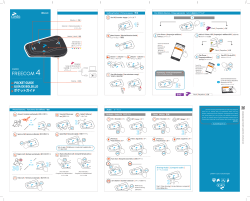
Cardo Systems Freecom 4 Pocket Guide
Бренд:
Cardo Systems
Категория:
Motorcycle Accessories
Размер:
1 MB
Страниц:
2
Язык(и):
Английский, Испанский, Японский
Открыть в новой вкладке

Cardo Systems Freecom 4 User Manual
Бренд:
Cardo Systems
Категория:
Motorcycle Accessories
Размер:
764 KB
Страниц:
25
Язык(и):
Английский
Открыть в новой вкладке
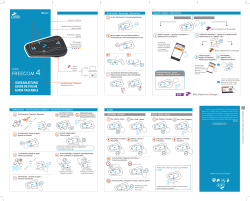
Cardo Systems Freecom 4 Benutzerhandbuch
Бренд:
Cardo Systems
Категория:
Motorcycle Accessories
Размер:
1 MB
Страниц:
2
Язык(и):
Немецкий, Английский, Французский, Итальянский
Открыть в новой вкладке

Cardo Systems Freecom 4 Benutzerhandbuch
Бренд:
Cardo Systems
Размер:
867 KB
Страниц:
26
Язык(и):
Немецкий
Открыть в новой вкладке

Cardo Systems Freecom 4 Manuel utilisateur
Бренд:
Cardo Systems
Категория:
Portable speakers
Размер:
789 KB
Страниц:
26
Язык(и):
Французский
Открыть в новой вкладке

Cardo Systems Freecom 4 Manuale utente
Бренд:
Cardo Systems
Размер:
873 KB
Страниц:
27
Язык(и):
Итальянский
Открыть в новой вкладке
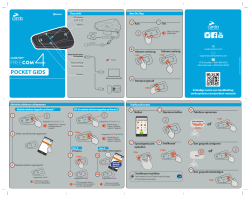
Cardo Systems Freecom 4 Handleiding
Бренд:
Cardo Systems
Категория:
Motorcycle Accessories
Размер:
4 MB
Страниц:
2
Язык(и):
Голландский
Открыть в новой вкладке

Cardo Systems Freecom 4 Manual do usuário
Бренд:
Cardo Systems
Размер:
782 KB
Страниц:
2
Язык(и):
Португальский
Открыть в новой вкладке
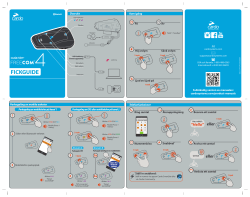
Cardo Systems Freecom 4 Användarmanual
Бренд:
Cardo Systems
Размер:
4 MB
Страниц:
2
Язык(и):
Шведский
Открыть в новой вкладке
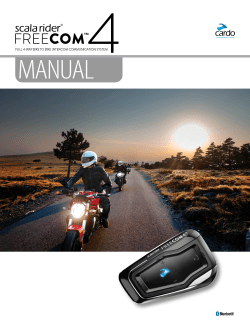
Cardo Systems Freecom 4 Användarmanual
Бренд:
Cardo Systems
Размер:
10 MB
Страниц:
39
Язык(и):
Шведский
Открыть в новой вкладке
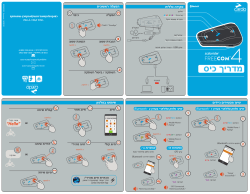
Cardo Systems Freecom 4 מדריך למשתמש
Бренд:
Cardo Systems
Размер:
4 MB
Страниц:
2
Язык(и):
Иврит
Открыть в новой вкладке
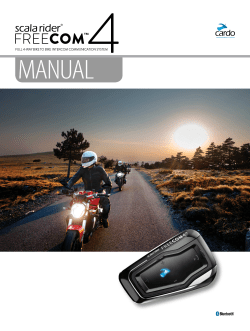
Cardo Systems Freecom 4 מדריך למשתמש
Бренд:
Cardo Systems
Размер:
10 MB
Страниц:
38
Язык(и):
Иврит
Открыть в новой вкладке
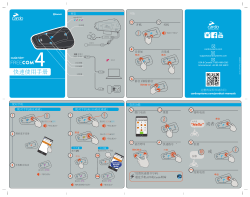
Cardo Systems Freecom 4 ユーザーマニュアル
Бренд:
Cardo Systems
Размер:
1 MB
Страниц:
2
Язык(и):
zh
Открыть в новой вкладке

Cardo Systems Freecom 4 ユーザーマニュアル
Бренд:
Cardo Systems
Размер:
983 KB
Страниц:
24
Язык(и):
Японский
Открыть в новой вкладке

Cardo Systems Freecom 4 Manual de usuario
Бренд:
Cardo Systems
Категория:
Portable speakers
Размер:
874 KB
Страниц:
27
Язык(и):
Испанский
Открыть в новой вкладке