

Руководство пользователя камеры
РУССКИЙ
• Перед началом работы с камерой обязательно ознакомьтесь
с данным Руководством, включая раздел «Меры предосторожности».
• Храните это Руководство в надежном месте, чтобы его можно было
использовать в будущем.
У вас уже есть продукция Canon? Зарегистрируйте свои продукты для доступа к программному обеспечению и обновлениям встроенного ПО, а также подпишитесь на рассылку, чтобы получать персонализированные советы и эксклюзивные предложения
Поддержка
Загружайте ПО, встроенное ПО и руководства, а также получите доступ к материалам поддержки для вашего продукта серии PowerShot.
Драйверы
Для выполнения подключения некоторых устройств к компьютеру может потребоваться драйвер. На этой вкладке вы найдете соответствующие драйверы для своего устройства или, в случае отсутствия драйверов, описание совместимости устройства с каждой операционной системой.
Полезная информация. Доступ к программному обеспечению, руководствам и другим материалам можно получить с помощью вкладок, расположенных выше.
Операционная система Обнаруженная операционная система
Программное обеспечение
Программное обеспечение загружать необязательно, но оно обеспечивает дополнительные функции и позволяет максимально эффективно пользоваться возможностями устройства. На этой вкладке можно просмотреть и загрузить доступное программное обеспечение для вашего устройства.
Операционная система Обнаруженная операционная система
Программное обеспечение
Программное обеспечение загружать необязательно, но оно обеспечивает дополнительные функции и позволяет максимально эффективно пользоваться возможностями устройства. На этой вкладке можно просмотреть и загрузить доступное программное обеспечение для вашего устройства.
Операционная система Обнаруженная операционная система
Руководства пользователя
Руководства для вашего устройства или программного обеспечения перечислены ниже.
Приложения и функции
На этой вкладке можно посмотреть доступные приложения и функции, совместимые с вашим устройством.
Встроенное ПО
Встроенное ПО — это постоянное программное обеспечение, установленное на устройстве и обеспечивающее его корректную работу. Canon может периодически выпускать обновления для этого встроенного ПО, и если обновление доступно, его можно загрузить ниже.
FAQs
На этой вкладке вы найдете ответы на часто задаваемые вопросы и другую полезную информацию, которая поможет вам в решении вопросов и проблем.
Важная информация
На этой вкладке вы найдете подборку часто задаваемых вопросов, которые, на наш взгляд, будут вам интересны.
Коды ошибок
Код ошибки или сообщение об ошибке может появиться на устройстве по различным причинам. С помощью поля поиска можно найти полезную информацию о конкретном коде ошибки, где будут указаны причина ошибки и необходимые действия по ее устранению.
Технические характеристики
Ниже приведены все технические характеристики данного продукта.
Полезные ссылки
-
-
Ремонт
Поиск центров по ремонту оборудования, полезная информация по процессу ремонта
-
Переработка
Узнайте больше о программе утилизации картриджей Canon
-
Canon ID
Регистрация продукта и управление аккаунтом Canon ID
-
Contents
-
Table of Contents
-
Troubleshooting
-
Bookmarks
Quick Links
Camera User Guide
• Make sure you read this guide, including the Safety
Precautions before using the camera.
• Store this guide safely so that you can use it in the future.
ENGLISH
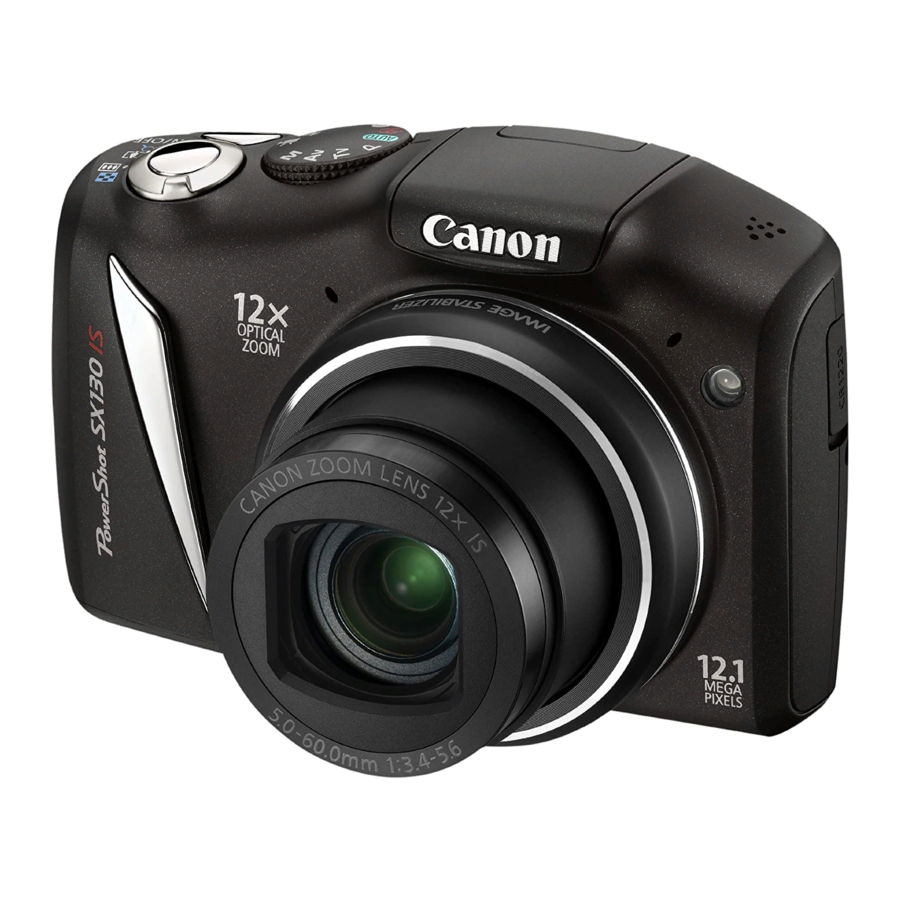
Related Manuals for Canon PowerShot SX130 IS
Summary of Contents for Canon PowerShot SX130 IS
-
Page 1
Camera User Guide • Make sure you read this guide, including the Safety Precautions before using the camera. • Store this guide safely so that you can use it in the future. ENGLISH… -
Page 2: Checking The Package Contents
Read when you want to use the included software. • A memory card is not included. • Adobe Reader is required to view the PDF manuals. AA Alkaline Batteries (x2) DIGITAL CAMERA Solution Disk Wrist Strap WS-800 Interface Cable IFC-400PCU Warranty “Canon Customer Card Support” Leaflet…
-
Page 3: Read This First
This camera’s warranty is only effective in the country of sale. If there is a problem with the camera while abroad, please return it to the country of sale before proceeding with a warranty claim to a Canon Customer Support Help Desk. For Canon Customer Support contacts, please see the customer support list supplied with your camera.
-
Page 4: What Do You Want To Do
Shoot ● Shoot, leaving it to the camera to make settings …23 ● Just take pictures (Easy mode)…28 Take good people shots Portraits (p. 58) Shoot various other scenes Landscape (p. 58) Shoot with special effects Super vivid colors (p. 61) ●…
-
Page 5
View ● Look at my pictures …26 ● Easy playback (Easy Mode)…28 ● Automatically play back pictures (slideshow)…113 ● Look at my pictures on a TV …117 ● Look at my pictures on a computer..32 ● Quickly search pictures …110 ●… -
Page 6: Table Of Contents
Table of Contents Chapters 1 – 3 explain the basic operations and frequently used functions of this camera. Chapters 4 onward explain the advanced functions, letting you learn more as you read each chapter. Checking the Package Contents …2 Read This First …3 What Do You Want to Do? …4 Table of Contents …6 Conventions Used in This Guide …9…
-
Page 7
Changing the Focusing Range (Macro)… 69 Changing the Recording Pixel Setting (Image Size) … 70 Changing the Compression Ratio (Image Quality) … 70 Changing the ISO Speed … 72 Adjusting the White Balance … 73 Continuous Shooting… 74 Changing the Tone of an Image (My Colors) … -
Page 8
Table of Contents Trimming…129 Adding Effects with the My Colors Function …130 Correcting the Brightness (i-Contrast)…131 Correcting the Red-Eye Effect …132 8 Printing… 133 Printing Images…134 Choosing Images for Printing (DPOF) …135 Print Chosen Images …138 9 Customizing Camera Settings … 139 Changing Camera Settings…140 Changing Shooting Function Settings…146… -
Page 9: Conventions Used In This Guide
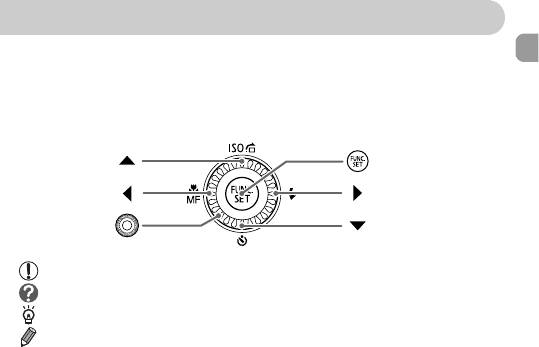
Conventions Used in This Guide • Icons are used in the text to represent the camera buttons and control dial. • Language that displays on the screen appears inside [ ] (square brackets). • The directional buttons, control dial, and FUNC./SET button are represented by the following icons.
-
Page 10: Safety Precautions
Safety Precautions • Before using the product, please ensure that you read the safety precautions described below. Always ensure that the product is used correctly. • The safety precautions noted on the following pages are intended to prevent injuries to yourself and other persons, or damage to the equipment. •…
-
Page 11
Caution • Be careful not to bang the camera or subject it to strong impacts or shocks when hanging it by the strap. • Be careful not to bump or push strongly on the lens. This could lead to injury or damage the camera. •… -
Page 12
Safety Precautions • Do not sit down with the camera in your pocket. Doing so may cause malfunctions or damage the screen. • When putting the camera in your bag, ensure that hard objects do not come into contact with the screen. •… -
Page 13: Getting Started
This chapter explains preparations before shooting, how to shoot in A mode, and then how to view and erase the images you take. The latter part of this chapter explains how to shoot and view images and movies in Easy mode, and how to transfer images to a computer. Attaching the Strap/Holding the Camera •…
-
Page 14: Compatible Memory Cards (Sold Separately)
• SD memory cards (2 GB and less)* • SDHC memory cards (more than 2 GB, up to and including 32 GB)* • SDXC memory cards (more than 32 GB)* • MultiMediaCards • MMCplus memory cards • HC MMCplus memory cards * This memory card complies with the SD standards.
-
Page 15: Insert The Batteries
Label What if [Memory card locked] appears on the screen? SD, SDHC and SDXC memory cards have a write-protect tab. If this tab is in the locked position, [Memory card locked] will appear on the screen and you will not be able to take or erase images.
-
Page 16: Removing The Memory Card
• The values for NiMH batteries are based on fully charged batteries. Compatible Batteries AA alkaline batteries and Canon AA NiMH batteries (sold separately) (pp. 36, 37). Can any other batteries be used? We cannot recommend the use of any other batteries than those listed above because performance varies widely.
-
Page 17
Battery Charge Indicator When battery charge is low, an icon and message will appear. If the batteries are charged, the icon and message will not appear. Display “Change the batteries” Approximate Number of Shots per Memory Card Memory Card Number of Shots •… -
Page 18: Setting The Date And Time
Setting the Date and Time The Date/Time settings screen will appear the first time the camera is turned on. Since the dates and times recorded into your images are based on these settings, be sure to set them. Reappearing Date/Time screen Set the correct date and time.
-
Page 19: Changing The Date And Time
Changing the Date and Time You can change the current date and time settings. Date/Time battery If the Date/Time screen appears even when the date/time have been correctly set, insert a new date/time battery (p. 152). Setting the Date and Time Display the menus.
-
Page 20: Setting The Display Language
Setting the Display Language You can change the language that displays on the screen. What if the clock appears when the m button is pressed? The clock will appear if too much time passes between pressing the m button and the n button in Step 2. If the clock appears, press the m button to remove the clock and repeat Step 2.
-
Page 21: Formatting Memory Cards
Formatting Memory Cards Before you use a new memory card or one that has been formatted in other devices, you should format the card with this camera. Formatting (initializing) a memory card erases all data on the memory card. As you cannot retrieve the erased data, exercise adequate caution before formatting the memory card.
-
Page 22: Pressing The Shutter Button
Pressing the Shutter Button Formatting or erasing data on a memory card merely changes the file management information on the card and does not ensure its contents are completely erased. Be careful when transferring or disposing of a memory card. When disposing of a memory card, take precautions such as physically destroying the card to prevent personal information leaks.
-
Page 23: Taking Pictures (Smart Auto)
Taking Pictures (Smart Auto) Since the camera can determine the subject and shooting conditions, you can let it automatically select the best settings for the scene and just shoot. The camera can also detect and focus on faces, setting the color and brightness to optimal levels.
-
Page 24
Taking Pictures (Smart Auto) AF Frame What if an icon appears in the upper right of the screen? The icon for the determined scene will appear in the upper right of the screen. For details on the icons that appear, see “Scene Icons” (p. 160). Focus. -
Page 25
What if… • What if the color and brightness of the images do not turn out as expected? The scene icon (p. 160) that appears on the screen may not match the actual scene. If this happens, try shooting in G mode (p. 68). •… -
Page 26: Viewing Images
Viewing Images You can view the images you have taken on the screen. Switching to Shooting mode Pressing the shutter button halfway, or turning the mode dial in Playback mode switches the camera to Shooting mode. Enter Playback mode. ● Press the 1 button.
-
Page 27: Erasing Images
Erasing Images You can choose and erase images one at a time. Please note that erased images cannot be recovered. Exercise adequate caution before erasing an image. Enter Playback mode. ● Press the 1 button. The last image you took will appear. Choose an image to erase.
-
Page 28: Shooting Or Viewing Images In Easy Mode
Shooting or Viewing Images in Easy Mode In Easy mode, operational instructions are displayed on the screen, and the camera is set so that only the buttons explained on this page and the zoom lever are functional. This prevents incorrect operation of the camera, allowing even beginners to take worry-free pictures.
-
Page 29: Shooting Movies
Shooting Movies The camera can automatically select all settings so that you can shoot movies just by pressing the shutter button. The audio will record in stereo. Remaining Time Enter E mode. Set the mode dial to E. ● Compose the shot. ●…
-
Page 30
Shooting Movies Elapsed Time Microphone Magnifying the subject while shooting Pressing the zoom lever while shooting will zoom in on or out from the subject. However, operation sounds will be recorded. Estimated Shooting Times Memory Card Shooting Time • Shooting times are based on default settings. •… -
Page 31: Viewing Movies
Viewing Movies You can view the movies you have shot on the screen. What if you can’t play back movies on a computer? • Install the included software (p. 33). • When watching a movie on a computer, frames may drop, it may not play smoothly, and the audio may stop suddenly depending on the computer’s capabilities.
-
Page 32: Transferring Images To A Computer For Viewing
You can use the included software to transfer images you have shot with the camera to a computer for viewing. If you are already using software included with another Canon-brand compact digital camera, install the software from the included CD-ROM, overwriting your current installation.
-
Page 33: Install The Software
Preparations Windows Vista and Mac OS X (v10.5) are used for these explanations. Transferring Images to a Computer for Viewing Install the Software. Windows Place the CD in the computer’s CD- ROM drive. ● Place the supplied CD-ROM (DIGITAL CAMERA Solution Disk) (p. 2) into the computer’s CD-ROM drive.
-
Page 34: Turn On The Camera
Turn on the camera. ● Press the 1 button to turn on the camera. Open CameraWindow. Windows ● Click [Downloads Images From Canon Camera using Canon CameraWindow]. CameraWindow will appear. ● If CameraWindow does not appear, click the [Start] menu and choose [All Programs], followed by [Canon Utilities], [CameraWindow] and [CameraWindow].
-
Page 35
For Windows 7, use the following steps to display CameraWindow. Click on the task bar. In the screen that appears, click the Choose [Downloads Images From Canon Camera using Canon CameraWindow] and click [OK]. Double click Transfer and View Images You can transfer images even without using the image transfer function in the included software by simply connecting your camera to a computer. -
Page 36: Accessories
Accessories Supplied with Camera Wrist Strap WS-800 DIGITAL CAMERA Solution Disk Stereo AV Cable AVC-DC400ST* AA Alkaline Batteries Interface Cable (x2) IFC-400PCU* *Also available for purchase separately. Memory Card USB card reader Windows/Macintosh Canon-Brand PictBridge Compliant Printers…
-
Page 37: Separately Sold Accessories
Separately Sold Accessories The following camera accessories are sold separately. Some accessories are not sold in some regions, or may no longer be available. Power Supplies You can also purchase NiMH Battery NB4-300, a set of four rechargeable AA NiMH batteries separately. Battery and Charger Kit CBK4-200 can also be used.
-
Page 38
Use of genuine Canon accessories is recommended. This product is designed to achieve excellent performance when used with genuine Canon accessories. Canon shall not be liable for any damage to this product and/or accidents such as fire, etc., caused by the malfunction of non-genuine Canon accessories (e.g., a leakage and/or explosion of a battery pack). -
Page 39: Learning More
Learning More This chapter explains the parts of the camera and what appears on the screen, as well as the basic operating instructions.
-
Page 40: Components Guide
Components Guide Microphone (p. 30) Lamp (pp. 57, 64, 77, 146) Lens Zoom Lever Shooting: i (Telephoto) / j (Wide Angle) (pp. 23, 29, 54) Playback: k (Magnify) / g (Index) (pp. 110, 115) Shutter Button (p. 22) Mode Dial Use the mode dial to change the Shooting mode.
-
Page 41: Control Dial
Screen (LCD Monitor) (pp. 42, 159, 161) 0 (Face Selector) Button (p. 84) 1 (Playback) Button (pp. 26, 109) DC IN (Power Input) Terminal (p. 153) A/V OUT (Audio/Video Output) / DIGITAL Terminal (pp. 34, 117, 134) b (Exposure Compensation) (p. 68) / a (Single Image Erase) Button (p.
-
Page 42: Screen Display
Switching the Display You can change the screen display using the l button. Refer to p. 159 for details on information that appears on the screen. Shooting Information Display Playback No Information Simple Information Display You can also switch the display by pressing the l button while the image displays right after shooting.
-
Page 43: Indicator
Overexposure Warning during Playback In “Detailed Information Display” (p. 42), overexposed areas of the image flash on the screen. Histogram during Playback High Dark Bright Indicator The indicator on the back of the camera (p. 41) will light or blink depending on the camera’s status.
-
Page 44: Func. Menu — Basic Operations
You can set commonly used functions using the ø menu. The menu items and options differ depending on the Shooting mode (pp. 162 – 165). Available Options Menu Items Choose a Shooting mode. ● Set the mode dial to the desired shooting mode.
-
Page 45: Menu — Basic Operations
MENU – Basic Operations Various functions can be set from the menus. The menu items are organized under tabs, such as for shooting (4) and playback (1). The options differ depending on the Shooting mode and the Playback mode (pp. 164 – 167). Display the menu.
-
Page 46: Changing The Sound Settings
Changing the Sound Settings You can silence or adjust the volume of camera sounds. Muting Sounds You can also mute camera sounds by holding down the l button and turning on the power. Adjusting the Volume Display the menu. Press the n button. ●…
-
Page 47: Changing The Screen Brightness
Changing the Screen Brightness The screen brightness can be changed in two ways. Using the Menu Display the menu. Press the n button. ● Choose [LCD Brightness]. Press the qr buttons to choose the 3 ● tab. ● Press the op buttons or turn the  dial to choose [LCD Brightness].
-
Page 48: Returning The Camera To Default Settings
Returning the Camera to Default Settings When you have mistakenly changed a setting, you can reset the camera to the default settings. Are there functions that cannot be reset? The [Date/Time] (p. 19) in the 3 tab, [Language] (p. 20), [Video System] •…
-
Page 49: Power Saving Function (Auto Power Down)
Power Saving Function (Auto Power Down) To save battery power, the screen turns off, and the camera shuts down automatically when it is not operated for a certain time. Power Saving during Shooting The screen will turn off approximately 1 minute after the camera is last operated.
-
Page 50: Low Level Memory Card Formatting
Low Level Memory Card Formatting Perform low level formatting when [Memory card error] appears, the camera does not operate properly, or you think that the recording/reading speed of a memory card has dropped. As you cannot retrieve the erased data, exercise adequate caution before formatting the memory card.
-
Page 51
• Low level formatting may take longer than standard formatting (p. 21), since all recorded data is erased. • You can stop a low level format of a memory card by choosing [Stop]. When stopping low level formatting, the data will be erased but the memory card can be used without problem. -
Page 53: Shooting With Commonly Used Functions
Shooting with Commonly This chapter explains how to shoot in different conditions, as well as how to use common functions, such as the self-timer. This chapter assumes the camera is set to A mode for “Zooming in • More Closely on Subjects (Digital Zoom)” (p. 54) to “Using the Self-Timer” (p.
-
Page 54: Zooming In More Closely On Subjects (Digital Zoom)
Zooming in More Closely on Subjects (Digital Zoom) You can use the digital zoom to zoom up to a maximum of approximately 48x and capture subjects that are too far away for the optical zoom to enlarge. The images may appear coarse, however, depending on the recording pixel setting (p.
-
Page 55
Digital Tele-Converter The focal length of the lens can be increased by approximately 1.5x or approximately 2.0x. This enables a faster shutter speed and less chance of camera shake than the zoom (including digital zoom) used by itself at the same zoom factor. -
Page 56: Inserting The Date And Time
Inserting the Date and Time You can insert the shooting date and time in the lower right corner of an image. Once inserted, however, they cannot be deleted. Be sure to check beforehand that the date and time are correctly set (p. 18). You can insert and print the shooting date in images which do not have an embedded date and time as follows.
-
Page 57: Using The Self-Timer
Using the Self-Timer The self-timer can be used to shoot a group photo that includes the photographer. The camera will shoot approximately 10 seconds after the shutter button is pressed. You can change the delay time and number of shots (p. 77). Press the p button.
-
Page 58: Shooting In Various Conditions
Shooting in Various Conditions The camera will select the necessary settings for the conditions in which you wish to shoot when you choose the matching mode. In C mode, images may appear coarse because the ISO speed (p. 72) is increased to match the shooting conditions.
-
Page 59: Shooting In Special Scenes
Shooting in Special Scenes The camera will select the necessary settings for the conditions in which you wish to shoot when you choose the matching mode. Enter K mode. Set the mode dial to K. ● Choose the Shooting mode. After pressing the m button, press the ●…
-
Page 60
Shooting in Special Scenes In t mode, attach the camera to a tripod to prevent the camera from moving and blurring the image. Additionally, you should set the [IS Mode] to [Off] when shooting with a tripod (p. 149). O Take shots of foliage (Foliage) ●… -
Page 61: Adding Effects And Shooting
Adding Effects and Shooting Since you may not achieve the expected results with images shot in modes, try taking some test shots first. Shooting in Special Scenes Shoot images with vivid colors (Super Vivid) ● Lets you take shots with vivid, intense colors.
-
Page 62: Detecting A Smile And Shooting
Detecting a Smile and Shooting The camera will shoot, even without pressing the shutter button, when it detects a smile. What if a smile is not detected? Smiles are easier to detect if the subject faces the camera, and opens their mouth enough to show some teeth when smiling.
-
Page 63: Using The Wink Self-Timer
Using the Wink Self-Timer Point the camera at a person and press the shutter button fully. The camera will shoot approximately two seconds after it detects a wink. What if a wink is not detected? • Wink a bit slowly. •…
-
Page 64: Using The Face Self-Timer
Using the Face Self-Timer • Shutting both eyes will also be detected as a wink. • If a wink is not detected, the shutter will release approximately 15 seconds later. • If there are no people in the shot when the shutter button is pressed fully, the camera will shoot after a person enters the shot and winks.
-
Page 65: Shoot With The Effects Of A Fish-Eye Lens (Fish-Eye Effect)
Shoot with the Effects of a Fish-Eye Lens (Fish-eye Effect) Changing the number of shots in Step 1, press the op buttons. After choosing Even if your face is not detected after joining the subjects, the shutter will release approximately 15 seconds later. Shoot with the Effects of a Fish-Eye Lens (Fish-eye Effect) Lets you shoot with the distorting effect of a fish-eye lens.
-
Page 66: Take Shots That Look Like A Miniature Model (Miniature Effect)
Take Shots That Look Like a Miniature Model (Miniature Effect) Blurs chosen portions in the top and bottom of an image to produce the effect of a miniature model. If you press the m button in Step 2, the horizontal/vertical orientation of •…
-
Page 67: Choosing Settings Yourself
Choosing Settings Yourself In this chapter you will learn how to use the various functions in G mode to progressively advance your shooting skills. This chapter assumes that you have set the mode dial to G. • G stands for Program AE. •…
-
Page 68: Shooting In Program Ae
Shooting in Program AE You can choose the settings for various functions to suit your preferences. AE stands for Auto Exposure. The focusing range is approximately 1 cm – infinity (0.4 in. – infinity) at maximum wide angle (j), and approximately 1 m – infinity (3.3 ft. – infinity) at maximum telephoto (i).
-
Page 69: Turning The Flash On
Turning the Flash On You can make the flash fire every time you shoot. The effective flash range is approximately 50 cm – 3.0 m (1.6 – 9.8 ft.) at maximum wide angle (j), and approximately 1.0 – 2.0 m (3.3 – 6.6 ft.) at maximum telephoto (i). What if the setting screen does not appear even when you press r? The flash is lowered.
-
Page 70: Changing The Recording Pixel Setting (Image Size)
Changing the Recording Pixel Setting (Image Size) e will turn gray in the area that displays in the yellow bar underneath the zoom bar, and the camera will not focus. Changing the Recording Pixel Setting (Image Size) You can choose from five recording pixel (image size) settings. If you choose , you cannot use Digital Zoom (p.
-
Page 71
(Small) 0.3M/640×480 (Widescreen) 4000×2248 • The values in the table are measured according to Canon standards and may change depending on the subject, memory card and camera settings. Approximate Values for Paper Size A3 – A5 5″ x 7″ Postcard size 3.5″… -
Page 72: Changing The Iso Speed
Automatically adjusts the ISO speed to the Shooting mode and shooting conditions. Fine weather conditions, outdoor shooting. Cloudy, twilight High Nightscapes, dark interiors Changing the ISO speed • Lowering the ISO speed results in sharper images, but there may be an increased chance of image blurring in certain shooting conditions.
-
Page 73: Adjusting The White Balance
Adjusting the White Balance The white balance (WB) function sets the optimal white balance for natural looking colors to match the shooting conditions. Automatically sets the optimal white balance for the shooting Auto conditions. Day Light Fine weather conditions, outdoor shooting Cloudy Cloudy, shady, twilight conditions Tungsten…
-
Page 74: Continuous Shooting
As long as you hold the shutter button down, the camera will shoot continuously. Maximum Speed Mode (Approx. images/sec.) Continuous Continuous Shooting AF Continuous Shooting LV* * When in t (p. 60), shooting with the AF lock (p. 81) or manual focus modes (p. 86), will change to •…
-
Page 75: Changing The Tone Of An Image (My Colors)
Changing the Tone of an Image (My Colors) You can change the tone of an image to sepia or black and white when shooting. My Colors Off Vivid Neutral Sepia Positive Film Lighter Skin Tone Darker Skin Tone Vivid Blue Vivid Green Vivid Red Custom Color…
-
Page 76: Using The Self-Timer To Prevent Camera Shake
Using the Self-Timer to Prevent Camera Shake Custom Color The contrast, sharpness, color saturation, red, green, blue, and skin tones in an image can be chosen and set at 5 different levels. Using the Self-Timer to Prevent Camera Shake The camera will shoot approximately two seconds after the shutter button is pressed, preventing any camera shake that occurs when pressing the shutter button.
-
Page 77: Customizing The Self-Timer
Customizing the Self-Timer You can set the time delay (0 – 30 seconds) and the number of shots (1 – 10 shots). What if the number of shots is set to two or more shots? • Exposure and white balance settings are set with the first shot. •…
-
Page 78: Shooting Using A Tv Monitor
Shooting Using a TV Monitor You can use a TV to display the camera screen content while shooting. • To connect the camera to a TV, follow the Steps in “Viewing Images on a TV” (p. 117). • Shooting procedures are the same as when using the camera screen. Changing the Composition with the Focus Lock While you keep the shutter button pressed halfway, the focus and exposure…
-
Page 79: Getting More Out Of Your Camera
Getting More Out of Your This chapter serves as the advanced version of Chapter 4 and explains how to take pictures using various functions. This chapter assumes that you have set the mode dial to G. • • The sections “Setting the Shutter Speed” (p. 89), “Setting the Aperture Value”…
-
Page 80: Changing The Af Frame Mode
Changing the AF Frame Mode You can change the AF (Auto Focus) frame mode to match the scene you want to shoot. Center The AF frame is locked to the center. This is effective for focusing on a specific point. You can reduce the AF frame size Press the n button to choose [AF Frame Size] in the 4 tab, then choose •…
-
Page 81: Shooting With The Af Lock
• If a face is not detected and only gray frames (no white frame) appear, an AF Frame will appear in the center of the screen when you press the shutter button halfway. • The AF frame will appear in the center of the screen if you press the shutter button halfway when Servo AF (p.
-
Page 82: Magnifying The Focal Point
Magnifying the Focal Point If you press the shutter button halfway, the AF frame will magnify and you can check the focus. What if the display does not magnify? The display will not appear magnified in [Face Detect] if a face cannot be detected or is too big in relation to the screen.
-
Page 83: Shooting With Servo Af
Shooting with Servo AF While the shutter button is pressed halfway, the focus and exposure will continue to adjust, allowing you to take pictures of moving subjects without missing a shot. • The camera may not be able to focus in some conditions. •…
-
Page 84: Choosing The Person To Focus On (Face Select)
Choosing the Person to Focus On (Face Select) You can choose a specific person’s face to focus on and then shoot. Set the AF frame to [Face Detect] (p. 80). Enter Face Select mode. ● Point the camera toward the face of the subject and press the 0 button.
-
Page 85: Changing The Metering Method
Changing the Metering Method You can change the metering method (brightness measuring function) to match the shooting conditions. Suitable for standard shooting conditions, including back lit shots. Evaluative Automatically adjusts the exposure to match the shooting conditions. Center Averages the light metered from the entire frame, but gives greater Weighted Avg.
-
Page 86: Shooting In Manual Focus Mode
Shooting in Manual Focus Mode You can use manual focus when auto focus is not possible. If you press the shutter button halfway after roughly focusing manually, you can fine tune the focus. MF indicator • You cannot change the AF frame mode or size (p. 80) while focusing manually.
-
Page 87: Shooting With The Ae Lock
Shooting with the AE Lock You can lock the exposure and shoot, or set the focus and exposure separately to shoot. AE stands for “Auto Exposure”. Program Shift If you lock the exposure and turn the  dial, you can change the shutter speed and aperture value combination.
-
Page 88: Shooting With Slow Synchro
Shooting with Slow Synchro You can make the main subject, such as people, appear bright by having the camera provide the appropriate illumination with the flash. At the same time, you can use a slow shutter speed to brighten the background that the light from the flash cannot reach.
-
Page 89: Setting The Shutter Speed
Setting the Shutter Speed You can set the shutter to the speed at which you want to shoot. The camera will set the appropriate aperture value for the shutter speed you set. M stands for “Time value”. Available Shutter Speeds 15″, 13″, 10″, 8″, 6″, 5″, 4″, 3″2, 2″5, 2″, 1″6, 1″3, 1″, 0″8, 0″6, 0″5, 0″4, 0″3, 1/4, 1/5, 1/6, 1/8, 1/10, 1/13, 1/15, 1/20, 1/25, 1/30, 1/40, 1/50, 1/60, 1/80, 1/100, 1/125, 1/160, 1/200, 1/250, 1/320, 1/400, 1/500, 1/640, 1/800, 1/1000, 1/1250, 1/1600, 1/2000, 1/2500…
-
Page 90: Setting The Aperture Value
Setting the Aperture Value You can set the aperture to a value at which you want to shoot. The camera will set the appropriate shutter speed for the aperture value you set. B stands for “Aperture value”, which refers to the size of the aperture opening inside the lens.
-
Page 91: Setting The Shutter Speed And Aperture Value
Setting the Shutter Speed and Aperture Value You can manually set the shutter speed and aperture to shoot images. D stands for “Manual”. Aperture Value Shutter Speed Standard Exposure Level Exposure Level Exposure Level Indicator • The standard exposure is calculated according to the metering method chosen (p.
-
Page 92: Correcting The Brightness And Shooting (I-Contrast)
Correcting the Brightness and Shooting (i-Contrast) The camera can detect areas in the scene, such as faces or backgrounds, that are too bright or dark and automatically adjust them to the optimum brightness when shooting. Also, when the overall image is lacking in contrast, the camera will automatically correct the image for a sharper impression when shooting.
-
Page 93: Red-Eye Correction
Red-Eye Correction You can automatically correct red-eye that occurs in images taken with the flash. Red-eye correction may be applied to areas other than red eyes. For example, when red make-up has been used around eyes. • You can correct recorded images (p. 131). With the flash raised, if you press the r button and immediately press the •…
-
Page 94: Adjusting The Flash Exposure Compensation
Adjusting the Flash Exposure Compensation Just like with Exposure Compensation (p. 68), you can adjust the exposure ±2 stops in 1/3-stop increments when using the flash. Safety FE The camera automatically changes the shutter speed or aperture value when the flash fires to avoid overexposing and blowing out the highlights in the scene.
-
Page 95: Adjusting The Flash Output
Adjusting the Flash Output In D mode, you can choose 3 levels of flash output. You can also set the flash output. Press the n button and choose • [Flash Settings] (p. 93) from the 4 tab. Then choose [Flash Output] and press the qr buttons to choose a setting.
-
Page 96: Changing The Color And Shooting
Changing the Color and Shooting You can change the look of an image when shooting. However, depending on shooting conditions the image may become coarse, or the colors may not come out as expected. Color Accent You can choose to retain a single color and change the rest to black and white in a composition.
-
Page 97
Color Swap You can swap one color in an image for another when recording it. You can only swap one color. Changing the Color and Shooting Choose Y. Follow Steps 1 – 2 on p. 59 to choose Y. ● Press the l button. -
Page 98
Changing the Color and Shooting • Using the flash may cause unexpected results in this mode. • Under some conditions, the image may appear coarse. Specify the range of colors to be swapped. Press the op buttons or turn the  dial ●… -
Page 99: Using Various Functions For Shooting Movies
Using Various Functions for This chapter serves as a more advanced version of the “Shooting Movies” and “Viewing Movies” sections in Chapter 1, and explains how to use various functions for shooting and viewing movies. This chapter assumes that the mode dial has been set to E mode. •…
-
Page 100: Changing The Movie Mode
Changing the Movie Mode You can choose between four Movie modes. E Standard Normal mode. Miniature Effect You can shoot movies that look like a miniature model (p. 101). > Color Accent These Shooting modes let you change all colors except the chosen color to black and white, or exchange the chosen color z Color Swap for another color, when shooting.
-
Page 101: Shoot Movies That Look Like A Miniature Model (Miniature Effect)
Shoot Movies That Look Like a Miniature Model (Miniature Effect) You can shoot movies that look like moving miniature models. You create the miniature model effect by choosing the upper and lower portions of the scene that will be blurred, and the playback speed, which makes people and objects in the scene move quickly during playback.
-
Page 102: Changing The Image Quality
Memory Card Capacity Image Quality • Based on Canon’s testing standards. • Recording will automatically stop when the clip file size reaches 4 GB, or when the recording time reaches approximately 10 minutes when shooting in approximately 1 hour when shooting in •…
-
Page 103: Ae Lock/Exposure Shift
AE Lock/Exposure Shift You can lock the exposure or change it in 1/3 steps within a range of ±2 before shooting. Focus. ● Press the shutter button halfway to focus. Lock the exposure. ● After releasing the shutter button, press the o button to lock the exposure.
-
Page 104: Other Shooting Functions
Other Shooting Functions The following functions can be used in the same way as for still images. Functions marked with a * can be used in the same way as for still images , > or z. when in • Zooming in More Closely On Subjects* The optical and digital zoom (p.
-
Page 105: Playback Functions
Playback Functions The following functions can be used in the same way as for still images. • Erasing Images (p. 27) • Quickly Searching Images (p. 110) • Viewing Images in Filtered Playback (p. 111) • Viewing Slideshows (p. 113) •…
-
Page 106: Editing
Editing You can trim the beginnings and ends of recorded movies. Movie Editing Panel Movie Editing Bar Choose *. ● Follow Steps 1 – 3 on p. 31 to choose *, then press the m button. The movie editing panel and the movie editing bar will appear.
-
Page 107
• When [Overwrite] is chosen in Step 4, the unedited movie is overwritten with the edited movie, erasing the original. • When there is not enough space left on the memory card, only [Overwrite] can be chosen. • If the batteries are depleted partway through editing, the edited movie clips may not be saved. -
Page 109: Using Various Playback And Editing Functions
Using Various Playback and This chapter explains various ways to play back and edit images. Press the 1 button to enter Playback mode before operating the camera. • • It may not be possible to play back or edit images that have been edited on a computer, had their file name changed, or have been taken on a different camera.
-
Page 110: Quickly Searching Images
Quickly Searching Images Searching Images Using Index Display Displaying multiple images at the same time lets you quickly find the image you want. Searching Images Using the Control Dial Turning the control dial will display images in a line letting you quickly search them.
-
Page 111: Viewing Images In Filtered Playback
Viewing Images in Filtered Playback When there are many images on the memory card, you can filter and display them by a specified filter. You can also protect (p. 118) or delete (p. 122) all images at once while filtered. Jump to Favorites Jump Shot Date Jump to My Category…
-
Page 112
Viewing Images in Filtered Playback What if you can’t choose a filter? Filters that do not have any corresponding images cannot be chosen. Filtered playback In filtered playback (Step 2), you can view filtered images with “Quickly Searching Images” (p. 110), “Viewing Slideshows” (p. 113), and “Magnifying Images” (p. -
Page 113: Viewing Slideshows
Viewing Slideshows You can automatically play back images recorded to a memory card. If you press the qr buttons or turn the  dial during playback, the image • will switch. If you keep the qr buttons pressed, you can fast-forward through images.
-
Page 114: Checking The Focus
You can magnify the area of a recorded image that was inside the AF Frame, or the area of a face that was detected, to check the focus. Press the l button to switch to the focus check display (p. 42). ●…
-
Page 115: Magnifying Images
Magnifying Images Approximate Location of Displayed Area In magnified display, pressing the n button restores single image playback. Changing Image Transitions You can choose from three transition effects when switching between images in single image playback. Move the zoom lever toward k. ●…
-
Page 116: Displaying Various Images (Smart Shuffle)
Displaying Various Images (Smart Shuffle) The camera will choose four images based on the displayed image. If you choose one of those images, the camera will choose four more images letting you enjoy the playing back of images in an unexpected order. This will work best if you take many shots of various scenes.
-
Page 117: Viewing Images On A Tv
Viewing Images on a TV Using the supplied stereo AV cable (p. 2), you can connect the camera to a TV to view images you have shot. White Yellow Yellow White What if the images don’t display correctly on the TV? Images will not display correctly if the camera’s video output setting (NTSC/PAL) does not match the TV system.
-
Page 118: Protecting Images
Protecting Images You can protect important images so that they cannot be accidentally erased with the camera (pp. 27, 122). Choose a selection method If you format the memory card (pp. 21, 50), protected images will also be erased. Protected images cannot be erased with the camera’s erase function. To erase an image, cancel protection settings first.
-
Page 119
Choosing Images Individually If you switch shooting modes or turn off the power before performing the operations in Step 3, images will not be protected. Choose [Select]. ● Follow Step 2 on p. 118 to choose [Select], then press the m button. Choose images. -
Page 120
Protecting Images Select Range Choose [Select Range]. ● Follow Step 2 on p. 118 to choose [Select Range], then press the m button. Choose a starting image. Press the m button. ● Press the qr buttons or turn the  dial to ●… -
Page 121
Choose images with the  dial You can also choose the first or last image by turning the  dial when the upper screen in Steps 2 and 3 is displayed. Choose All Images You can unlock groups of protected images if you choose [Unlock] in Step 4, while in [Select Range] or Step 2 while in [All Images]. -
Page 122: Erasing All Images
You can choose images and then erase them in groups. Since erased images cannot be recovered, exercise adequate caution before erasing. Protected images (p. 118) cannot be erased. Choosing a Selection Method Choosing Images Individually Choose [Erase]. ● Press the n button to choose [Erase] in the 1 tab, then press the m button.
-
Page 123
Select Range Choose All Images Erase. If you press the n button, a ● confirmation screen will appear. ● Press the qr buttons or turn the  dial to choose [OK], then press the m button. Choose [Select Range]. ● Follow Step 2 on p. -
Page 124: Tagging Images As Favorites
When you tag images as favorites, you can easily categorize just those images. You can also filter out just those images for viewing, protecting or erasing (p. 111). If you switch Shooting modes or turn off the power before making the setting in Step 3, images will not be tagged as favorites.
-
Page 125: Organizing Images By Category (My Category)
Organizing Images by Category (My Category) You can organize images into categories. You can display the images in a category in Filtered Playback (p. 111) and process all images at once by using the functions below. • Viewing Slideshows (p. 113), Protecting Images (p. 118), Erasing All Images (p.
-
Page 126
Organizing Images by Category (My Category) If you switch Shooting modes or turn off the power before making the setting in Step 3, images will not be tagged as My Category. Select Range Choose a category. Press the op buttons to choose a ●… -
Page 127: Rotating Images
If you choose [Deselect] in Step 4, you can deselect all of the images in the [Select Range] category. Rotating Images You can change the orientation of an image and save it. Movies with a resolution of Choose [Rotate]. Press the n button to choose [Rotate] ●…
-
Page 128: Resizing Images
Resizing Images You can resize images to a lower pixel setting and save the resized image as a separate file. • You cannot resize an image to a larger size. • Images recorded at a pixel setting of 3 cannot be edited. Choose [Resize].
-
Page 129: Trimming
Trimming You can cut out a portion of a recorded image and save it as a new image file. Trimming Area Trimming Area Display Recorded pixels after trimming • Images recorded at a pixel setting of (p. 128) cannot be edited. •…
-
Page 130: Adding Effects With The My Colors Function
Adding Effects with the My Colors Function You can change the color of an image and save it as a separate image. Refer to p. 75 for details on each menu item. If you repeatedly change the color of the same image, the quality will gradually deteriorate and you may not achieve the expected color.
-
Page 131: Correcting The Brightness (I-Contrast)
Correcting the Brightness (i-Contrast) The camera can detect areas in an image, such as faces or backgrounds, that are too dark and automatically adjust them to the optimum brightness. Also, when the overall image is lacking in contrast, the camera will automatically correct the image for a sharper impression.
-
Page 132: Correcting The Red-Eye Effect
Correcting the Red-Eye Effect You can automatically correct red eyes in images and save them as new files. • Some images may not be corrected properly. • When [Overwrite] in Step 4 is chosen, the uncorrected image is overwritten with the corrected data, erasing the original image. •…
-
Page 133: Printing
Printing This chapter explains how to choose images for printing, and print using a Canon-brand PictBridge compliant printer (sold separately) (p. 38). Please also refer to the Personal Printing Guide. Canon-Brand PictBridge Compliant Printers…
-
Page 134: Printing Images
Printing Images You can easily print the pictures you take by connecting the camera to a PictBridge compliant printer (sold separately) using the supplied interface cable (p. 2). Turn off the camera and printer. Connect the camera to the printer. ●…
-
Page 135: Choosing Images For Printing (Dpof)
• Refer to p. 38 for Canon-brand Pictbridge compliant printers. • Index printing (p. 136) is not available on certain Canon-brand PictBridge compliant printers (sold separately). Choosing Images for Printing (DPOF) You can choose up to 998 images on a memory card for printing and specify settings such as the number of copies so that they can be printed together (p.
-
Page 136
Choosing Images for Printing (DPOF) Standard Print Type Index Both Date File No. Clear DPOF data • Some printers or photo developer services may not be able to reflect all of the settings in the prints. • may appear when using a memory card with print settings set by a different camera. -
Page 137
Select Range Set All Images to Print Once Choosing Images for Printing (DPOF) ● If you choose images in [Index], appears on the screen. Pressing the m button again will deselect the image and will disappear. Set the number of prints. ●… -
Page 138: Print Chosen Images
Print Chosen Images Clearing All Selections Print Chosen Images You can print images added to the print list (pp. 135 – 137) by connecting the camera to a PictBridge compliant printer. Number of copies to print Make print settings. Press the qr buttons or turn the  dial to ●…
-
Page 139: Customizing Camera Settings
Customizing Camera Settings You can customize various settings to suit your shooting preferences. The first part of this chapter explains convenient and commonly used functions. The latter part explains how to change shooting and playback settings to suit your purposes.
-
Page 140: Changing Camera Settings
Changing Camera Settings You can customize convenient and commonly used functions from the 3 tab (p. 45). Changing Sounds You can change each of the camera’s operation sounds. Turning off Hints & Tips When you choose an item in the ø menu (p. 44) or MENU (p. 45), a description of the function (hints and tips) is displayed.
-
Page 141
Changing the Start-up Screen You can change the start-up screen that appears when you turn on the camera. Registering Recorded Images as the Start-up Screen When you press the 1 button and set the camera to Playback mode, you can register an image. -
Page 142
Changing Camera Settings Register the start-up image or sounds with the included software The dedicated operation sounds and start-up images on the included software can be registered to the camera. Refer to the Software Guide for details. Changing the File Number Assignment Images you shoot are automatically assigned file numbers in the order they were taken, from 0001 –… -
Page 143
Creating Folders by Shooting Date Images are saved into folders created each month, however, you can also create folders by shooting date. Changing the Lens Retract Time For safety reasons, the lens retracts about 1 minute after pressing the 1 button when in a Shooting mode (p. -
Page 144
Changing Camera Settings Setting the Screen Shut-Off Time You can adjust the time the screen takes to shut off automatically (p. 49). This also works when [Auto Power Down] is set to [Off]. Using the World Clock When traveling abroad, you can record images with local dates and times simply by switching the time zone setting. -
Page 145
If you change the date or time in the time and date will automatically change. Changing Distance Units You can change the distance units that display in the zoom bar (p. 23) and the MF indicator (p. 86) from m/cm to ft/in. Changing Camera Settings Set the world time zone. -
Page 146: Changing Shooting Function Settings
Changing Shooting Function Settings If you set the mode dial to G, you can change the settings in the 4 tab (p. 45). Before attempting to shoot using a function explained in this chapter in modes other than G mode, check if the function is available in those modes (pp.
-
Page 147
Turning Off the Red-Eye Reduction Function The red-eye reduction lamp lights in order to reduce the red-eye effect that occurs when shooting in dark conditions with the flash. You can turn off this function. Changing the Image Display Time Right After Shooting You can change the length of time the images display right after shooting. -
Page 148
Changing Shooting Function Settings Changing the Way the Image Displays Right After Shooting You can change the way the image displays right after shooting. Displaying the Overlay You can display gridlines for vertical and horizontal guidance, or a 3:2 guide to confirm the printable area for postcard size prints. -
Page 149: Changing Playback Function Settings
Changing the IS-Mode Settings • If camera shake is too strong, attach the camera to a tripod. You should also set the IS Mode to [Off] when the camera is attached to a tripod. • When using [Panning], hold the camera horizontally to shoot. Image stabilization does not work when the camera is held vertically.
-
Page 151: Useful Information
Useful Information This chapter introduces how to change the date/time battery, the use of the AC adapter kit (sold separately), troubleshooting tips, and contains lists of functions and items that appear on the screen.
-
Page 152: Replacing The Date/Time Battery
Replacing the Date/Time Battery The life of the date/time battery (back-up battery) is approximately 7 years. If the Date/Time settings screen appears every time the camera is turned on, replace the date/time battery with a new one (CR1220). Turn off the camera. Remove the date/time battery holder.
-
Page 153: Using Household Power
Using Household Power If you use AC Adapter Kit ACK800 (sold separately), you can use the camera without worrying about how much charge is left in the batteries. Do not unplug the plug or power cord with the camera turned on. This could erase images you have taken or damage the camera.
-
Page 154: Troubleshooting
Troubleshooting If you think there is a problem with the camera, first check the following. If the items below do not solve your problem, contact a Canon Customer Support Help Desk as listed on the included customer support list. Power You pressed the power button, but nothing happened.
-
Page 155: Image Is Blurred
Image is blurred. • Press the shutter button halfway to focus on the subject, then press fully to shoot (p. 22). • Shoot the subject within the focusing distance (p. 168). • Set the [AF-assist Beam] to [On] (p. 146). •…
-
Page 156
Troubleshooting Recording images to the memory card takes a long time, or continuous shooting slows down. • Perform a low-level format of the memory card in the camera (p. 50). Cannot make settings for shooting functions or ø menu. • The items in which settings can be made differ depending on the shooting mode. -
Page 157: List Of Messages That Appear On The Screen
Memory card error (p. 21) • If the same message appears even when a formatted memory card is installed in the correct direction, contact a Canon Customer Support Help Desk (p. 50). Insufficient space on card • There is not enough free space on the memory card to shoot (pp. 23, 28, 31, 53, 67, 99) or edit images (pp.
-
Page 158
If an error code appears directly after taking a picture, the shot may not have been recorded. Check the image in Playback mode. • If this error code reappears, note the Error number (Exx) and contact a Canon Customer Support Help Desk as there may be a problem with the camera. -
Page 159: Information Displayed On The Screen
Information Displayed on the Screen Shooting (Information Display) Battery Charge Indicator (p. 17) Camera Orientation* White Balance (p. 73) My Colors (p. 75) Drive Mode (p. 74) Grid Lines (p. 148) Camera shake warning (p. 25) Metering Method (p. 85) Compression (Image Quality) (p.
-
Page 160: Scene Icons
Information Displayed on the Screen Scene Icons In A mode, the camera displays an icon for the scene it has determined and then automatically focuses and selects the optimum settings for subject brightness and color. Subject Background Bright Backlit Including Blue Skies Backlit Sunsets…
-
Page 161
Playback (Detailed Information Display) My Category (p. 125) Shooting Mode (p. 162) ISO Speed (p. 72), Playback Speed (Movies) (p. 101) Exposure Compensation Amount (p. 68), Exposure Shift Amount (p. 103) White Balance (p. 73) Histogram (p. 43) Image Editing (pp. 128 – 132) Compression (Image Quality) (p. -
Page 162: Functions Available In Each Shooting Mode
Functions Available in Each Shooting Mode Function Exposure Compensation (p. 68)/Exposure Shift (p. 103) AE Lock/FE Lock (pp. 87, 103) ISO Speed (p. 72) Self-Timer (pp. 57, 76, 77) Flash (pp. 69, 88) Program Shift (p. 87) Focusing Range (p. 69) AF Lock (p.
-
Page 163
I J C — — — — — — — — — — — — — — — — — — — — — — — — — — — — — — — — — — — — — —… -
Page 164: Menus
Menus 4 Shooting Menu Function AF Frame (p. 80) AF Frame Size (p. 80) Digital Zoom (p. 54) AF-Point Zoom (p. 82) Servo AF (p. 83) Continuous AF (p. 146) AF-assist Beam (p. 146) MF-Point Zoom (p. 86) Safety MF (p. 86) Flash Settings (pp.
-
Page 165
I J C — — — — — — — — — — — — — — — — — — — — — — — — — — — — — — — — — — — — — —… -
Page 166
Menus 3 Set up Menu Item Mute Volume Sound Options Hints & Tips LCD Brightness Start-up Image Format File Numbering Create Folder Lens Retract Power Saving Time Zone Date/Time Distance Units Video System Language Reset All * Default setting Content On/Off* Set all operation sounds (5 levels). -
Page 167: Playback Menu
1 Playback Menu Item Smart Shuffle Slideshow Erase Protect Rotate Favorites My Category i-Contrast Red-Eye Correction Trimming Resize My Colors Scroll Display Resume Transition * Default setting 2 Print Menu Item Print Select Images & Qty. Select Range Select All Images Clear All Selections Print Settings Content…
-
Page 168: Specifications
Specifications Image Sensor Camera Effective Pixels … Approx. 12.1 million pixels Lens Focal Length … 12x zoom: 5.0 (W) – 60.0 (T) mm Focusing Range… 1 cm (0.4 in.) – infinity (W), 1 m (3.3 ft.) – infinity (T) Image Stabilizer System … Lens-shift type Imaging Processor …
-
Page 169
Shooting Modes…M, Av, Tv, P, Auto, Easy, Portrait, Landscape, Kids&Pets, Digital Zoom …Still images/Movies: Approx. 4x (up to approx. 48x in Continuous Shooting Mode …Normal, AF, LV Speed (Normal)…Approx. 1.0 shots/sec. (In P mode) Number of Shots (Approximate) (CIPA compliant) …Alkaline: Approx. 130 images Recording Media …SD memory card, SDHC memory card, SDXC memory File Format …Design rule for Camera File system, DPOF (Version 1.1) Data Type… -
Page 170
Dimensions… 113.3 x 73.2 x 45.8 mm (4.46 x 2.88 x 1.80 in.) Weight (CIPA compliant) … Approx. 308 g (10.9 oz.) (Including the battery and • All data is based on tests by Canon. • Camera specifications or appearance are subject to change without notice. -
Page 171: Handling Precautions
• Use a commercially available blower brush to remove dust from the lens. For stubborn dirt contact a Canon Customer Support Help Desk as listed on the customer support leaflet supplied with your camera. • When you move the camera rapidly from cold to hot temperatures, condensation may form on the internal or external surfaces of the camera.
-
Page 172: Index
Numerics 3:2 Guide… 148 AC Adapter Kit… 37, 153 Accessories … 37 AE Lock … 87, 103 AF Frames… 24, 80 Focus AF Lock … 81 AF-Point Zoom … 82 AUTO Mode (Shooting Mode)… 23, 40 Av (Shooting Mode)… 90 Battery …
-
Page 173
AF-Point Zoom… 82 Face Select… 84 Servo AF… 83 Focus Check… 114 Focus Lock … 78 Focusing Range Macro… 69 Manual Focus … 86 Foliage (Shooting Mode) … 60 Format Memory Cards, Formatting Formatting (Memory Card) … 21, 50 FUNC. Menu LIst … -
Page 174
Index Rotate… 127 SCN (Shooting Mode) … 59 Screen Display Language… 20 Information Display… 159, 161 Menu FUNC. Menu, Menu Switching the Display … 42 SD/SDHC/SDXC Memory Card Cards Self-Timer 10 Second Self-Timer… 57 Changing Delay and Number of Shots … 77 Face Self-Timer (Shooting Mode) … -
Page 175
MEMO… -
Page 176
MEMO… -
Page 177
MEMO… -
Page 178
MEMO… -
Page 179
MEMO… -
Page 180
• Reprinting, transmitting, or storing in a retrieval system any part of this guide without the permission of Canon is prohibited. • Canon reserves the right to change the contents of this guide at any time without prior notice. • Illustrations and screenshots in this guide may differ slightly from the actual equipment.
Already a Canon Owner? Register your product for software and firmware updates and opt in to receive personalised tips and exclusive offers
Support
Download drivers, software, firmware and manuals and get access to troubleshooting resources for your PowerShot product.
Drivers
For certain products, a driver is necessary to enable the connection between your product and a computer. On this tab, you will find the applicable drivers for your product or in the absence of any drivers, an explanation of your product’s compatibility with each operating system.
Helpful Information
: To access software, manuals and other content please use the tabs above.
Your operating system Operating system detected
Software
Software is an optional download that enables advanced functionality and helps you to get the most out of your product. On this tab, you can view and download the available software for your product.
Your operating system Operating system detected
Software
Software is an optional download that enables advanced functionality and helps you to get the most out of your product. On this tab, you can view and download the available software for your product.
Your operating system Operating system detected
Manuals
Manuals for your product or software are listed below.
Apps & Functions
On this tab, you can view the available Apps and functions that are compatible with your product.
Firmware
Firmware is permanent software which is installed on your product and enables it to function correctly. Canon may periodically release updates to this firmware and if there is an update available, this can be downloaded below.
FAQs & Help
On this tab you can find a selection of FAQs and other helpful information that can assist you with your question or issues.
Important Information
On this tab you can find a selection of FAQs that we feel are important to bring to your attention.
Error Codes
An error code or message may appear on your product for different reasons. Using the the search box you can access helpful information regarding your specific error code that will explain the cause and provide you with the necessary steps for how to proceed.
Specifications
Below are all the technical specifications for this product.
Useful Links
-
Contact Us
Contact us for telephone or e-mail support
-
Repair
Locate a repair centre and find other useful information regarding our repair process
-
Recycling
Learn more about Canon’s Cartridge Recycling Programme
-
Canon ID
Register your product and manage your Canon ID account
Раздел: Видео Аудио Фото Оборудование
Тип: Цифровой Фотоаппарат Более 16 Мпикс
Характеристики, спецификации
Разрешение матрицы:
12.1 МПикс
Макс. разрешение:
4000×3000 Пикс
Используемая оптика:
Canon Zoom Lens
Фокусное расстояние:
5 — 60 мм
Минимальная дистанция съемки:
от 5 см
Оптическое увеличение:
12x
Тип карты памяти:
SD, SDHC, SDXC, MMC, MMC Plus, HCMMC Plus
Стабилизатор изображения:
оптический
Серийная съемка:
3 кадр/сек
Автоматическая фокусировка:
Да
Дальность действия вспышки:
3 м
Диапазон выдержки:
15 — 1/2500 сек
Разрешение ЖК дисплея:
230000 Пикс
Качество видеосъемки:
HD (1280×720 Пикс)
Скорость видеосъемки:
30 кадр/сек
Тип исп. батареи:
2 x AA (LR 6)
Интерфейс связи с ПК:
USB 2.0
Ремень на запястье:
в комплекте
Зарядное устройство в комплекте:
Да
Габаритные размеры (В*Ш*Г):
74*114*46 мм
Краткое описание:
12.1 МПикс;12x;HD (1280×720 Пикс);2 x AA (LR 6)
Вид гарантии:
гарантийный талон
Сегмент:
Путешествие и отдых
Инструкция к Цифровому Фотоаппарату Более 16 Мпикс Canon PowerShot SX130 IS Black
Руководство пользователя камеры
• Перед началом работы с камерой обязательно ознакомьтесь
с данным Руководством, включая раздел «Меры предосторожности».
• Храните это Руководство в надежном месте, чтобы его можно было
использовать в будущем.
РУССКИЙ
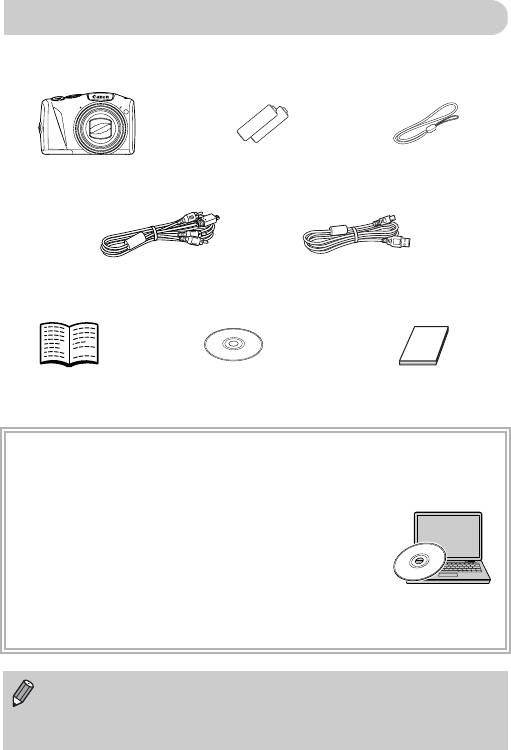
Проверка комплектности
Проверьте наличие в комплекте поставки камеры перечисленных ниже комплектующих.
При отсутствии какой-либо принадлежности обращайтесь по месту приобретения камеры.
Щелочные элементы питания
Ремень для запястья
Камера
типоразмера AA (×2)
WS-800
Стереофонический аудио/
Интерфейсный кабель
видеокабель AVC-DC400ST
IFC-400PCU
Начало работы Компакт-диск DIGITAL
Гарантийный талон Canon
CAMERA Solution Disk
на русском языке
Использование Руководств
Также см. руководства на компакт-диске «DIGITAL CAMERA Manuals Disk».
• Руководство пользователя камеры (настоящее Руководство)
Освоив основные операции, переходите к освоению многочисленных
функций камеры для съемки более сложных фотографий.
• Руководство по персональной печати
Ознакомьтесь с ним, если требуется подключить камеру к принтеру
(продается отдельно) и произвести печать.
• Руководство по программному обеспечению
Ознакомьтесь с ним перед использованием прилагаемого программного обеспечения.
• Карта памяти не входит в комплект поставки.
• Для просмотра руководств в формате PDF требуется программа Adobe Reader.
Для просмотра руководств в формате Word (требуется только для стран Среднего
Востока) можно установить программу Microsoft Word/Word Viewer.
2

Прочитайте это в первую очередь
Тестовые снимки и ограничение ответственности
Для проверки правильности записи изображений сделайте несколько начальных тестовых
снимков и просмотрите их. Обратите внимание на то, что компания Canon Inc., ее филиалы
и дочерние компании, а также дистрибьюторы не несут никакой ответственности за любой
ущерб, обусловленный какой-либо неисправностью камеры и ее принадлежностей (включая
карты памяти), приводящей к сбою в записи изображения или к записи изображения не
тем способом, на который рассчитан аппарат.
Предостережение в отношении нарушения авторских прав
Изображения, снятые данной камерой, предназначены для личного использования.
Не записывайте изображения, защищенные авторскими правами, без предварительного
разрешения владельца авторских прав. В некоторых случаях копирование с помощью
камеры или иного устройства изображений, снятых во время спектаклей или выставок,
а также снимков объектов коммерческого назначения может являться нарушением автор-
ских прав или других установленных законодательством прав даже в том случае, если
съемка изображения была произведена в целях личного использования.
Ограничения действия гарантии
Условия гарантии на камеру см. в гарантийном талоне Canon на русском языке,
входящем в комплект поставки камеры. Адреса службы поддержки клиентов Canon
см. в гарантийном талоне Canon на русском языке.
ЖК-монитор (Экран)
• Жидкокристаллический монитор изготавливается с использованием высокопреци-
зионных технологий. Более 99,99% пикселов работают в соответствии с техническими
требованиями, но иногда неработающие пикселы могут отображаться в виде ярких
или темных точек. Это не является неисправностью и не влияет на записываемое
изображение.
• Для защиты от царапин во время транспортировки ЖК-монитор может быть закрыт
тонкой пластиковой пленкой. В таком случае перед началом использования камеры
удалите пленку.
Температура корпуса камеры
Будьте осторожны при длительной работе с камерой – ее корпус может нагреться.
Это не является неисправностью.
3
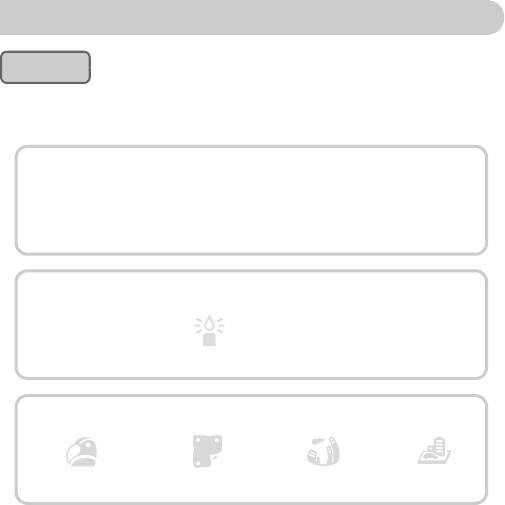
Что требуется сделать
Съемка
● Съемка, все параметры настраиваются автоматически …………………….……. 23
4
● Просто съемка (Простой режим) ……………..………….…………….………….………. 28
Качественная портретная съемка
IwPC
Портреты
Дети и животные
На пляже
На снежном фоне
(стр. 58)
(стр. 58)
(стр. 59)
(стр. 60)
Съемка различных других сюжетов
Недостаточная
J
t
O
Пейзаж
освещенность
Листва
Фейерверк
(стр. 58)
(стр. 59)
(стр. 60)
(стр. 60)
Съемка со специальными эффектами
Сверхъяркие цвета
Эффект плаката
Эффект «Рыбий глаз»
Эффект миниатюры
(стр. 61)
(стр. 61)
(стр. 65)
(стр. 66)
●
Фокусировка на лица
………..………….…………….………….………….….. 23, 58, 80, 84
● Съемка фотографий с самим собой (таймер автоспуска)………..…….. 57, 64, 77
● Вставка в снимки даты и времени …………………………….………….……………….. 56
4
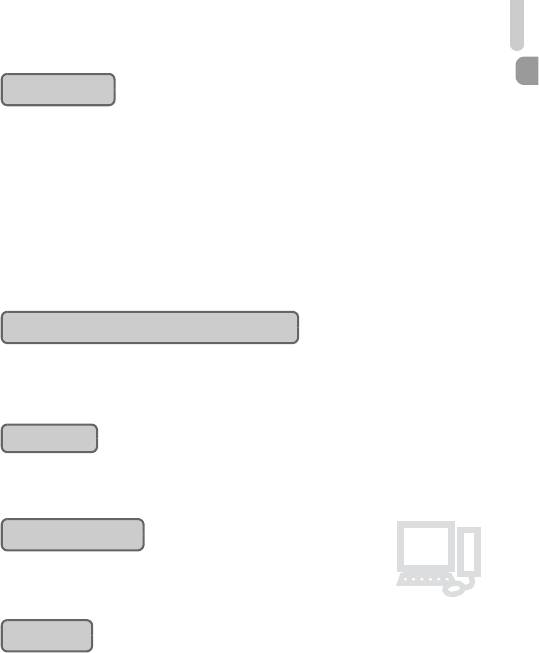
Что требуется сделать
Просмотр
● Просмотр фотографий ……….………….…………….………….………….……………….. 26
1
● Простое воспроизведение (Простой режим) ………………….………….…………… 28
● Автоматическое воспроизведение фотографий (слайд-шоу)………….…….. 113
● Просмотр фотографий на экране телевизора….………….…………….…………. 117
● Просмотр фотографий на экране компьютера ………………………….…………... 32
● Быстрый поиск фотографий…….………….………….…………….………….…………. 110
● Стирание фотографий…………………………….………….…………….…………... 27, 122
5
E
Съемка/просмотр видеозаписей
● Съемка видеофильмов………….………….……………………….………….………… 29, 99
● Просмотр видеофильмов ………..…………….………….………….………………………. 31
Печать
● Простая печать фотографий ……………………………….………….…………….…….. 134
2
Сохранение
● Сохранение изображений в компьютере ……………..………….…………….………. 32
3
Прочее
● Отключение звуковых сигналов………………………………….…………….…………... 46
● Использование камеры за рубежом……….………….……………………….….. 37, 144
● Что отображается на экране ……………….………….…………….………….…………. 159
Содержание
В главах 1 – 3 рассматриваются основные операции с данной камерой и ее часто исполь-
зуемые функции. В главе 4 и в последующих главах рассматриваются дополнительные
функции, расширяющие Ваши возможности по мере их изучения.
Проверка комплектности…………….………..…2
Индикатор ……………….………..………………… 43
Прочитайте это в первую очередь ……………3
Меню FUNC. – Основные операции………. 44
Что требуется сделать…….……………………….4
MENU – Основные операции…………..……. 45
Условные обозначения ……………..………..…..9
Изменение режима звуковых сигналов …… 46
Меры предосторожности …………..………..…10
Изменение яркости экрана……….………….. 47
Восстановление в камере настроек
1 Начало работы…….……………… 13
по умолчанию ………….………..………………… 48
Поддерживаемые карты памяти
Функция экономии энергии
(продаются отдельно) …………………..……….14
(Автовыключение)…………….………..………... 49
Установка элементов питания
Функции часов……..………..………………..….. 49
и карты памяти …………..………………………...14
Низкоуровневое форматирование
Установка даты и времени……………………..18
карты памяти……………………………………….. 50
Установка языка…..………..……………………..20
3 Съемка с часто используемыми
Форматирование карт памяти………………..21
функциями……………………….…. 53
Нажатие кнопки спуска затвора …………….22
Дополнительное увеличение объектов
Съемка фотографий (Smart Auto)…………..23
(Цифровой зум) ……………………………..……. 54
Просмотр изображений ….……………………..26
Вставка даты и времени……………………….. 56
Стирание изображений…………..……………..27
Использование таймера автоспуска……... 57
Съемка или просмотр изображений
Съемка в различных условиях………………. 58
в Простом режиме………………..……………….28
Съемка в режиме специальных
Съемка видеофильмов……..………..………...29
сюжетов……………….………..………..………….. 59
Просмотр видеофильмов ………….…………..31
Съемка при обнаружении улыбки ….……… 62
Передача изображений в компьютер
Использование таймера
для просмотра………….………………..………...32
при моргании ……………….………..……………. 63
Дополнительные принадлежности………….36
Использование таймера
Отдельно продаваемые
при определении лица ………….……………… 64
принадлежности……….………..………..……….37
Съемка с эффектом объектива
«Рыбий глаз» (Эффект Рыбий глаз) ………. 65
2 Дополнительные сведения..… 39
Съемка кадров, выглядящих как
Элементы камеры и их назначение………..40
изображение миниатюрной модели
Индикация на экране………………..………..…42
(Эффект миниатюры)……………..……………. 66
6

Содержание
4 Выбираем настройки
Съемка с фиксацией FE …………..………..….87
самостоятельно……………………67
Съемка с синхронизацией
при длительной выдержке ……………………..88
Съемка в режиме программной AE……….. 68
Установка выдержки затвора ……………..….89
Настройка яркости (компенсация
экспозиции)…………….…………………………...68
Установка величины диафрагмы……..……..90
Включение вспышки ………..……………………69
Установка выдержки затвора
и величины диафрагмы………………………….91
Изменение диапазона фокусировки
(Макро)………..………………..……………………..69
Коррекция яркости и съемка
(i-Contrast) ……………..………………..………..….92
Изменение значения разрешения
(размер изображения)………….………..……..70
Коррекция «красных глаз»………………….….93
Изменение коэффициента компрессии
Настройка компенсации экспозиции
(качество изображения)…………………………70
при съемке со вспышкой ………………..……..94
Изменение числа ISO …………………………...72
Настройка мощности вспышки………..……..95
Настройка баланса белого………………….…73
Проверка наличия закрытых глаз……………95
Серийная съемка …………..…………….……….74
Съемка с изменением цветов …….………….96
Изменение цветового оттенка
6 Использование различных
изображения (Мои цвета)……….……………..75
функций для съемки
Использование таймера автоспуска для
видеофильмов ………..……….….99
предотвращения сотрясения камеры……..76
Изменение режима видеосъемки .………..100
Настройка таймера автоспуска …..………...77
Съемка видеофильмов, выглядящих
Съемка с помощью телевизора…………..…78
как изображение миниатюрной модели
Изменение композиции кадра
(Эффект миниатюры)…………..………………101
с помощью фиксации фокусировки………. 78
Изменение качества изображения………..102
5 Полное использование
Фиксация AE/Сдвиг экспозиции …………..103
возможностей камеры …….….79
Прочие функции съемки……………….……..104
Изменение режима рамки
Функции воспроизведения ……….………....105
автофокусировки ……….………..……………….80
Редактирование…………..………………………106
Съемка с фиксацией автофокусировки...…. 81
7 Использование различных
Увеличение точки фокусировки………..……82
функций воспроизведения
Съемка в режиме следящей
и редактирования ….…………..109
автофокусировки ……….………..……………….83
Быстрый поиск изображений………………..110
Выбор человека для фокусировки
(Выбор лица)………..……………………………….84
Просмотр изображений при
воспроизведении с фильтром……….……..111
Изменение способа экспозамера ………….85
Просмотр слайд-шоу………….………………..113
Съемка в режиме ручной фокусировки ....… 86
Проверка фокусировки………………………..114
Съемка с фиксацией AE…………………..……87
Увеличение изображений ……….………..….115
7
Содержание
Изменение эффекта перехода
9 Настройка параметров
между изображениями ……………….……….115
камеры…………….………………… 139
Отображение различных изображений
Изменение параметров камеры………….. 140
(Умное отображение)….………..………..……116
Изменение параметров
Просмотр изображений на экране
функций съемки …..………..………..………… 146
телевизора…………….…………………………...117
Изменение параметров функций
Защита изображений………….……………….118
воспроизведения……………………………..… 149
Стирание всех изображений …………..……122
Пометка изображений
10 Полезная информация …….. 151
как избранных ……….…………………………...124
Замена элемента питания
Систематизация изображений
календаря…………….………..………..………… 152
по категориям (Моя категория)…………….125
Питание от бытовой электросети……….… 153
Поворот изображений……….………..……….127
Устранение неполадок……….………………. 154
Изменение размера изображений………..128
Список сообщений, отображаемых
Кадрировка………..……………………………….129
на экране…………………………………..………. 157
Добавление эффектов с помощью
Информация, отображаемая
функции «Мои цвета»……..…………………...130
на экране…………………………………..………. 159
Коррекция яркости (i-Contrast)……………..131
Функции, доступные в различных
Коррекция эффекта «красных глаз» …….132
режимах съемки ………………..………………. 162
Меню…………………………………………………. 164
8 Печать……………………………….. 133
Технические характеристики………………. 168
Печать изображений…………….………..……134
Правила обращения…………..………………. 171
Выбор изображений для печати
Алфавитный указатель……..………..………. 172
(DPOF)…………………..…………………………...135
Печать выбранных изображений.………....138
8
Условные обозначения
• Кнопки и диск управления камеры обозначаются в тексте значками.
• Текст, отображаемый на экране, заключается в скобки [ ] (квадратные скобки).
• Кнопки направления, диск управления и кнопка FUNC./SET обозначаются
следующими значками.
Кнопка «Вверх»
Кнопка FUNC./SET
Кнопка «Влево»
Кнопка «Вправо»
Диск управления
Кнопка «Вниз»
• : Предостережения
• : Рекомендации по устранению неполадок
• : Советы по наиболее полному использованию возможностей камеры
• : Дополнительная информация
• (стр. xx): Ссылка на страницу («xx» обозначает номер страницы)
• В этом Руководстве предполагается, что для всех функций установлены значения
по умолчанию.
• В настоящем Руководстве для карт памяти различных типов, которые могут исполь-
зоваться в данной камере, используется общий термин «карта памяти».
9
Меры предосторожности
• Перед использованием камеры обязательно прочтите приведенные ниже правила техники
безопасности. Строго следите за соблюдением правил надлежащего обращения с камерой.
• Рассматриваемые на последующих страницах меры предосторожности позволят исключить
нанесение травм Вам и другим людям, а также повреждение оборудования.
• Также обязательно изучите руководства, входящие в комплект поставки всех используемых
Вами дополнительных принадлежностей.
Указывает на возможность серьезной травмы, вплоть
Предостережение
до смертельного исхода.
• Запрещается применять вспышку в непосредственной близости от глаз людей.
Воздействие света повышенной интенсивности, испускаемого вспышкой, может привести к ухудшению
зрения. В частности, при съемке детей минимально допустимое расстояние до ребенка составляет 1 м.
• Оборудование следует хранить в местах, недоступных для детей и подростков.
Ремень: попадание ремня для запястья на шею ребенка может привести к удушению.
Элемент питания календаря: представляет опасность, если будет проглочен. В этом случае немедленно
обратитесь к врачу.
• Используйте только рекомендованные источники питания.
• Запрещается разбирать, модифицировать или нагревать изделие.
• Не допускайте падения изделия или сильных ударов по нему.
• Если изделие упало или каким-либо другим образом повреждено, во избежание опасности
получения травмы не дотрагивайтесь до его внутренних деталей.
• Если из изделия идет дым, ощущается посторонний запах или изделие работает неправильно,
немедленно прекратите использование изделия.
• Запрещается чистить оборудование органическими растворителями, такими как спирт,
бензин или растворитель для краски.
• Не допускайте контакта изделия с водой (например, морской) или другими жидкостями.
• Не допускайте попадания в камеру жидкостей или посторонних предметов.
Возможно поражение электрическим током или возгорание.
В случае попадания внутрь камеры жидкости или посторонних предметов немедленно выключите
питание камеры и извлеките из нее аккумуляторы/элементы питания.
• Не пытайтесь проигрывать прилагаемый компакт-диск (или диски) в проигрывателе,
не поддерживающем воспроизведение компакт-дисков с записанными данными.
Воспроизведение таких компакт-дисков в проигрывателях музыкальных компакт-дисков может
привести к повреждению громкоговорителей. При прослушивании через наушники громких звуков,
возникающих при проигрывании этих компакт-дисков в музыкальных проигрывателях, возможно
повреждение слуха.
• Пользуйтесь только рекомендованными аккумуляторами/элементами питания.
•
Не оставляйте аккумуляторы/элементы питания рядом с открытым огнем и не бросайте их в огонь.
Возможен взрыв или утечка электролита из аккумуляторов/элементов питания и, как следствие,
поражение электрическим током или пожар. Это может привести к получению травмы и повреждению
окружающей обстановки. Если при протечке аккумуляторов/элементов питания вытекший из них элек-
тролит попал в глаза, в рот, на кожу или на одежду, немедленно смойте его водой.
10
Меры предосторожности
Указывает на возможность травмы.
Предупреждение
• Держа камеру за ремень, соблюдайте осторожность, чтобы не ударять камеру и не подвергать
ее чрезмерным механическим нагрузкам и тряске.
• Будьте осторожны, чтобы не допускать ударов или сильного нажатия на объектив.
Это может привести к травме или к поломке камеры.
• Следите, чтобы в процессе съемки не закрывать вспышку пальцами или одеждой.
Это может привести к ожогам или повреждению вспышки.
• Не используйте, не оставляйте и не храните изделие в следующих местах:
— под яркими солнечными лучами;
— в местах, в которых температура превышает 40 °C;
— во влажных и пыльных местах.
В противном случае возможна протечка, перегрев или взрыв аккумуляторов/элементов питания, и, в резуль-
тате, поражение электрическим током, возникновение пожара или причинение ожогов и других травм.
• При длительном просмотре эффекты перехода между кадрами слайд-шоу могут вызывать
дискомфорт.
Указывает на возможность повреждения оборудования.
Предупреждение
• Не направляйте камеру на яркие источники света (солнце и т. п.).
В противном случае возможно повреждение датчика изображения.
• При использовании камеры на пляже или в ветреных местах не допускайте попадания внутрь
камеры пыли или песка.
Это может привести к неполадкам в работе изделия.
• При обычном использовании от вспышки может идти небольшой дымок.
Это вызвано тем, что из-за высокой интенсивности вспышки сгорают пыль и другие посторонние
материалы, попавшие на линзу вспышки. Во избежание перегрева и повреждения вспышки удаляйте
с нее грязь, пыль и другие посторонние материалы с помощью ватной палочки.
• Если камера не используется, извлеките из нее аккумуляторы/элементы питания и уберите
их на хранение.
Если оставить аккумуляторы/элементы питания в камере, они могут протечь и повредить камеру.
• Перед тем как выбросить аккумуляторы/элементы питания, закройте их клеммы лентой или
другим изоляционным материалом.
Контакт с другими металлическими предметами может привести к возгоранию или взрыву.
• Запрещается одновременно заряжать аккумуляторы разных типов или использовать более
старые элементы питания совместно с более новыми.
• Не устанавливайте аккумуляторы/элементы питания в обратной полярности (клеммы + и –).
Это может привести к неполадкам в работе изделия.
11
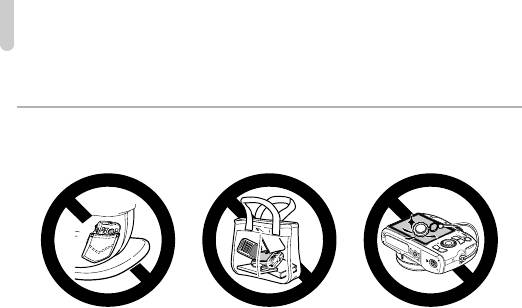
Меры предосторожности
• Не садитесь, если в кармане лежит камера.
В противном случае возможно возникновение неполадок или повреждение экрана.
• Убирая камеру в сумку, следите, чтобы твердые предметы не касались экрана камеры.
• Не закрепляйте аксессуары на ремне.
В противном случае возможно возникновение неполадок или повреждение экрана.
12
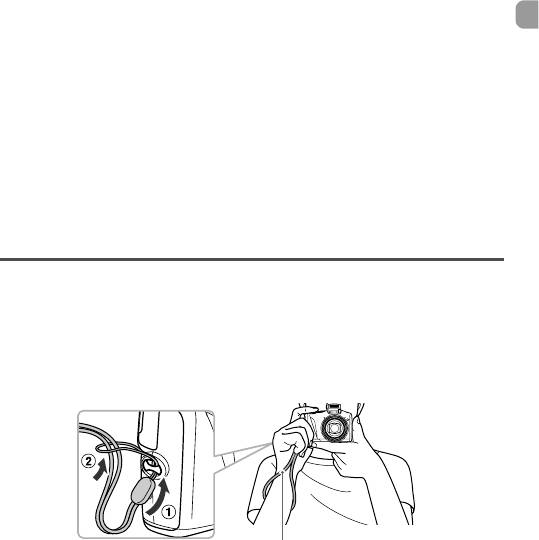
1
Начало работы
В этой главе рассматриваются подготовка к съемке, порядок съемки в режиме
A и порядок просмотра и стирания снятых изображений. В последней части
этой главы рассматриваются съемка и просмотр изображений и видеофильмов
в Простом режиме, а также передача изображений в компьютер.
Закрепление ремня/как правильно держать камеру
• Обязательно закрепите на камере прилагаемый ремень и при съемке надевайте его
на кисть, чтобы исключить возможность падения камеры.
• Надежно удерживая камеру по краям, прижмите руки к телу. Следите, чтобы пальцы
не закрывали вспышку, когда она поднята.
Ремень
13
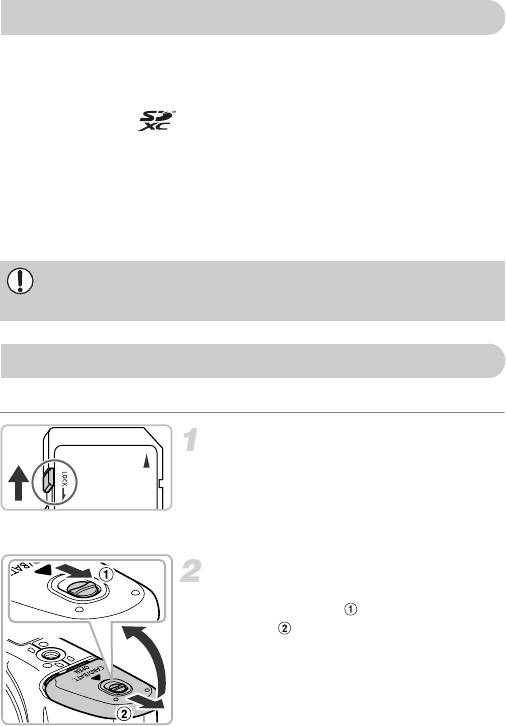
Поддерживаемые карты памяти (продаются отдельно)
• Карты памяти SD (2 Гбайта и менее)*
• Карты памяти SDHC
(более 2 Гбайт, до 32 Гбайт включительно)*
• Карты памяти SDXC
(более 32 Гбайт)*
• Карты памяти MultiMediaCard
• Карты памяти MMCplus
• Карты памяти HC MMCplus
* Эта карта памяти соответствует стандартам SD. В зависимости от модели, некоторые карты могут
работать неправильно.
В зависимости от версии ОС компьютера, карты памяти SDXC могут не распознаваться
при использовании имеющихся в продаже устройств чтения карт памяти. Заранее
убедитесь, что ОС поддерживает эту функцию.
Установка элементов питания и карты памяти
Установите прилагаемые элементы питания и карту памяти (продается отдельно).
Проверьте положение язычка защиты
от записи на карте памяти.
● Если на карте памяти есть язычок защиты от
записи и он установлен в положение блокировки,
запись изображений невозможна. Сдвиньте
язычок до щелчка в фиксаторе.
Откройте крышку.
● Сдвинув фиксатор крышки и удерживая его
в таком положении ( ), сдвиньте и откройте
крышку ( ), как показано на рисунке.
14
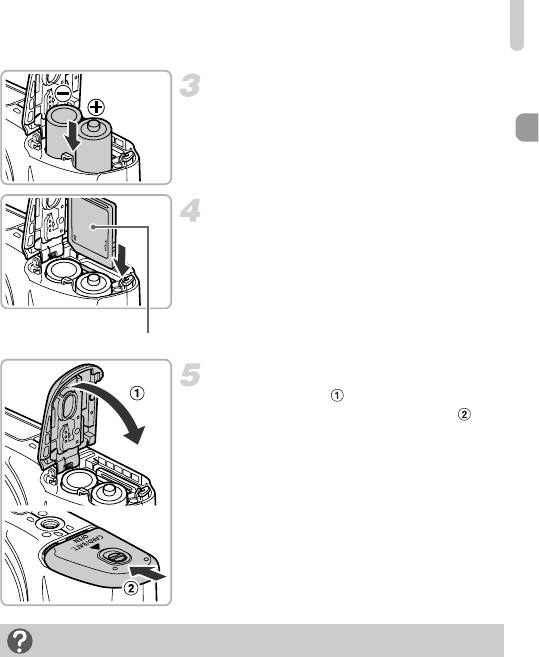
Установка элементов питания и карты памяти
Вставьте элементы питания.
● Установите элементы питания, соблюдая
правильную полярность (+) и (–).
Установите карту памяти.
● Установите карту памяти, как показано
на рисунке, до фиксации со щелчком.
● Убедитесь в правильной ориентации карты
памяти. При установке карты памяти в непра-
вильном положении можно повредить камеру.
Этикетка
Закройте крышку.
● Закройте крышку ( ), затем нажмите на крышку
и сдвиньте ее до щелчка в фиксаторах ( ).
Что означает сообщение на экране [Карта памяти блокирована]?
На картах памяти SD, SDHC и SDXC предусмотрен язычок защиты от записи. Если этот
язычок находится в положении блокировки, на экране отображается сообщение [Карта
памяти блокирована] и невозможна запись или стирание изображений.
15
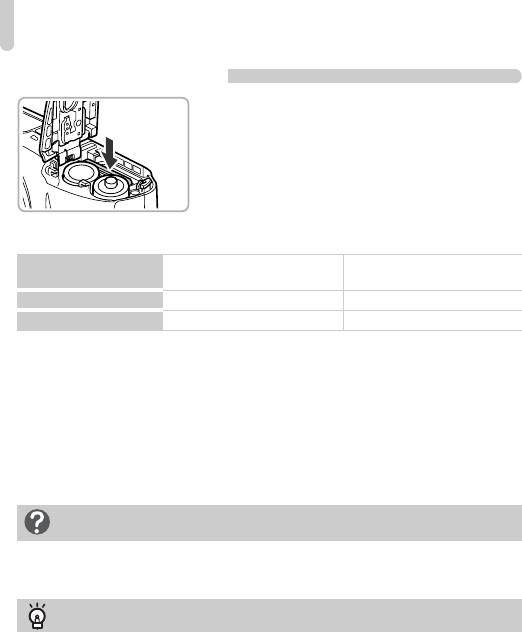
Установка элементов питания и карты памяти
Извлечение карты памяти
● Нажмите на карту памяти до щелчка, затем
медленно отпустите ее.
X Карта памяти выдвинется вверх.
Приблизительное возможное количество снимков
Щелочные элементы питания
NiMH аккумуляторы
Источник питания
(в комплекте поставки)
(продаются отдельно)
Количество снимков* 130 370
Время воспроизведения
7ч 9ч
* Указанное возможное количество снимков получено на основе стандарта измерения ассоциации CIPA.
• В некоторых условиях съемки доступное количество кадров может быть меньше указанного выше.
• Возможное количество снимков может колебаться в широких пределах в зависимости от марки
используемых щелочных элементов питания.
• Значения для NiMH аккумуляторов указаны для полностью заряженных аккумуляторов.
Поддерживаемые элементы питания
Щелочные элементы питания и NiMH аккумуляторы Canon типоразмера AA
(продаются отдельно) (стр. 36, 37).
Можно ли использовать какие-либо другие аккумуляторы/элементы
питания?
Не рекомендуется использовать какие-либо аккумуляторы/элементы питания, кроме
указанных выше, так как их характеристики могут сильно различаться.
В чем преимущество NiMH аккумуляторов?
NiMH аккумуляторы работают намного дольше щелочных элементов питания, особенно
в холодную погоду.
16
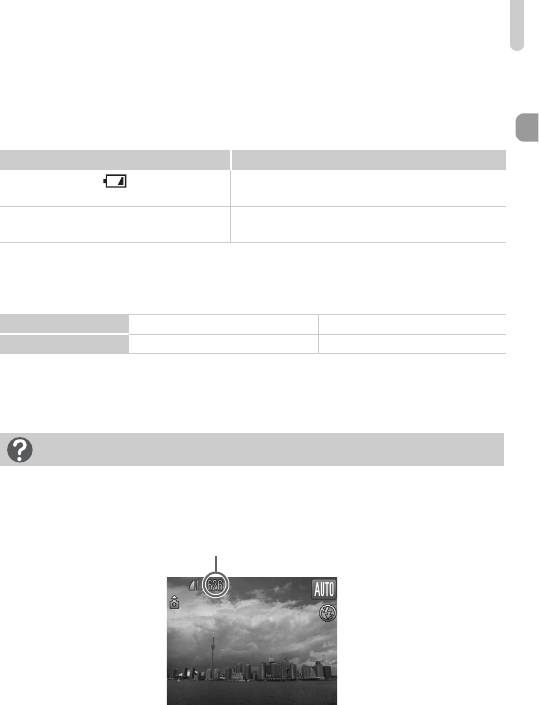
Установка элементов питания и карты памяти
Индикатор заряда аккумуляторов/элементов питания
При низком уровне заряда аккумуляторов/элементов питания отображаются значок
и сообщение. Если аккумуляторы/элементы питания заряжены, значок и сообщение
не отображаются.
Дисплей Описание
Почти полностью разряжены. Подготовьте новые
аккумуляторы/элементы питания.
«Поменяйте батарейки» Разряжены. Замените аккумуляторы/элементы
питания.
Приблизительное количество снимков, которые можно записать
на карту памяти
Карта памяти
4 Гбайта 16 Гбайт
Количество снимков
1231 5042
• Значения для настроек по умолчанию.
• Возможное количество записанных снимков зависит от настроек камеры, объекта съемки и исполь-
зуемой карты памяти.
Можно ли проверить оставшееся количество снимков?
Оставшееся количество снимков можно проверить, когда камера находится в режиме съемки
(стр. 23).
Приблизительное количество снимков,
которые можно записать на карту памяти
17
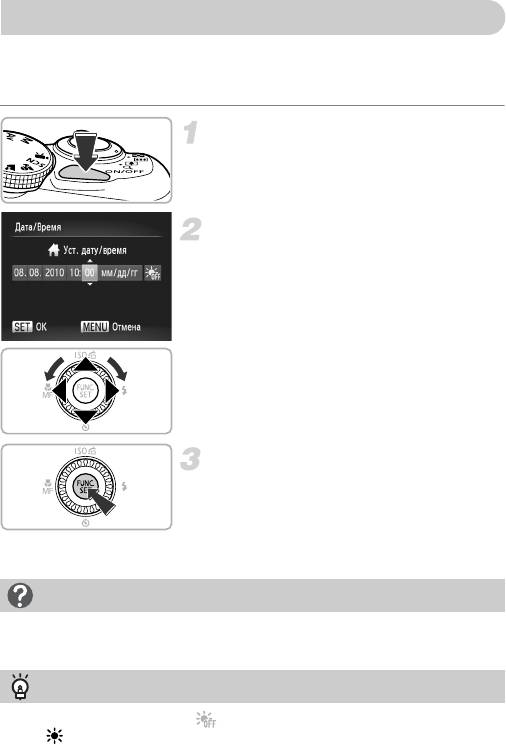
Установка даты и времени
При первом включении камеры отображается экран установки даты/времени. Так как
дата и время, записываемые вместе с изображениями, основаны на этих параметрах,
обязательно установите их.
Включите камеру.
● Нажмите кнопку ON/OFF.
X Отображается экран «Дата/Время».
Установите дату и время.
● Кнопками qr выберите параметр.
● Нажимая кнопки op или поворачивая
диск Â, установите значение.
Завершите установку.
● Нажмите кнопку m.
X После установки даты и времени экран
«Дата/Время» закрывается.
● При нажатии кнопки ON/OFF камера
выключается.
Снова отображается экран «Дата/Время»
Установите правильную дату и время. Если дата и время не установлены, экран «Дата/Время»
отображается при каждом включении камеры.
Установка летнего времени
Если на шаге 2 был выбран значок и кнопками op или диском Â был выбран
значок , устанавливается летнее время (часы переводятся на 1 ч вперед).
18
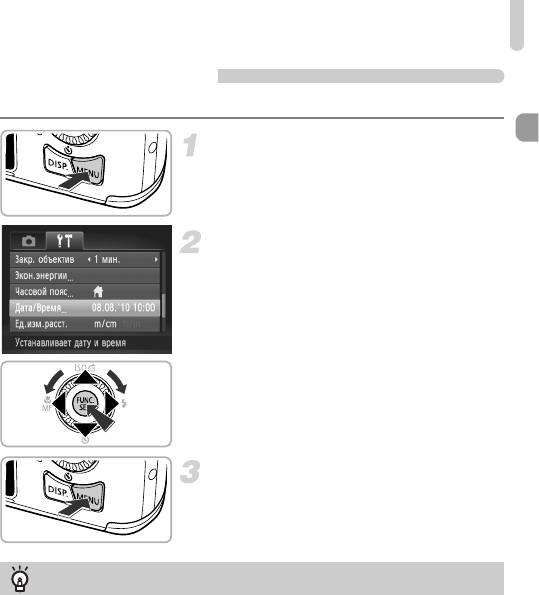
Установка даты и времени
Изменение даты и времени
Текущие дату и время можно изменить.
Откройте меню.
● Нажмите кнопку n.
Выберите пункт [Дата/Время] на вкладке
3
.
● Кнопками qr выберите вкладку 3.
● Кнопками op или диском
Â
выберите пункт
[Дата/Время], затем нажмите кнопку m.
Измените дату и время.
● Произведите настройку в соответствии с пунктами
2 и 3 на стр. 18.
● При нажатии кнопки n меню закрывается.
Элемент питания календаря
Если экран даты/времени отображается даже при правильно установленных дате и времени,
установите новый элемент питания календаря (стр. 152).
19
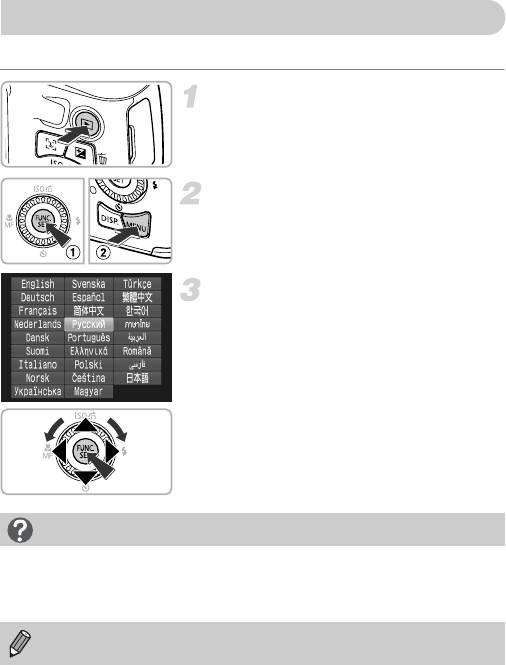
Установка языка
Можно изменить язык для текста, отображаемого на экране.
Перейдите в режим воспроизведения.
● Нажмите кнопку 1.
Откройте экран настройки.
● Нажмите кнопку m, и, не отпуская ее, сразу
же нажмите кнопку n.
Установите язык.
● Кнопками opqr или диском Â выберите
язык, затем нажмите кнопку
m
.
X После установки языка экран настройки
закрывается.
Что делать, если при нажатии кнопки m отображаются часы?
Если на шаге 2 между нажатием кнопок m и n прошло слишком много времени,
отображаются часы. Если появились часы, нажмите кнопку m, чтобы убрать их с экрана,
иснова выполните шаг 2.
Язык экранных сообщений и меню можно также изменить, нажав кнопку n,
выбрав вкладку 3 и выбрав пункт меню [Язык].
20